Getting started
System requirements
- Supported Devices: Android smartphones and tablets
- Minimum OS Version: Android 6.0 (Marshmallow) or later
Installation
- Open the Google Play Store on your Android device
- Visit: Timesheet at Google Play)
- Tap "Install" to download and install the app
First-time setup
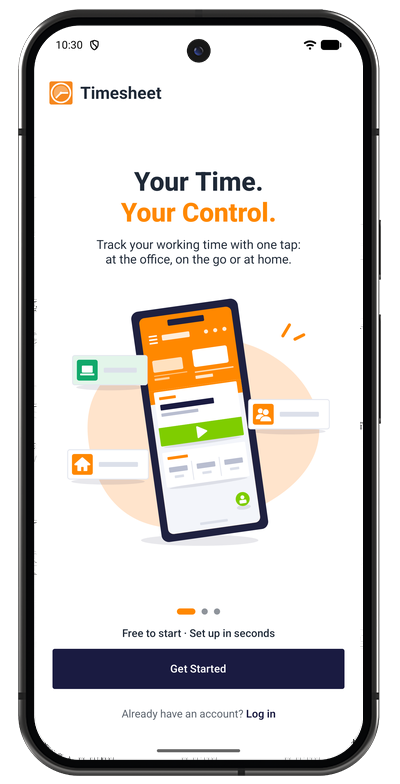
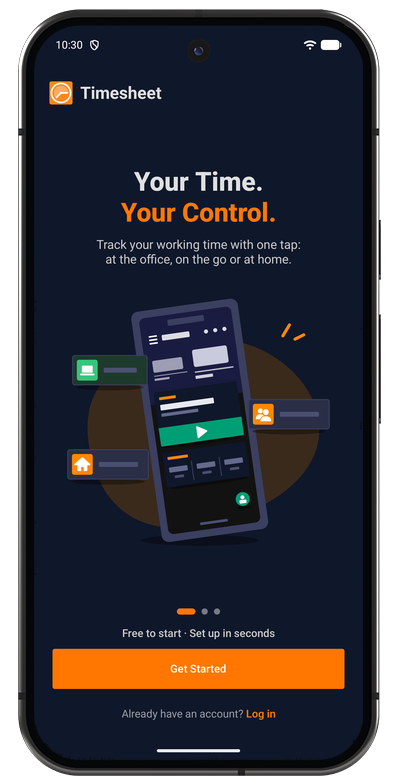
When you first launch the app, a short welcome introduces Timesheet. Swipe through its three pages, then tap Get Started to create your account, or Log in if you already have one.
Create an account
- Tap Get Started on the welcome screen
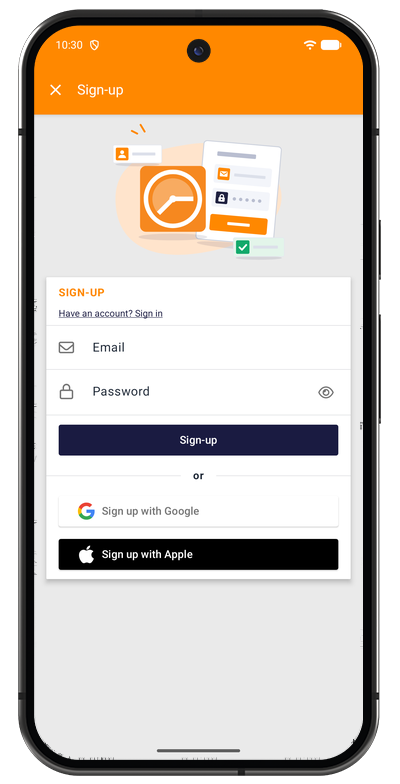
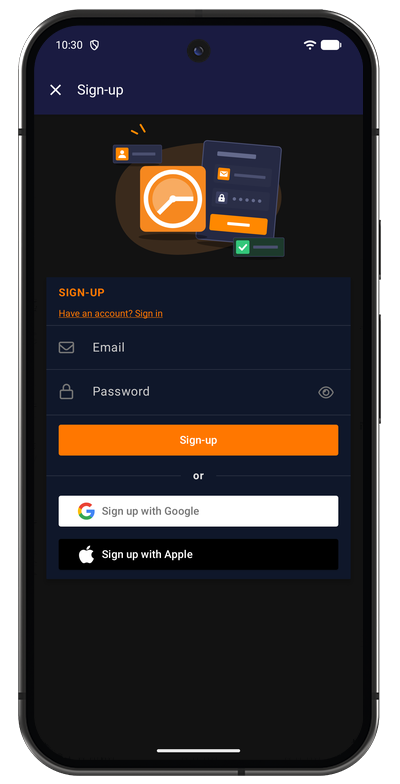
- Choose how to sign up:
- Email and password: enter both and tap Sign-up
- Sign up with Google (use your existing Google account)
- Sign up with Apple (use Apple Sign-In for enhanced privacy)
- Complete the registration process
Benefits of creating an account:
- 30-day free trial of Timesheet Pro with all premium features
- Cloud synchronization (access your data across all devices)
- Automatic backups (your timesheets are securely stored)
- No payment required (trial ends automatically with no charges)
- Keep using for free (continue with basic features after trial ends)
Used the app without an account before?
If you already used Timesheet on your device without an account, the app keeps working without one and your entries stay on the device. You can sign up any time: open the Account screen from the menu to create an account and sync your existing data.
Already have an account?
- On the welcome screen, tap Log in below Get Started
- Alternatively, open the Account screen from the main menu and tap Login
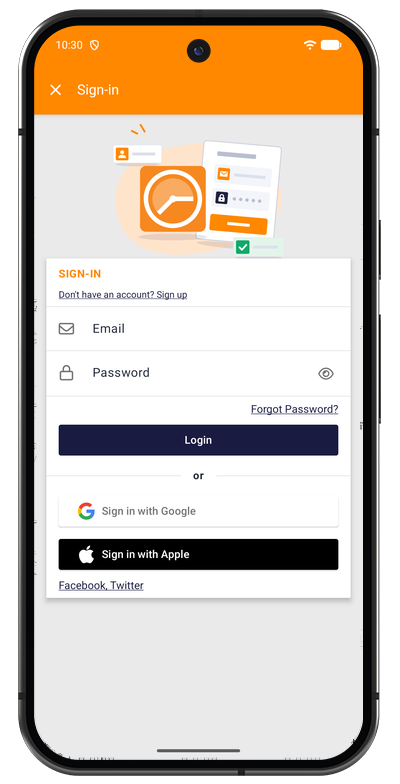
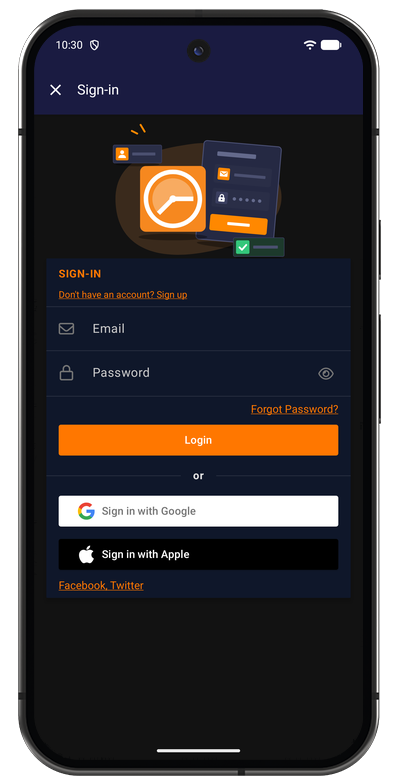
- Choose your sign-in method:
- Email and password, then tap Login
- Sign in with Google
- Sign in with Apple
- Facebook or Twitter: tap Facebook, Twitter below the Apple button to show these options
- Your data will sync automatically across all devices
Forgot your password?
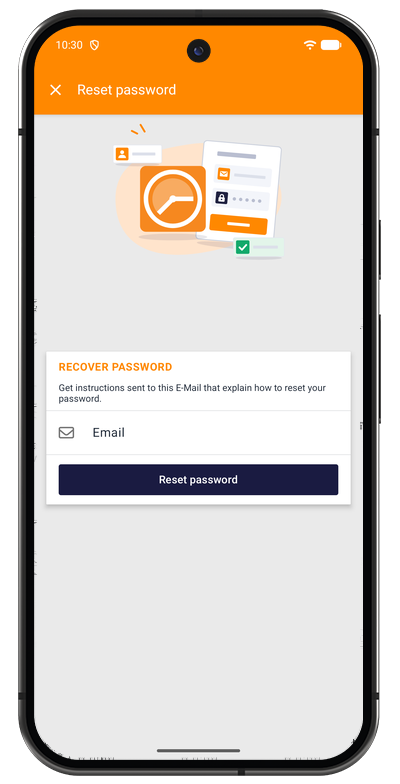
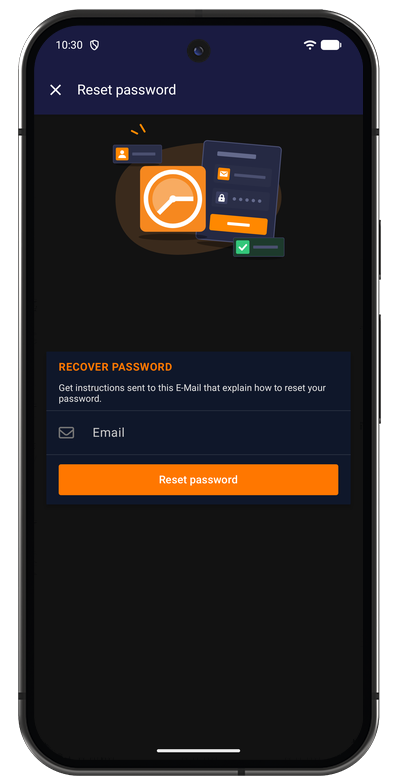
- On the sign-in screen, tap Forgot Password?
- Enter your email address and tap Reset password
- Check your inbox for password reset instructions
- Follow the link to create a new password