Raycast Extension
The Timesheet extension for Raycast puts your timer on the keyboard. Start and stop the timer, log time, add notes, expenses and breaks, and check your projects, ToDos, team and absences without opening the web app. On macOS, the running timer also shows in the menu bar. With Raycast AI, you can ask for the same things in plain language.

The extension requires a Pro, Business, or Enterprise plan, or an active trial. Every new Timesheet account starts with a 30-day trial. See the Plans page for the full comparison.
The extension runs on macOS and Windows. The menu bar timer is only available on macOS.
Install the extension
- Open Raycast and search for Store.
- Search for Timesheet.
- Select the Timesheet extension and press Enter to install it.
You can also open the Timesheet page in the Raycast Store and click Install Extension.
Sign in
- Run any Timesheet command, for example Timer Status.
- Raycast shows Connect your Timesheet account to track time from Raycast. Click Sign in with Timesheet.
- Your browser opens. Sign in to Timesheet and allow the access.
Raycast now shows the command. You stay signed in until you sign out.
Use an API key instead
On a shared computer or a scripted setup, you can use an API key and skip the sign-in:
- In the web app, open Integrations > API Keys and create a key.
- In Raycast, open Settings > Extensions > Timesheet.
- Paste the key into API Token.
The key only replaces the extension's own sign-in. Raycast AI still asks you to sign in to the Timesheet MCP server (see Raycast AI).
Commands
Search for a command by its name in Raycast.
| Command | What it does |
|---|---|
| Start/Stop Timer | Start the timer for a project, or pause, resume and stop the running timer. |
| Timer Status | The running timer, today's total and today's tasks. |
| My Projects | Your projects, grouped by team. Start the timer for one. |
| Today's Tasks | The tasks you logged today. |
| Quick Log Time | Log time for a project without the timer. |
| Add Note to Timer | Add a note or a file to the running timer. |
| Add Expense to Timer | Add an expense, with a receipt if you like, to the running timer. |
| Add Break to Timer | Log a break on the running timer. |
| Todos | Your open and closed ToDos. Mark them as closed. |
| Team Status | Who on your team is tracking time right now. |
| Absences | Absences in your organization. |
| My Profile | Your account, plan and subscription. Sign out. |
| Timer Menu Bar | The timer in the macOS menu bar. |
To open a command faster, give it an alias or a hotkey in Raycast's Settings > Extensions > Timesheet.
Start and stop the timer
- Run Start/Stop Timer. The list shows your active projects.
- Type to search, select a project and press Enter.
While the timer runs, Start/Stop Timer shows it at the top of the list. Press Enter to stop it, or open the actions with Cmd+K (Ctrl+K on Windows) and choose Pause Timer. A paused timer offers Resume Timer and Stop Timer.
You can also start the timer from My Projects: select a project and choose Start Timer.
Timer Status
Timer Status shows the timer and your day.
What you see:
- The status (running, paused or stopped), the project, the time so far and the description.
- Today Total and Tasks Today: the time you logged today and the number of tasks.
- The list of today's tasks.
The view updates by itself while it is open. Press Enter to open Timesheet in your browser.
Log time without the timer
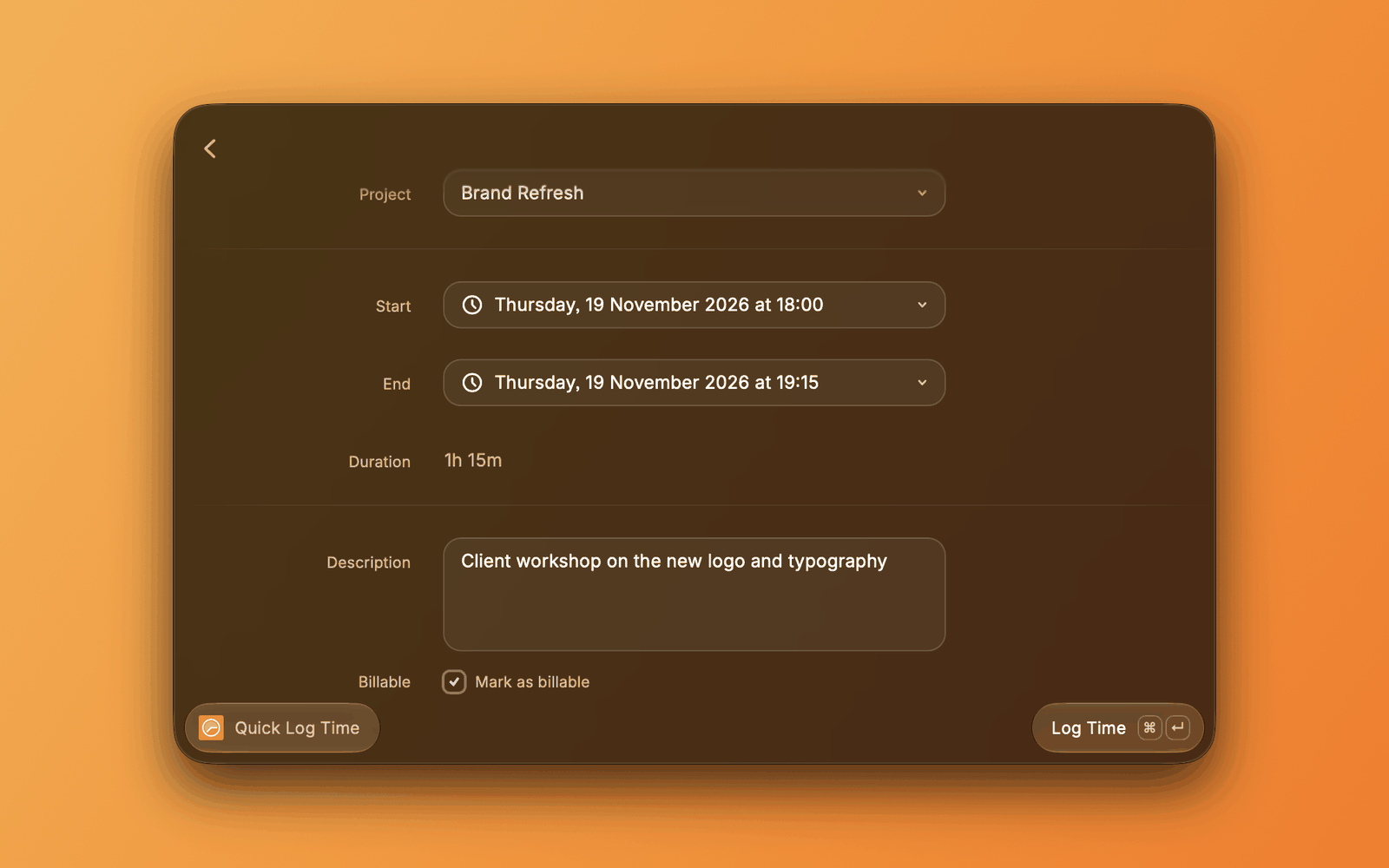
- Run Quick Log Time.
- Choose the Project, then the Start and End. Duration shows the time in between.
- Enter a Description and choose whether the time is Billable.
- Press Cmd+Enter (Ctrl+Enter on Windows) to Log Time.
Times are saved in whole minutes, in your computer's time zone.
Add a note, expense or break
These three commands work on the running timer. The form shows which timer you add to.
- Add Note to Timer: write the Note. To attach a file, such as a screenshot, choose it under Attach File.
- Add Expense to Timer: enter the Amount and a Description. Attach a photo of the receipt under Attach Receipt.
- Add Break to Timer: choose the Start and End of the break and add an optional Description. Allowed window shows the time a break can cover: between the timer's start and now.
ToDos

Todos lists your ToDos, grouped by project, with due date and progress. Use the dropdown to switch between Open, Closed and All.
- Press Enter to Mark as Closed.
- A closed ToDo offers Reopen Todo.
- Open in Timesheet opens the ToDo in the web app.
Team Status and Absences
- Team Status shows the members of a team as Working or Idle. For each member who is working, it shows the project and how long the timer has been running. Choose the team in the dropdown.
- Absences lists the absences of your organization, such as vacation and sick leave, with their status. Choose the organization in the dropdown. To filter by status, select the Status row at the top and press Enter until it shows the status you want: all, requested, approved, rejected or cancelled.
Menu bar timer (macOS)
Run Timer Menu Bar once to add the timer to the menu bar. It shows:
- ▶ and the time, for example
▶ 1:25, while the timer runs. - ⏸ and the time while the timer is paused.
- Only the Timesheet icon when no timer runs.
The time updates every minute. Click it to start the timer for a project, pause, resume or stop it, add a note, expense or break, see today's total, or open Timesheet.
With the menu open, these shortcuts work:
| Shortcut | Action |
|---|---|
| Cmd+Shift+P | Pause or resume the timer |
| Cmd+Option+S | Stop the timer |
| Cmd+O | Open Timesheet |
| Cmd+T | Open Start/Stop Timer |
To remove the timer from the menu bar, turn off Timer Menu Bar in Raycast's Settings > Extensions > Timesheet.
Raycast AI

Type @timesheet in Raycast AI, or choose Ask Timesheet in Raycast's search, and ask in your own words:
- "Start tracking time on Website Relaunch"
- "How much have I tracked today?"
- "Log 2 hours on Brand Refresh starting at 9am"
- "What are my open ToDos?"
- "Who on my team is working right now?"
- "Is anyone off next week?"
Before the AI starts, stops, pauses or resumes the timer, logs time or closes a ToDo, Raycast shows what it will do and asks you to confirm.
Raycast AI is part of Raycast's paid plans. See Raycast's pricing for details.
Mention projects and ToDos
In AI Chat, type @, choose Timesheet, then Projects or Todos, and pick one. The AI gets the project or ToDo with its details, so "log 2 hours on @Website Relaunch" works without a search first.
More with the Timesheet MCP server
The extension also connects Raycast AI to the Timesheet MCP server. Through it, the AI can also work with expenses, notes, breaks, tags, rates, contracts, exports, reports and statistics.
The first time you use @timesheet, Raycast asks you to sign in to the MCP server. This is a second sign-in, separate from the extension's: sign in to Timesheet in the browser and allow the access.
Sign out
- Run My Profile.
- Open the actions with Cmd+K (Ctrl+K on Windows) and choose Sign out.
If you use an API key, delete it from API Token in the extension's settings instead.
Troubleshooting
A command shows "Could not load".
- Choose Try Again.
- If you use an API key, choose Open Extension Preferences and check that the key in API Token is complete and still exists under Integrations > API Keys in the web app.
The timer does not appear in the menu bar.
- Run Timer Menu Bar once.
- Check that Timer Menu Bar is turned on in Raycast's Settings > Extensions > Timesheet.
- The menu bar timer is only available on macOS.
Raycast AI asks me to sign in again.
- The MCP server has its own sign-in. Sign in once and allow the access. See More with the Timesheet MCP server.