Integrations
The Integrations page is where you connect Timesheet to other tools. It is organized into four tabs: Integrations, API Keys, Your Apps, and Webhooks.
Integration marketplace
The Integrations tab holds the Integration Marketplace, where you browse and install ready-made integrations such as Google Calendar.
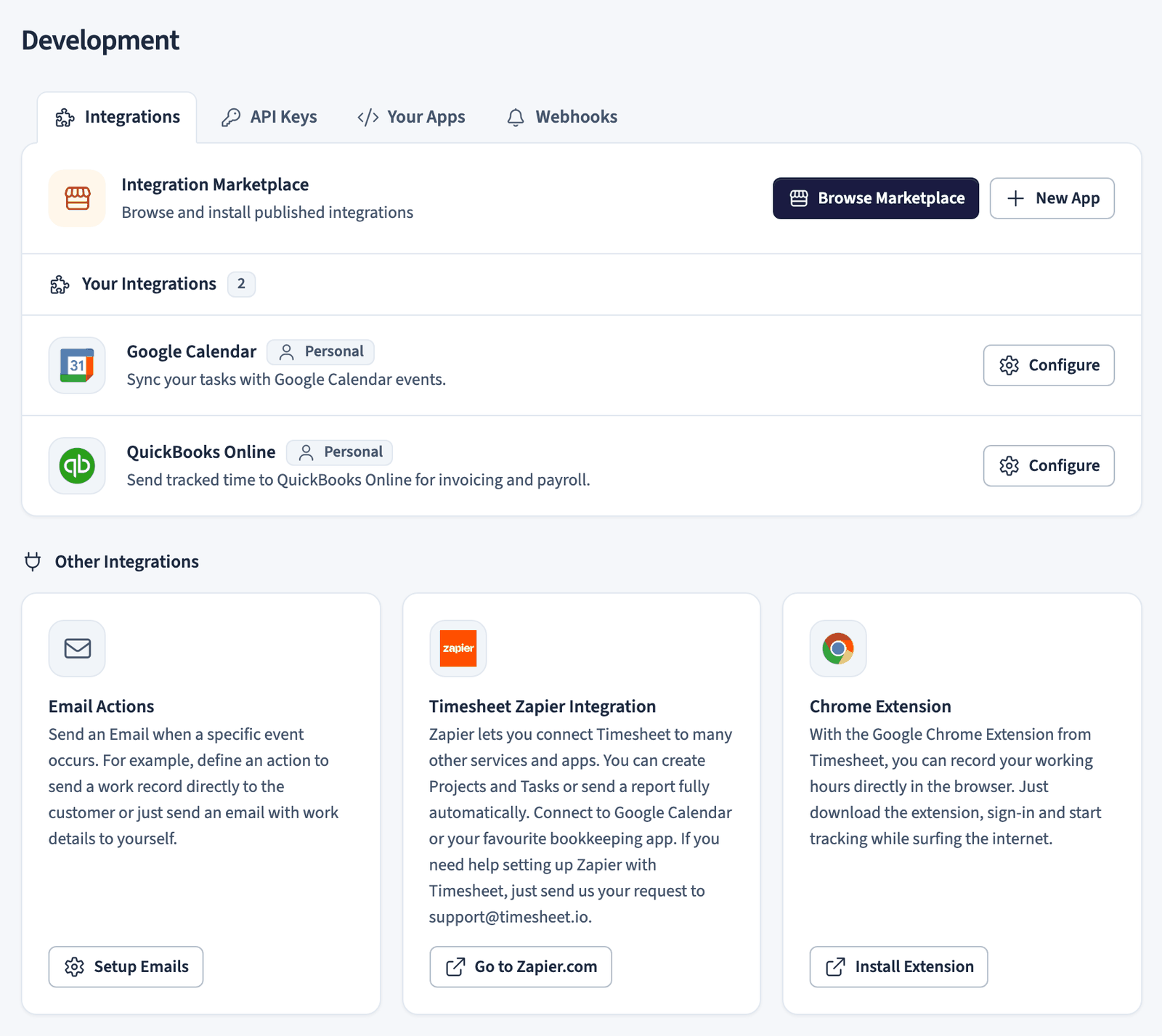
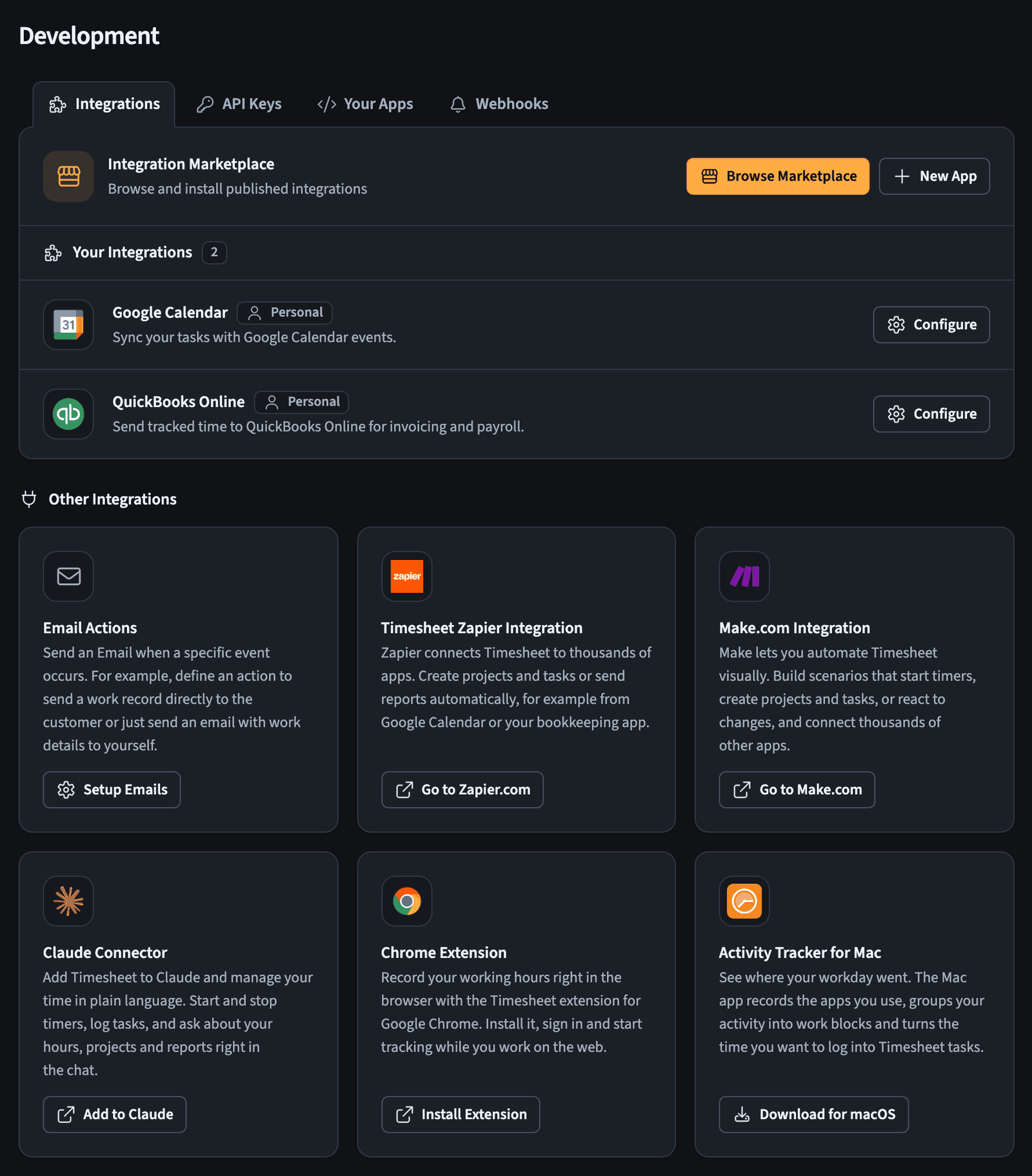
- Select Browse Marketplace to see the available integrations and install one.
- Installed integrations appear under Your Integrations, below the marketplace. Select Configure to open one.
- The Other Integrations cards link to related tools: Email Actions, the Timesheet Zapier integration, and the Chrome extension.
Managing an installed integration
After you install an integration, open it to set up how it works. The example below shows the Google Calendar integration.
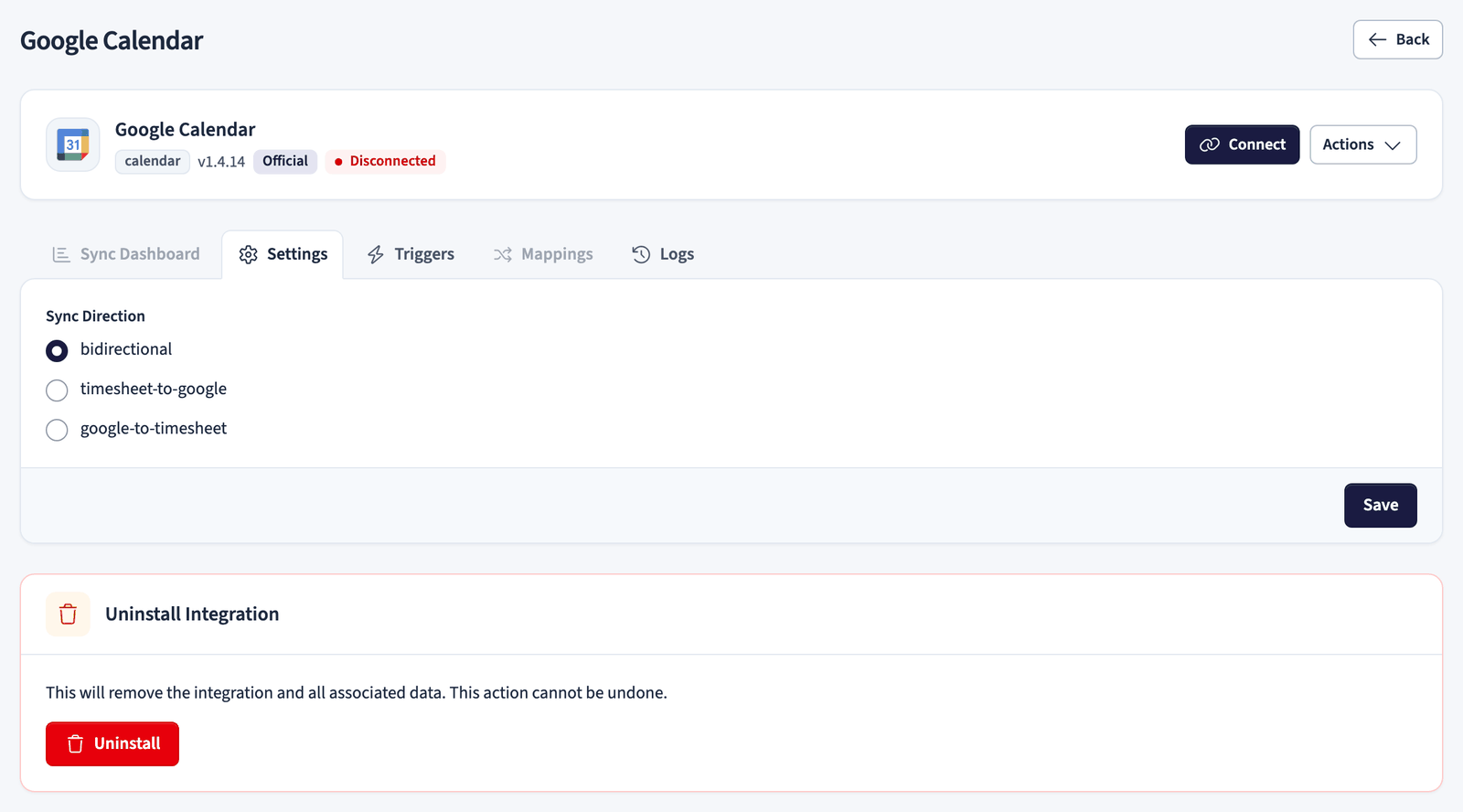
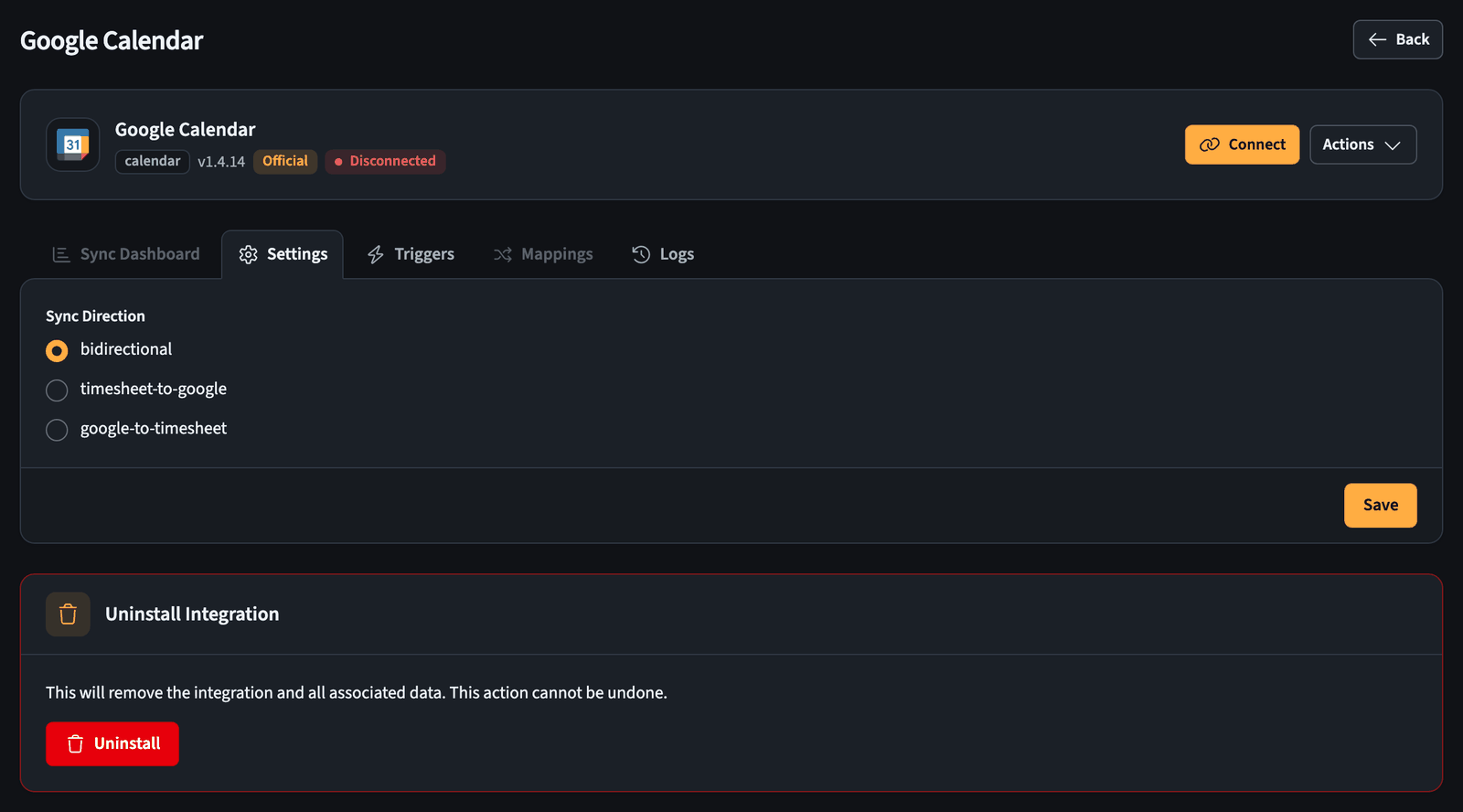
- Connect links your account, here your Google account, to the integration.
- Settings holds the integration's options, such as the Sync Direction: two-way, Timesheet to the other tool, or the other tool to Timesheet.
- Triggers, Mappings, and Logs control when it runs, how data is matched, and let you review its activity.
- Uninstall Integration removes it and all of its data. This cannot be undone.
For the full setup of a specific integration, see Google Calendar or QuickBooks.
API keys
API keys let your own scripts and apps call the Timesheet API on your behalf. The API Keys tab lists your keys and lets you filter them by status.
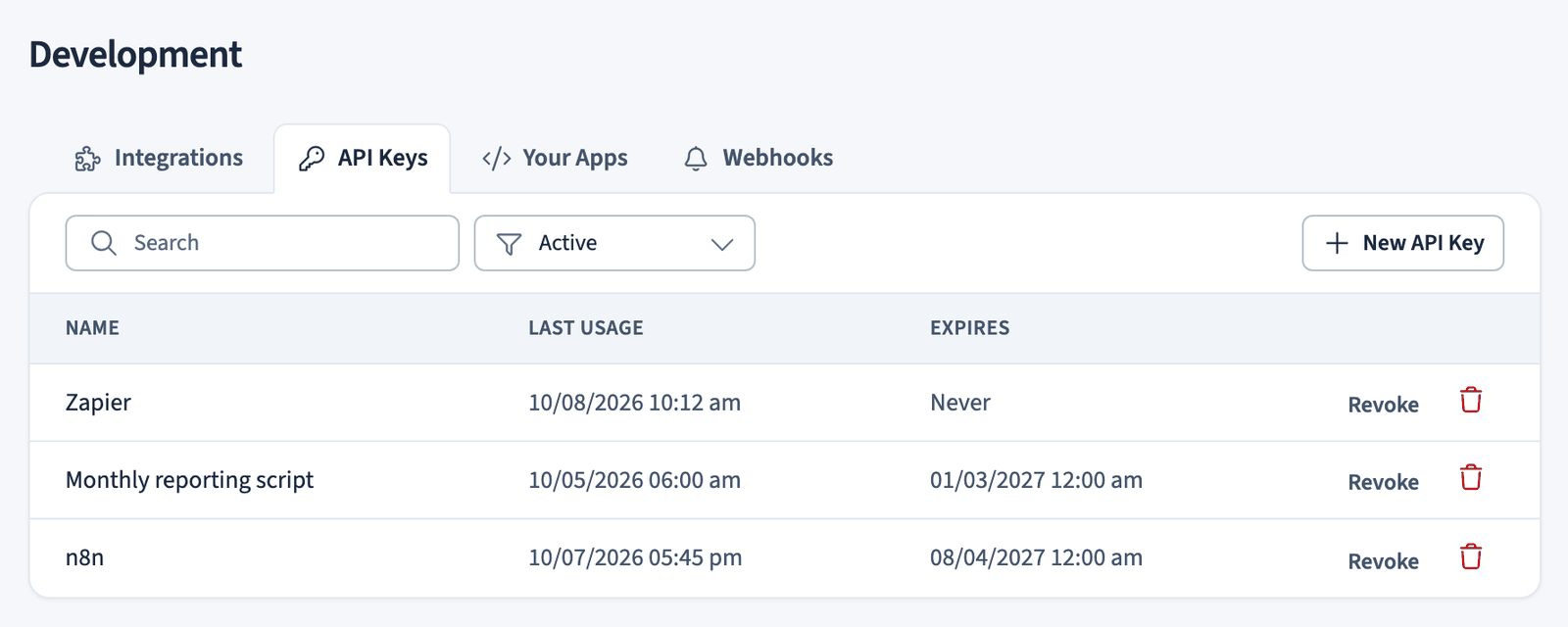
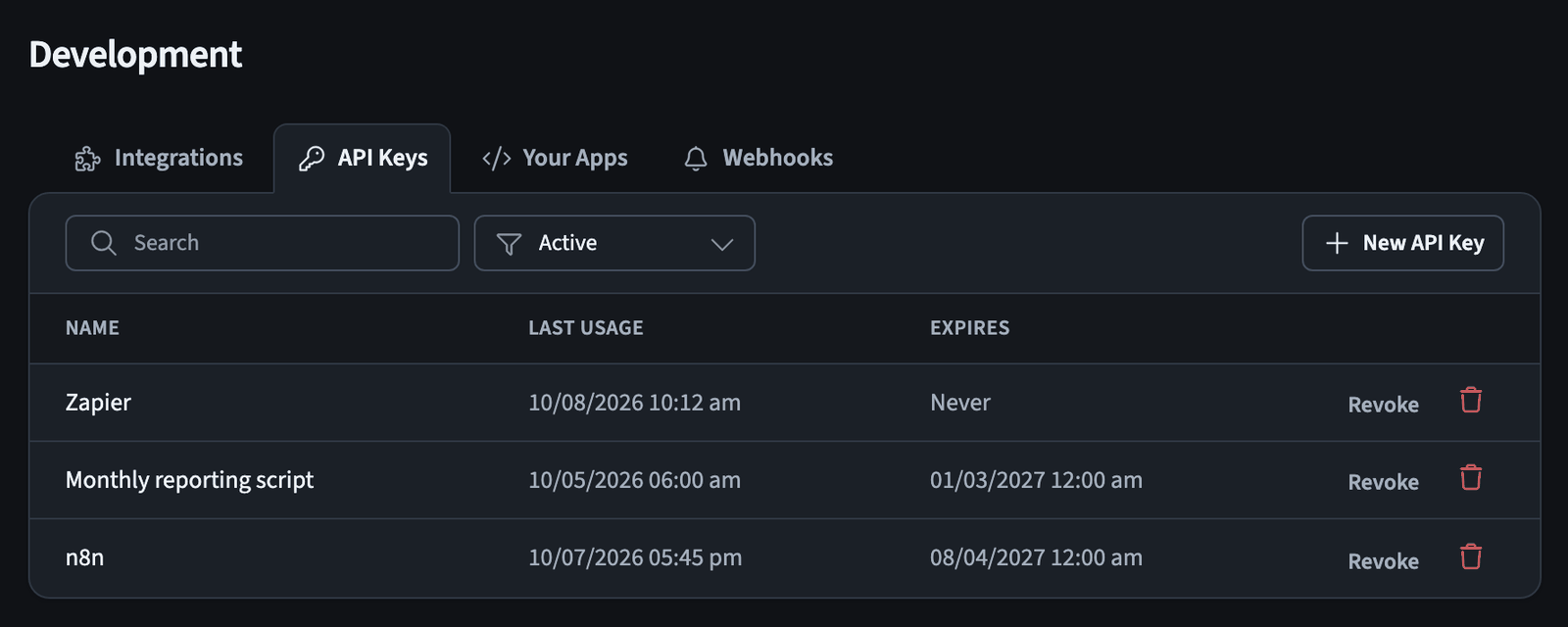
To create one:
- Select New API Key.
- Give it a Name and choose when it expires, or set it to never expire.
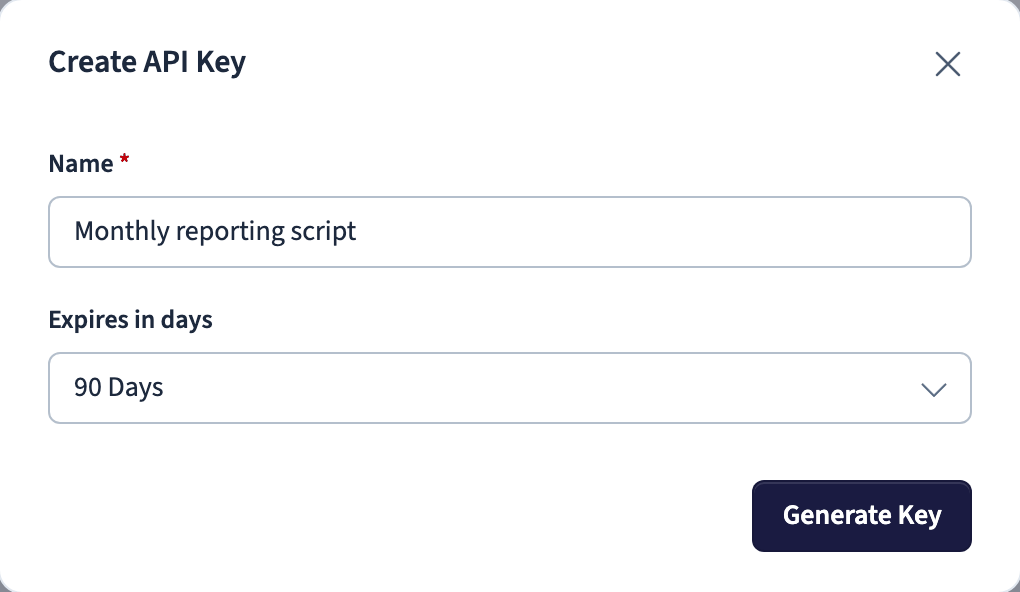
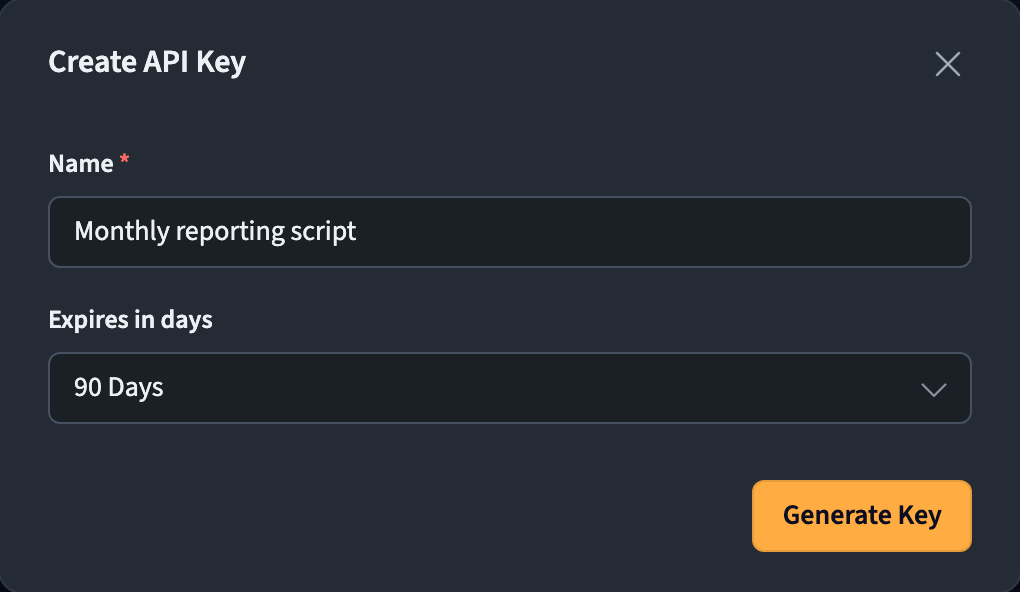
- Select Generate Key.
- Copy the secret key and store it somewhere safe.
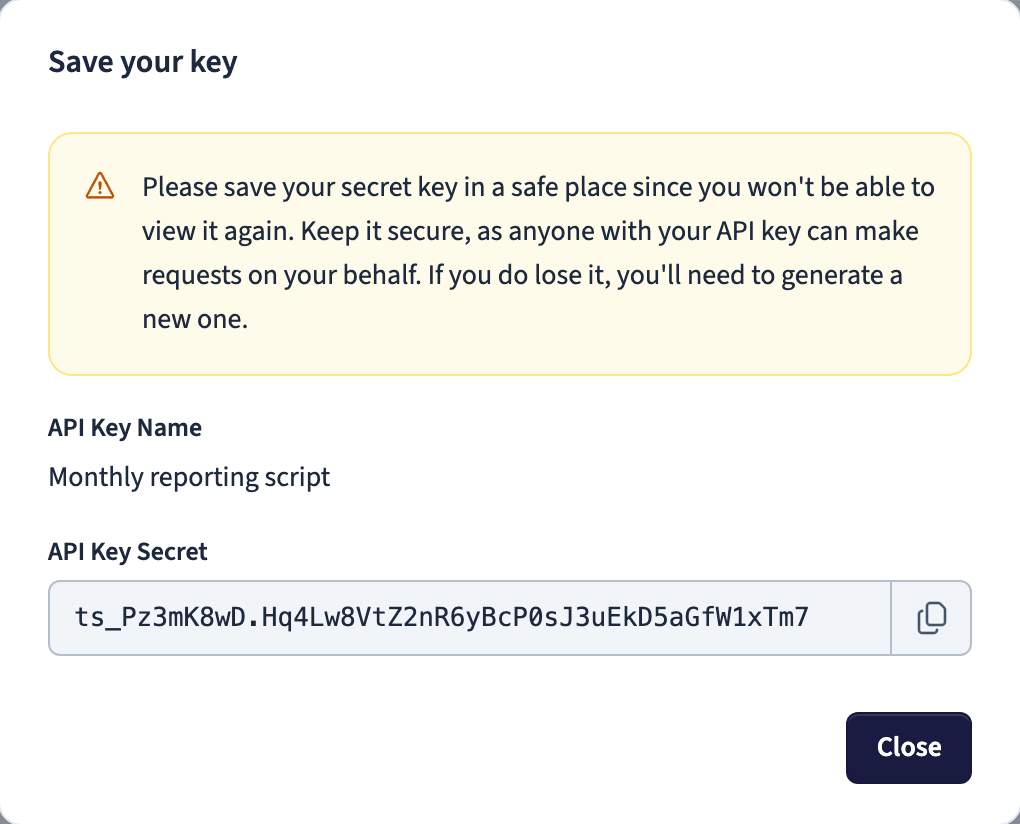
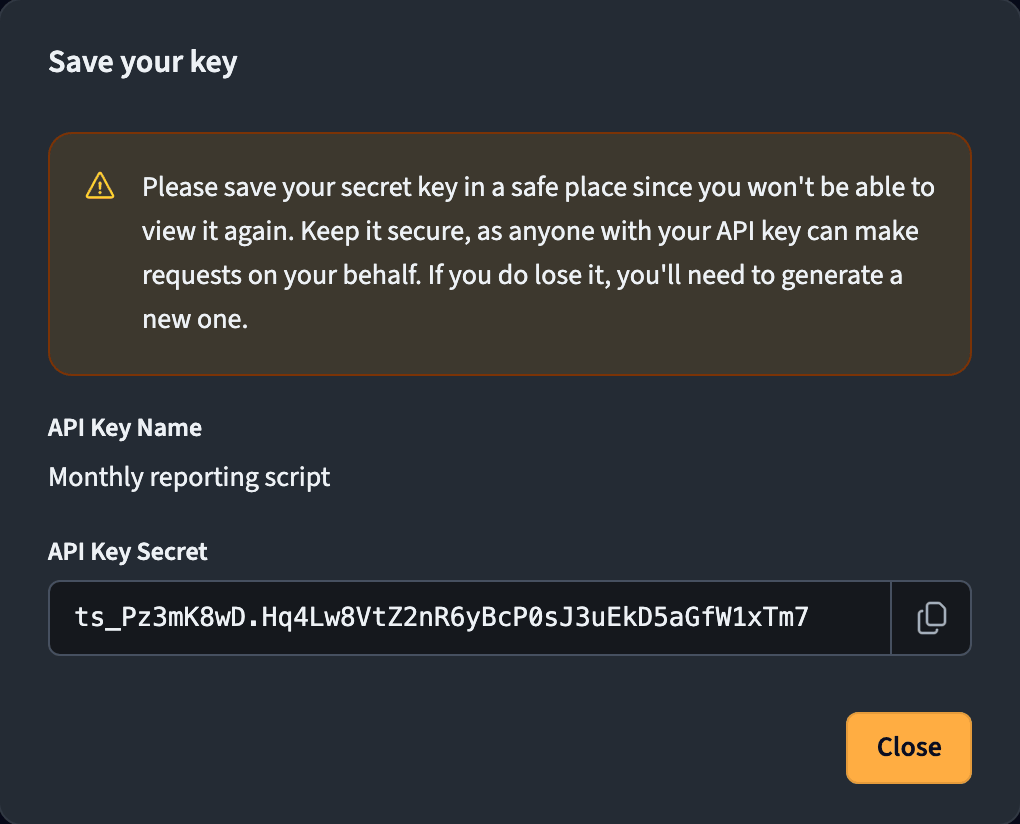
The secret key is shown only once. Anyone with your API key can make requests on your behalf, so keep it secret and generate a new one if it is ever exposed.
Your apps
The Your Apps tab is for developers building their own integration. Register an app here to get the credentials it needs to connect to Timesheet through the marketplace.
Webhooks
Webhooks send a request to a URL you choose whenever something happens in Timesheet, so you can react to events in your own systems. The Webhooks tab lists your webhooks with their target URL and the events they listen for.
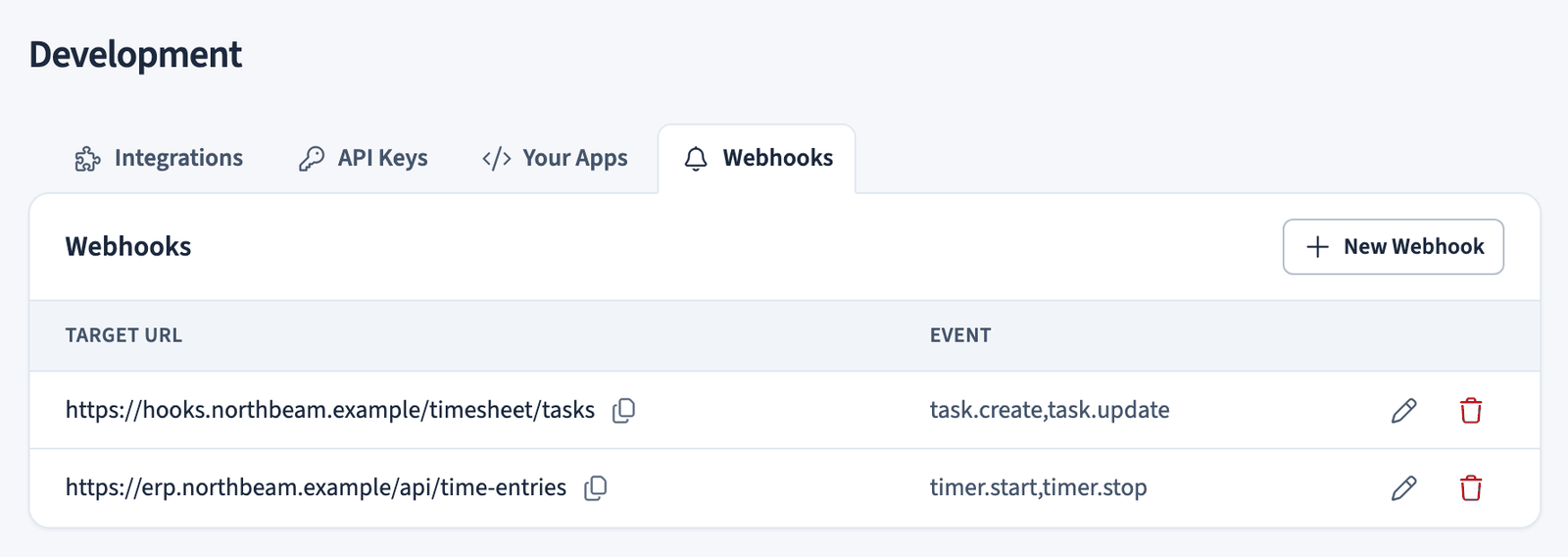
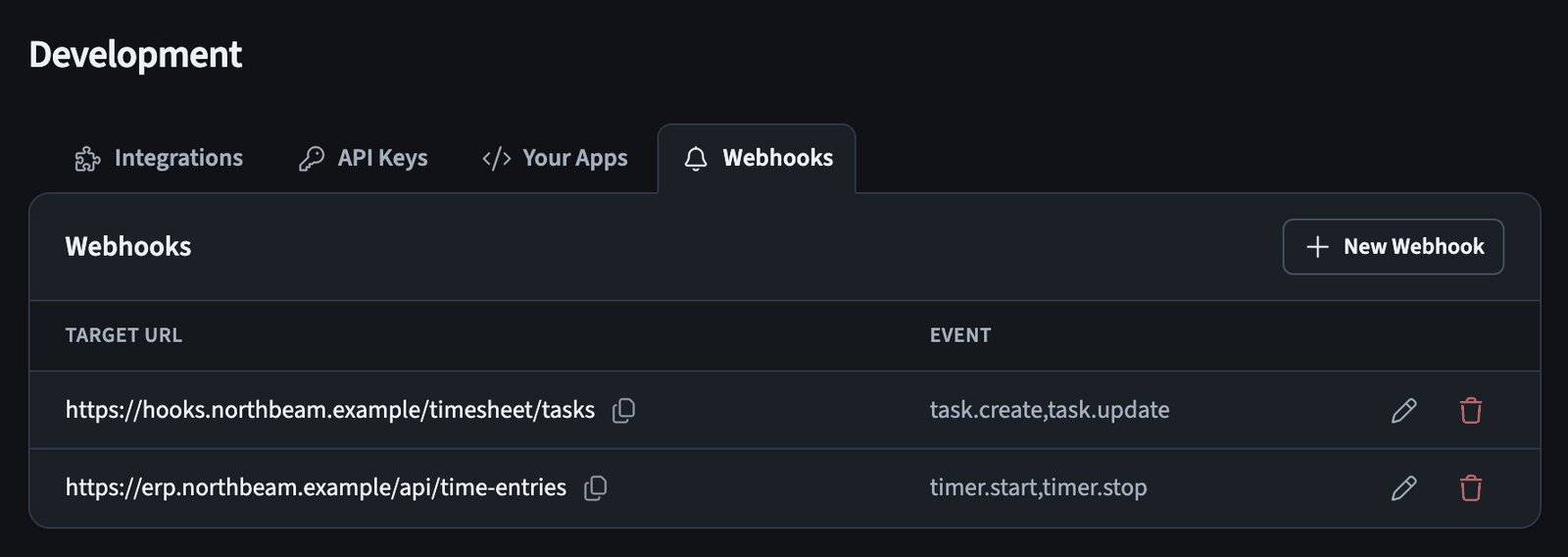
To add one:
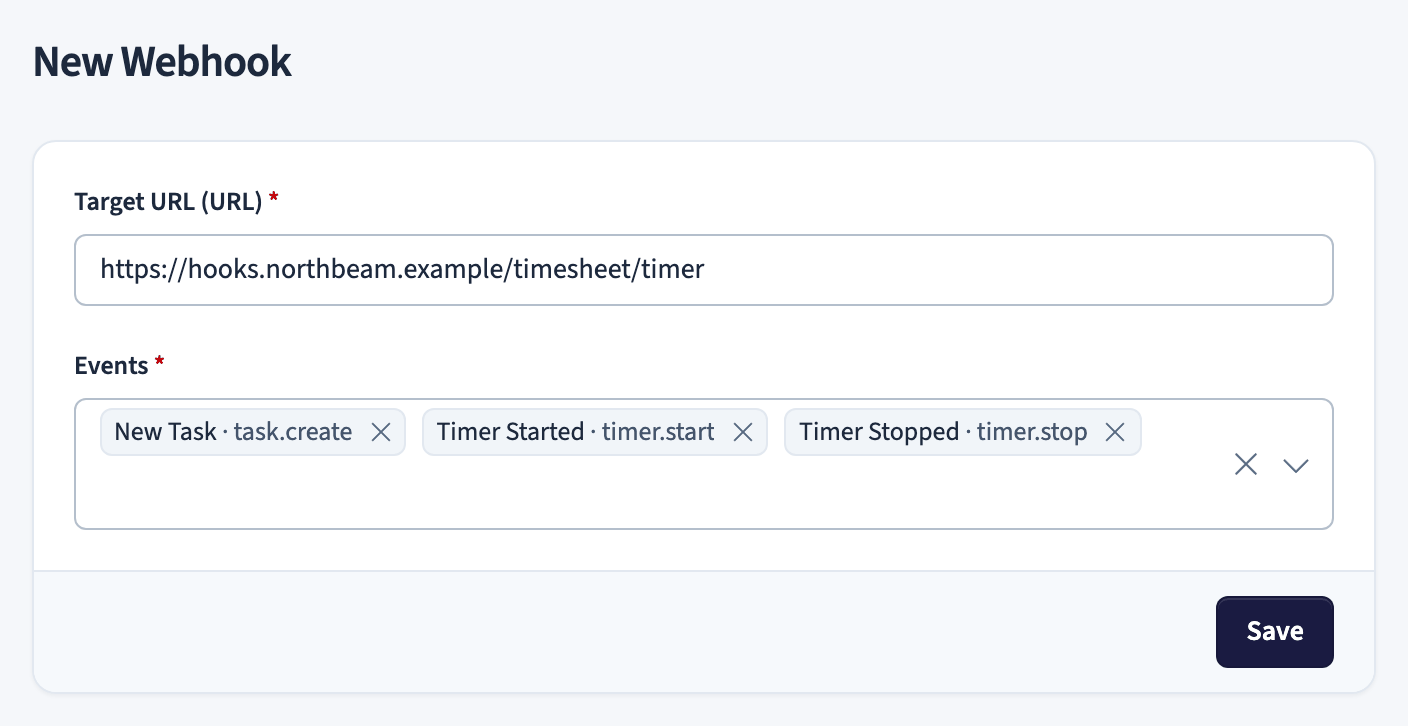
- Select New Webhook.
- Enter the Target URL that should receive the request.
- Choose the Events to listen for, such as New Task, New Tag, Edit Tag, or Edit Rate.
- Select Save.
For no-code automations, the Zapier integration and the Make integration connect Timesheet to thousands of apps without writing any code. To drive the API directly, see the MCP server.