Projects
A project organizes your work. It holds details like the client, a color, an hourly rate, and the team it belongs to. Projects can have members with their own permissions, and they contain the tasks you track.
The projects list
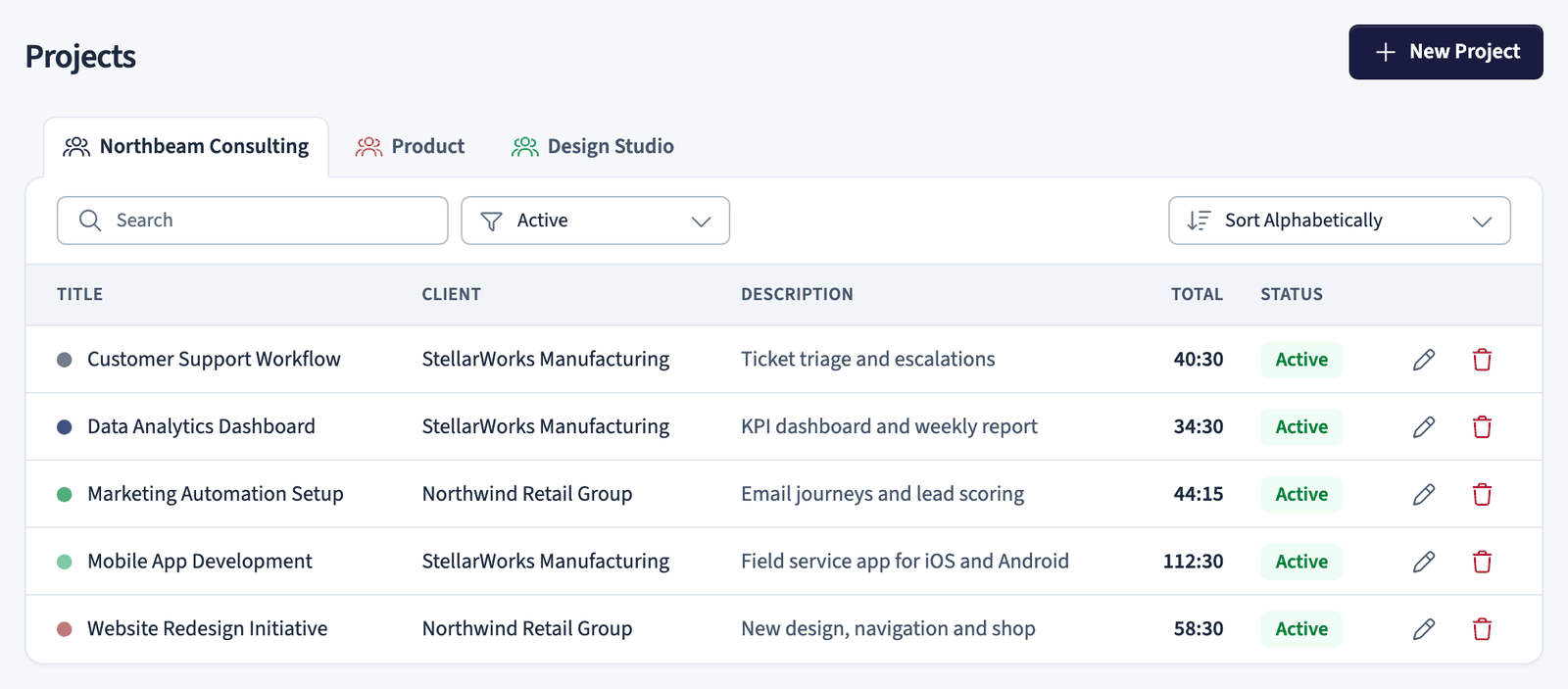
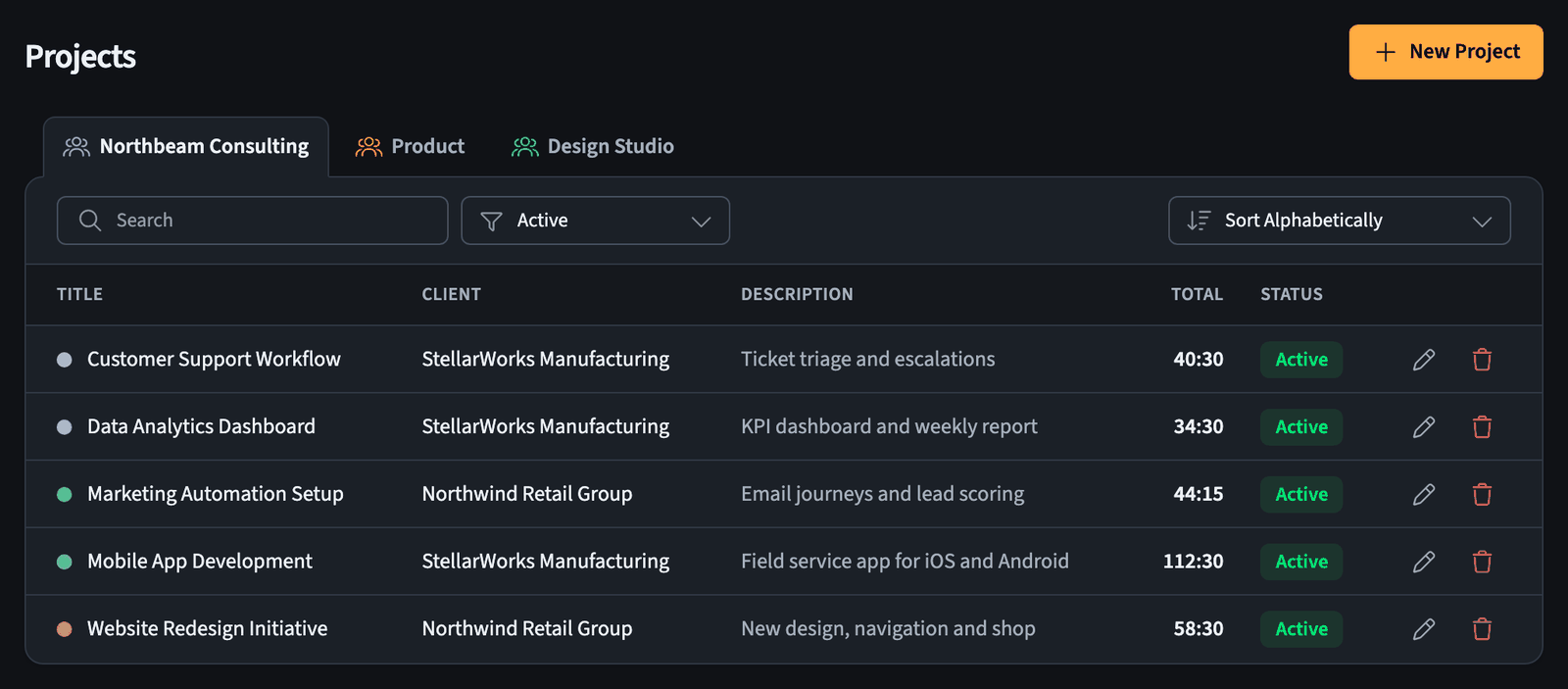
What you see: A tab for each team at the top, then a table of projects with these columns:
- Title: The project name, with its color shown as a dot.
- Client: The client or employer linked to the project.
- Description: A short summary of the project.
- Total: The total time tracked on the project.
- Status: Whether the project is Active or archived.
- Pencil and trash icons: Quick actions to edit or delete each row.
How to use it:
- Switch teams using the tabs.
- Use Search to find a project by title, client, or description.
- Use the status filter (set to Active by default) to switch between active and archived projects.
- Use the sort dropdown (Sort Alphabetically by default) to change the order of the list.
- Click New Project in the top right to create a project.
Deleting a project permanently removes all of its tasks and ToDos. This cannot be undone.
Project details
Open a project to see its details and summary.
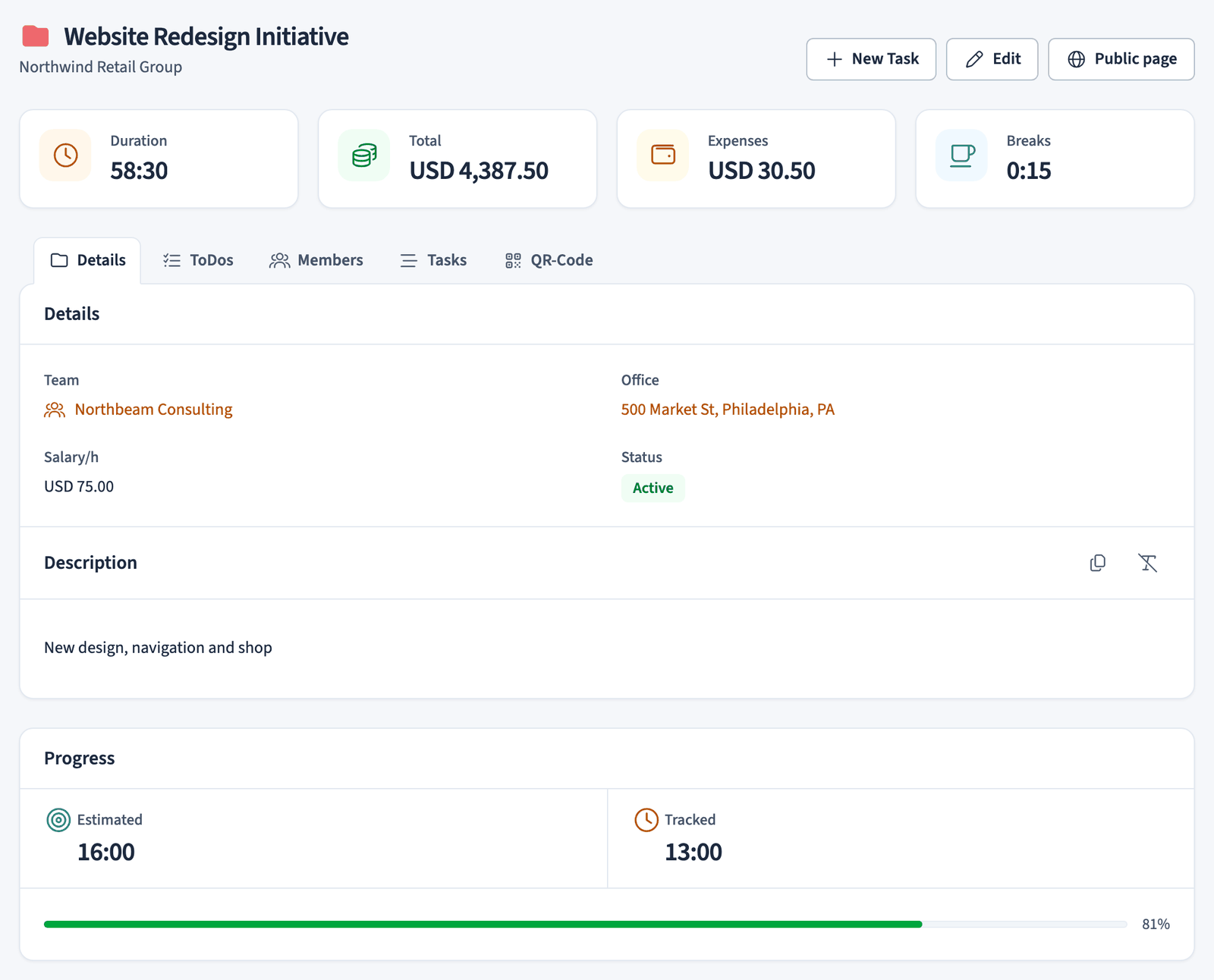
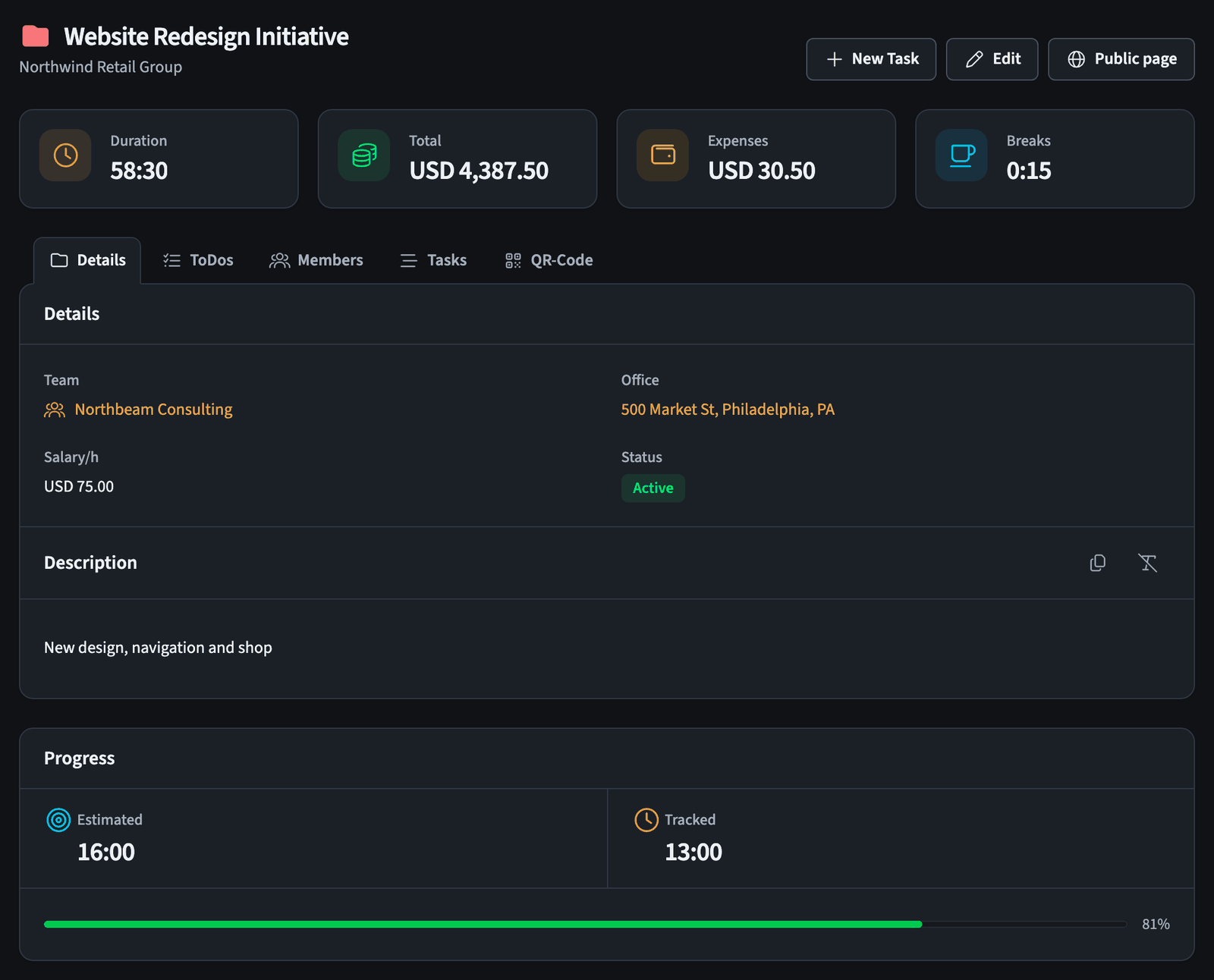
The header shows the project title and client, plus New Task, Edit, and Public page buttons. Below it, four cards summarize the project:
- Duration: Total time tracked.
- Total: Total earnings, based on the hourly rate.
- Expenses: Total expenses recorded on tasks.
- Breaks: Total break time.
The details view is split into tabs:
| Tab | What it shows |
|---|---|
| Details | Team, office, status, hourly rate, description, and the Progress of the project's ToDos (estimated and tracked time) |
| ToDos | A checklist of items for the project |
| Members | The people assigned to the project |
| Tasks | All time entries on the project |
| QR-Code | A code for starting and stopping the timer from a mobile device |
Creating or editing a project
Click New Project in the projects list, or Edit on a project, to open the form.
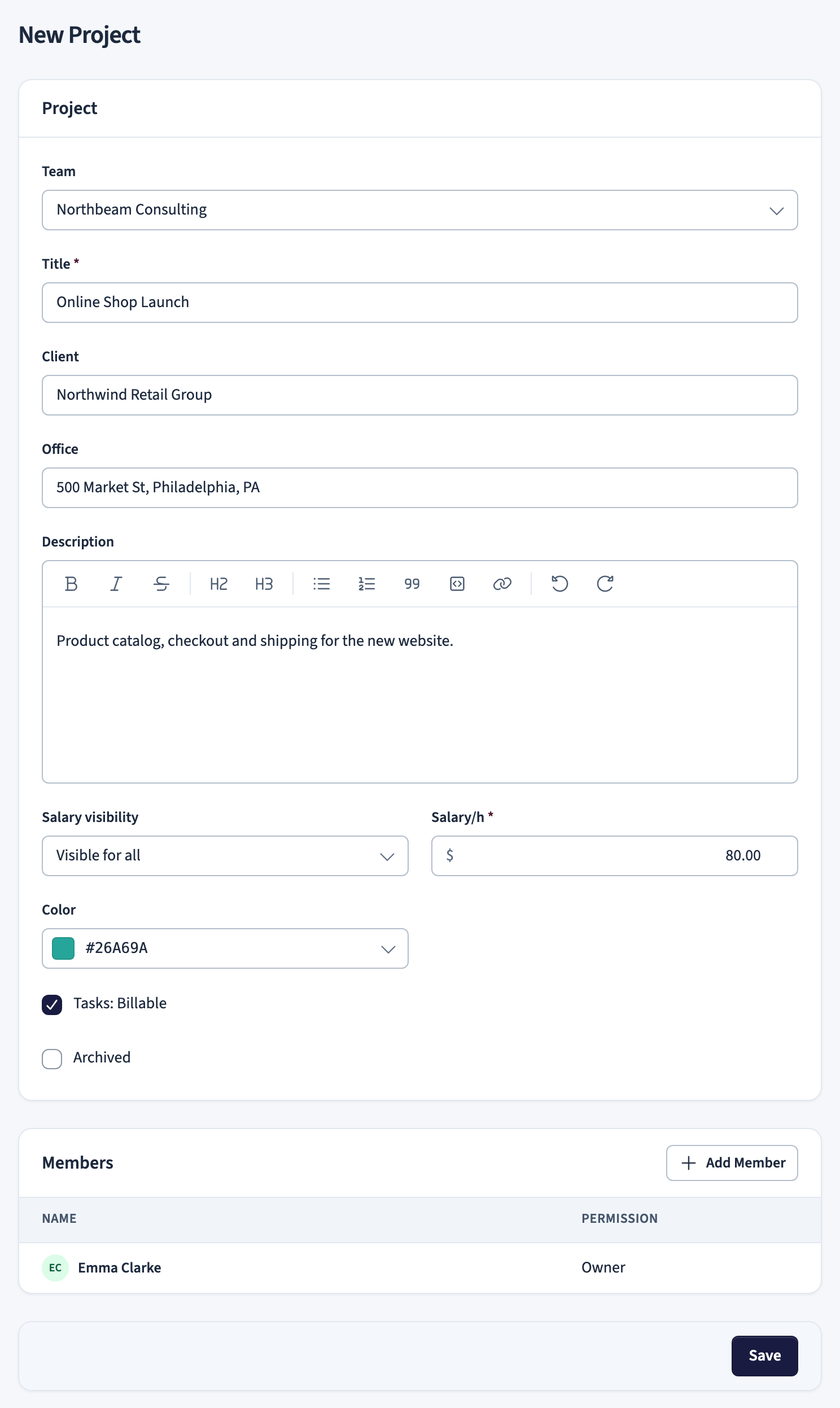
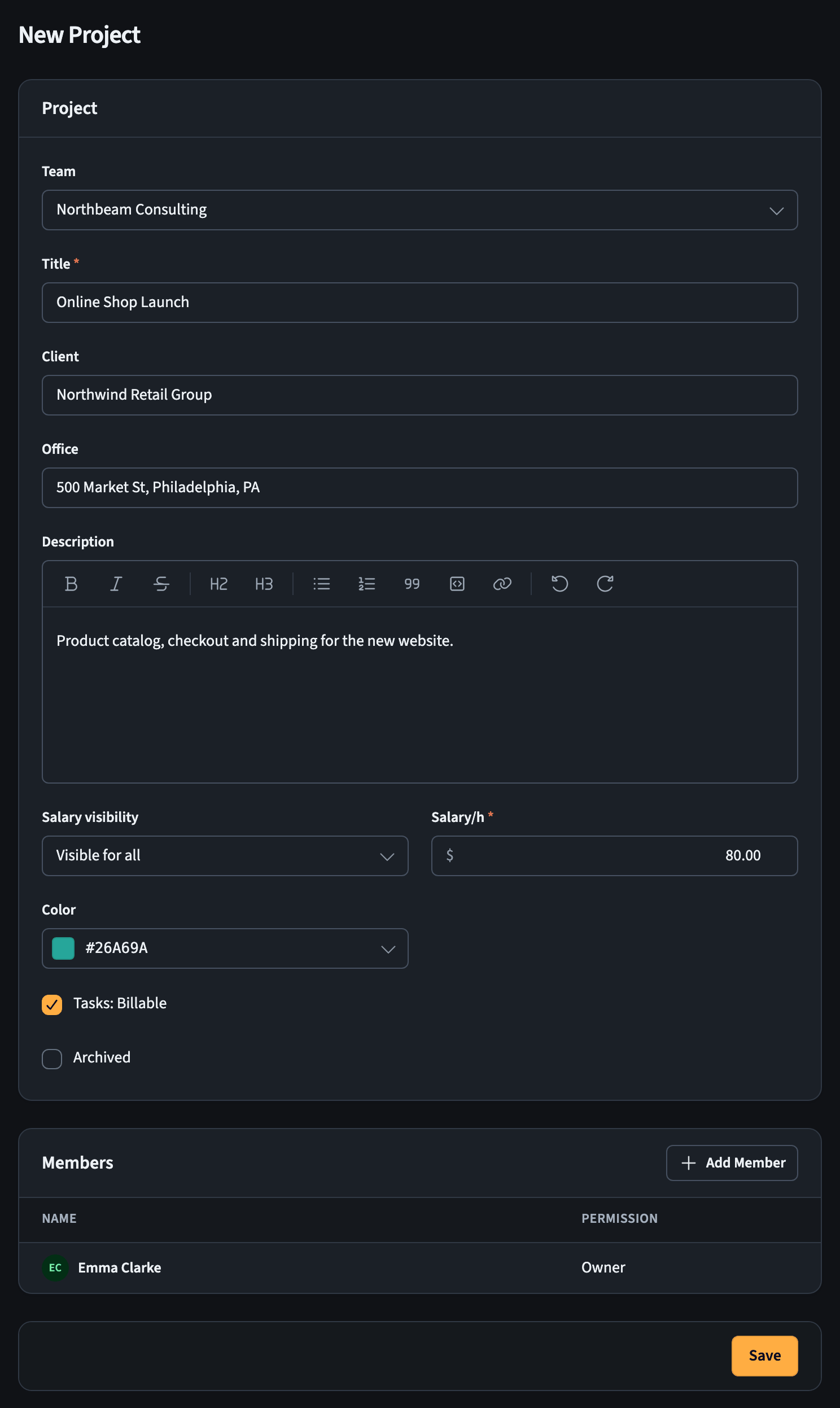
Fill in the fields you need:
- Team: The team the project belongs to. This is set when you create the project.
- Title: The project name. This is required.
- Client: The client or employer for the project.
- Office: A location for the project.
- Description: A formatted description, using the rich text toolbar for headings, lists, and links.
- Salary visibility: Who can see the hourly rate. Set it to Visible for all or restrict it.
- Salary/h: The hourly rate, with its currency. This drives the earnings shown on the project.
- Color: A color to identify the project. Enter a hex value or pick one.
- Tasks: Billable: When checked, new tasks on this project are marked billable by default.
- Archived: Check this to archive the project and hide it from timers.
The Members card below the form lists the people on the project. Click Add Member there to add people from the team.
Click Save to store your changes.
How earnings are calculated
The Total on a project is the time tracked multiplied by the Salary/h rate. Set a rate to track earnings, monitor profitability, and prepare client invoices.
Active and archived projects
- Active projects are available for time tracking.
- Archived projects are kept with all their data but hidden from timers. Archive a project instead of deleting it when you want to keep its history.
Members
Open the Members tab on a project to see who is assigned to it, and add people from there.
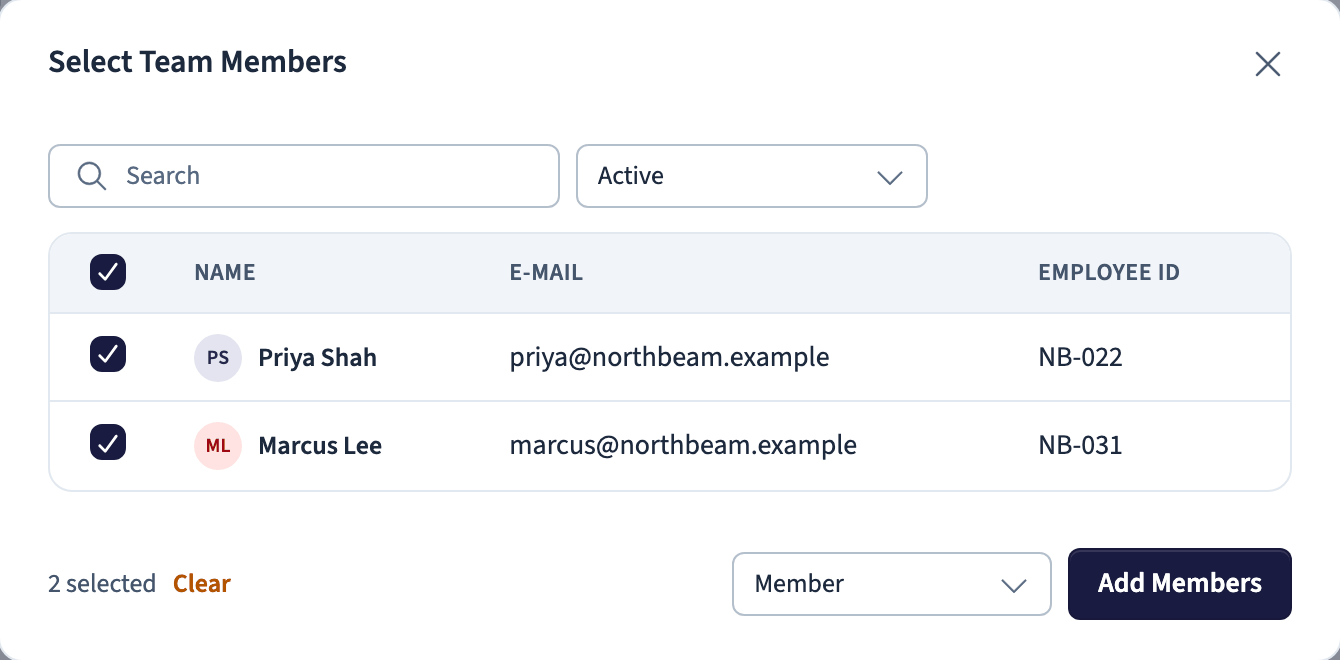
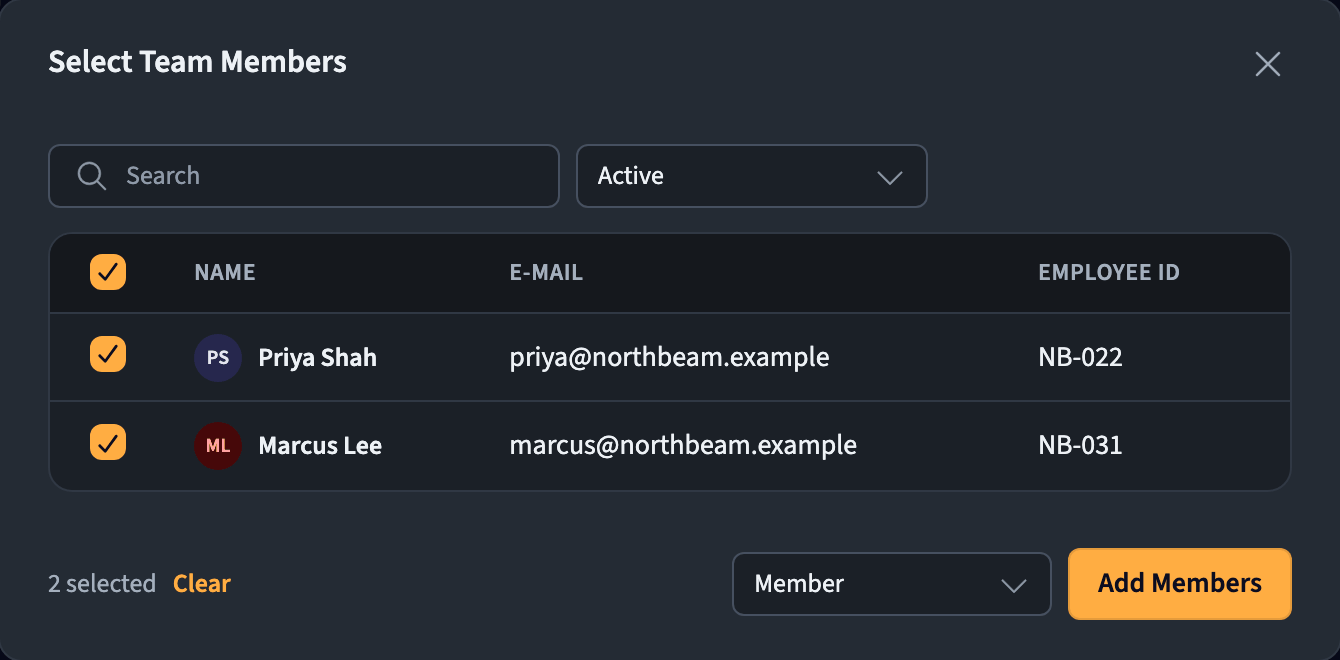
Click Add Member to open the Select Team Members dialog. It lists the members of the project's team who are not on the project yet.
- Select the people you want to add with the checkbox in front of each name. Use Search and the status filter to find someone.
- Choose their Permission, Member or Manager. This controls what they can do on the project.
- Click Add Members.
To add someone who is not on the team yet, add them to the team first (see Teams).
Tasks
The Tasks tab lists every time entry on the project.
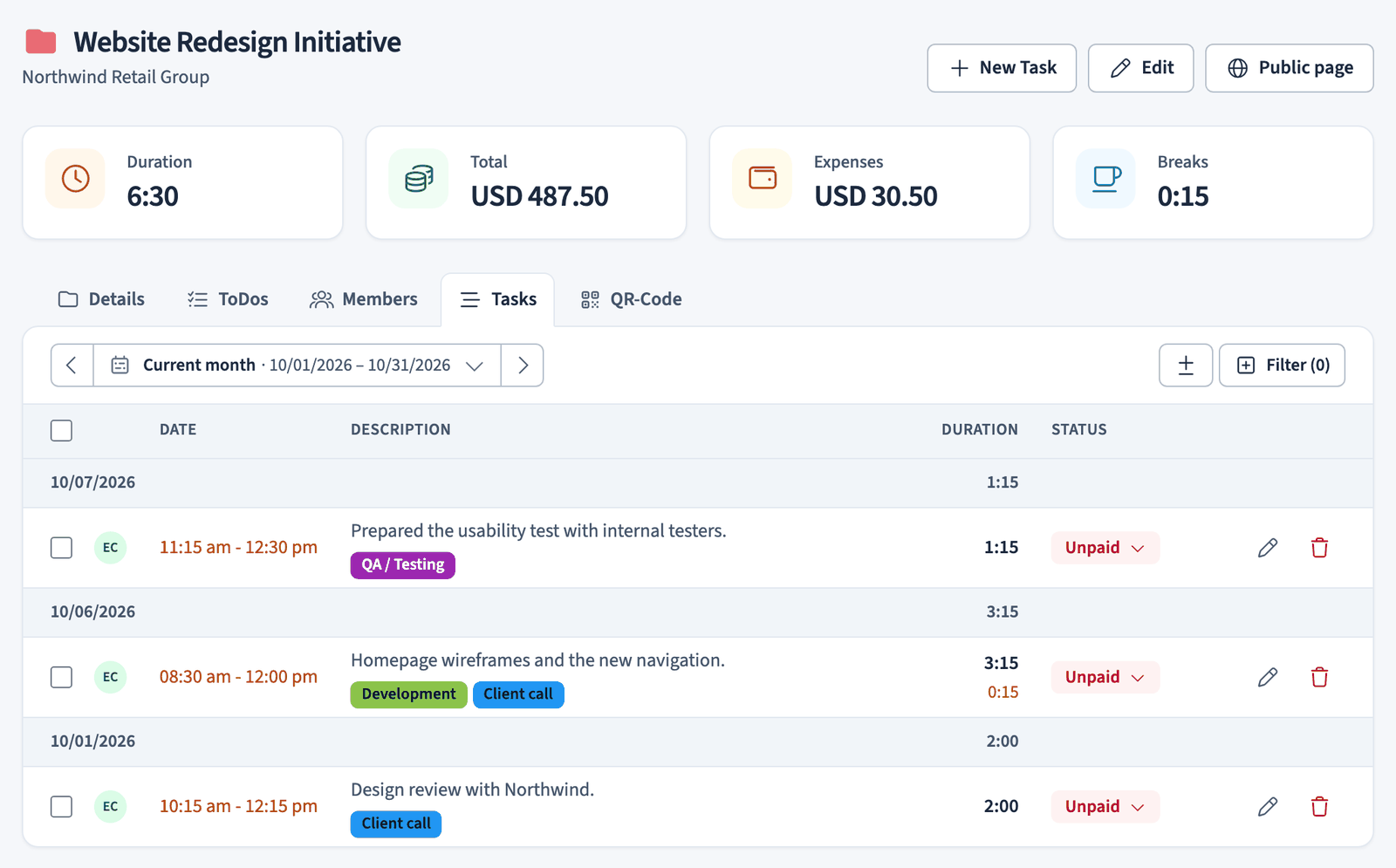
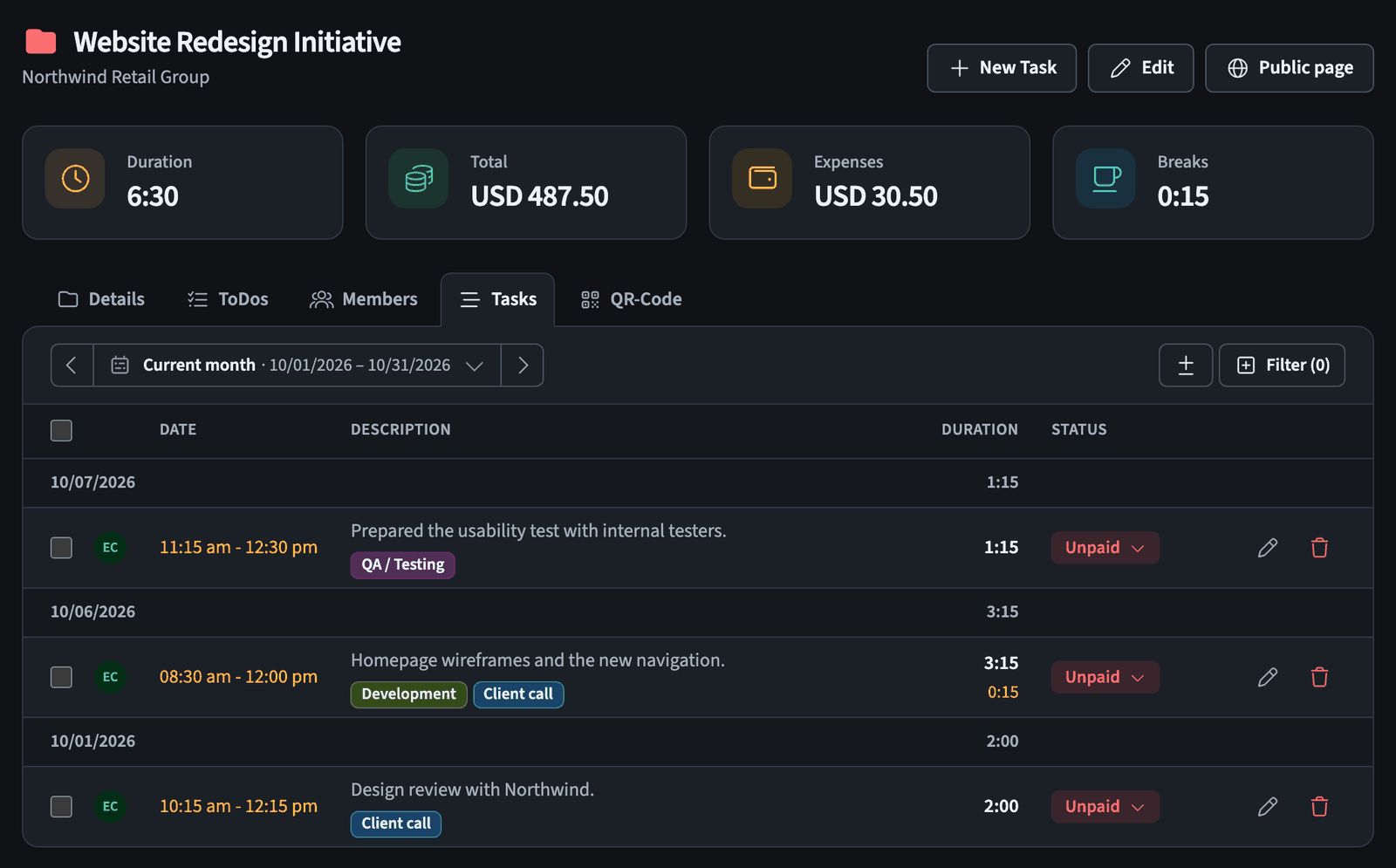
What you see: Entries grouped by date, each showing the person who tracked it, the time range, the description, any tags, and the duration. The columns are:
- Date: The day and time range of the entry.
- Description: What was worked on, with tags such as Development or Client call.
- Duration: How long the entry lasted.
- Status: The billing status, for example Paid, Billed, or Unpaid. Change it from the dropdown.
- Pencil and trash icons: Quick actions to edit or delete each entry.
How to use it:
- Set a date range at the top to limit which entries are shown.
- Use Filter to narrow the list further.
- Use the ± button to compare the entries with a second date range.