Notifications
The Notifications page collects alerts about your account, your team, and your tracked time, such as approvals, compliance warnings, and system messages.
Notification list
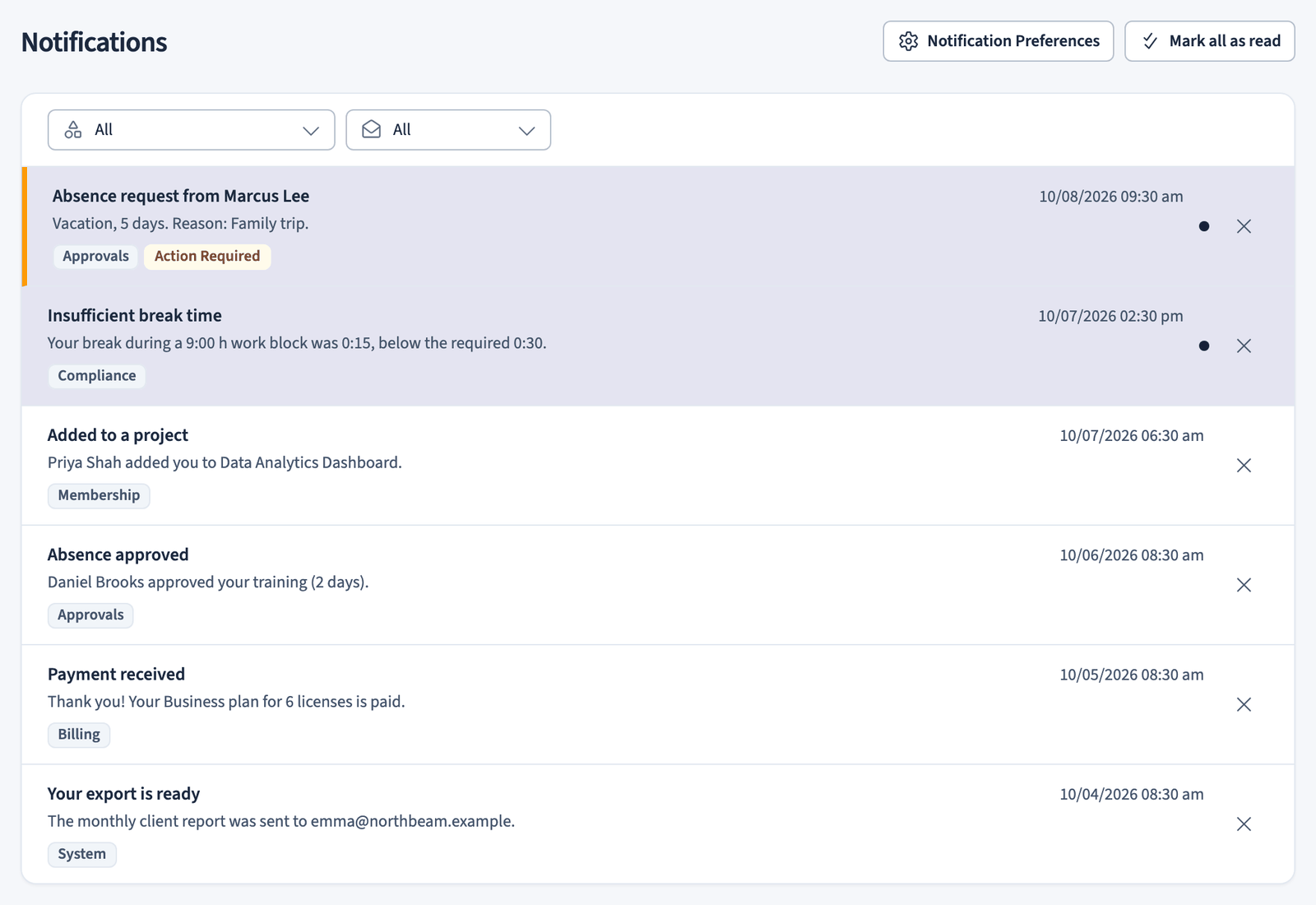
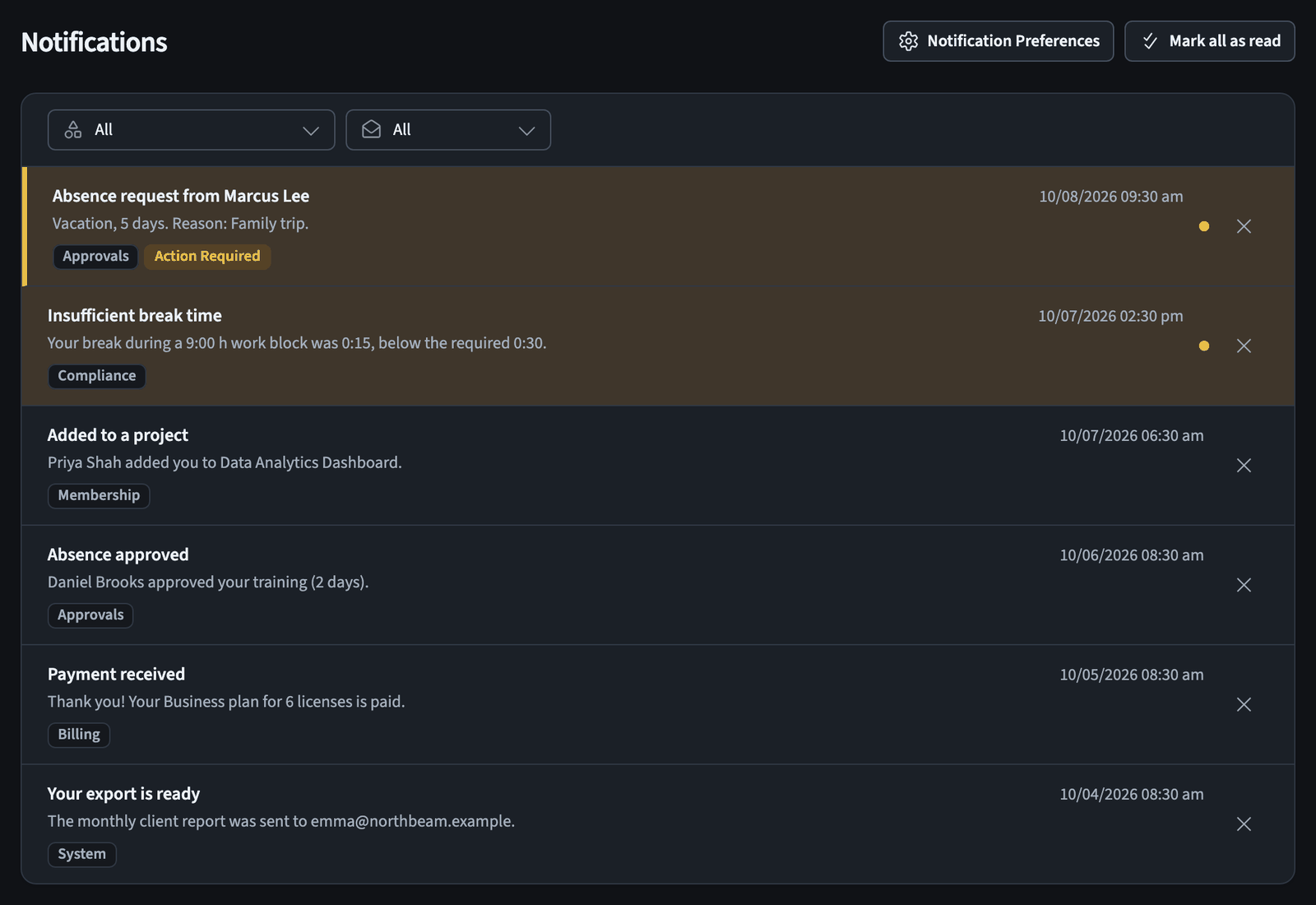
Each notification shows a title, a short description, the date and time, and a category label (for example Compliance, Approvals, or System). Notifications you need to act on also show Action Required, and unread ones are highlighted with a dot.
How to use it:
- Use the two dropdowns at the top to filter the list by category and by read or unread status
- Click the X on a notification to dismiss it
- Click Mark all as read to clear the unread state for every notification
- Click Notification Preferences to choose which notifications you receive
Notification preferences
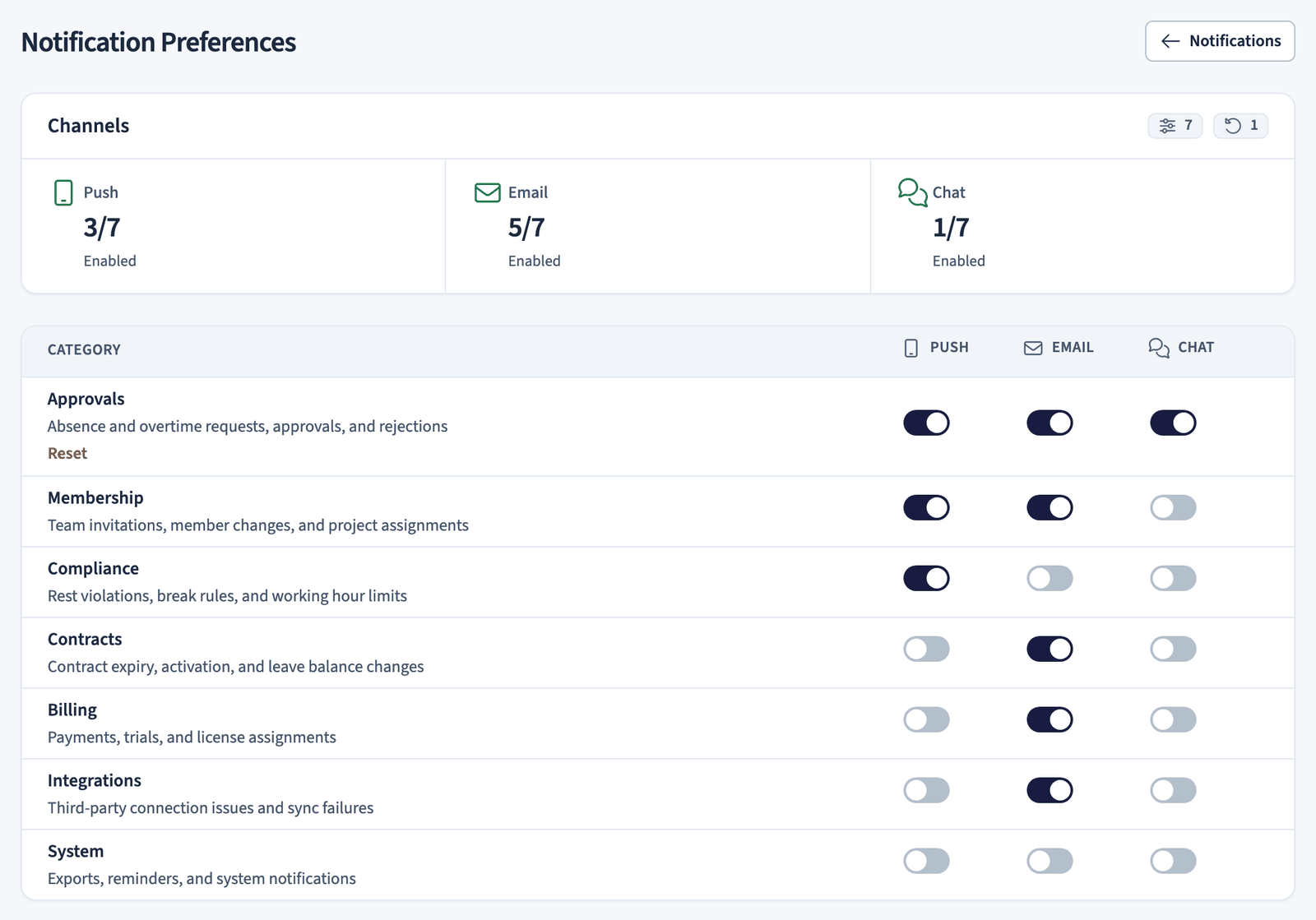
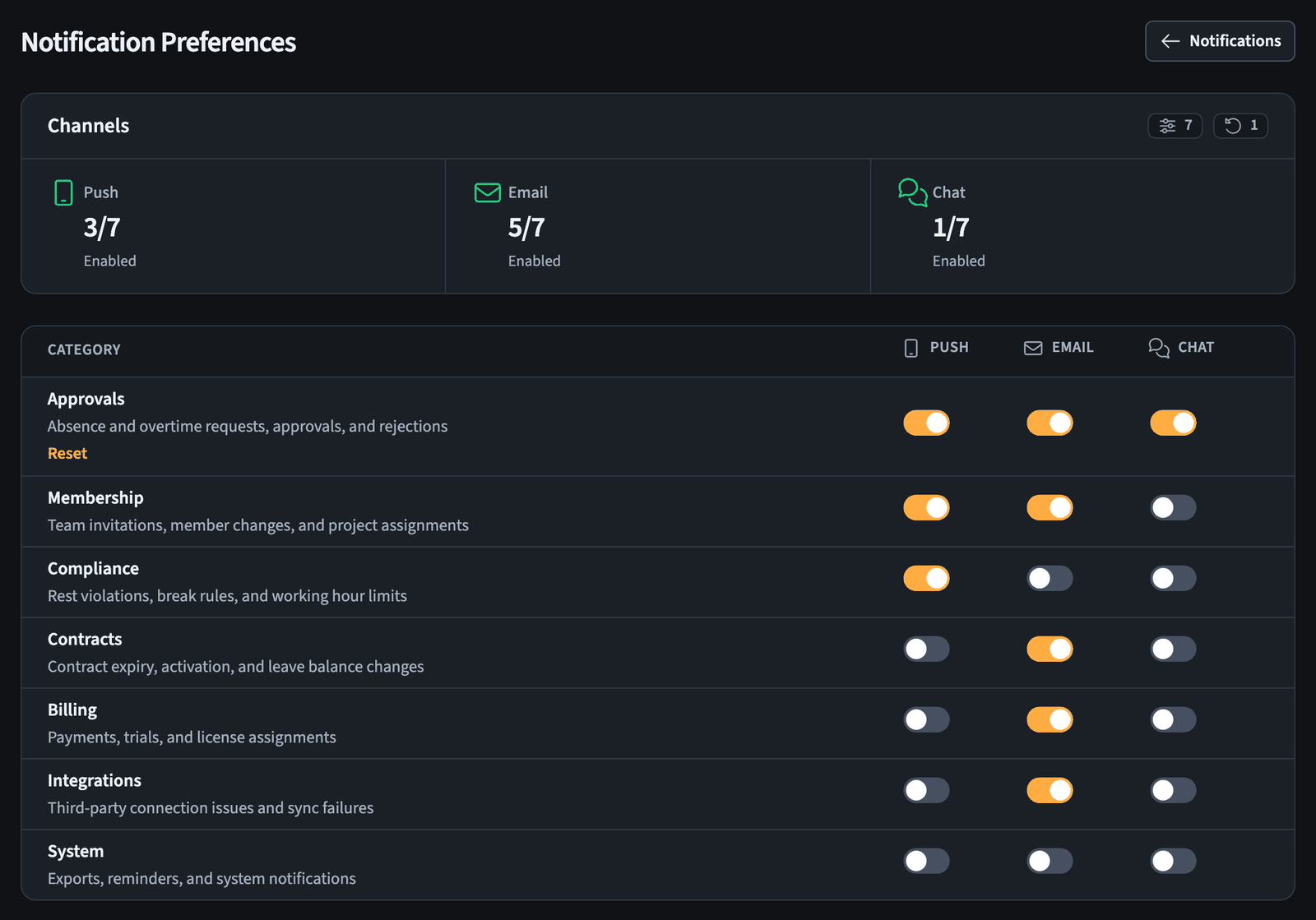
The preferences screen lists each notification category in a row, with a toggle for every delivery channel: Push, Email, and Chat. Turn a toggle on or off to control how you are notified for that category. The Channels card above the list shows how many categories each channel is turned on for. A category you changed shows Reset, which restores its default settings.
Categories:
- Approvals: absence and overtime requests, approvals, and rejections
- Membership: team invitations, member changes, and project assignments
- Compliance: rest violations, break rules, and working-hour limits
- Contracts: contract expiry, activation, and leave balance changes
- Billing: payments, trials, and license assignments
- Integrations: third-party connection issues and sync failures
- System: exports, reminders, and system notifications
Each change applies on its own, so you can, for example, receive Approvals by push and email while keeping System messages off.