Google Calendar
The Google Calendar integration keeps your Timesheet tasks and Google Calendar events in sync. Tracked time can appear as calendar events, calendar events can become tasks, or both, depending on the direction you choose.
The Google Calendar integration requires a Pro plan or above. See the Plans page for the full comparison.
Install and connect
In the web app, open Integrations, select Browse Marketplace, and install Google Calendar. Open the integration, select Connect, then sign in to your Google account and allow access.
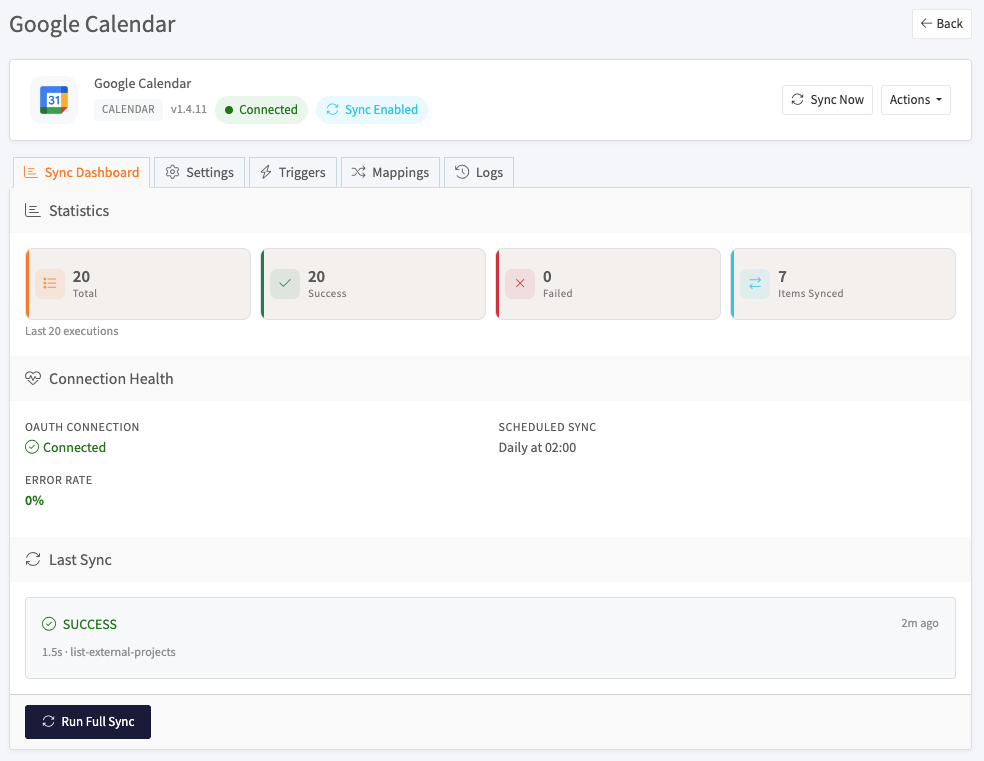
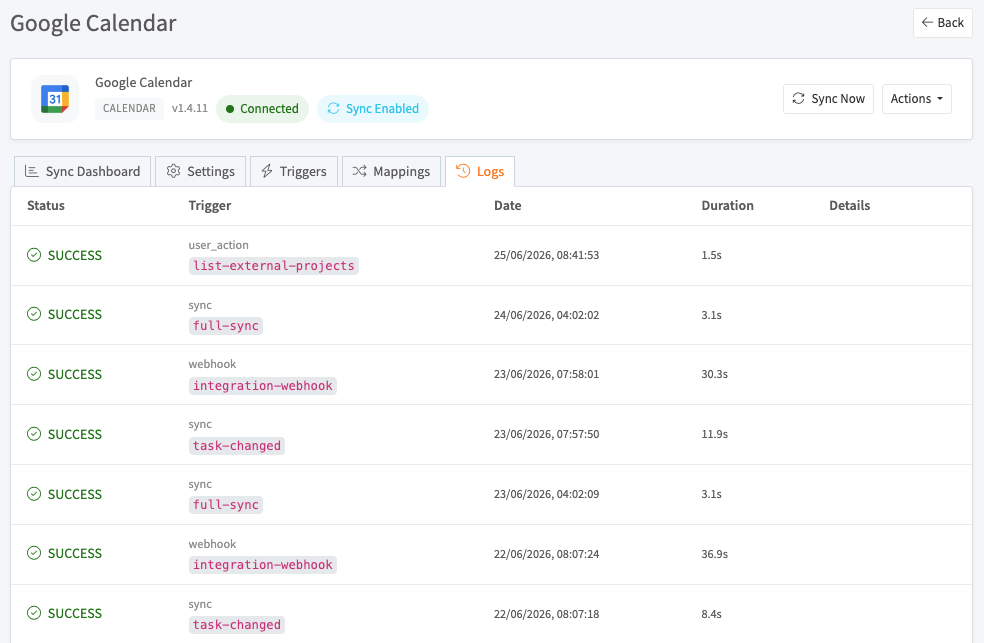
Once connected, the header shows Connected and Sync Enabled. From here you can run a sync at any time with Sync Now, or use the Actions menu to manage the integration. The integration is organized into five tabs: Sync Dashboard, Settings, Triggers, Mappings, and Logs.
Choose a sync direction
On the Settings tab, choose how data flows.
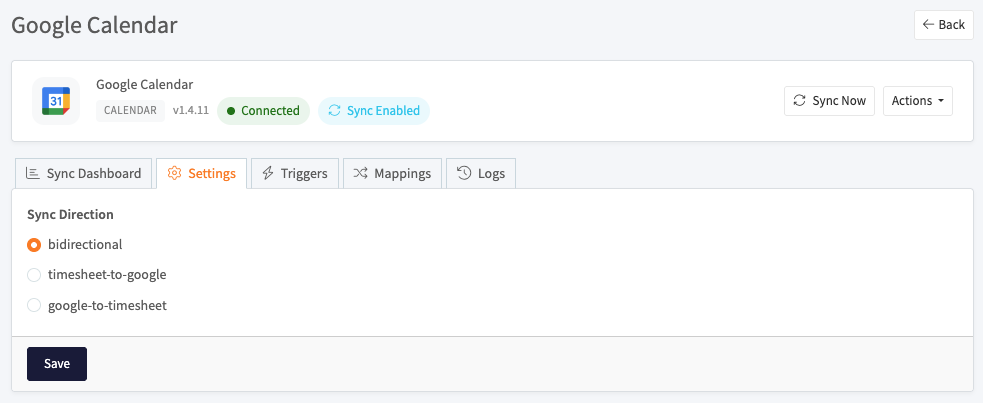
- bidirectional: changes sync both ways.
- timesheet-to-google: Timesheet tasks create and update Google Calendar events only.
- google-to-timesheet: Google Calendar events create and update Timesheet tasks only.
Select Save to apply.
Map projects to calendars
On the Mappings tab, link each Timesheet project to a Google calendar. Only mapped projects sync.
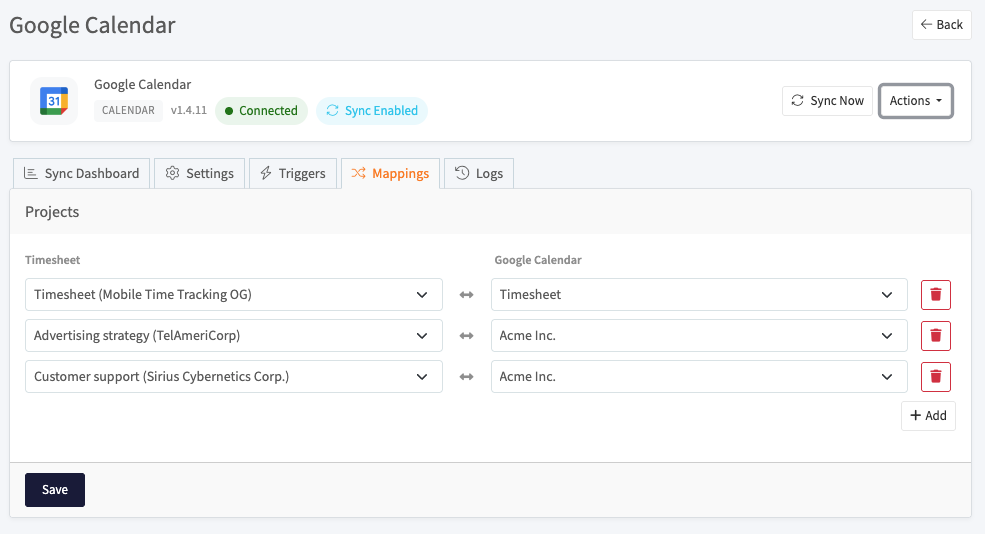
Select + Add to create a pair, choose the Timesheet project and the Google calendar, then Save. Use the trash icon to remove a pair.
When it syncs
The Triggers tab controls what starts a sync. You can turn each trigger on or off.
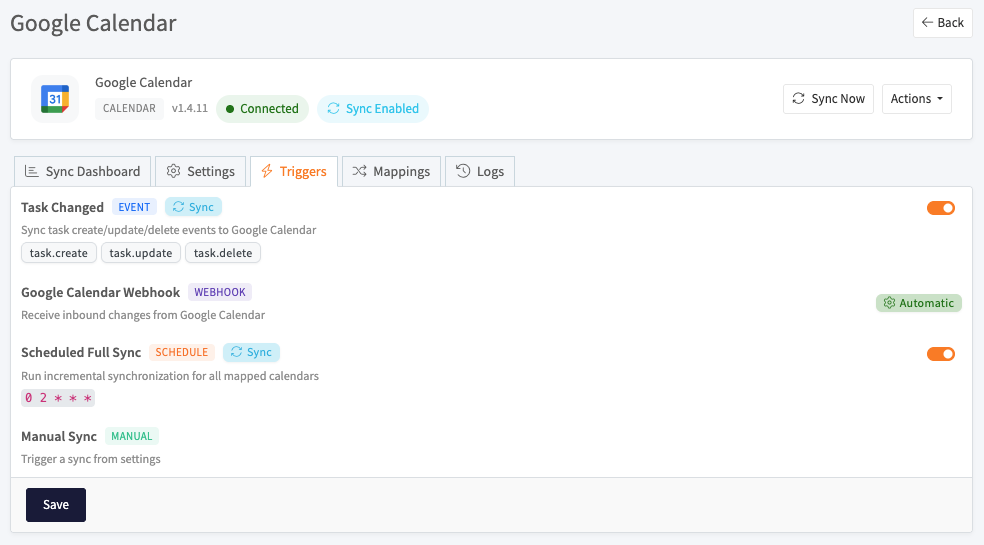
- Task Changed: syncs
task.create,task.update, andtask.deleteto Google Calendar as they happen. - Google Calendar Webhook: receives inbound changes from Google Calendar automatically.
- Scheduled Full Sync: runs an incremental sync for all mapped calendars on a schedule, by default daily at 02:00.
- Manual Sync: runs when you select Sync Now or Run Full Sync.
Monitor syncs
The Sync Dashboard shows the health of the integration: how many of the recent runs succeeded or failed, how many items synced, the connection state, the scheduled sync time, and the last sync result. Select Run Full Sync to reconcile everything now.
The Logs tab lists each run with its status, trigger, date, and duration, so you can see exactly what synced and when.
Remove the integration
Use the Actions menu in the header, or the Uninstall Integration option on the integration page. This removes the integration and its data. Events and tasks that already synced are not deleted.
See also
- Integrations: install integrations and manage API keys and webhooks.
- QuickBooks: sync tracked time to QuickBooks Online.
- Plans: compare what each plan includes.