Subscription management
Manage your plan, billing, and per-user licenses from the subscription page. The web app requires a Pro plan or above. For a full comparison of all plans (Basic, Plus, Pro, Business, and Enterprise), see the Plans page.
View your current plan
The subscription page shows your plan and billing at a glance.
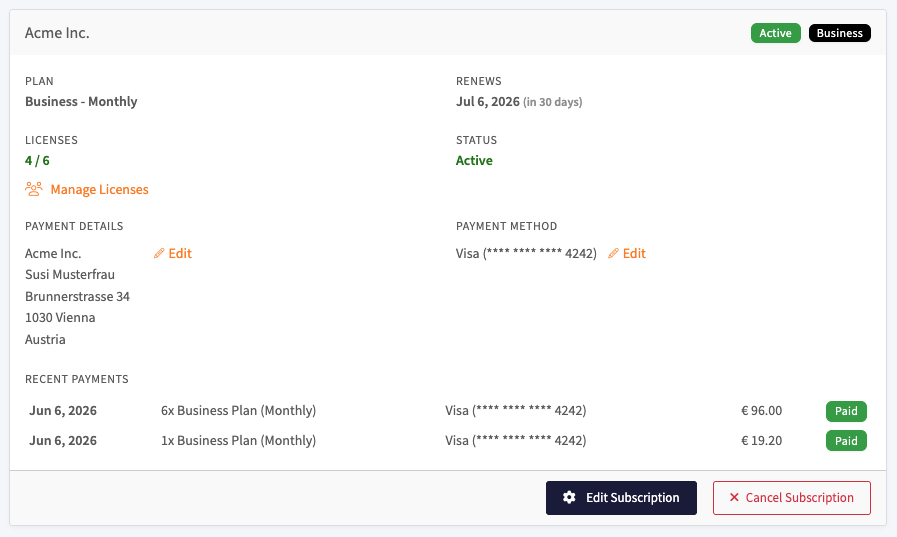
You can see:
- Plan: your current plan and billing cycle (for example, Business - Monthly).
- Renews: the next renewal date.
- Licenses: how many licenses are in use out of your total (for example, 4 / 6), with a Manage Licenses link.
- Status: whether the subscription is active.
- Payment details: your billing name and address. Use the Edit link to update them.
- Payment method: the card on file. Use the Edit link to change it.
- Recent payments: your latest charges with date, description, payment method, amount, and a Paid status.
Manage licenses
Pro, Business, and Enterprise plans are priced per user, so each member who needs access uses one license. Click Manage Licenses to assign or revoke seats.
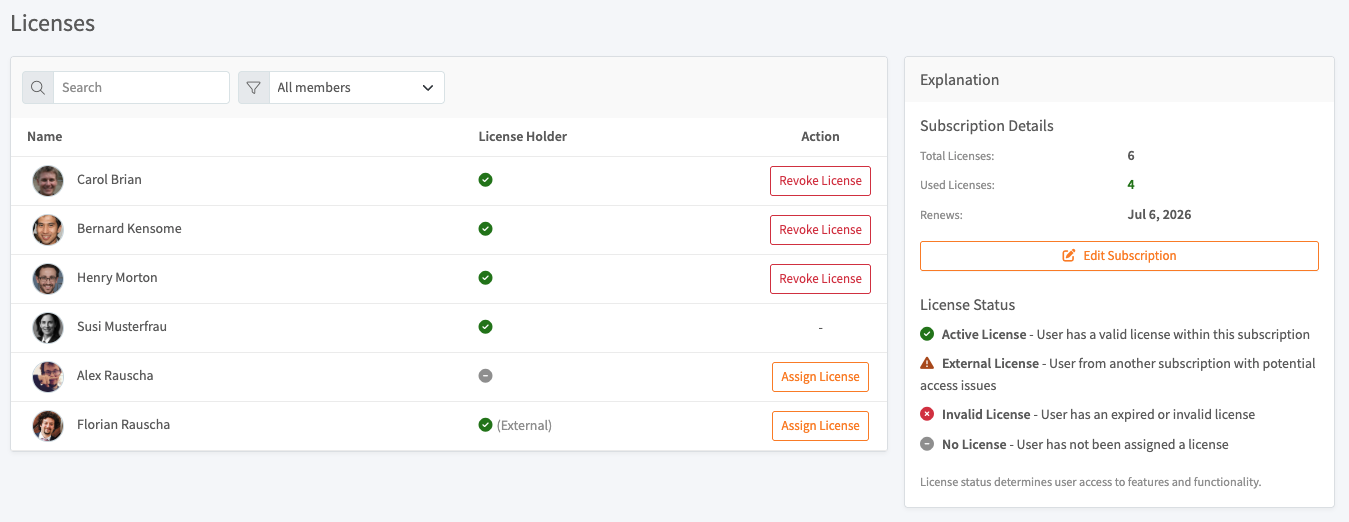
The member list shows each person's name and whether they are a license holder. Use the search field and the All members filter to find a member.
To assign or revoke a license:
- Find the member in the list.
- Click Assign License to give that member a seat, or Revoke License to free up their seat.
The Explanation panel on the right shows your subscription details (total licenses, used licenses, and the renewal date) and includes a license status legend:
- Active License: the user has a valid license within this subscription.
- External License: the user is from another subscription and may have access issues.
- Invalid License: the user has an expired or invalid license.
- No License: the user has not been assigned a license.
License status determines what features and functionality each user can access.
Change your plan or billing cycle
- Click Edit Subscription.
- Choose your plan.
- Choose your billing cycle (monthly or annual).
- Adjust the number of licenses if needed.
- Update your payment details if required.
- Confirm your changes.
Changes take effect immediately, with prorated adjustments where applicable.
Payment history and receipts
Recent charges appear under Recent payments on the subscription page. Each line shows the date, description, payment method, amount, and payment status.
Cancel your subscription
- Click Cancel Subscription.
- Confirm the cancellation.
After you cancel:
- Service continues until the end of the current billing period.
- Your data is not deleted automatically.
- You can resubscribe at any time.
- To permanently delete your data, delete your account manually.