Activity Tracker for Mac
The Activity Tracker is a Mac app that records which apps and documents you work in. It shows your day next to the tasks you already booked in Timesheet, and turns the time you did not book yet into Timesheet tasks.
Recording requires a Pro, Business, or Enterprise plan, or an active trial. Every new Timesheet account starts with a 30-day trial. See the Plans page for the full comparison.
Before you start
- macOS 10.15 or newer, on Apple silicon or Intel.
- A Timesheet account.
- Screen Recording permission for the app. Without it, the app still records which apps you use, but window titles stay empty and no screenshots are taken.
Install the app
- Download the app from timesheet.io/en/activity-tracker.
- Open the downloaded file and drag Timesheet - Activity Tracker into your Applications folder.
- Open the app from Applications.
The app checks for updates each time it opens. When an update is ready, a banner asks you to restart the app.
Sign in
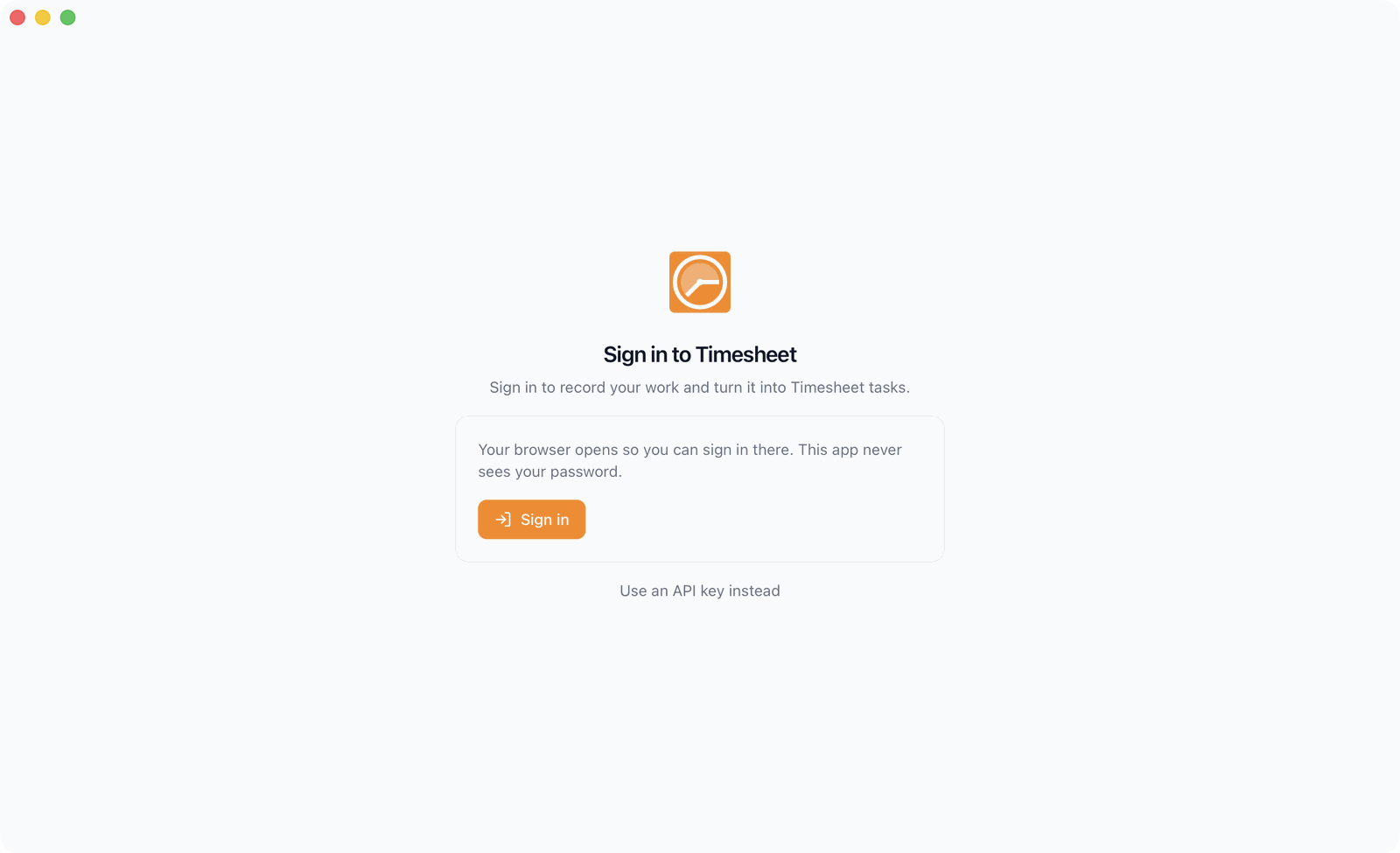
- Click Sign in. Your browser opens.
- Sign in to Timesheet in the browser and confirm the access.
- Go back to the app. It is now connected to your account.
The app never sees your password. If you prefer an API key, click Use an API key instead and paste a key from the web app. See API keys.
First start
The first start walks you through three things before recording begins:
- Welcome: what the app does. Recording starts only after this setup.
- Screen Recording: macOS asks once for the permission. Click Allow and turn the app on in System Settings > Privacy & Security > Screen Recording. macOS applies the change after the app restarts.
- Your data: choose whether screenshots are taken and whether the app starts when you log in.
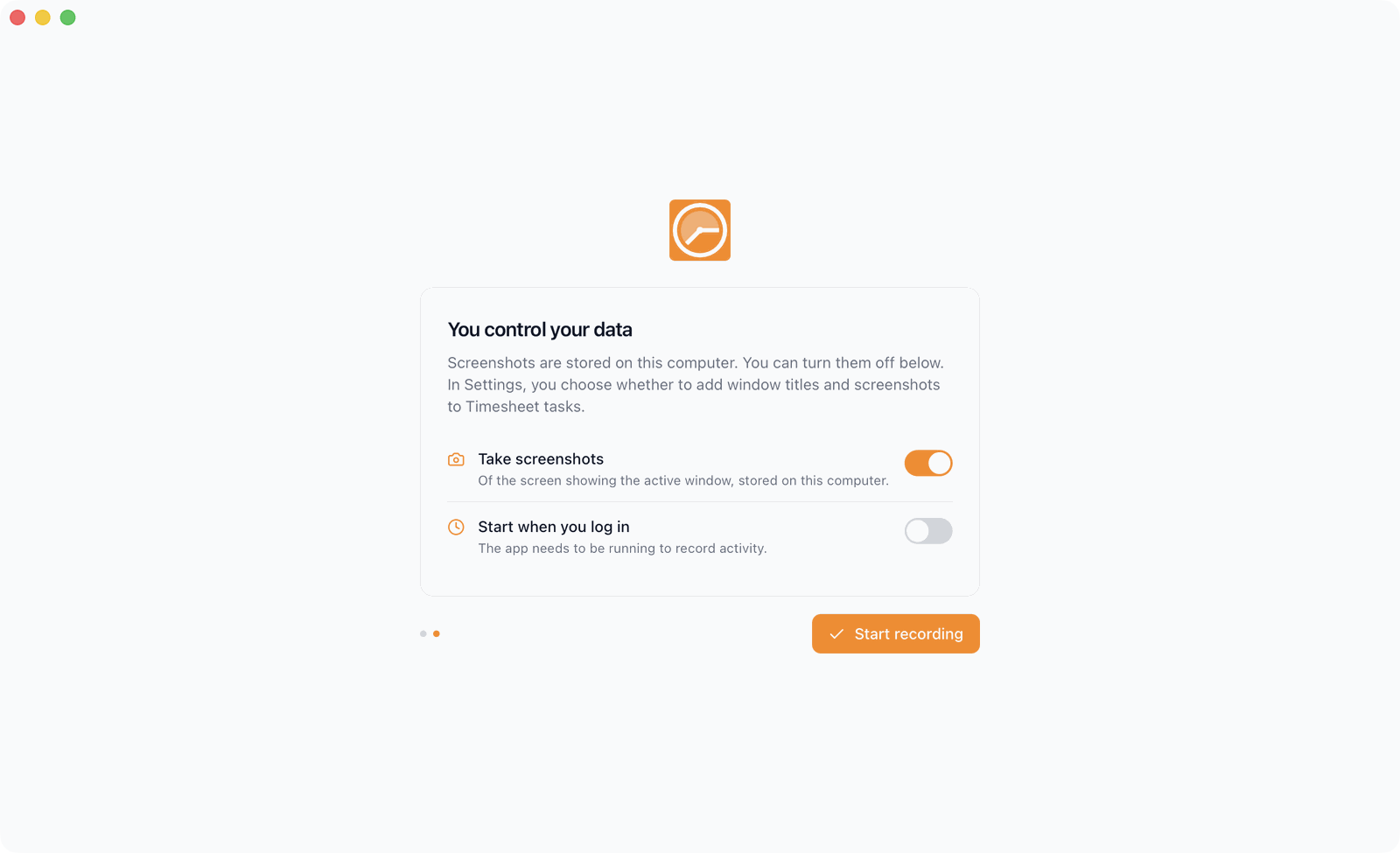
Click Start recording to finish. Recording continues when you close the window. Use the menu bar icon to pause recording or quit the app.
Dashboard
The dashboard sums up today.
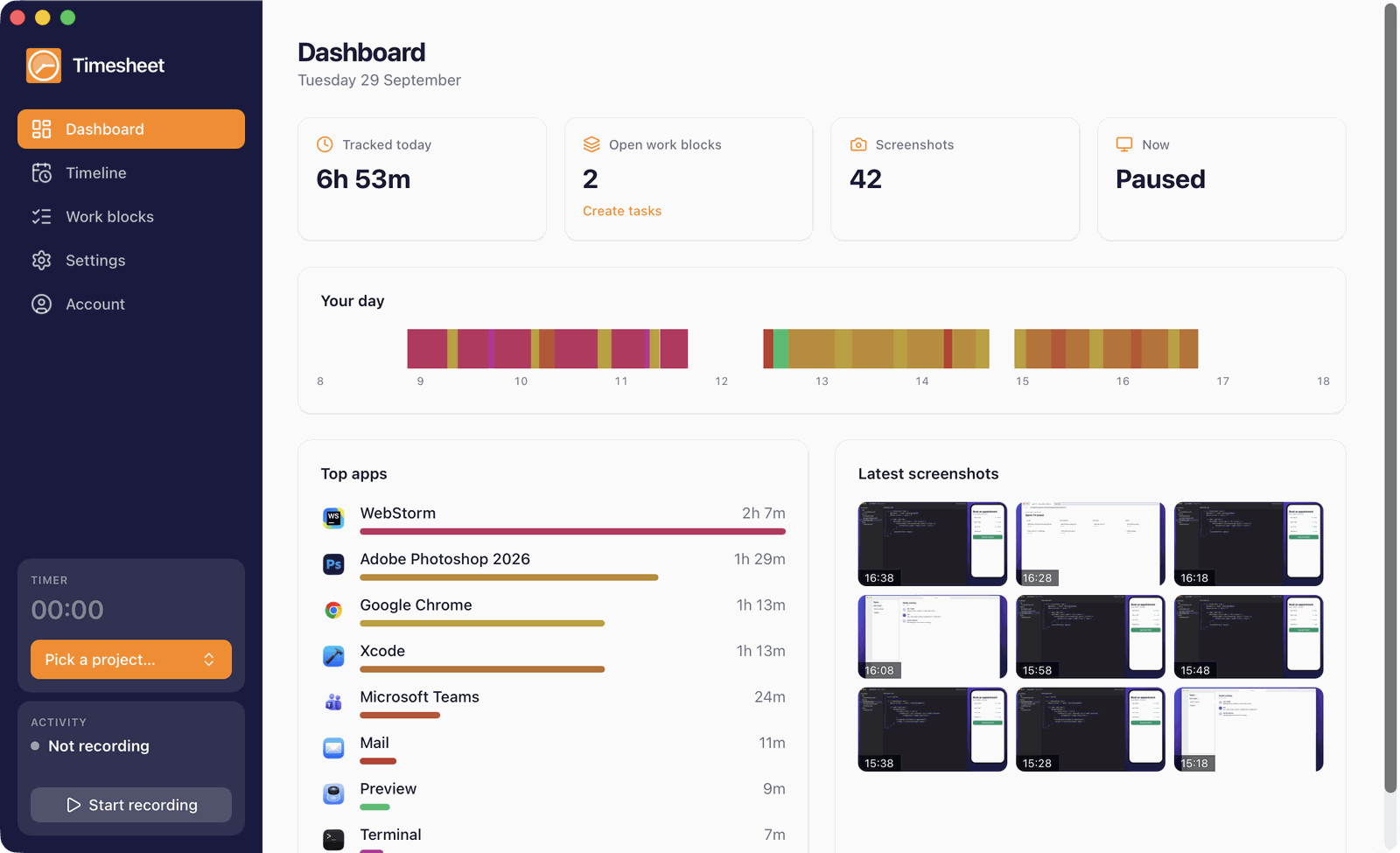
What you see:
- Tracked today: the time the app recorded today.
- Open work blocks: stretches of work that are not booked yet. Click Create tasks to book them.
- Screenshots: how many screenshots were taken today.
- Now: the app you are working in, or Paused.
- Your day: the apps you used, on one strip from the first hour to now.
- Top apps: the apps that took the most time.
- Latest screenshots: click one to see it full size. In that view you can delete it.
Timeline
The Timeline shows one day on one time axis in two columns:
- Activity (left): what this Mac recorded, with a marker for each screenshot.
- Tasks (right): your Timesheet tasks of that day, and suggestions for recorded time that is not booked yet.
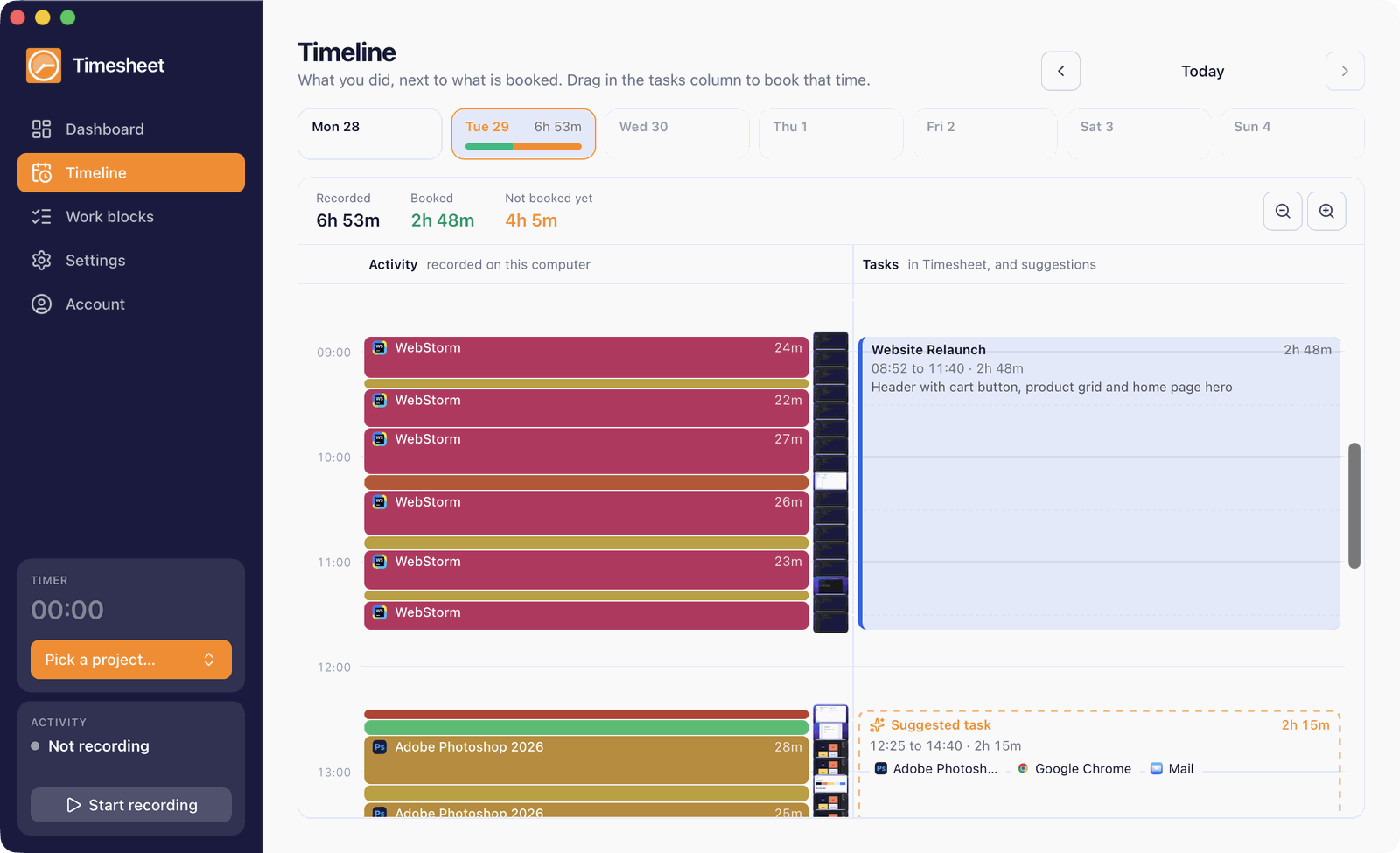
How to use it:
- The figures on top show Recorded, Booked, and Not booked yet.
- Use the week strip or the arrows to open another day.
- Use the zoom buttons to show more or fewer hours.
- Click a task to open it in the Timesheet web app.
A suggestion only covers recorded time that no task covers yet. A task you tracked on your phone for the same hours is not suggested again.
Create a task from recorded time
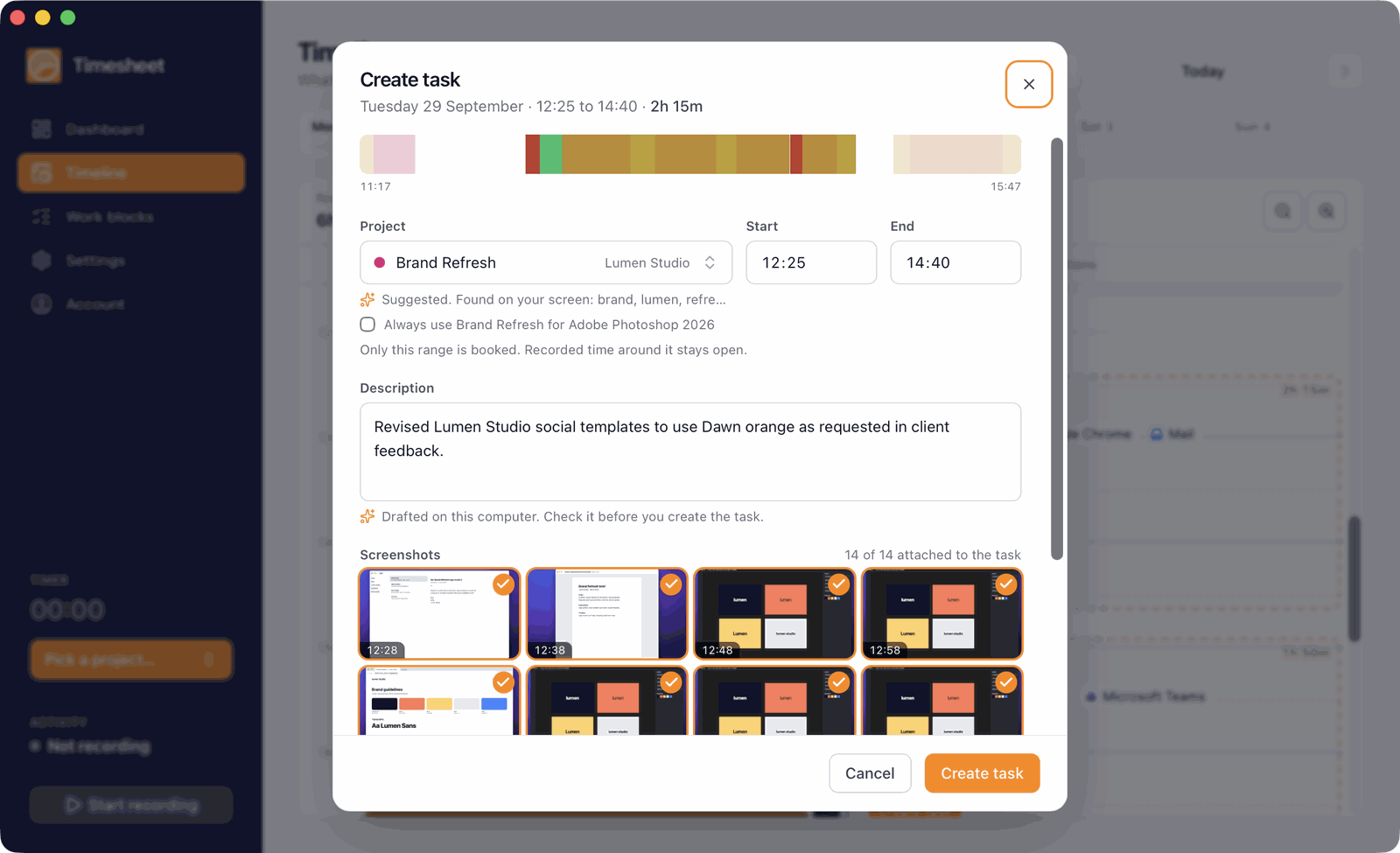
- On the Timeline, click a suggested task. To book only part of the time, drag in the Tasks column over the time you want.
- Check the Project. The app proposes one from words it found on your screen, such as a client name in a window title. A project rule always wins over what is on screen.
- Adjust Start and End if needed. Only this range is booked. Recorded time around it stays open.
- Check the Description. With suggestions switched on, it is drafted on your Mac. Check it before you create the task.
- Under Screenshots, click a screenshot to leave it out. Only the ticked screenshots are uploaded. With uploads switched off in Settings, screenshots stay on your Mac.
- Optional: tick Always use [project] for [app] to create a project rule.
- Click Create task.
Work blocks
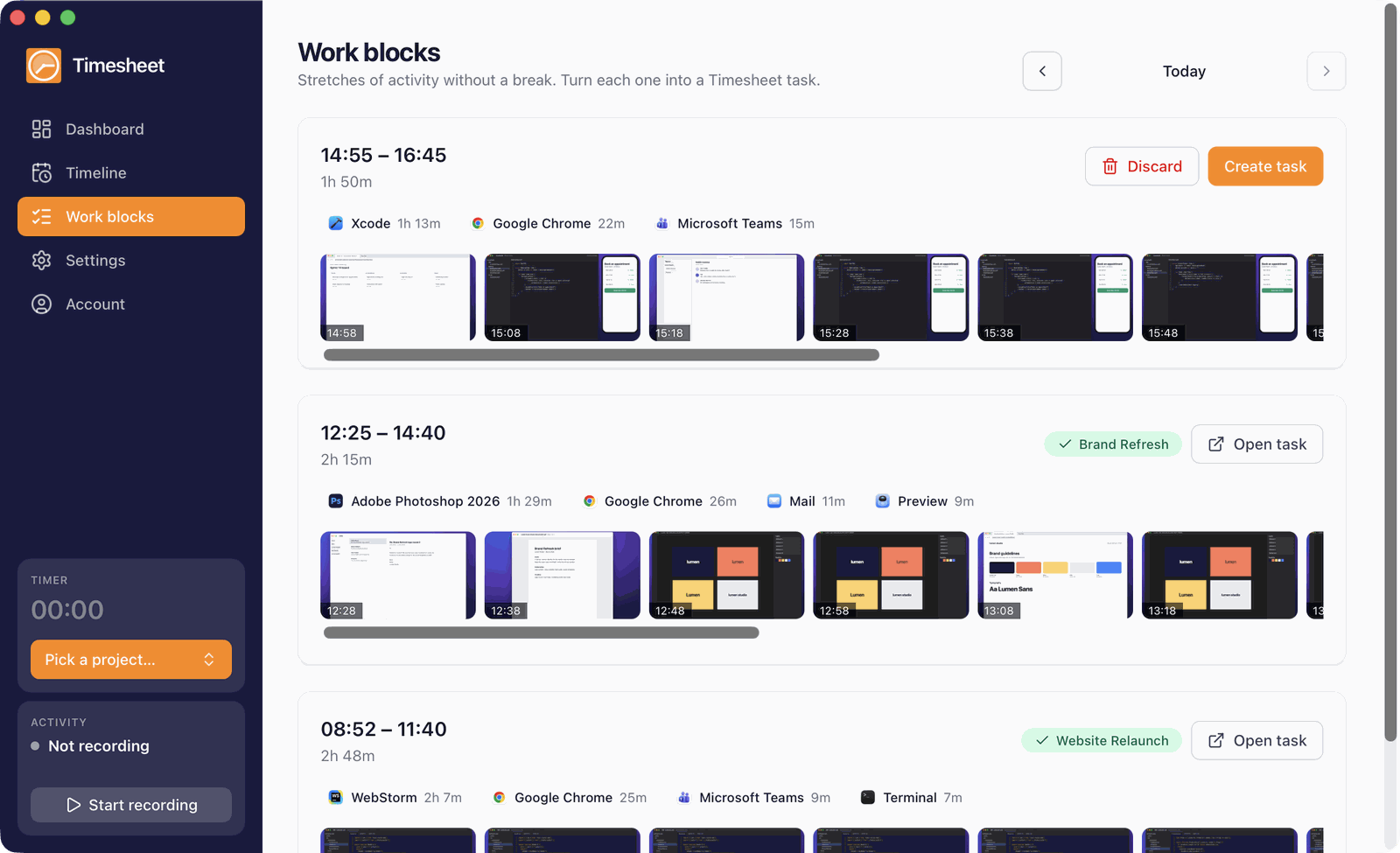
Work blocks lists the day as stretches of work without a break, newest first. Each block shows its apps and screenshots.
How to use it:
- Click Create task to book a block.
- Click Discard to remove a block you do not want to book.
- A booked block shows its project. Click Open task to open it in the web app.
A break longer than the idle timeout in Settings ends a block.
Timer
The sidebar has the Timesheet timer, the same timer as on your phone and in the web app. Click Pick a project… to start it, then use Pause or Stop.
With Attach activity to the running timer switched on in Settings, the apps you use are added to the running task about once a minute. Only you can see them.
Menu bar
The app keeps recording when you close its window. The menu bar icon shows whether it is recording and how much it recorded today. From its menu you can pause or start recording, pause or stop the timer, open Work blocks or Settings, and quit the app.
Settings
| Setting | What it does |
|---|---|
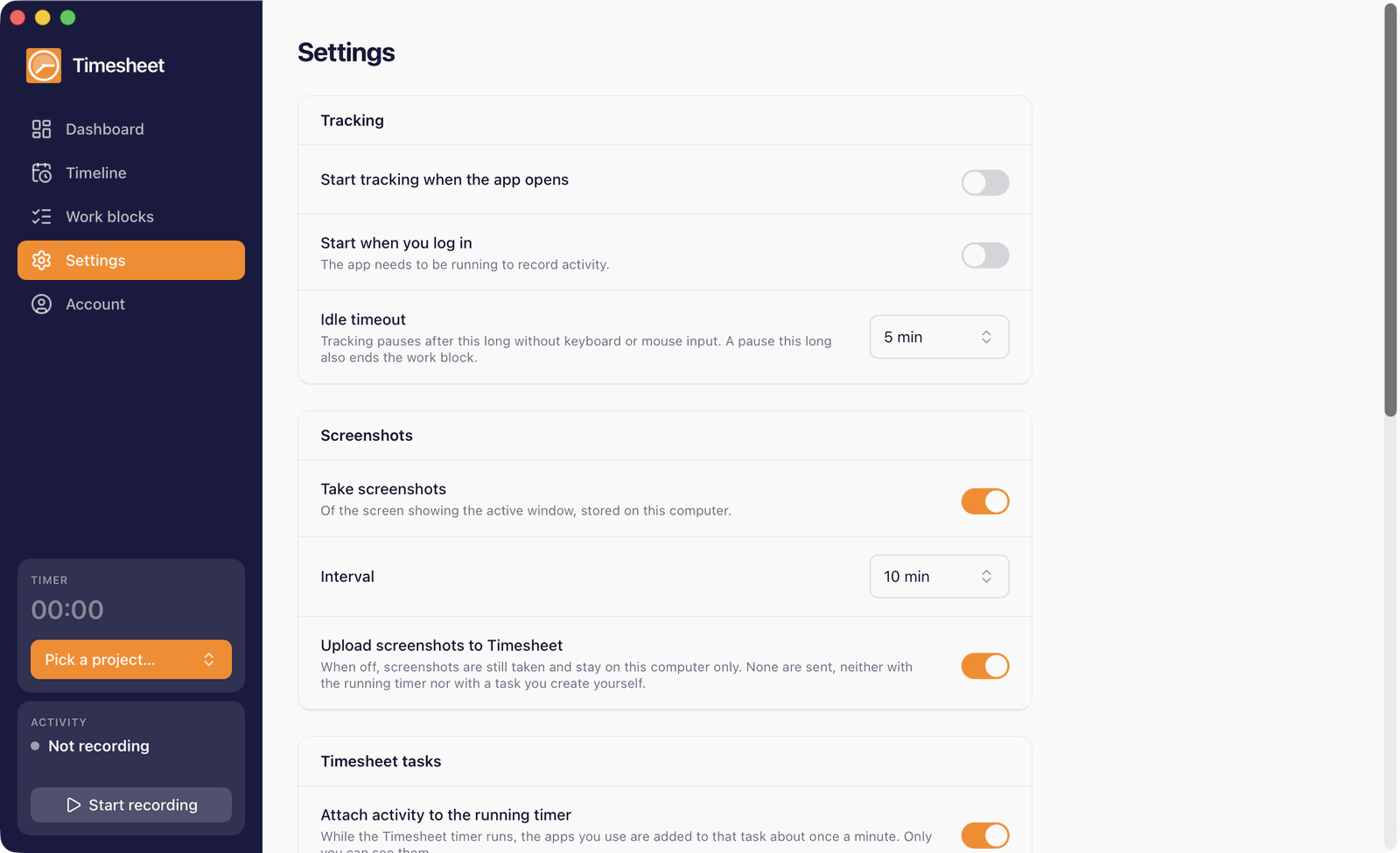
| Start tracking when the app opens | Starts recording as soon as the app opens. |
| Start when you log in | Opens the app when you log in to your Mac. The app needs to be running to record. |
| Idle timeout | Recording pauses after this long without keyboard or mouse input. A pause this long also ends the work block. |
| Take screenshots | Takes screenshots of the screen with the active window and stores them on your Mac. |
| Interval | How often a screenshot is taken. |
| Upload screenshots to Timesheet | When off, screenshots are still taken but never sent. |
| Attach activity to the running timer | Adds the apps you use to the task of the running timer. |
| Include window titles | Sends the five most used window titles per app with the activity. They can contain file names and page titles. |
| Project rules | Lists your rules. Click the trash icon to remove one. |
| Suggest the project and description | Proposes the project from the words on your screen. While it is on, the text on each screenshot is read and kept on your Mac. It is never uploaded. |
| Description model | Downloads the language model that drafts descriptions on your Mac. It is one download of a few gigabytes. |
| Theme | System, light, or dark. |
When you come back after a pause longer than the idle timeout, the app asks whether the time you were away was work. Click Count it as work to keep it, or Leave it out.
Your data
- Everything the app records stays on your Mac until you create a task from it.
- When you create a task, the app activity is added to Timesheet according to your settings: window titles only with Include window titles, screenshots only with Upload screenshots to Timesheet.
- Project suggestions and drafted descriptions run on your Mac. Nothing is sent anywhere to create them.
Troubleshooting
Only app names are recorded, and no screenshots Give the app Screen Recording permission in System Settings > Privacy & Security > Screen Recording, then quit and reopen the app.
The app shows an upgrade screen Your plan does not include the Activity Tracker, or your trial has ended. Click See plans to upgrade to Pro, Business, or Enterprise, then click Check subscription again.
No suggestion for a block A suggestion needs at least a minute of recorded time that no task covers. The project is only proposed when the words on screen clearly point to one project.