Automation
Automation tracks time for you without you having to open the app. Arrive at a configured location, come near an iBeacon, or tap your phone to an NFC tag, and the timer starts. Leave the location or beacon range, and it stops. This hands-free approach means you never forget to track time at your regular workplaces.
On this page: requirements & permissions · geofence automation · iBeacon automation · NFC tags · managing automations · troubleshooting.
On iPad with enough screen space (full-screen or a wide split view), the Automations screen renders as a two-column list + detail layout. Tapping a row opens the edit view in the right column. See iPad Cockpit → List + detail.
Overview
Automation Types
Timesheet supports three ways to trigger the timer automatically:
| Type | Description | Best For |
|---|---|---|
| Geofence | Virtual boundary around a location | Offices, client sites, any address |
| iBeacon | Bluetooth beacon proximity | Specific rooms, desks, equipment |
| NFC tag | Tap your phone to a physical tag | Workstations, vehicles, equipment |
Geofence and iBeacon automations are created from the Automation screen. NFC automations are written to a physical tag using the NFC Tag Writer in the same screen — see NFC tags below.
How It Works
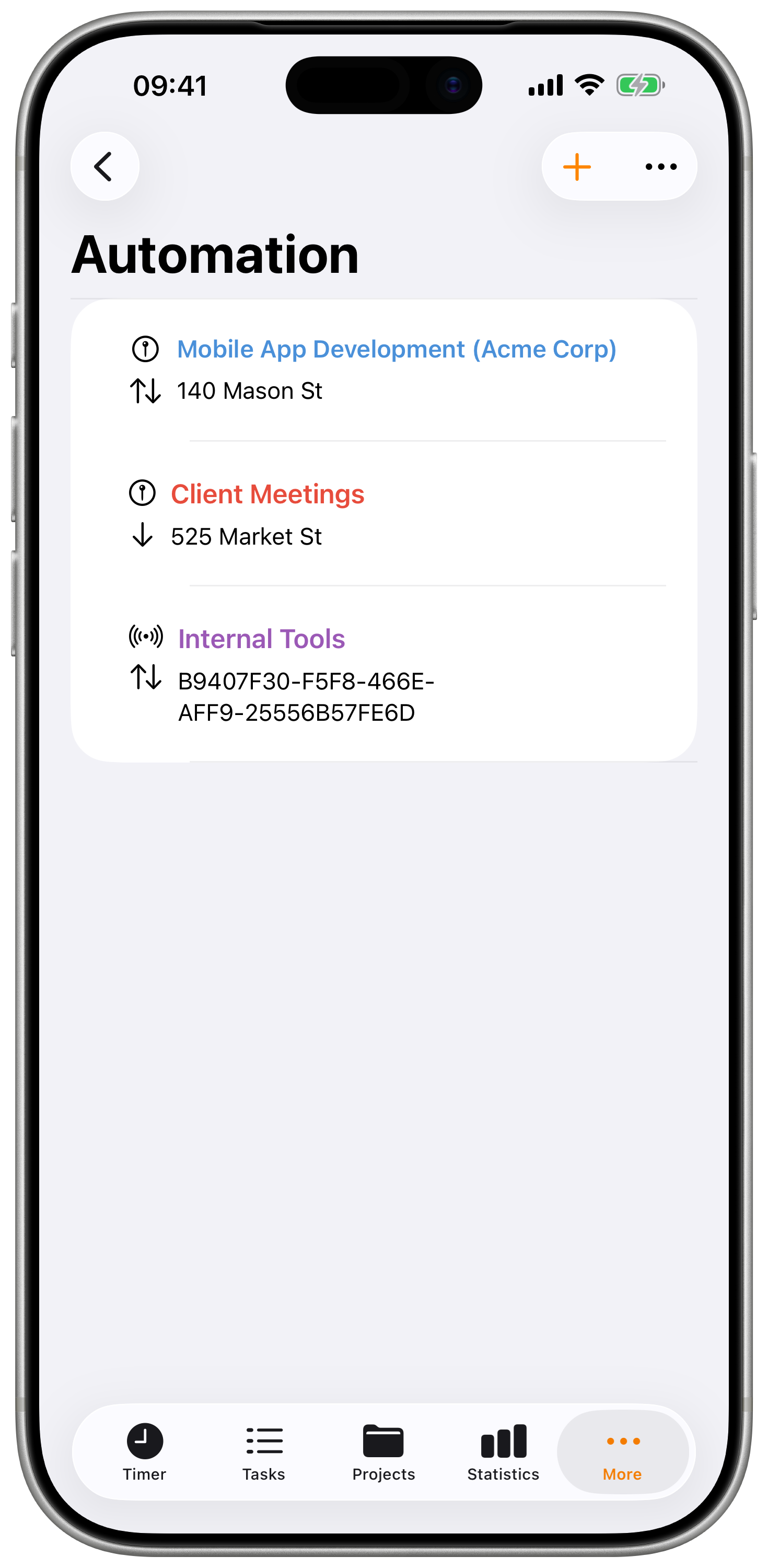
- You configure an automation with a location or beacon
- iOS monitors in the background
- When you enter the area/range, Timesheet starts a timer
- When you exit, Timesheet stops the timer
- Time is logged automatically to your configured project
Use Cases
| Scenario | Recommended Type |
|---|---|
| Office building | Geofence |
| Client sites | Geofence |
| Home office | Geofence |
| Specific desk/room | iBeacon |
| Equipment usage | iBeacon |
| Coworking space | Geofence or iBeacon |
| Vehicle or one-tap start | NFC tag |
Requirements
Location Permissions
Automation requires "Always Allow" location permission:
- Open iOS Settings
- Find Timesheet
- Tap Location
- Select Always
Without "Always Allow" location access, automation cannot detect when you arrive or leave locations while the app is closed. The feature will not work with "While Using" or "Never" permissions.
Battery Considerations
Both automation types are power-efficient:
- Geofencing uses iOS's built-in region monitoring
- iBeacon uses low-energy Bluetooth
- Neither continuously tracks GPS
- Minimal battery impact
- Works even in Low Power Mode
Geofence Automation
Creating a Geofence
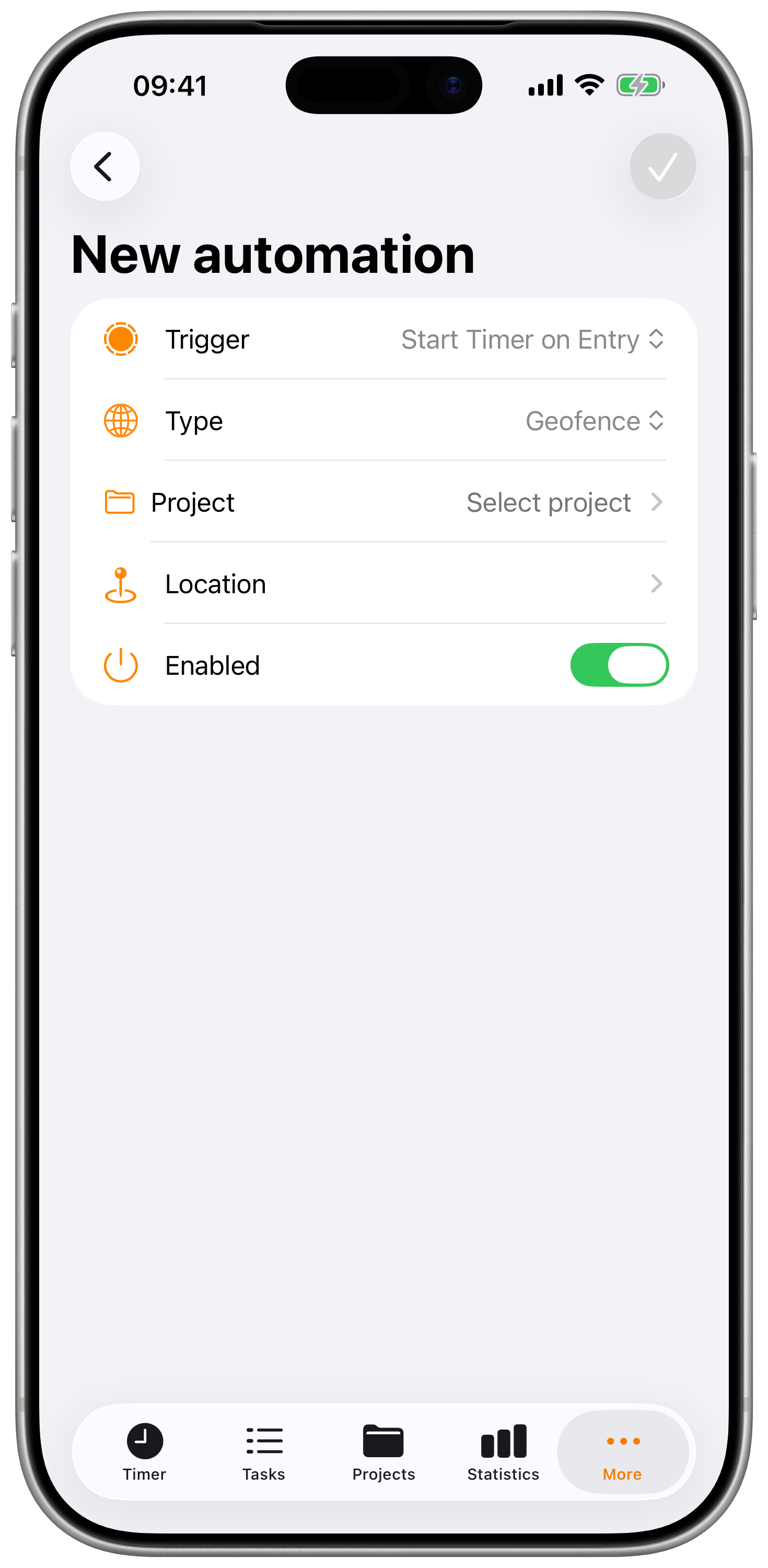
- Open the Automation screen
- Tap the + button
- Select Geofence type
- Choose a project
- Select a location on the map
- Set the radius
- Configure trigger options
- Tap Save
Geofence Properties
| Property | Description |
|---|---|
| Project | Project to assign time entries |
| Location | The geographic center point |
| Radius | Size of the geofence area |
| Trigger | Entry, Exit, or Both |
| Enabled | Active/inactive toggle |
Selecting a Location
When setting the location:
- Tap the location field
- Choose from options:
- Current Location - Use where you are now
- Search - Find an address or place
- Map - Tap to place the marker
- Fine-tune the position on the map
- Confirm the location
Zoom in on the map and position the marker at the entrance or center of your workplace for the most accurate triggers.
Setting the Radius
The radius defines how far from the center point the geofence extends:
| Radius | Best For |
|---|---|
| 50-100m | Single building, small office |
| 100-200m | Campus, industrial area |
| 200-500m | Large complex, uncertain parking |
| 500m+ | Wide area, inconsistent arrival points |
Recommendations:
- Smaller radius = more precise, may miss triggers
- Larger radius = more reliable, may trigger early
- Start larger and reduce if triggering too far away
iBeacon Automation
What is iBeacon?
iBeacon is Apple's Bluetooth Low Energy (BLE) protocol. Small beacon devices broadcast a unique identifier that your iPhone can detect when nearby. This enables precise indoor location tracking.
Creating an iBeacon Automation
- Open the Automation screen
- Tap the + button
- Select Beacon type
- Choose a project
- Enter the beacon UUID
- Configure trigger options
- Tap Save
iBeacon Properties
| Property | Description |
|---|---|
| Project | Project to assign time entries |
| Beacon UUID | The beacon's unique identifier |
| Trigger | Entry, Exit, or Both |
| Enabled | Active/inactive toggle |
Finding Your Beacon UUID
Your iBeacon device should come with documentation containing its UUID. The UUID is a standardized format like:
E2C56DB5-DFFB-48D2-B060-D0F5A71096E0
iBeacon Advantages
- More precise than geofencing for indoor use
- Works indoors where GPS signal is weak
- Room-level accuracy when properly configured
- Multiple beacons for different areas
iBeacon Considerations
- Requires purchasing beacon hardware
- Beacon battery needs replacement over time
- Bluetooth must be enabled on your device
- Range varies by beacon and environment
NFC Tags
NFC tags are small, inexpensive stickers you can place anywhere — on a desk, in a vehicle, next to a workstation. Tap your iPhone to the tag to instantly start or stop the timer for a specific project. No GPS, no Bluetooth, no waiting.
Writing a Tag
- Open the Automation screen
- Tap the NFC Tag Writer button
- Choose what the tag should do (start, stop, or toggle the timer)
- Pick the project to track
- Hold your iPhone close to a blank NFC tag
- The tag is programmed in a second
You can reuse blank NFC stickers (sold in packs online) as many times as you like — writing a new automation simply overwrites the old one.
Using a Tag
Tap the back of your iPhone to the tag — that's it. Timesheet opens just long enough to start or stop the timer, then gets out of the way.
NFC Considerations
- NFC must be enabled on your iPhone (it is by default)
- A case that's too thick can block the signal — try without the case first if it doesn't work
- The NFC reader is near the top edge of your iPhone
Trigger Options
Trigger Types
| Trigger | Description |
|---|---|
| Entry & Exit | Start on arrival, stop on departure |
| Entry Only | Start on arrival, manual stop required |
| Exit Only | Start manually, stop on departure |
Choosing the Right Trigger
- Entry & Exit - Most common, fully automatic
- Entry Only - When you need to control when work ends
- Exit Only - When work starts before arriving (remote start)
Managing Automations
Viewing Automations
- Open the Automation screen
- See all configured automations
- Active automations show status indicator
- Tap any automation to edit
Editing an Automation
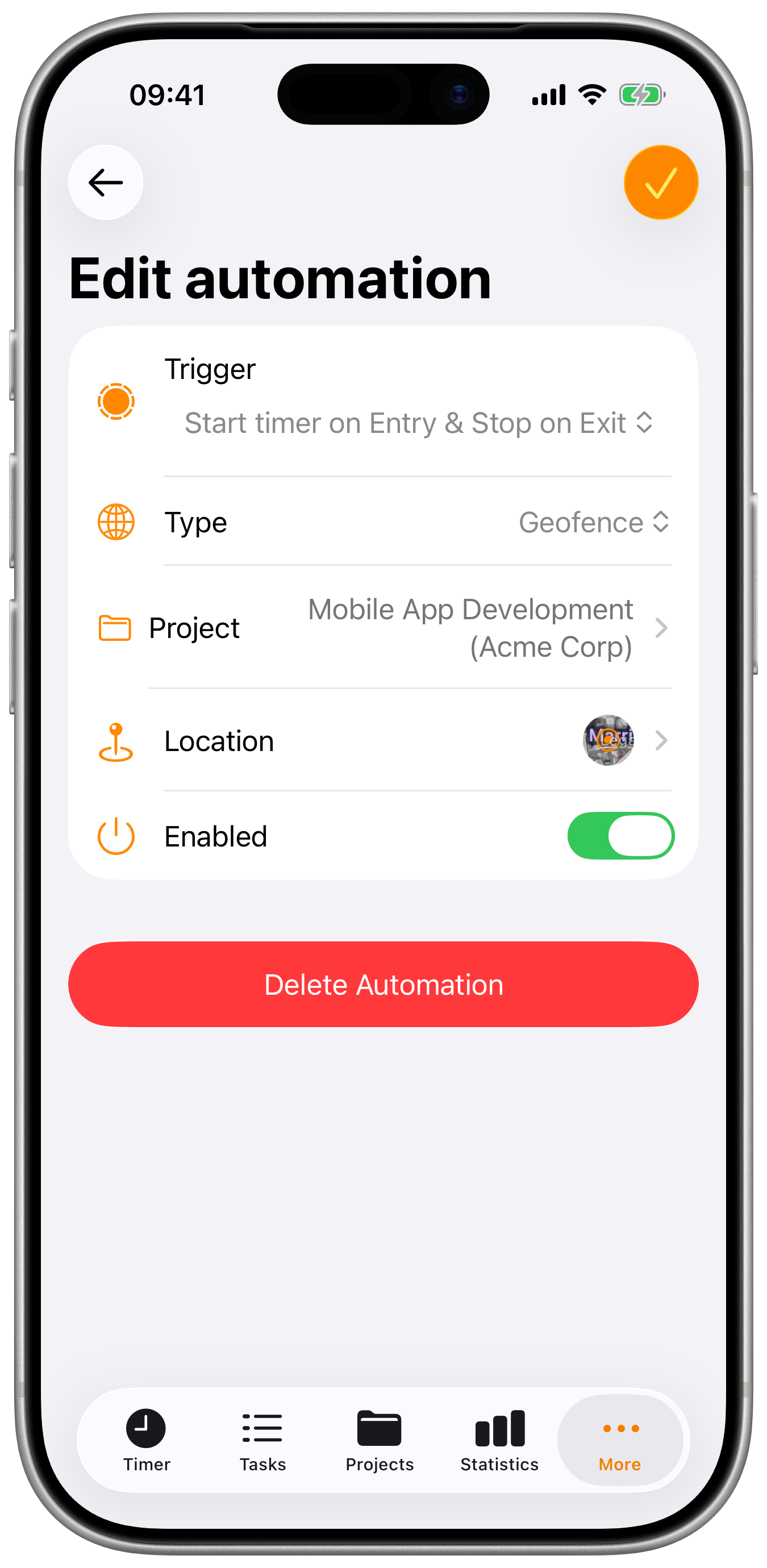
- Tap the automation to open
- Modify any settings
- Tap Save to apply changes
Enabling/Disabling
Toggle an automation without deleting it:
- Open the automation
- Toggle the Enabled switch
- Disabled automations won't trigger
When to disable:
- Vacation or time off
- Temporary work from different location
- Testing different configurations
Deleting an Automation
- Swipe left on the automation in the list
- Tap Delete
- Or open the automation and tap Delete
How Detection Works
Geofence Detection
When iOS detects you've entered or exited a geofence:
- System notifies Timesheet (even if app is closed)
- Timesheet creates or stops a timer
- Notification appears (if enabled)
- Time entry is saved automatically
Detection factors:
| Factor | Impact |
|---|---|
| Signal quality | WiFi and cellular improve accuracy |
| Device motion | Movement triggers faster detection |
| Building materials | Some structures block signals |
| iOS version | Newer versions have improved detection |
iOS geofences don't trigger instantaneously. There may be a delay of several minutes between crossing the boundary and the trigger firing. This is normal iOS behavior to conserve battery.
iBeacon Detection
When your device enters or exits beacon range:
- iOS detects the beacon's Bluetooth signal
- System notifies Timesheet
- Timer starts or stops
- Notification appears (if enabled)
iBeacon detection is typically faster and more precise than geofencing for indoor use.
Notifications
Automation Notifications
Configure alerts for automation events:
- Go to Settings → Notifications
- Enable automation notifications
- Configure entry and exit alerts
Notification Content
Notifications include:
- Action taken (started/stopped)
- Project name
- Duration (on stop)
Multiple Automations
Different Locations
Create separate automations for each workplace:
- Office automation → Office project
- Client A site → Client A project
- Client B site → Client B project
Each triggers independently when you visit that location.
Shared Automations
Automations can be shared with team members. When shared:
- All team members can use the automation
- Useful for common workplace locations
- Managed by team administrators
Overlapping Geofences
If geofences overlap:
- Entry triggers when entering any overlapping area
- The first automation matched is used
- Consider adjusting radii to prevent overlap
Overlapping geofences can cause unexpected behavior. If you have locations close together, reduce the radius so they don't overlap.
Best Practices
Optimal Geofence Configuration
- Start with larger radius - Reduce if triggering too far out
- Position marker precisely - Center of building or entrance
- Name descriptively - Include location and project
- Test before relying - Visit location to verify triggers
Optimal iBeacon Configuration
- Place beacon strategically - Near your primary work area
- Note the UUID carefully - Typos prevent detection
- Test range - Walk around to understand coverage
- Check battery - Replace beacon batteries as needed
Reliability Tips
- Keep Timesheet updated - New versions improve detection
- Don't force-quit the app - Background processes need to run
- Grant all permissions - Location "Always" and notifications
- Check periodically - Verify entries are being created
- Enable Bluetooth - Required for iBeacon automation
Common Configurations
Standard Office (Geofence):
- Radius: 100m
- Center: Building entrance
- Trigger: Entry & Exit
Client Site (Geofence):
- Radius: 150m
- Center: Main entrance or parking
- Trigger: Entry & Exit
Home Office (Geofence):
- Radius: 50m
- Center: Your address
- Trigger: Entry & Exit
Specific Desk (iBeacon):
- Beacon placed at/near desk
- Trigger: Entry & Exit
Troubleshooting
Automation Not Triggering
- Check location permission - Must be "Always"
- Verify automation is enabled - Toggle is on
- Check geofence radius - May be too small
- Test location/beacon - Marker may be misplaced or UUID incorrect
- Review iOS settings - Background App Refresh enabled
- Check Bluetooth - Must be on for iBeacon
Triggers at Wrong Time
- Geofence too large - Reduce radius
- Marker misplaced - Reposition on map
- Overlapping automations - Adjust boundaries
- Living near workplace - Consider smaller radius
Timer Doesn't Stop on Exit
- Check exit notification - Did it appear?
- Review iOS location - Signal issues may delay
- Force manual stop - Then adjust settings
- Test exit boundary - Walk clearly outside radius/range
Multiple Entries Created
- Geofence boundary issues - You may be on the edge
- Increase radius - Prevent edge bouncing
- Check for overlapping automations - Remove duplicates
- iOS location fluctuation - Normal in some areas
If your workplace is on the boundary of your geofence, iOS may repeatedly detect entry/exit as your location fluctuates. Increase the radius so you're clearly inside when at work.
iBeacon Not Detected
- Verify UUID is correct - Check for typos
- Check beacon battery - May need replacement
- Ensure Bluetooth is on - Required for detection
- Test beacon range - May need to be closer
- Check for interference - Metal objects can block signal
Battery Drain
Automation uses minimal battery, but if you notice issues:
- Verify you're using geofencing/iBeacon (not continuous GPS)
- Reduce number of active automations
- Check other apps using location
- Update to latest iOS and Timesheet versions