Projects
Projects are the primary way to organize your work in Timesheet. Each project represents a distinct body of work—a client engagement, personal project, or work category. All tasks are assigned to projects, allowing you to track time, calculate earnings, and generate reports by project.
On iPad with enough screen space (full-screen or a wide split view), the Projects screen renders as a two-column list + detail layout. Tapping a row opens the edit view in the right column. See iPad Cockpit → List + detail.
Project Basics
What is a Project?
A project contains:
- Identification - Name, color, and client
- Task defaults - Default rate and billable status for new tasks
- Time entries - Tasks assigned to this project
- Statistics - Total hours and earnings
Project Fields
Basic Information
| Field | Description | Required |
|---|---|---|
| Name | Descriptive project title | Yes |
| Color | Visual identifier throughout app | Yes |
| Description | Details about the project (supports Markdown) | No |
Client Information
| Field | Description |
|---|---|
| Client/Employer | The client or company name |
| Location | Office or work location address |
Financial Settings
| Field | Description |
|---|---|
| Salary/Hour | Base hourly rate for this project (e.g., $50.00) |
| Salary Visibility | Control who can see earnings (Pro/Teams) |
Task Defaults
| Field | Description |
|---|---|
| Default Billable | Whether new tasks are billable by default |
| Default Rate | Rate automatically assigned to new tasks |
When creating a task, the rate is determined by:
- Template rate (if using a template)
- Project's default rate
- No rate (if neither is set)
Status
| Field | Description |
|---|---|
| Archived | Hide from timer and active lists |
Team (when teams active)
| Field | Description |
|---|---|
| Team | Which team owns this project |
Project List
Accessing Projects
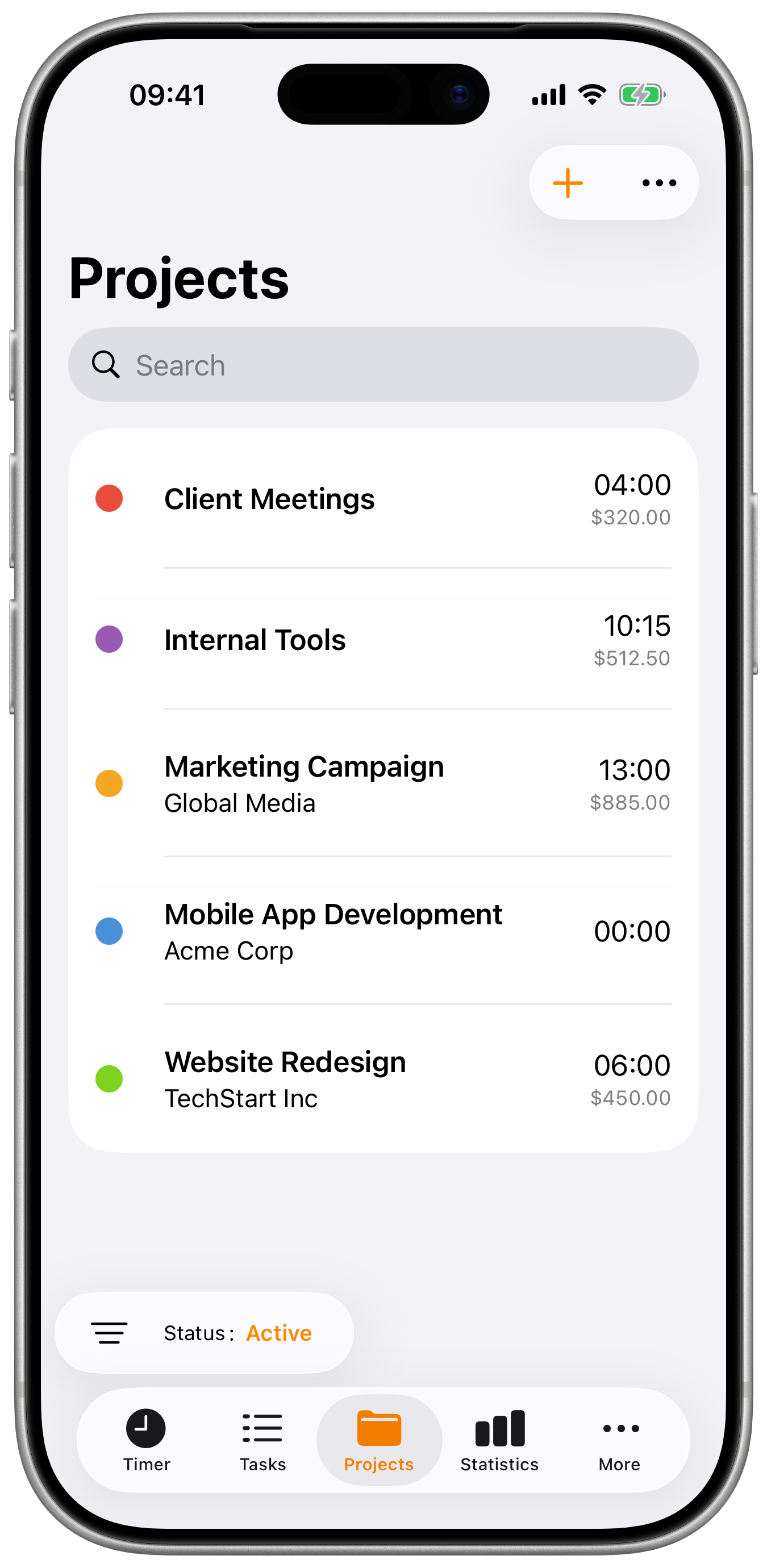
- Open the Projects tab
- View all your projects
- Tap any project to see details
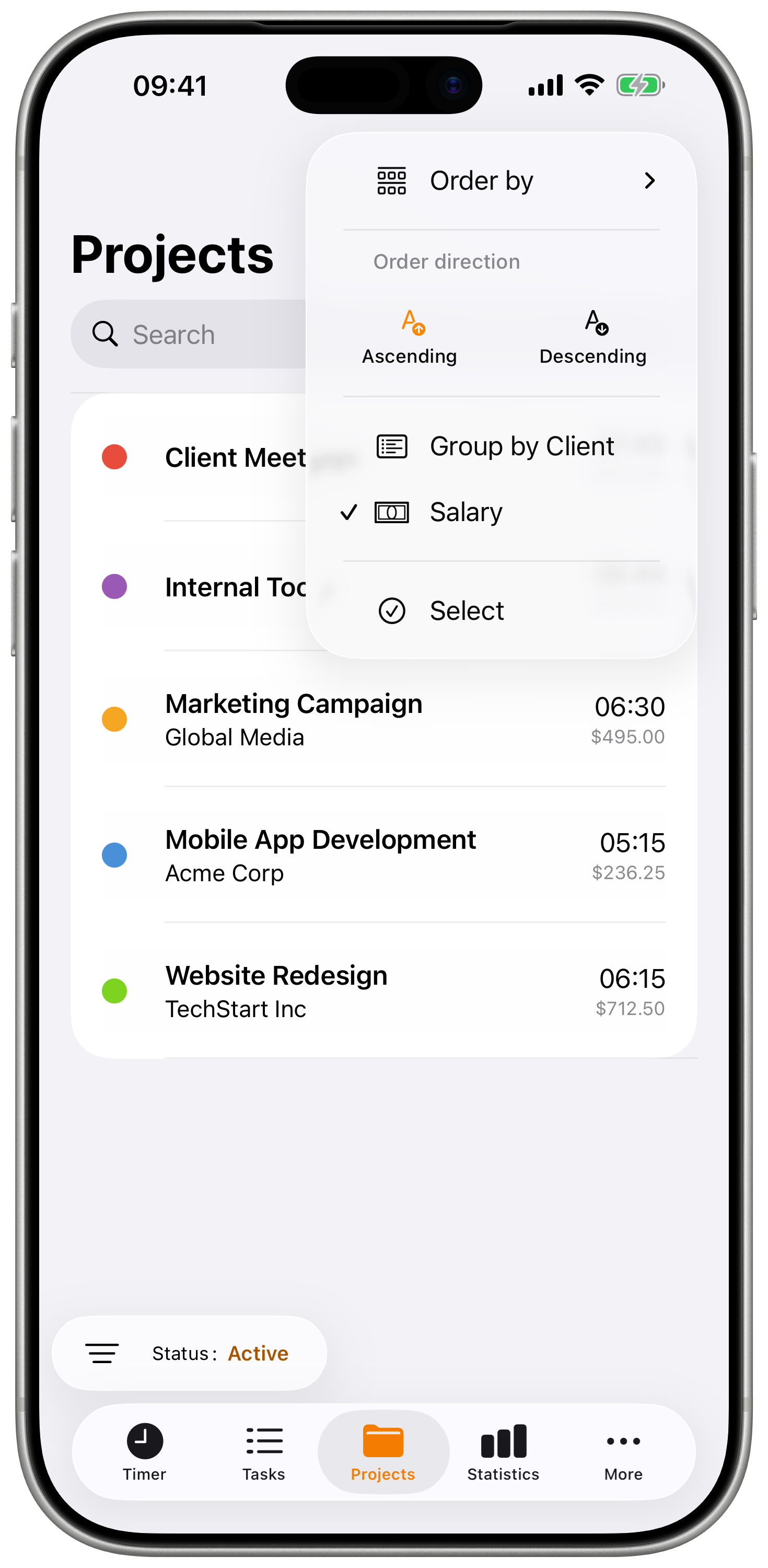
- Use the filter to show/hide archived
Project List Display
Each project shows:
- Color indicator - Visual identification
- Project name - Primary identifier
- Client name - If assigned
- Total hours - Time tracked to this project
- Total earnings - If rate is configured
Creating Projects
Create a New Project
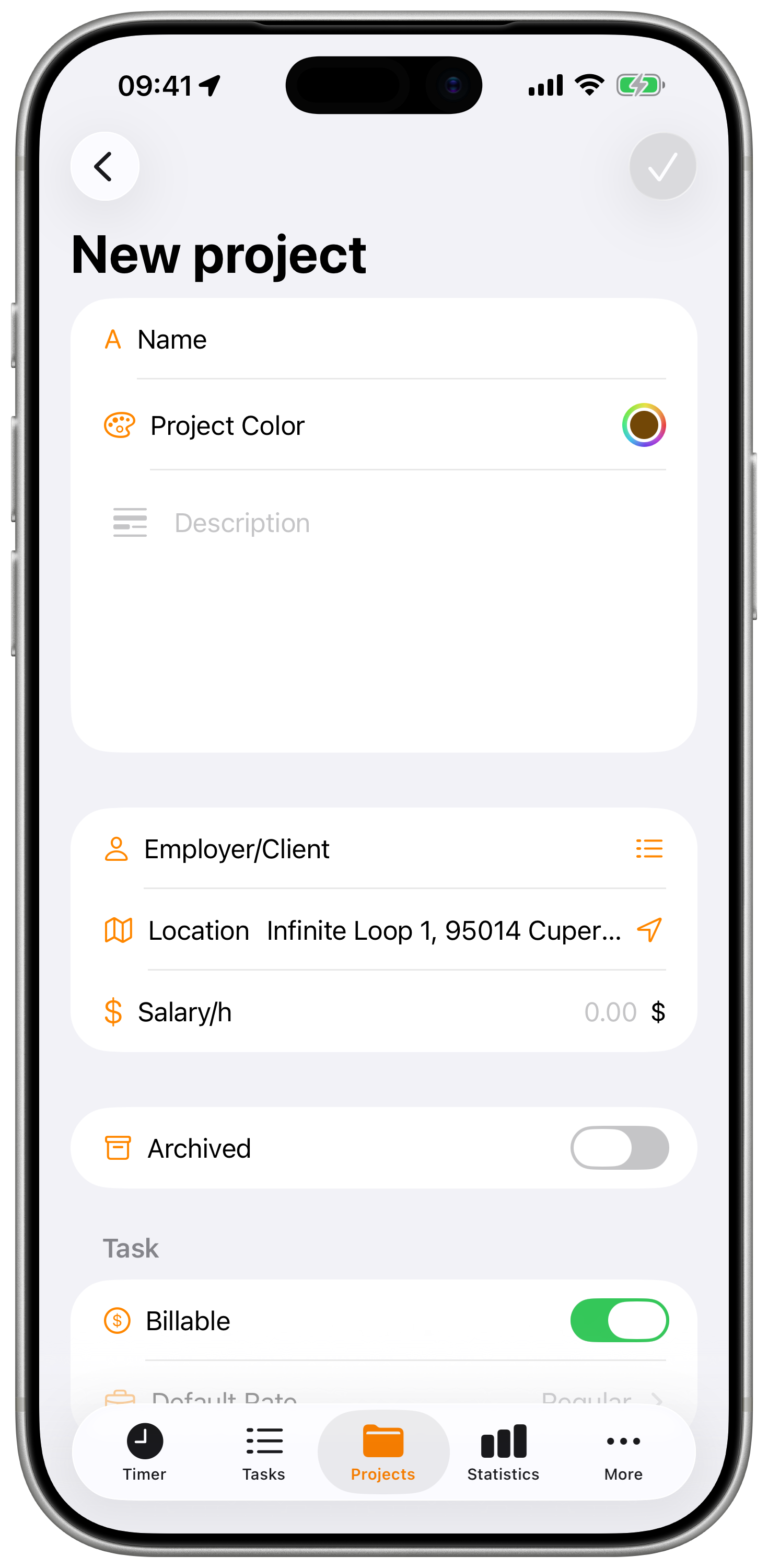
- Open the Projects tab
- Tap the + button
- Enter project details
- Configure task defaults
- Tap Save
Step by Step
- Select Team (if teams are active) - Choose which team owns this project
- Enter Name - A unique, descriptive title
- Choose Color - Pick from the color palette
- Add Description - Optional details about the project
- Set Client/Employer - The client or company (with autocomplete from existing)
- Set Location - Office address or work location
- Set Salary/Hour - Your base hourly rate for this project
- Configure Task Defaults:
- Toggle default billable status
- Select default rate for new tasks
- Save the project
Use consistent naming like "Client - Project" (e.g., "Acme Corp - Website") for easy identification and sorting.
Project Details
Viewing Project Details
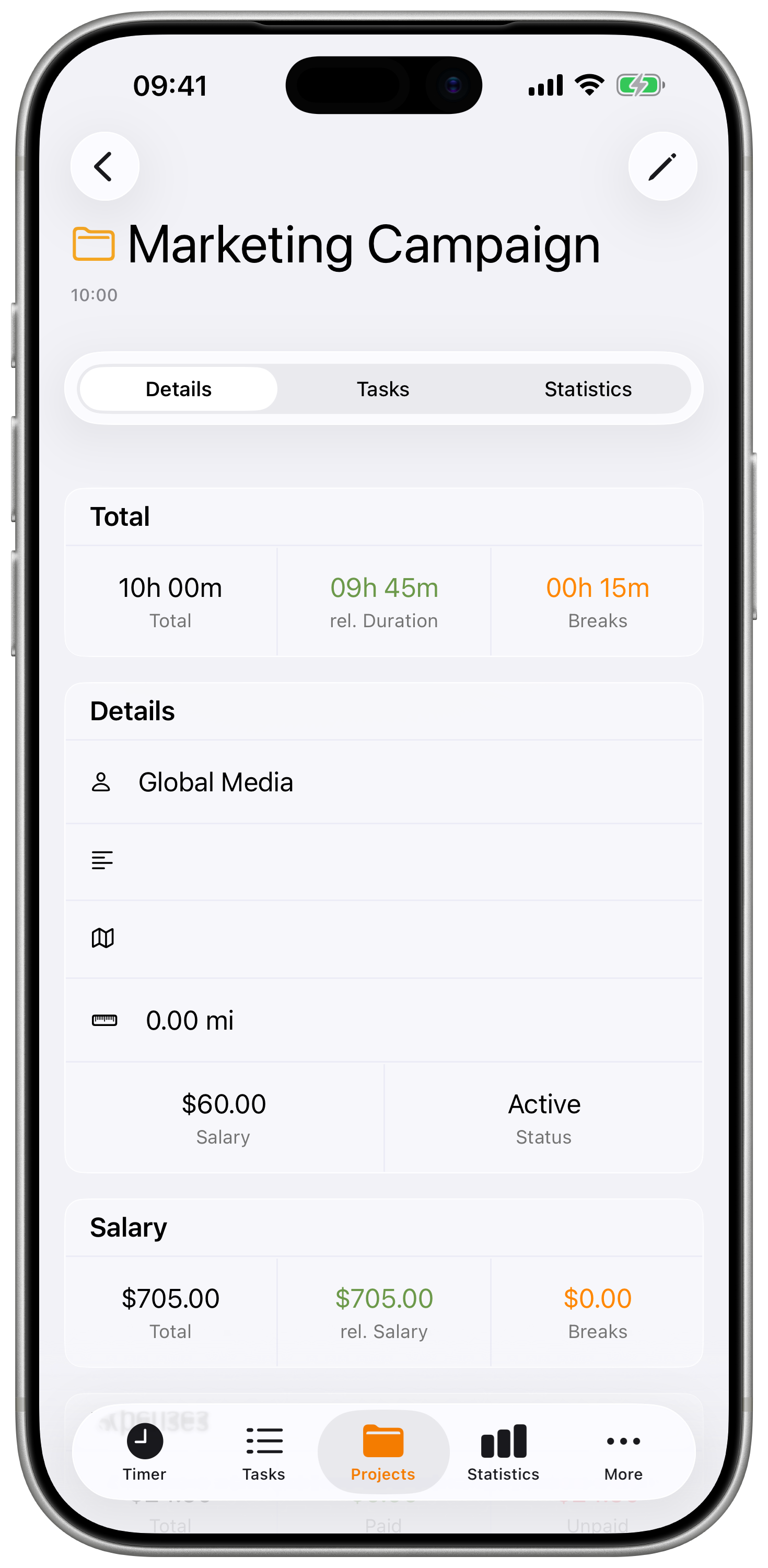
Tap any project to see:
- Project information - All configured fields
- Statistics - Hours and earnings totals
- Task list - Time entries for this project
- Quick actions - Edit, archive, delete
Project Tabs
| Tab | Contents |
|---|---|
| Details | Project properties and settings |
| Tasks | Time entries for this project |
| Statistics | Project statistics and charts |
You can set which tab opens by default in Settings.
Managing Projects
Editing a Project
- Open the project
- Tap Edit or the edit icon
- Modify any fields
- Tap Save
Project Status
Projects have two status options:
| Status | Description |
|---|---|
| Active | Available for time tracking |
| Archived | Hidden from timer, preserved for history |
Archiving a Project
When a project is complete:
- Open the project
- Tap Edit
- Toggle Archived on
- Save changes
Archived projects:
- Don't appear in the timer project picker
- Don't appear in default project list
- Appear when filter shows archived
- Preserve all historical data
- Can be unarchived later
Unarchiving a Project
- Show archived projects in filter
- Open the archived project
- Tap Edit
- Toggle Archived off
- Save changes
Deleting a Project
- Open the project
- Tap Edit
- Scroll to bottom
- Tap Delete Project
- Confirm deletion
Deleting a project removes all associated tasks, breaks, expenses, and notes. This cannot be undone. Consider archiving instead to preserve historical data.
Project Filter
Filter Options
| Filter | Options |
|---|---|
| Status | Active, Archived, All |
Quick Filters
- Active only (default) - Shows only active projects
- All - Shows everything including archived
Task Defaults
Set defaults that apply to new tasks created for this project.
Default Billable
When enabled, new tasks for this project are automatically marked as billable.
Default Rate
Select a rate from your configured Rates. This rate will be automatically assigned to new tasks created for this project.
Benefits:
- Consistent billing across project tasks
- Less manual rate selection
- Works with rate factors for overtime, etc.
Project Statistics
Viewing Statistics
Project statistics show:
- Total time - All tracked hours
- Total earnings - Calculated from tasks with rates
- Task count - Number of time entries
Earnings Calculation
Project earnings are the sum of all task earnings:
Task Earnings = Duration (hours) × (Project Salary × Rate Factor) + (Duration × Rate Extra)
Project Earnings = Sum of all task earnings
The project's Salary/Hour is the base rate. When a task has a Rate assigned, the Rate's factor and extra are applied to calculate earnings.
Shared Projects
Shared projects require a Pro subscription with Teams enabled.
Team Projects
When working with a team:
- Projects belong to a specific team
- Team members can track time on shared projects
- Managers can view all team entries
- Project settings may be restricted by role
Identifying Shared Projects
Shared projects display:
- Team indicator
- Team name in project details
See Teams for detailed team information.
Best Practices
Project Organization
- One project per client - Or one per major engagement
- Consistent naming - "Client - Project Name" format
- Use colors strategically - Group similar projects
- Archive completed work - Keep active list manageable
Financial Tracking
- Set default rate - Configure when creating projects
- Use default billable - Reduces manual toggling
- Review earnings - Verify calculations periodically
- Export for invoicing - Filter by project for client bills
Maintenance
- Archive regularly - Don't let old projects clutter the list
- Update client info - Keep details current
- Clean up test projects - Delete projects created for testing
Troubleshooting
Project Not Appearing in Timer
- Check if project is archived
- Verify project filter settings
- Pull down to refresh/sync
- Check team membership (for shared projects)
Earnings Seem Wrong
- Check tasks have rates assigned
- Verify individual task rates
- Review rate factors
- Ensure all tasks are included
Can't Delete Project
- You must be a manager (for team projects)
- Check your permissions
- Consider archiving instead
Can't Edit Project
- Verify you have manager permissions (team projects)
- Check internet connection
- Force close and reopen app