Statistics
Gain powerful insights into your work patterns, project distribution, and earnings through comprehensive visual analytics. The Statistics screen transforms your time tracking data into actionable charts and metrics, helping you understand where your time goes and how productive you've been.
On this page: key metrics · chart visualisations · customising what shows · filtering · sharing a report · interpreting trends.
Statistics Screen Overview
The Statistics screen is a scrollable dashboard displaying multiple visualization cards. Each card focuses on a different aspect of your work data.
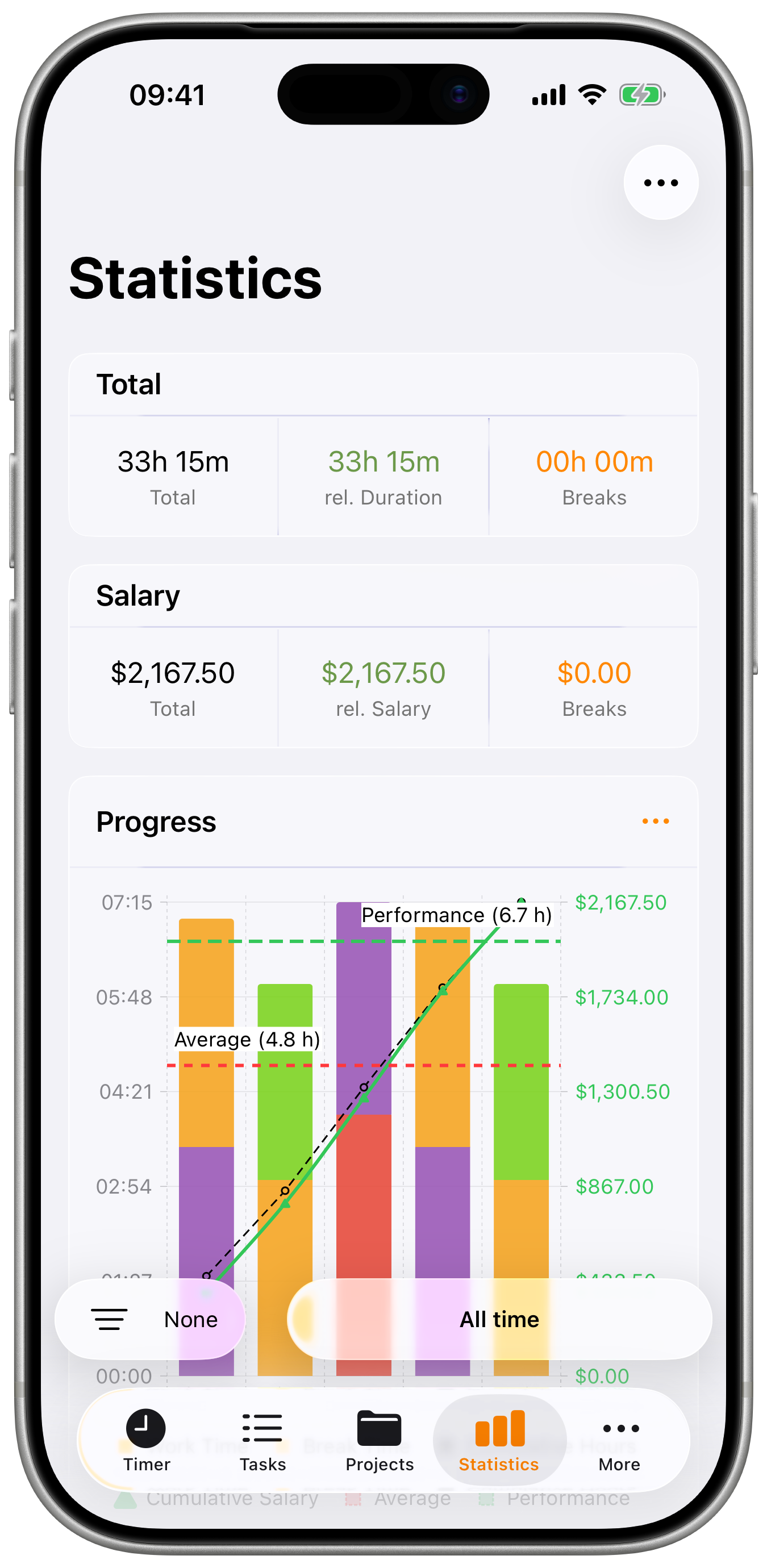
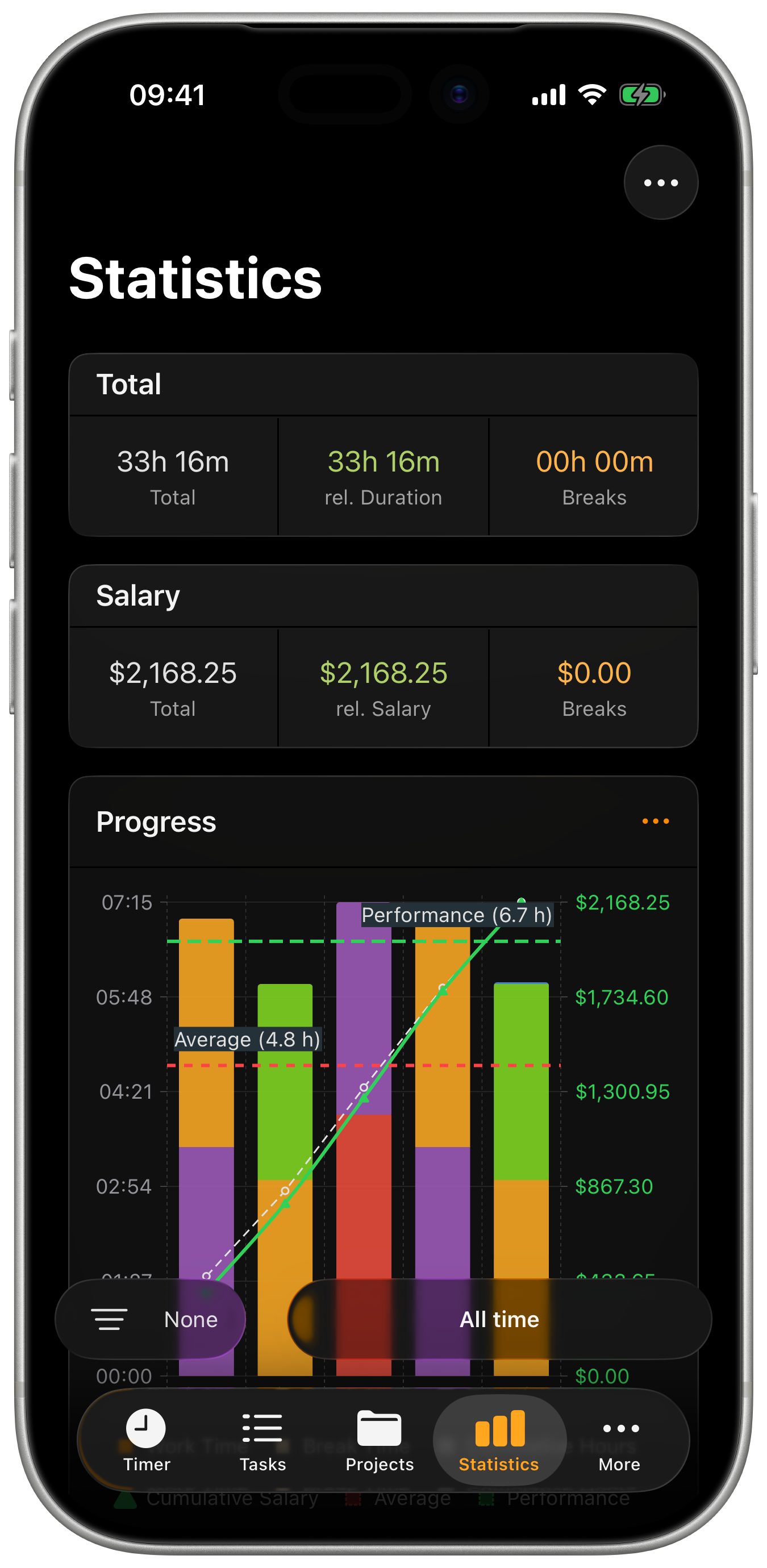
Screen Elements:
- Period Selector - Filter bar at the bottom to change time range
- Chart Cards - Scrollable list of visualizations
- Options Menu - Toggle which charts to display
- Chart Order - Customize card arrangement (Pro)
Use the same filtering options as the task list. Tap the period selector at the bottom to change the time range, project filter, or other criteria.
Key Metrics Cards
TIME Card (Totals)
Three metrics showing your time breakdown:
| Metric | Color | Description |
|---|---|---|
| Total | Gray | Complete duration including breaks |
| rel. Duration | Green | Actual work time excluding breaks |
| Breaks | Orange | Total pause time across all sessions |
Understanding the Numbers:
- Total = rel. Duration + Breaks
- Use rel. Duration for billable hours
- Monitor Breaks for productivity insights
Example:
- Total: 42h 30m
- rel. Duration: 40h 15m
- Breaks: 2h 15m
SALARY Card
Three metrics showing your earnings breakdown:
| Metric | Color | Description |
|---|---|---|
| Total | Gray | Gross earnings including all time |
| rel. Salary | Green | Earnings from work time only |
| Breaks | Orange | Theoretical earnings during breaks |
Understanding the Numbers:
- Total = rel. Salary + Breaks
- Use rel. Salary for actual billable earnings
- Breaks shows potential earnings during break time
The Salary card respects project-level salary visibility settings. If a project has salary hidden, it won't be included in these totals.
Chart Visualizations
PROGRESS Chart
Combined bar and line chart showing work patterns over time:
Bar Chart Elements:
- Colored bars - Hours worked per day/period
- Project colors - When "Show Projects" is enabled
- Stacked view - See project breakdown per day
Line Graph Options:
- Cumulative line - Shows total hours accumulating over time
- Average line - Your average hours per day
- Performance line - Average of days you actually worked
Chart Controls (tap menu icon):
| Toggle | Description |
|---|---|
| Show Totals | Display cumulative hours line |
| Salary | Show earnings instead of hours |
| Projects | Color-code bars by project |
| Average | Show average line across all days |
| Performance | Show average of worked days only |
Zoom Levels:
- 1 Week - Detailed daily view
- 2 Weeks - Short-term trends
- 1 Month - Monthly patterns
- 3 Months - Quarterly overview
- All - Complete period
Use Cases:
- Track productivity trends over time
- Identify busy vs. slow periods
- See cumulative progress toward goals
- Spot patterns in work/project distribution
WEEKLY CHART (Daily Working Hours)
Bar chart showing average work hours by day of week:
Chart Elements:
- Bars - Hours for each day (Monday through Sunday)
- Color coding - Work time vs. break time
- Day labels - Abbreviated day names
Insights:
- Identify most/least productive days
- Balance workload across the week
- Spot patterns (e.g., lower Friday hours)
- Set realistic daily goals based on averages
PROJECTS Chart
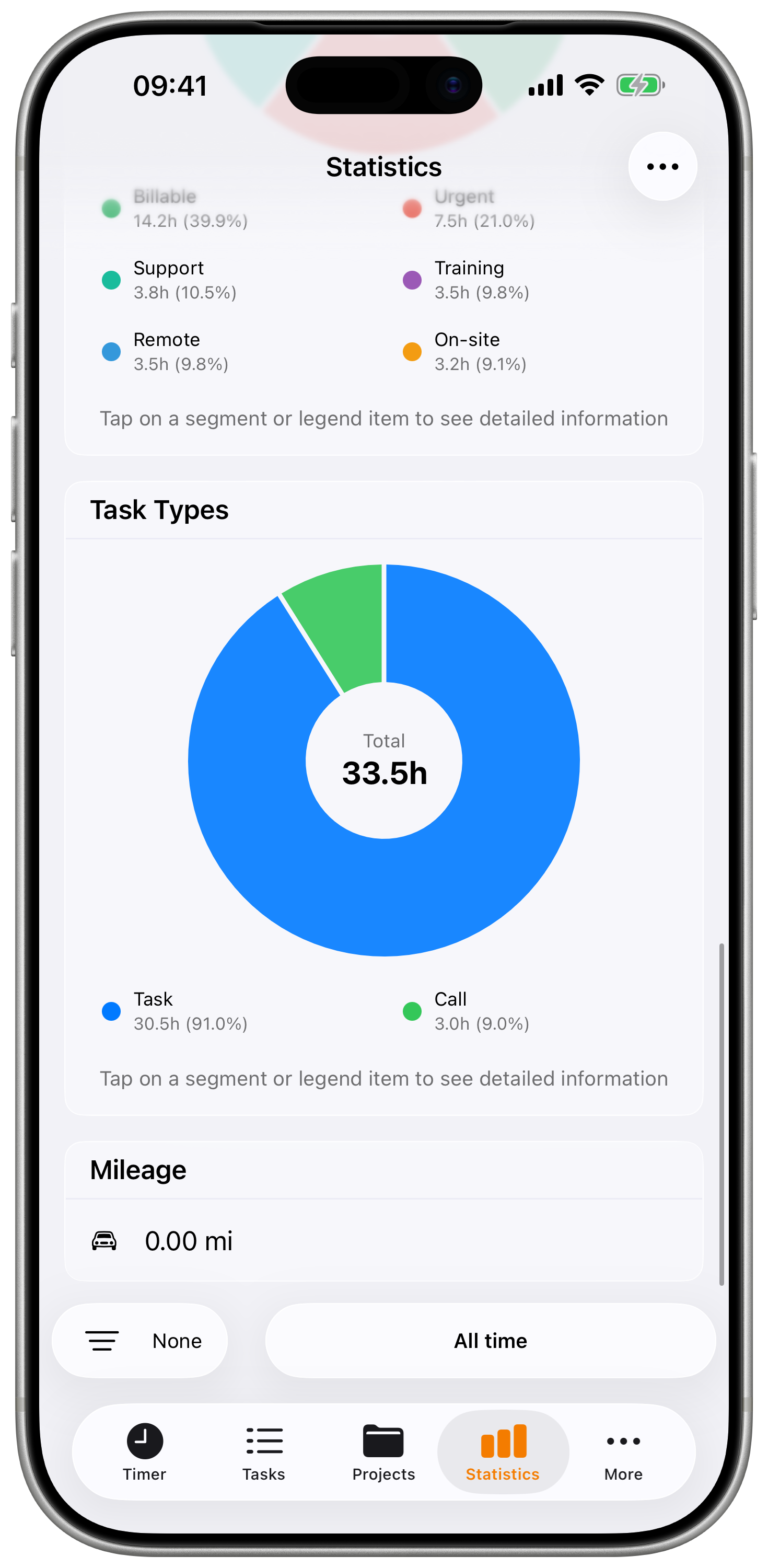
Donut/pie chart showing time distribution across all projects:
Chart Elements:
- Donut segments - Color-coded by project
- Percentage labels - Proportion of total time
- Legend - Project names with hours
Legend Information:
- Project color indicator
- Project name
- Total hours for that project
- Percentage of total
Use Cases:
- See which projects consume most time
- Identify time allocation across clients
- Support client billing discussions
- Review project balance and priorities
This chart only appears when viewing all projects. When filtering to a single project, it's hidden automatically.
TAGS Chart
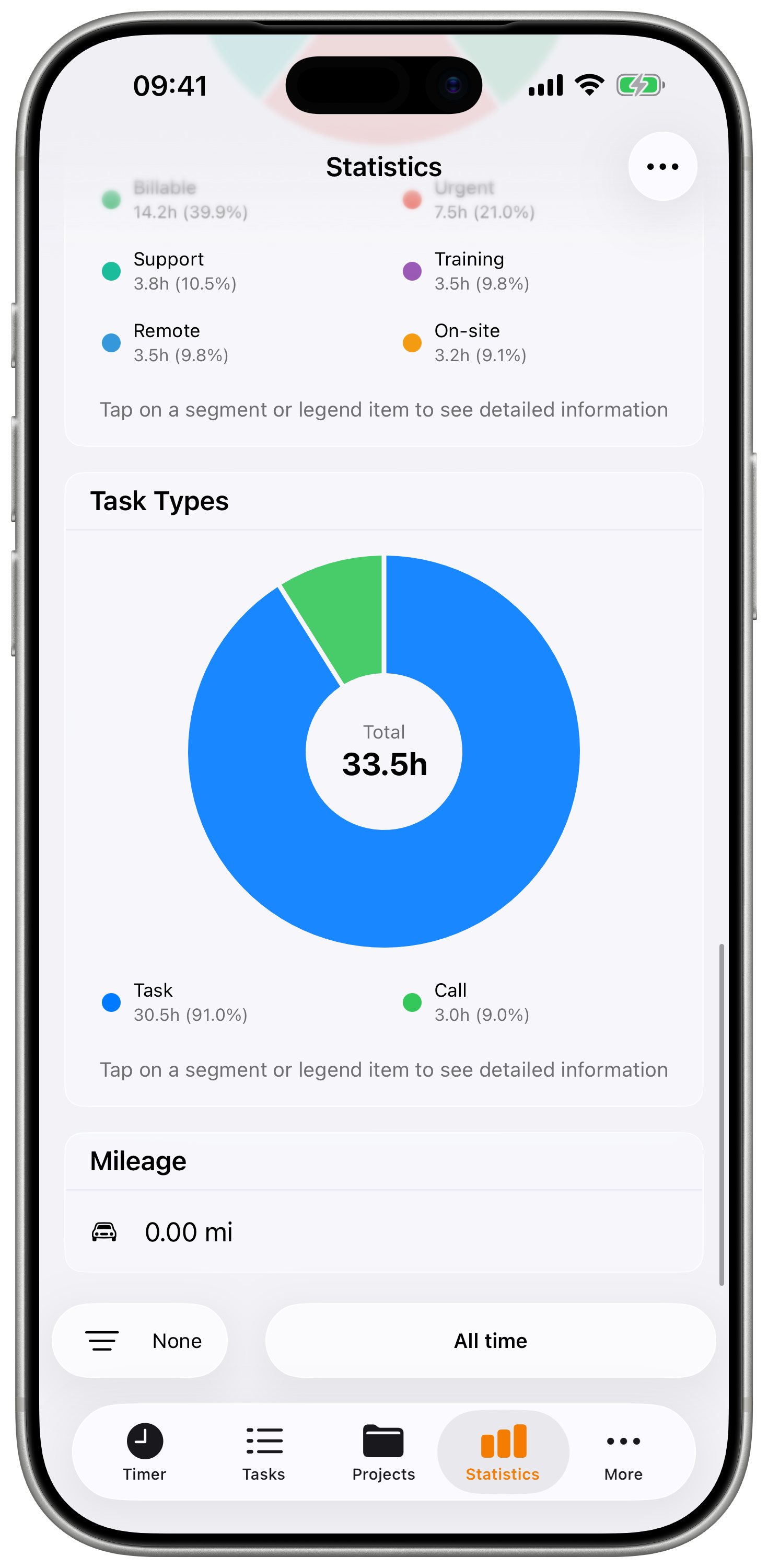
Donut chart showing time distribution by tags:
Chart Elements:
- Similar format to Projects chart
- Color-coded by tag color
- Shows tagged time only
Use Cases:
- Analyze work categories (meetings, development, etc.)
- Track time by activity type
- Identify where effort is concentrated
- Support resource allocation decisions
TASK TYPES Chart
The Task Types chart requires a Pro subscription.
Pie chart showing distribution of task types:
Task Types:
- Tasks - Regular time entries
- Mileage - Travel/driving entries
- Calls - Phone call tracking
Use Cases:
- Understand work composition
- Track travel time separately
- Analyze communication overhead
PERIOD COMPARISON Chart
Period Comparison requires a Pro subscription.
Compare current period against the previous equivalent period:
Comparison Metrics:
- Total Duration (current vs. previous)
- Total Earnings (current vs. previous)
- Average Daily Hours
- Break Duration
Visual Indicators:
- Green arrow up - Increase from previous period
- Red arrow down - Decrease from previous period
- Percentage change displayed
Supported Periods:
- Today vs. Yesterday
- This Week vs. Last Week
- This Month vs. Last Month
- This Quarter vs. Last Quarter
- This Year vs. Last Year
- Custom periods
Use Cases:
- Track improvement over time
- Identify seasonal patterns
- Monitor productivity changes
- Compare billing periods
TO-DO Charts
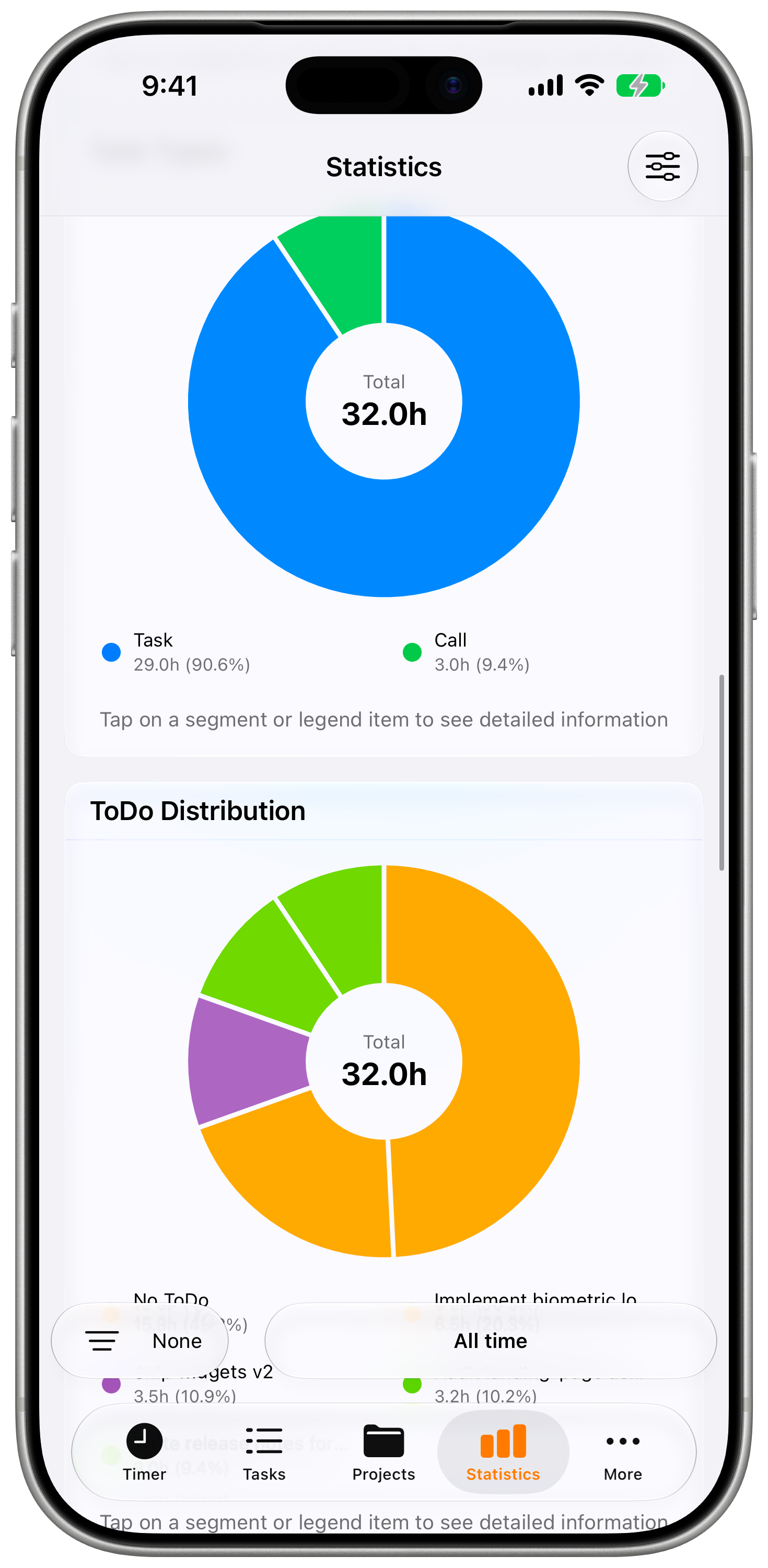
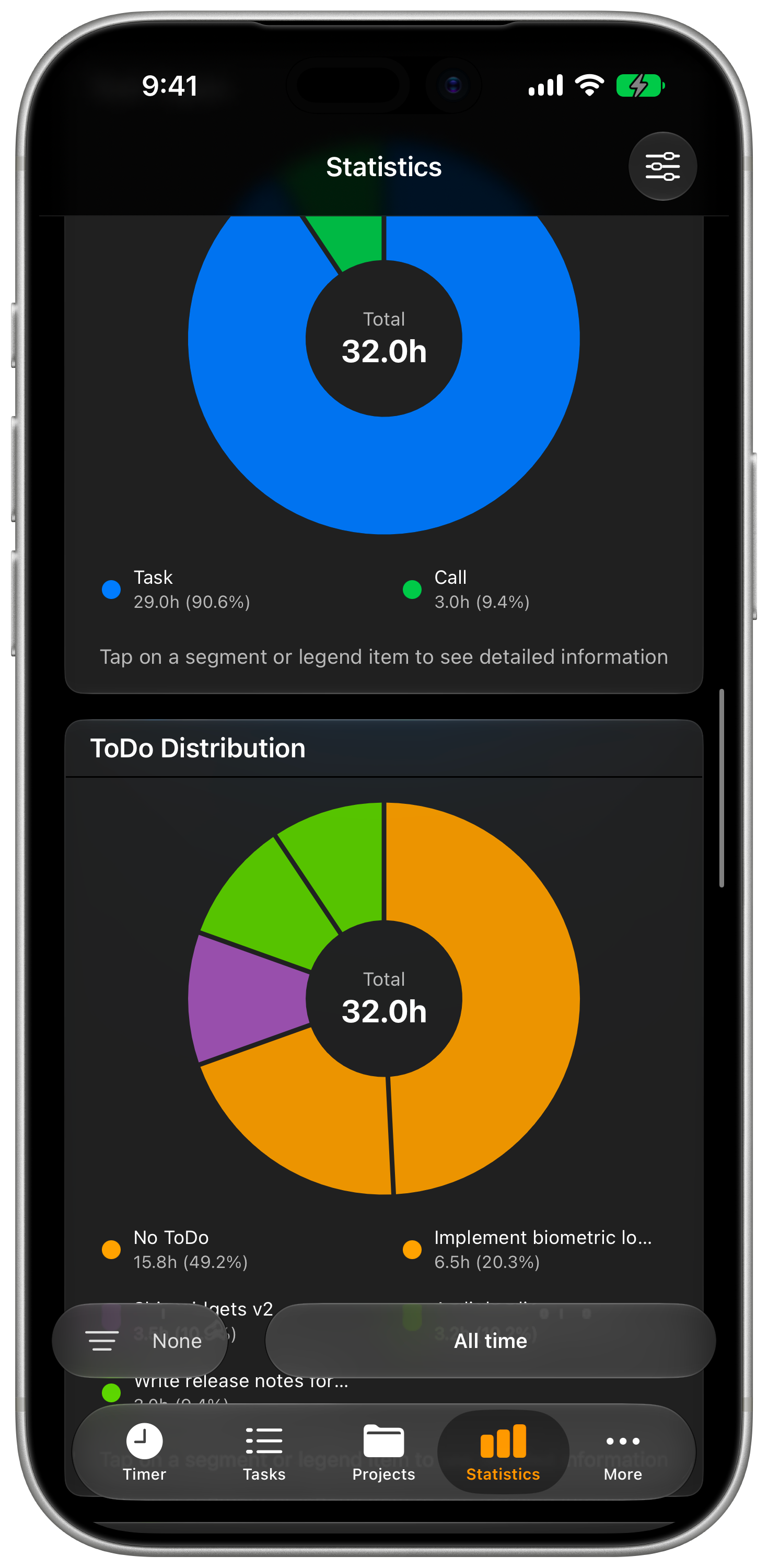
If you work with to-dos, four additional charts show how your tracked time relates to them:
| Chart | Shows |
|---|---|
| ToDo Distribution | How tracked time splits across your individual to-dos |
| ToDo Hours | Hours per to-do over the selected period |
| ToDo Task Count | How many tasks were booked onto each to-do |
| ToDo vs Non-ToDo | Tracked time with a to-do against time without one, including the share that has no to-do attached |
Estimate vs. Actual
When your to-dos carry time estimates, this card compares planned against actual effort and reports a planning accuracy figure (the median across your to-dos). It is the quickest way to see whether you systematically under- or over-estimate. Without estimates the card invites you to add them rather than showing empty axes.
ToDos at Risk
Highlights to-dos whose tracked time is running ahead of their estimate, so you can react before the overrun lands in an invoice.
The to-do charts only appear once to-dos actually have tracked time. Like every other chart, they can be switched off and reordered — see customizing statistics.
WORK PATTERNS Card
Averages hide the evenings. This card counts the days that blur the line between work and the rest of life, computed from your tracked times alone:
| Row | Counts |
|---|---|
| Evenings worked past 9 p.m. | Days on which work ran past 21:00 |
| Days with night work (11 p.m.–6 a.m.) | Days whose work touches the legal night window |
| Weekend days worked | Saturdays and Sundays with tracked work, per your calendar |
| Longest run without a day off | Consecutive days worked, shown from 7 days up |
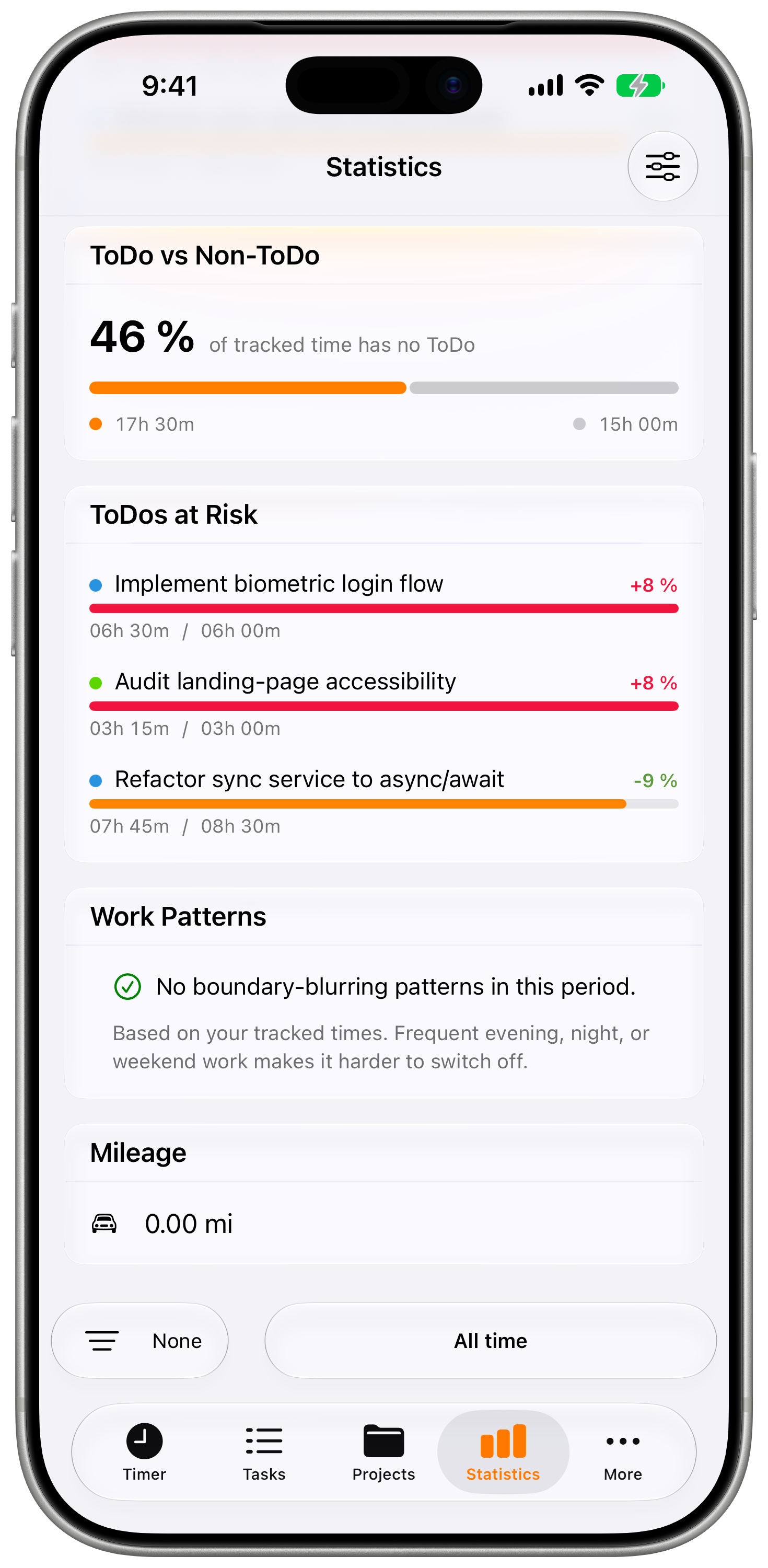
A row only appears when there is something to show. If none of the four applies, the card says so instead — a normal working week of five consecutive days is not a pattern worth flagging.
An entry that runs past midnight counts on the day it started. A Saturday shift from 23:00 to 02:00 marks Saturday as evening, night and weekend work, and leaves Sunday alone.
This card needs nothing but your own entries. It works without a subscription, without a contract, and without sending anything anywhere.
MILEAGE Card
Summary of travel tracking (if using mileage tasks):
Displays:
- Total distance traveled
- Unit based on settings (km or miles)
- Icon indicator
Use Cases:
- Track travel for reimbursement
- Monitor driving for tax purposes
- Review travel patterns
EXPENSES Card
The counterpart to the salary card: what went out, not what came in.
Displays:
- Paid out — everything laid out on the entries in the period
- Reimbursed — the part already paid back
- Still owed — the difference, the money you are waiting for
The card only appears when the period actually contains expenses. Figures follow the same filters as the rest of the screen, so a project filter narrows them too. See expenses for capturing and managing them.
AI INSIGHTS Card
AI Insights requires iOS 26+, a Pro subscription, Apple Intelligence enabled on your device, and at least 3 days of tracked data.
Tap Generate Insights and the card reads the period you have filtered and writes it up in your language. The result opens in five tabs:
| Tab | What it covers |
|---|---|
| Overview | A productivity score out of 10, the headline figures, then highlights and suggested improvements |
| Work | How the hours fall across the weekdays, and where they concentrate |
| Projects | Which projects carry the time and the earnings |
| Financial | Earnings, effective rate, billable share, and how much of it is actually paid |
| Breaks | Break ratio and break habits |
The score is about sustainability, not output: long hours with no breaks score lower, not higher.
On the Financial tab, the figures separate money earned from money received. Alongside the total you see what is already paid, what is invoiced and still outstanding, and what has not been billed at all — so a strong month on paper does not hide an unpaid one.
The analysis only uses your tracked data. It does not add outside context, and every figure it quotes comes from the app rather than from its own arithmetic.
Where the analysis runs, and how to keep it on your device, is covered under AI Insights in Settings.
Customizing Statistics
Toggle Charts On/Off
Control which charts appear:
- Tap the menu icon (three dots) in the toolbar
- Toggle individual charts on/off:
- Total
- Salary
- Progress Chart
- Weekly Chart
- Projects Chart
- Tags Chart
- Task Types (Pro)
- Period Comparison (Pro)
- Mileage
- Expenses
- AI Insights (iOS 26+, Pro)
Reorder Charts
Chart reordering requires a Plus or Pro subscription.
Customize the order charts appear:
- Tap menu icon → Chart Order
- Drag charts to reorder
- Most important charts at top
- Changes save automatically
Filtering Statistics
Apply filters to focus your analysis:
Filter Options:
- Time Period - Today, Week, Month, Year, Custom
- Projects - Specific projects only
- Status - Billable, Paid, Billed, etc.
- Type - Tasks, Mileage, Calls
- Tags - Filter by activity tags
How to Filter:
- Tap the filter bar at the bottom
- Select your criteria
- All charts update automatically
Filter Combinations:
- Period + Project = Analyze one client's monthly work
- Status + Period = Find unbilled work this month
- Tags + Project = See meetings for specific client
Sharing a Report
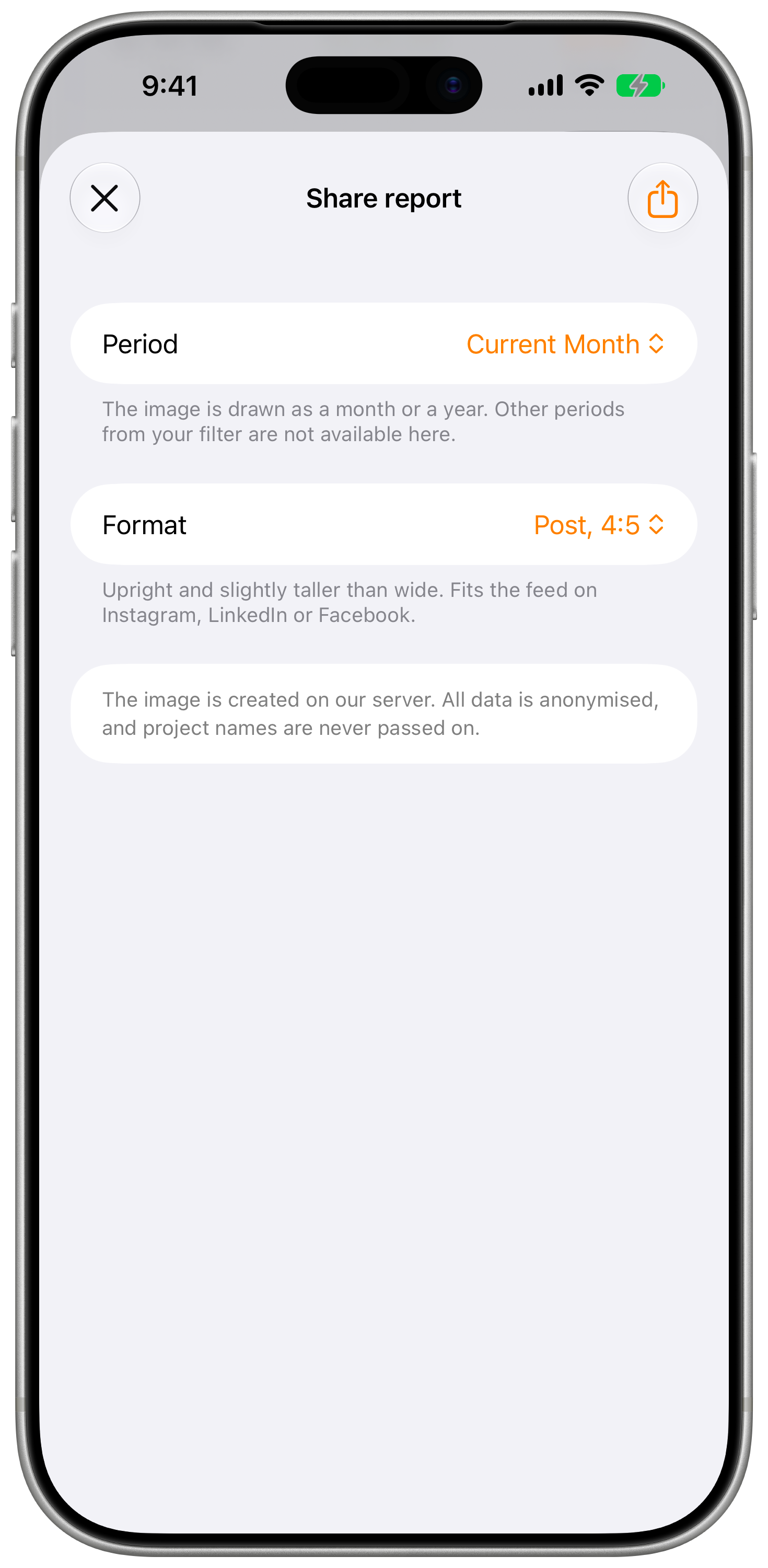
The share button in the Statistics toolbar turns your totals into an image you can post. It is available on every plan — the image carries a Timesheet footer, which is why it is not gated behind Pro.
What you choose:
| Setting | Options | Notes |
|---|---|---|
| Period | This month, last month, this year, last year | Pre-filled from your current statistics filter when it matches |
| Format | Post (4:5), Story or reel (9:16) | 4:5 fits the feed on Instagram, LinkedIn or Facebook; 9:16 fills the screen for stories and reels |
The period list is deliberately short. Your statistics filter also knows weeks, quarters and custom ranges, but the image is only drawn as a month or a year.
What actually leaves your phone
The image is created on our server, not on the device, so this one step needs an internet connection — everything else in Timesheet works offline. Only anonymised summary figures are sent. Project names, task names, clients and notes are never passed on, and nothing is kept after the image has been created.
Steps:
- Open Statistics and set the period you want to share.
- Tap the share icon in the toolbar.
- Pick period and format, then tap the share icon at the top right.
- The image is created and the system share sheet opens.
Sharing needs an internet connection at the moment you create the image. If it fails, you get an explicit message rather than a silent failure — the most common cause is being offline.
Interpreting Your Statistics
Understanding Trends
PROGRESS Chart Insights:
- Upward cumulative line - Growing total hours
- Flat bars - Consistent daily work
- Spikes - Unusually busy periods
- Gaps - Days without tracking
WEEKLY Chart Insights:
- Highest bars - Your most productive days
- Lowest bars - Potential scheduling opportunities
- Weekend bars - Work-life balance indicator
Performance Indicators
Healthy Work Patterns:
- Consistent daily averages
- Reasonable break percentages (5-15%)
- Balanced project distribution
- Steady progress trend
Warning Signs:
- Very long days consistently (burnout risk)
- Zero or minimal breaks (unsustainable)
- One project >70% of time (concentration risk)
- Erratic daily patterns (scheduling issues)
Best Practices
Regular Review Schedule
Daily (Quick Check):
- Glance at today's hours
- Verify time is tracked properly
- Check project distribution
Weekly (Detailed Review):
- Review Weekly chart
- Check Progress trend
- Analyze project distribution
Monthly (Deep Analysis):
- Compare month-over-month trends
- Review all project allocations
- Analyze break patterns
- Use Period Comparison
Using Data for Decisions
Client Management:
- Projects chart shows time investment
- Compare time vs. revenue
- Identify clients for rate discussions
Productivity Optimization:
- Weekly chart reveals optimal days
- Schedule important work accordingly
- Balance workload across the week
Financial Planning:
- Salary metrics show earning trends
- Track toward revenue goals
- Monitor billable vs. non-billable ratio
Review your statistics weekly to spot trends early. Small adjustments informed by your data can lead to significant improvements in productivity and earnings over time.