Apple Watch App
Track time directly from your wrist with the Timesheet Apple Watch companion app. Start and stop timers, take breaks, and view your statistics without reaching for your iPhone.
Overview
The Apple Watch app provides essential time tracking features optimized for quick interactions:
Key Features:
- Start and stop timers
- Pause for breaks and resume
- View current timer status
- Check daily/weekly statistics
- Select projects
- Use complications for quick access
Requirements:
- Apple Watch Series 4 or later
- watchOS 9.6 or later
- Paired iPhone with Timesheet installed
- Signed in to Timesheet account
Installing the Watch App
The Apple Watch app installs automatically when you have Timesheet on your iPhone:
- Ensure Timesheet is installed on your iPhone
- Open the Watch app on your iPhone
- Scroll to find Timesheet
- Toggle Show App on Apple Watch if not already enabled
- Wait for the app to install on your watch
If automatic app installation is enabled on your Apple Watch, Timesheet should appear automatically after installing on your iPhone.
Timer Screen
The main screen of the watch app focuses on timer control.
Timer Stopped State
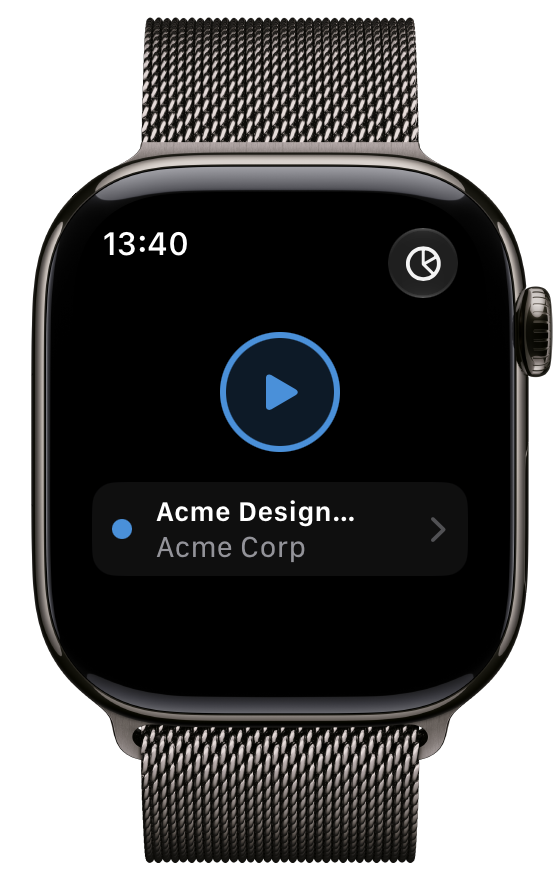
When no timer is running:
- Project Selector - Tap to choose a project
- Start Button - Large, easy-to-tap button
- Today's Hours - Quick glance at daily progress
Timer Running State
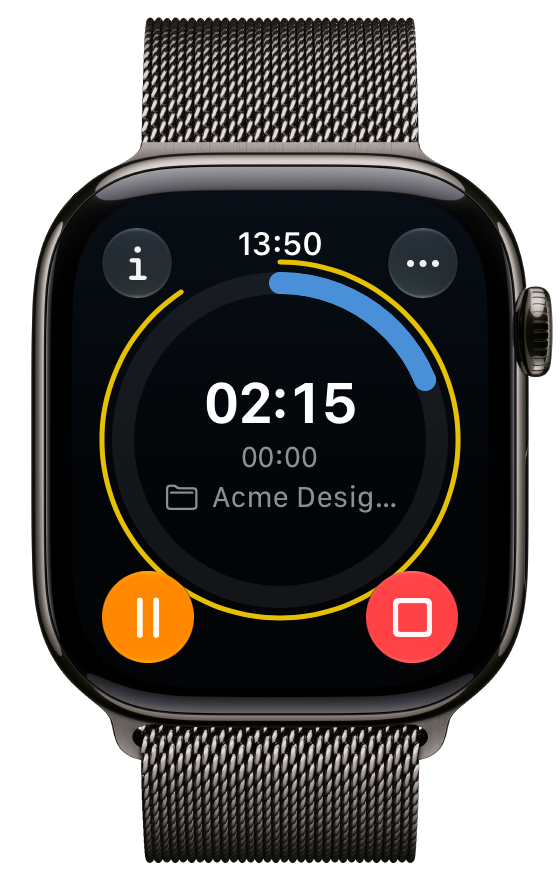
When tracking time:
- Project Name - Currently tracking project
- Elapsed Time - Live updating duration
- Pause Button - Take a break
- Stop Button - End the timer
Timer Paused State
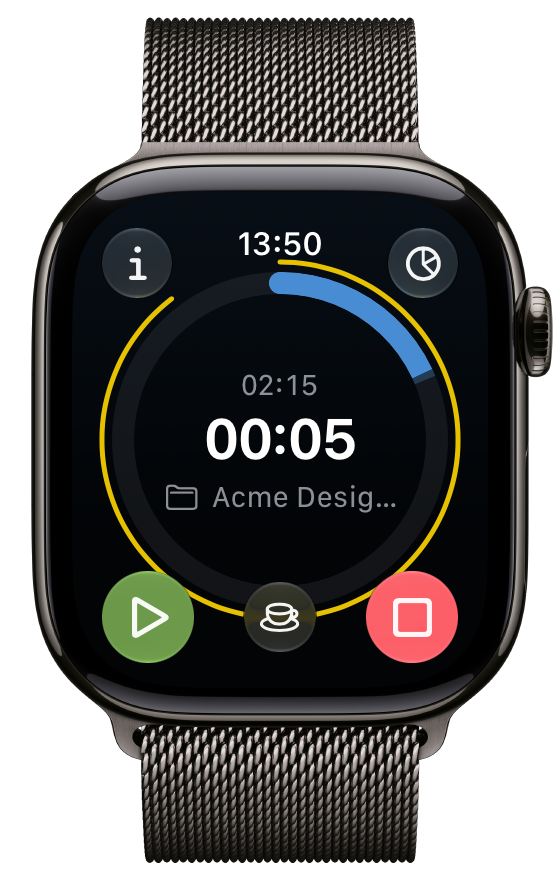
During a break:
- Break Duration - How long you've been paused
- Resume Button - Continue working
- Stop Button - End with current break
Using the Watch App
Starting a Timer
- Open Timesheet on your Apple Watch
- Tap the project name to change projects (if needed)
- Tap Start
- Timer begins tracking immediately
Stopping a Timer
- With timer running, tap Stop
- Time entry is saved automatically
- Syncs to iPhone and cloud
Taking a Break
- With timer running, tap Pause
- Break timer starts
- Tap Resume to continue working
- Break is recorded on the task
Selecting a Project
- Tap the current project name
- Scroll through your active projects
- Tap to select
- Start the timer on that project
Your most recently used projects appear at the top of the list for quick access.
Watch Complications
Add Timesheet complications to your watch face for instant access.
Available Complications
| Complication | Size | Description |
|---|---|---|
| Timer Status | Circular | Shows running/stopped with time |
| Today's Hours | Circular | Total tracked today |
| Quick Launch | Small | Tap to open app |
| Project Timer | Rectangular | Project name + elapsed time |
Adding Complications
- Press and hold on your watch face
- Tap Edit
- Swipe to the complications page
- Tap a complication slot
- Scroll to find Timesheet
- Select the complication style
- Press the Digital Crown to save
Complication Updates
- Complications update regularly
- Running timer shows live elapsed time
- Tap any complication to open the app
- Statistics update throughout the day
Syncing with iPhone
The watch app syncs bidirectionally with your iPhone:
Automatic Sync
- Timer started on watch appears on iPhone
- Timer started on iPhone shows on watch
- Statistics sync in real-time
- Project list stays updated
Sync Requirements
- Watch and iPhone must be connected (Bluetooth or WiFi)
- Both devices signed in to same account
- Background App Refresh enabled
Handling Sync Issues
If data seems out of sync:
- Open Timesheet on your iPhone
- Pull down to refresh
- Watch should update within seconds
- Restart both apps if persistent
Best Practices
Quick Timer Access
- Add a complication to your main watch face
- Use the Timer Status complication for running indicator
- Raise wrist to check elapsed time
Effective Watch Tracking
- Start from watch when you begin work
- Check progress throughout the day via complication
- Pause for breaks directly from watch
- Stop from watch when you finish
When to Use Watch vs. iPhone
Use Apple Watch for:
- Starting/stopping timers quickly
- Checking elapsed time
- Taking breaks
- Quick project switches
Use iPhone for:
- Detailed task editing
- Adding notes, tags, expenses
- Viewing statistics charts
- Managing projects and settings
The watch app is designed to complement your iPhone usage, not replace it. Use the watch for quick timer control and the iPhone for detailed management.
Troubleshooting
App Not Appearing on Watch
- Check Watch app on iPhone → Timesheet is enabled
- Verify watchOS is 9.6 or later
- Restart both devices
- Reinstall Timesheet on iPhone
Timer Not Syncing
- Check Bluetooth/WiFi connection
- Open Timesheet on both devices
- Pull down to refresh on iPhone
- Check that you're signed in on both
Complications Not Updating
- Restart your Apple Watch
- Remove and re-add the complication
- Check Background App Refresh is enabled
- Ensure watch and phone are connected
Poor Performance
- Close other apps on watch
- Restart the watch
- Check for watchOS updates
- Reinstall the watch app
The Timesheet watch app is optimized for minimal battery impact. Complications use efficient update intervals, and the app only runs when actively used.