CarPlay
Control your timer from the car screen. Timesheet for CarPlay is built for the moments around a drive — starting a job when you set off, stopping it when you arrive — without picking up your phone.
Overview
Key features:
- Start a timer for a recent project, any project, a template or a to-do
- Pause, resume and stop the running timer
- See project, duration, distance, break time and status at a glance
- Track driven distance automatically and turn it into a mileage expense
- Stop the timer automatically when you leave the car
Requirements:
- iPhone with Timesheet, signed in to your account
- A car or head unit that supports CarPlay
- For mileage: location access and a Pro subscription
Everything you change on the car screen appears on your iPhone right away, and the other way around.
Getting started
Connect your iPhone to the car as usual — by cable or wirelessly — and open Timesheet from the CarPlay home screen. No extra setup is needed.
Two screens can appear instead of the timer:
- Sign in required — Timesheet needs a signed-in account to track time. Sign in on your iPhone once, then reopen the app in the car.
- Unlock to continue — time tracking becomes available after the first unlock of your iPhone. This is an iOS rule: until you unlock the phone once after a restart, apps cannot read their protected data.
Starting a timer
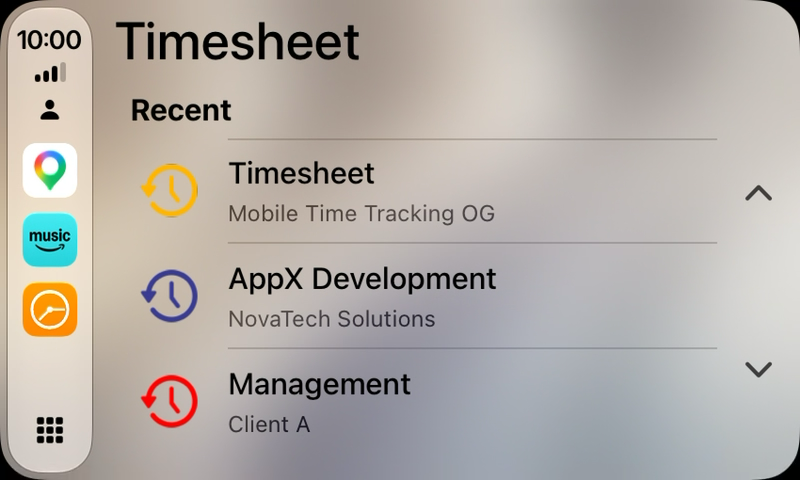
The start screen groups your options so the entry you need is usually one tap away:
| Section | What it contains |
|---|---|
| Recent | The projects you tracked most recently |
| Projects | Your active projects |
| Templates | Saved task templates, started with their preset values |
| To-Dos | Open to-dos, started as a task on their project |
Tap an entry to start tracking immediately. CarPlay limits how many rows an app may show while the car is moving, so the list is shortened during the drive and fills up again when you stop.
If no entry appears, check that you have at least one active project — the screen shows No projects available when there is none.
While the timer runs
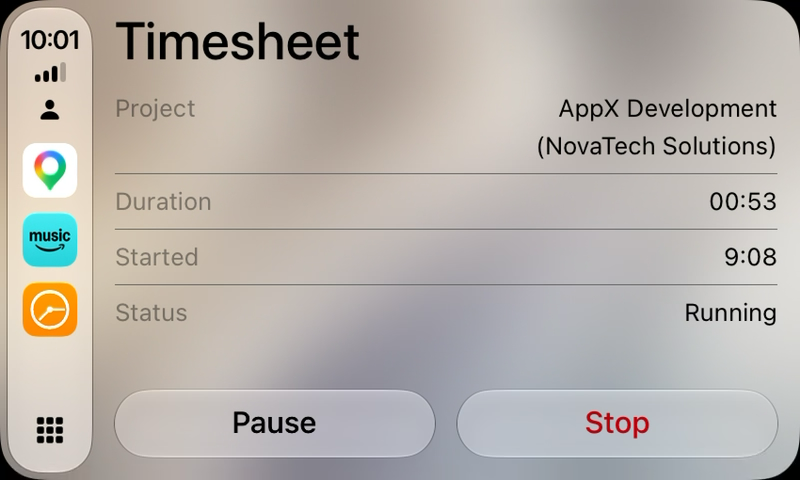
The summary screen shows the current session:
- Project — the project being tracked
- Duration — elapsed working time
- Distance — driven distance, if mileage tracking is on
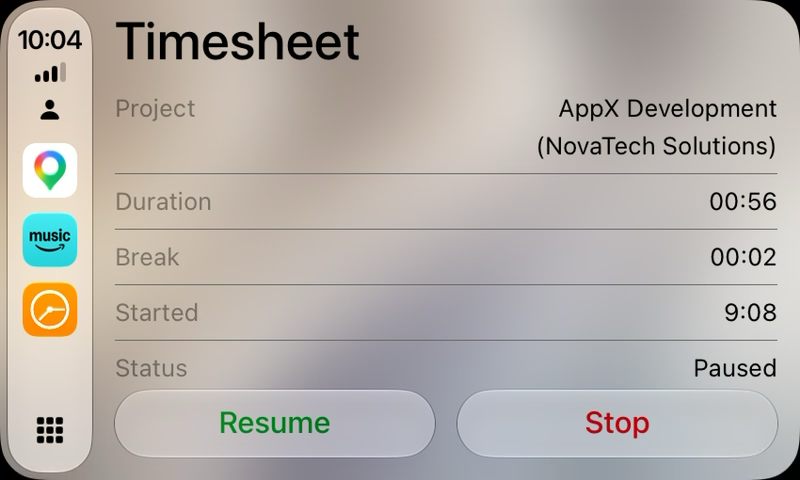
- Break — accumulated break time, once you have paused at least once
- Started — when the timer began
- Status — Running, Paused or Stopped
Below it you get the actions that fit the state: Pause and Stop while running, Resume and Stop while paused.
Once you have paused at least once, the break time appears as its own row and the actions change to Resume and Stop:
Automatic mileage tracking
With Track mileage automatically enabled, Timesheet records the distance you drive onto the running mileage task while CarPlay is connected.
At the end of a trip the distance can become an expense automatically. Set Reimbursement per kilometre (or per mile, depending on your unit setting) to your rate — for example 0.30 — and Timesheet adds a matching mileage expense to the task. Setting the rate to 0 turns the automatic expense off; you can still create one yourself later with Create mileage expense. If the task already has a mileage expense, it is updated instead of a second one being added.
Mileage tracking requires location access and a Pro subscription.
Stopping automatically
Stop timer on disconnect ends the running mileage timer once CarPlay has stayed disconnected for a few minutes. You get a notification — Timer stopped — so the change is never silent.
The delay is deliberate: a short disconnect at a filling station or a brief stop should not end the job. For the same reason a paused timer is left alone — pausing means you intend to come back, so Timesheet does not stop it behind your back.
On the dashboard
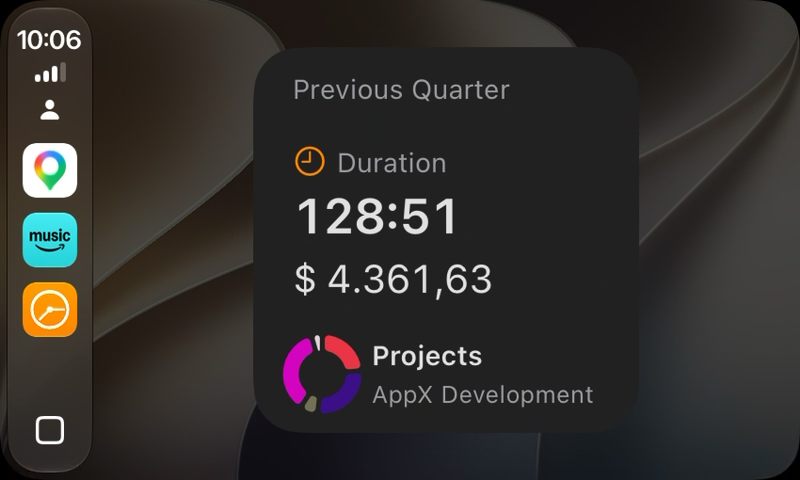
If your car shows the CarPlay dashboard, your Timesheet widget can appear there alongside maps and playback — a glance at the totals without opening the app.
Settings
All CarPlay options live on your iPhone under Settings › Integrations › CarPlay:
- Track mileage automatically — record driven distance while connected
- Reimbursement per kilometre / mile — rate for the automatic mileage expense, 0 disables it
- Stop timer on disconnect — end the mileage timer after you leave the car
Configuration is intentionally phone-only. The car screen stays limited to single-tap actions.
Troubleshooting
Timesheet does not appear on the CarPlay home screen Open your iPhone's Settings › General › CarPlay, select your car and check that Timesheet is in the list of included apps. You can also rearrange the icons there.
The car screen shows a different state than my phone Both sides are kept in sync automatically. If they drift apart, disconnecting and reconnecting rebuilds the car screen from the current state on the phone.
No distance is recorded Check all three: mileage tracking is enabled, location access is granted, and the subscription is active. Distance is only recorded while CarPlay is actually connected.
Related
- Timer — how tracking works on the phone
- Automation — start and stop by location instead
- Breaks, expenses and notes — how mileage expenses fit into a task