ToDos
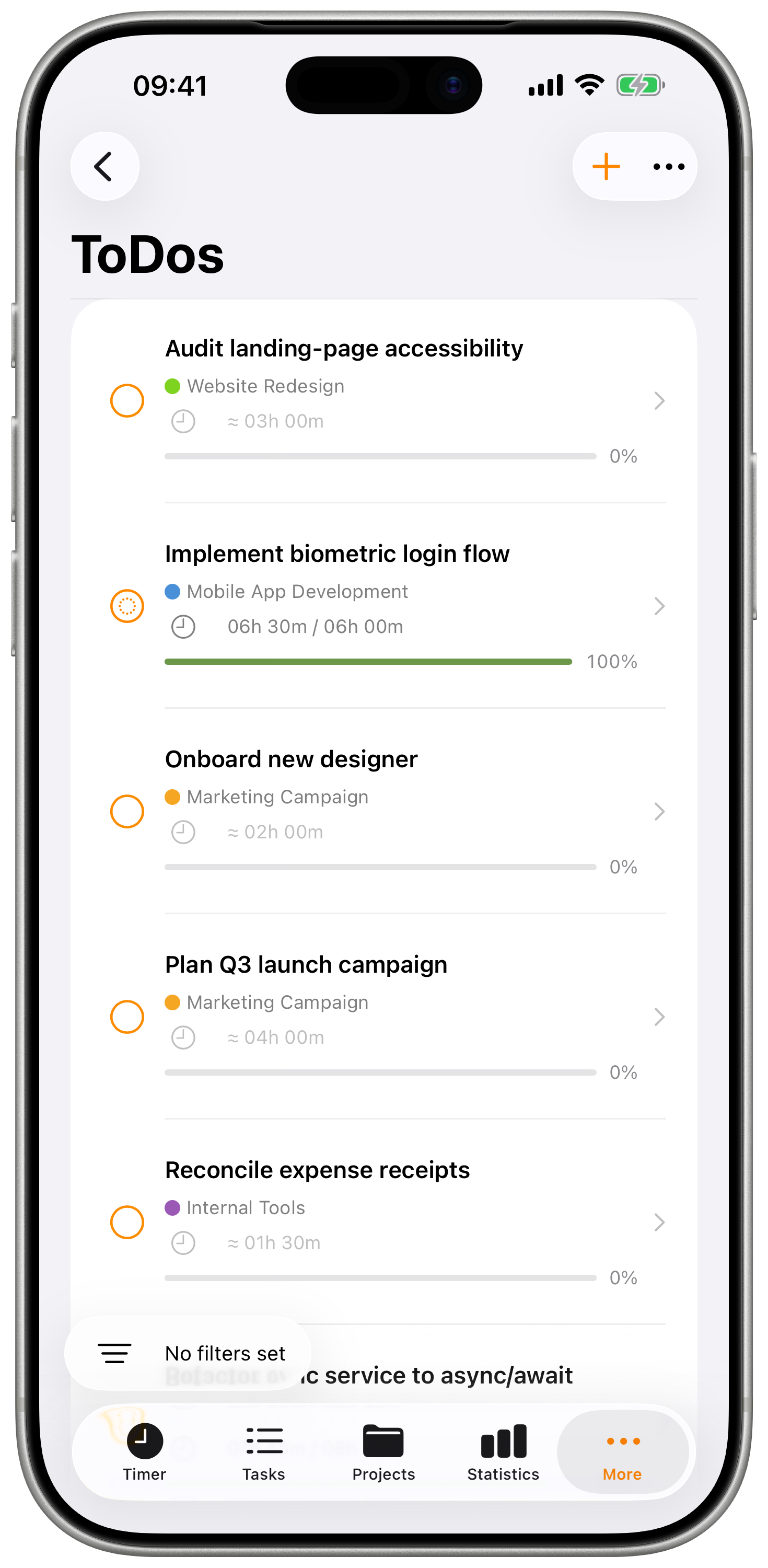
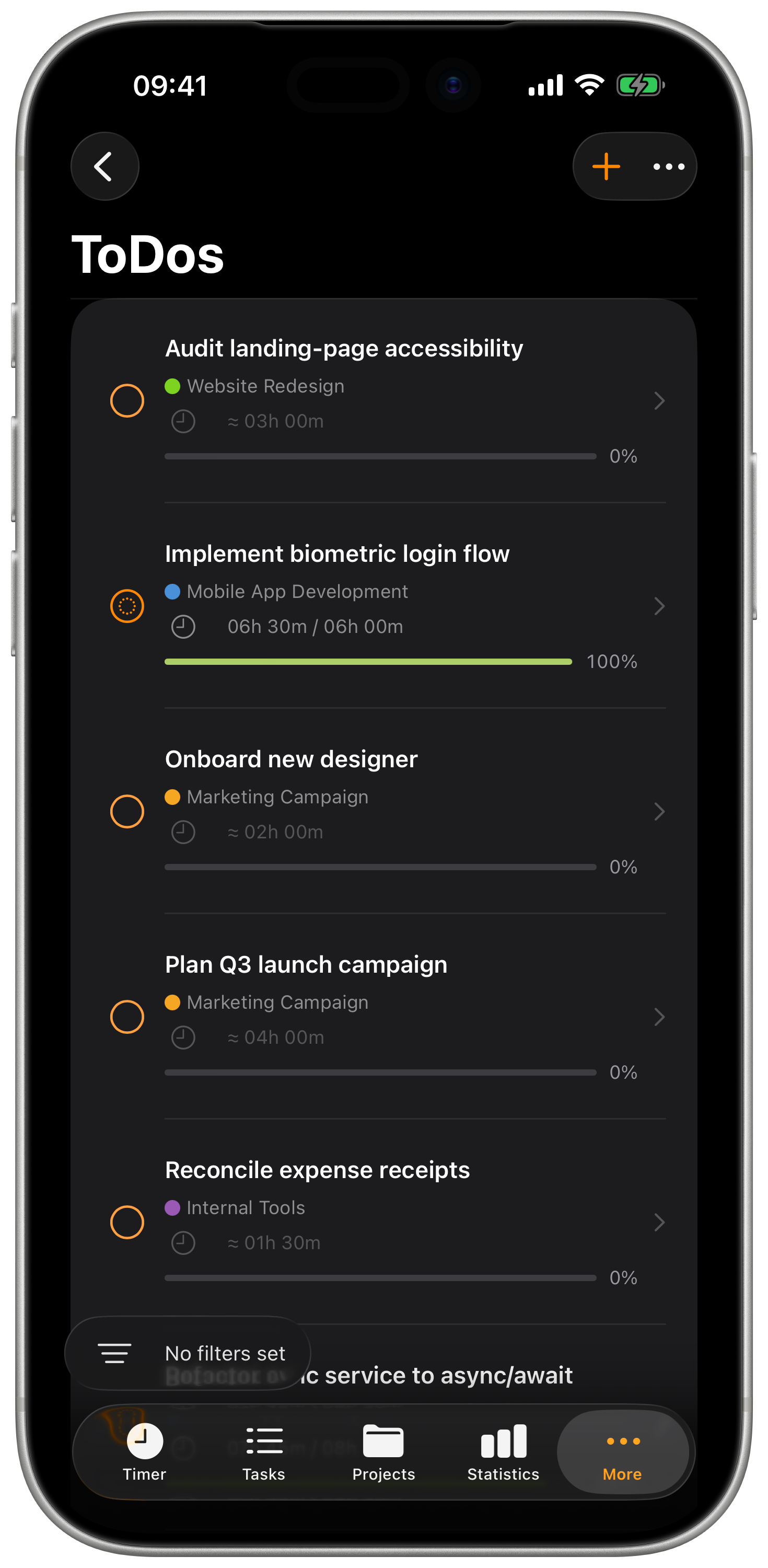
ToDos are lightweight planning items — things you intend to work on, attached to a project. Each ToDo has a name, an optional due date, and an optional time estimate. They live alongside your tasks (tracked time) but stay separate: a ToDo isn't a time entry until you start a timer for it.
Think of ToDos as your project backlog. Tasks are the proof you worked; ToDos are the plan for what's next.
On iPad with enough screen space (full-screen or a wide split view), the ToDos screen renders as a two-column list + detail layout. Tapping a row opens the edit view in the right column. See iPad Cockpit → List + detail.
Opening ToDos
Tap More → ToDos, or — on iPad — pick ToDos from the sidebar.
What a ToDo holds
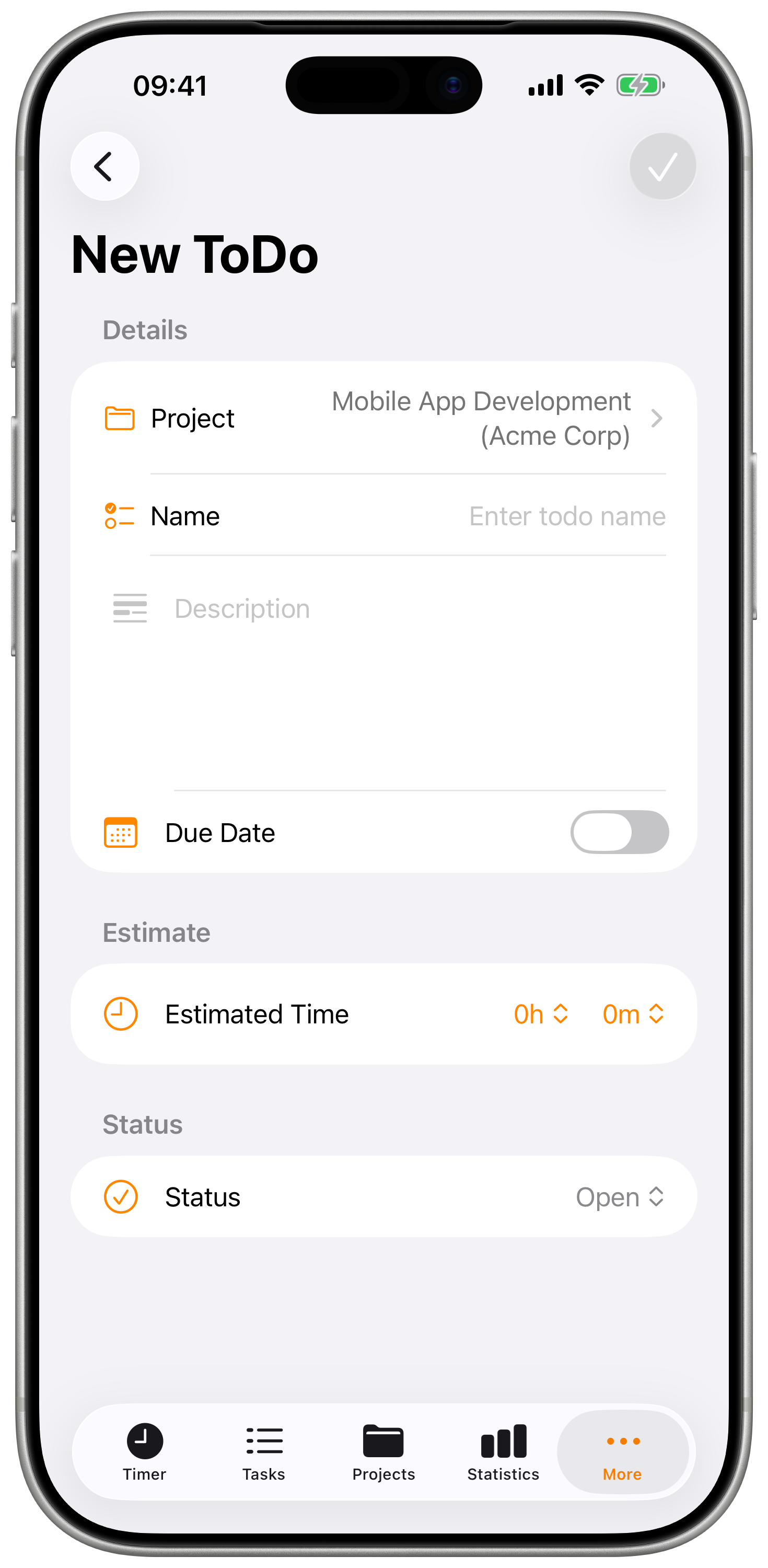
| Field | Description |
|---|---|
| Project | Which project this ToDo belongs to (required) |
| Name | Short title shown in the list (required) |
| Description | Longer notes — supports plain text |
| Due date | Optional target date — drives the overdue / today / this week buckets |
| Time estimate | Optional hours and minutes you expect this to take |
| Status | Open or Closed |
Creating a ToDo
- Open ToDos
- Tap the + button in the top right
- Pick a project
- Enter a name (anything else is optional)
- Tap Save
The new ToDo appears at the top of the list, sorted by your current sort order.
If you've set a default project in the timer, new ToDos start on it. You can change the project before saving.
Sorting and grouping
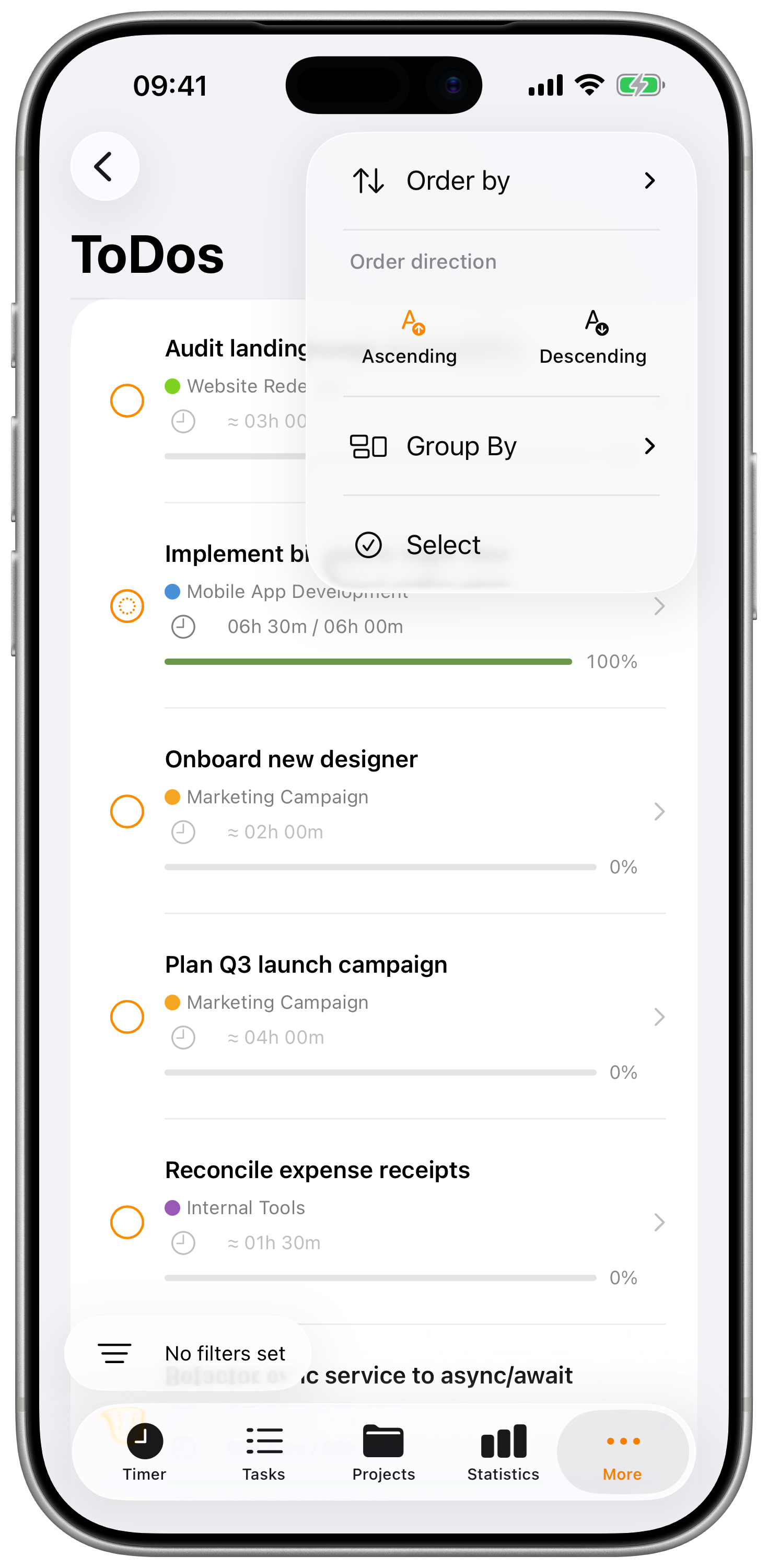
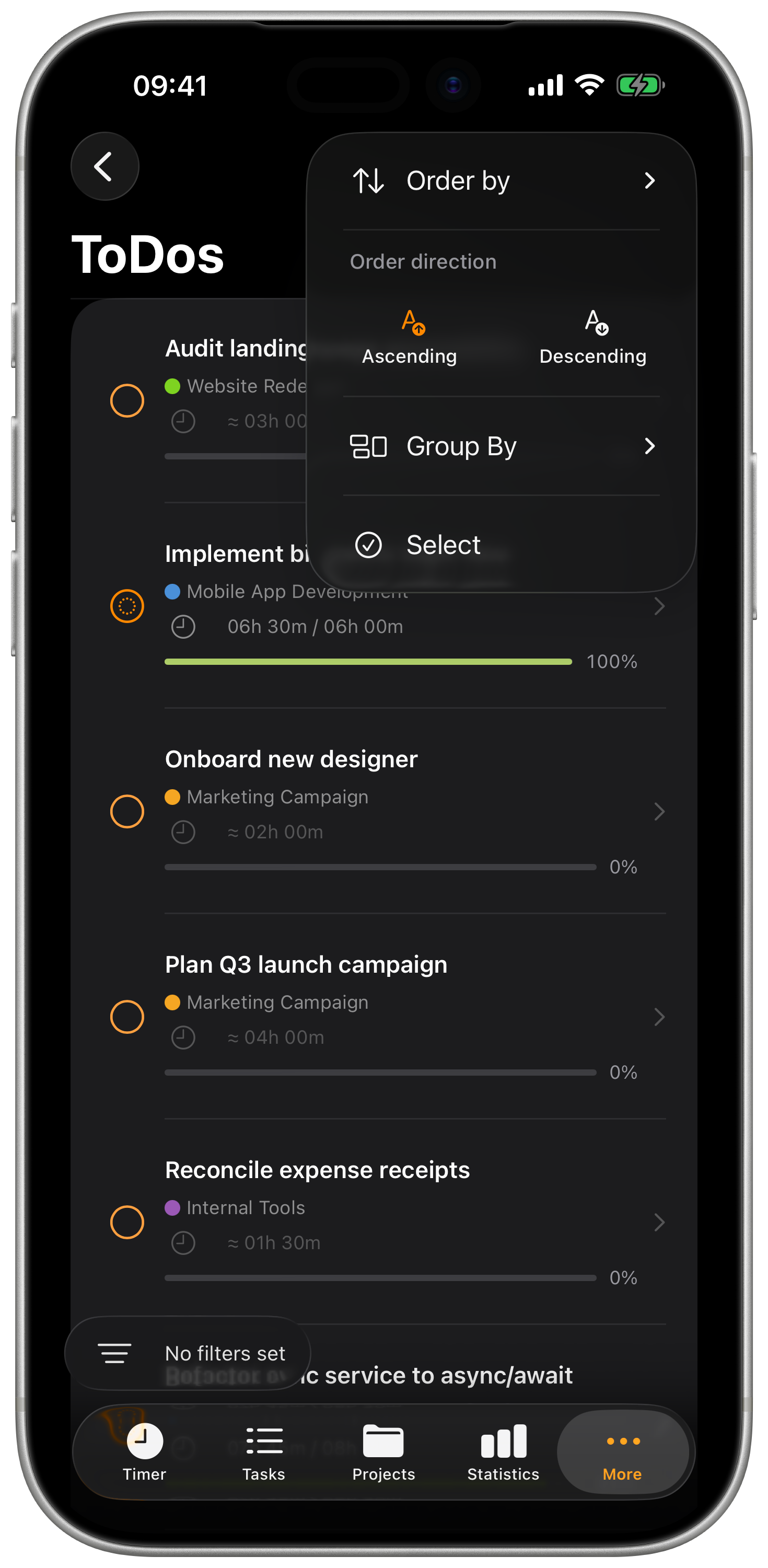
ToDos has two independent controls — sort and group — accessible from the three-dot menu (⋯) in the toolbar.
Sort by
| Option | Effect |
|---|---|
| Name | Alphabetical |
| Due date | Closest deadline first (or last, with descending) |
| Total duration | Sum of all tracked time for this ToDo |
A direction toggle next to the sort menu switches ascending / descending.
Group by
| Option | Effect |
|---|---|
| None | One flat list, sorted by the sort field |
| Due date | Sections: Overdue, Today, This week, Later, No due date |
| Project | One section per project, project colour in the header |
Grouping doesn't change the underlying sort — it just bucketses rows. So you can, for example, group by project but still see each project's items sorted by due date.
Filtering
Tap the filter pill at the bottom of the list to narrow what's shown.
| Filter | Options |
|---|---|
| Status | All / Open / Closed |
| Due date | All / Overdue / Today / This week / No due date |
The filter pill turns the accent colour when any filter is active, and the bar shows a short summary of what's narrowed.
Filters reset to "All" via the reset button in the filter sheet's toolbar.
Searching
A search field at the top of the list filters by name as you type. Search combines with the filter — you can search inside "overdue, open only" if you want.
ToDo detail
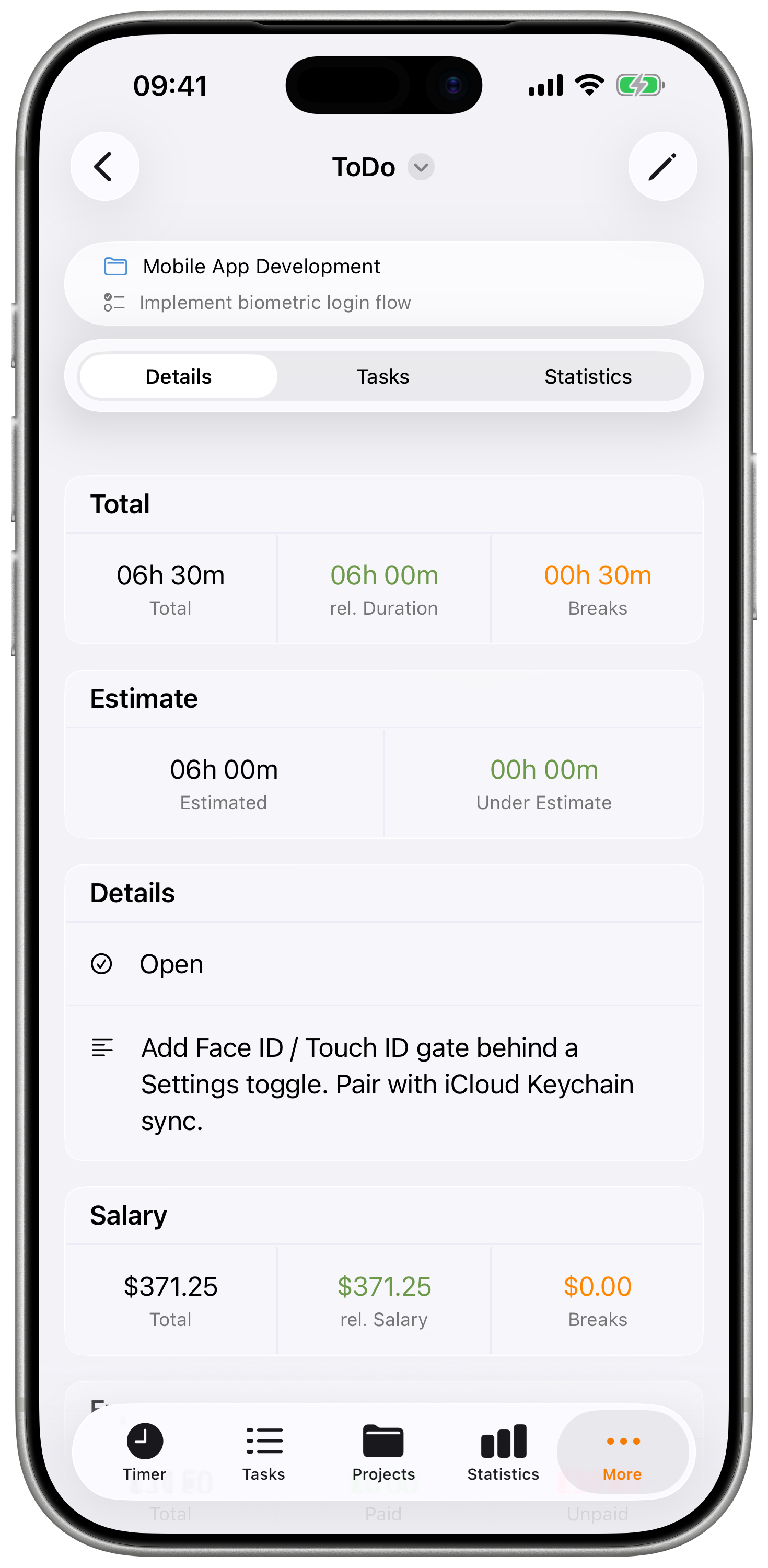
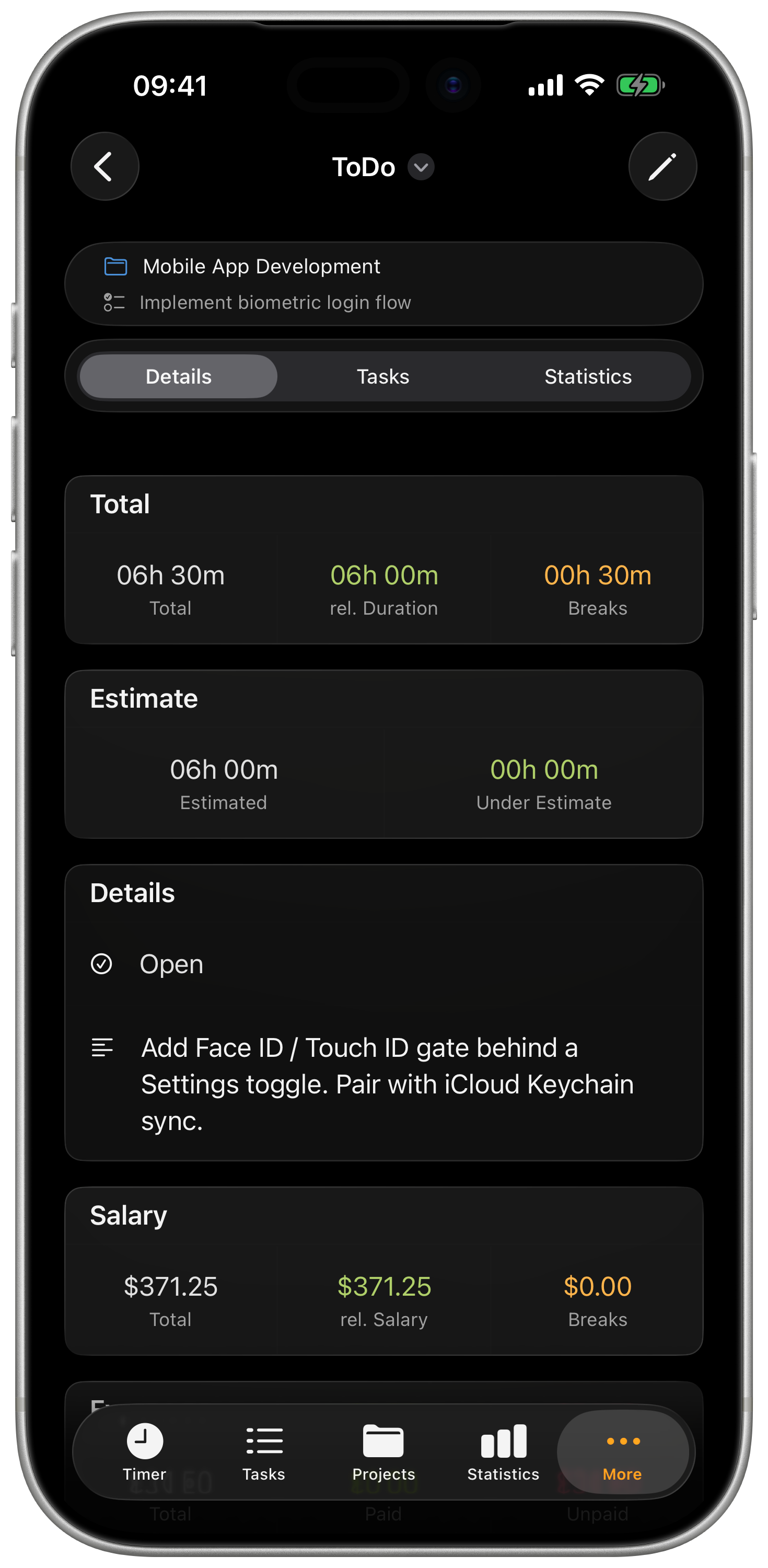
Tap a ToDo to open its detail. From there you can:
- See the name, description, due date, and estimate
- See Total duration — sum of all task time attributed to this ToDo
- See linked tasks (the time you actually spent)
- Edit any field via the pencil icon
- Mark it Closed when you're done planning it
- Delete it
Total duration vs estimate
The estimate is what you thought it'd take. Total duration is what you've actually tracked so far. The detail shows both side-by-side so you can spot work that's running long.
Turning a ToDo into tracked time
A ToDo doesn't track time on its own. To start a timer for it:
- Open the ToDo
- Tap the project link (or open the timer with that project pre-selected)
- Start the timer as usual
Time tracked while the ToDo is the active subject counts toward its Total duration.
Bulk actions
Long-press a row, or tap ⋯ → Select, to enter selection mode.
- Tap rows to select them
- Use Select All in the toolbar to grab everything currently visible
- Delete the selection with the trash button in the bottom toolbar
Deleting via bulk select is undoable for a few seconds via the toast that appears after the action — tap Undo to restore them.
Status flow
A ToDo is either Open or Closed. Closing isn't deletion — closed items stay in the database and show up if you filter by status. Use closing to mark "I'm done with this", and deletion only when the entry was a mistake.
Sync
ToDos sync across your devices the same way tasks and projects do. If you're on Plus or Pro, edits on your iPhone show up on your iPad (and the web app, on Pro) within a few seconds.
On the Basic (free) plan, ToDos live on the device they were created on. The local-first backup includes them — see Backup & Restore.
Widget
A ToDos widget surfaces your most-urgent open items on your Home Screen and Lock Screen. Available in small, medium, large, and the rectangular Lock Screen size — pick the one that fits where you put it. Tap to jump straight into the list. See Widgets for placement.