Task Templates
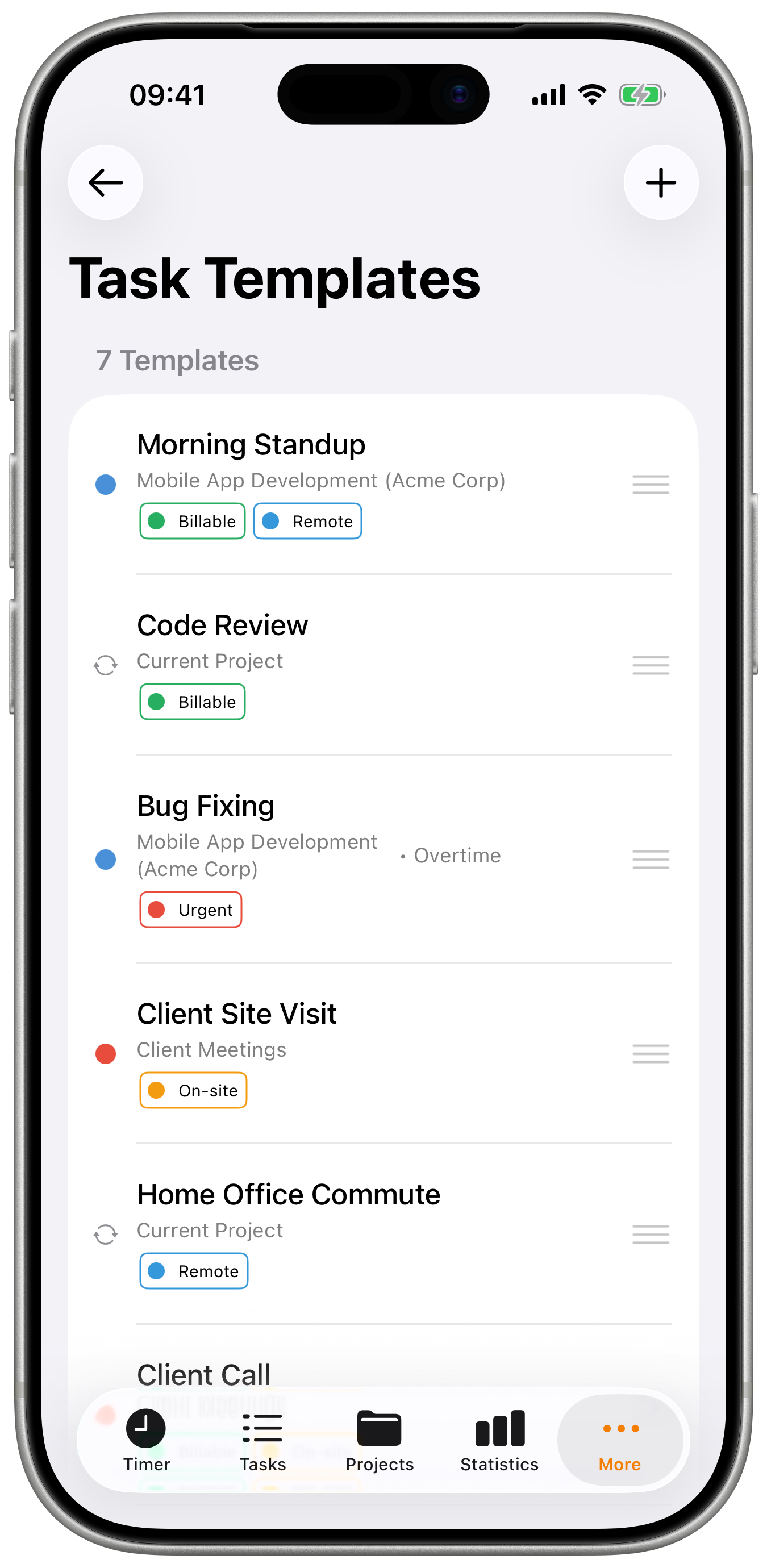
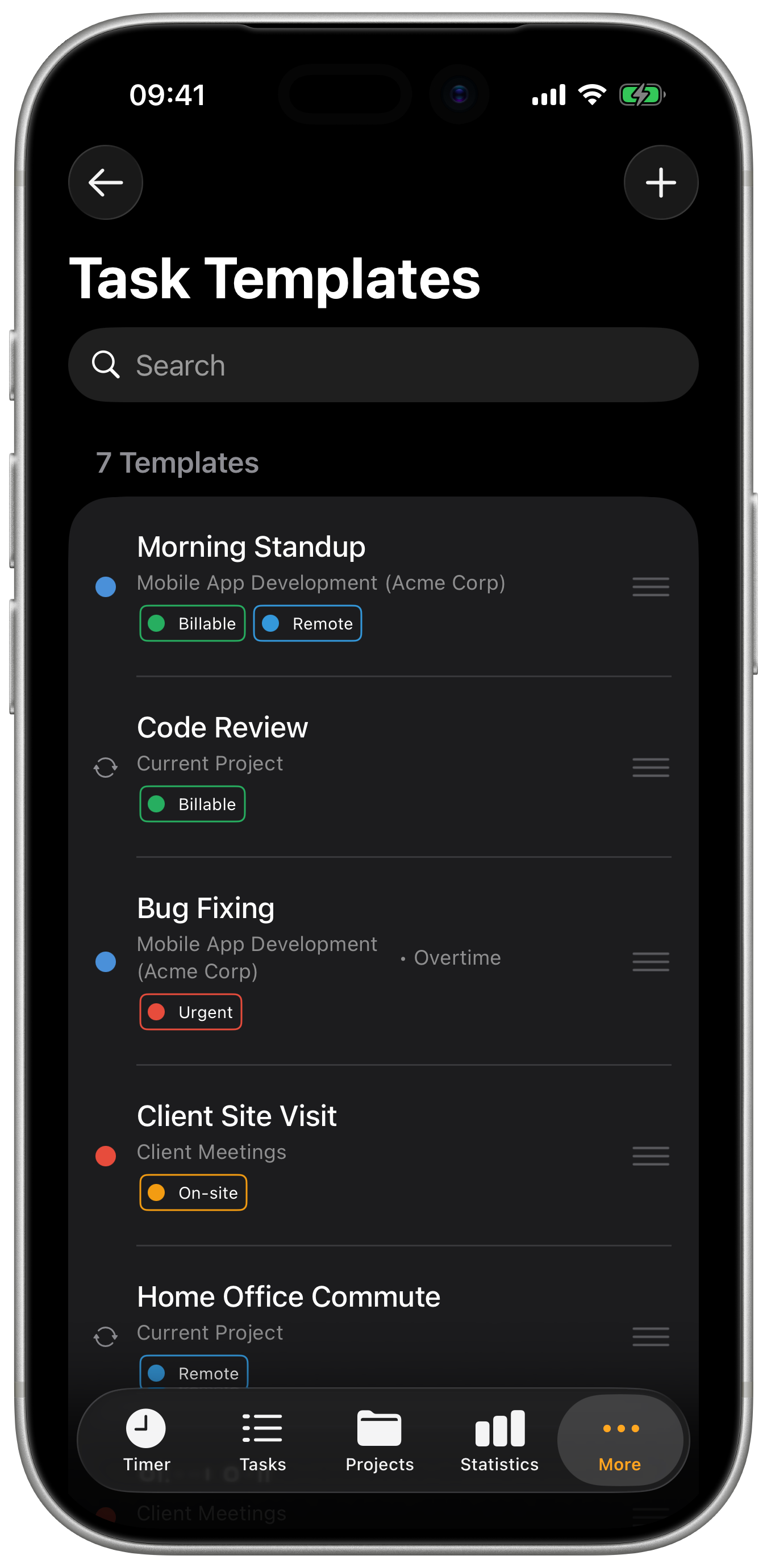
Task Templates allow you to create reusable presets for quickly starting tasks with predefined settings. Instead of manually selecting a project, rate, and tags every time, simply tap a template to begin tracking immediately.
On iPad with enough screen space (full-screen or a wide split view), the Templates screen renders as a two-column list + detail layout. Tapping a row opens the edit view in the right column. The Cockpit's Templates inspector card also surfaces your saved templates for one-tap starts. See iPad Cockpit → List + detail.
Overview
Templates streamline your time tracking workflow by eliminating repetitive setup. Create templates for your most common work activities and start tracking with a single tap.
Key Benefits:
- Save time - No more selecting the same options repeatedly
- Ensure consistency - Same settings applied every time
- Reduce errors - Pre-configured billing rates and tags
- Quick switching - Move between different work types instantly
Creating multiple templates requires a Plus or Pro subscription. Free users can create one template.
Templates Interface
Templates appear in two places:
On the Timer Screen (when stopped):
- Template chips appear below the timer card
- Tap a template to start the timer with those settings
- Quick way to begin tracking common activities
On the Task Edit Screen (when creating a new task):
- Template chips appear at the top of the form
- Tap a template to pre-fill the form fields
- Useful for manual time entries
Template Chips Display:
- Color-coded by project
- Template name visible
- Tap to apply instantly
- Scroll horizontally for more templates
Creating a Template
Step-by-Step Setup
- Navigate to Settings → Task Templates
- Tap the + button in the top right
- Configure your template settings (see below)
- Tap Save to create the template
Template Configuration Options
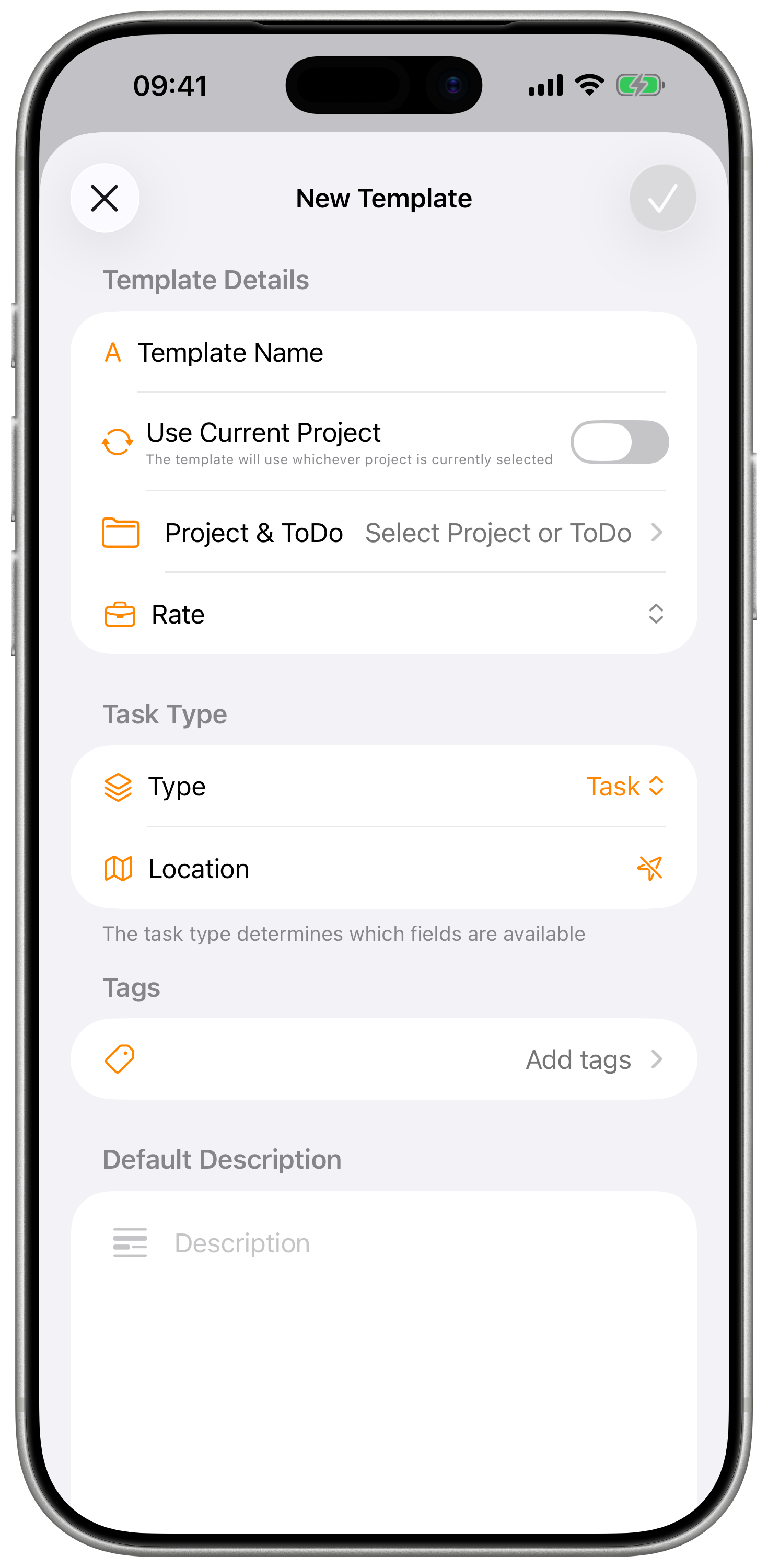
| Setting | Description | Example |
|---|---|---|
| Title | Descriptive name for the template | "Client Meeting", "Development Work" |
| Project | The project to assign tasks to | "Website Redesign" |
| Use Current Project | Dynamically use the currently selected project | Toggle on/off |
| Rate | Billing rate for the task | "Standard Rate", "Overtime" |
| Description | Pre-filled task description | "Weekly sync call with client" |
| Location | Default location for the task | "Home Office", "Client Site" |
| Tags | Tags to automatically apply | "Meeting", "Billable" |
| Billable | Whether tasks are billable by default | Toggle on/off |
Dynamic Project Option
Enable "Use Current Project" to create flexible templates that work across multiple projects:
How It Works:
- When you tap the template, it uses the project currently selected in the Timer's project picker
- Select a different project first, then tap the template to track time to that project
- Perfect for generic work types that apply to multiple projects
Best Use Cases:
- "Quick Task" - Start tracking on any project
- "Meeting" - Log meetings regardless of project
- "Admin Work" - Track overhead across projects
Combine "Use Current Project" with specific rates and tags to create templates that adapt to your project while maintaining consistent categorization and billing.
Using Templates
From the Timer Screen
Start tracking directly from a template:
- Open the Timer tab
- Ensure the timer is stopped
- Template chips appear below the timer card
- Tap a template to start the timer
- Timer begins with the template's project and settings
When Creating a Manual Task
Apply a template to a manual time entry:
- Tap + to create a new task
- Template chips appear at the top of the form
- Tap a template to apply its settings
- Adjust start/end times as needed
- Save the task
- Adjust any values if needed
- Tap Save to create the task
Template Application
When you tap a template, the following happens:
- Project is set (or current project if dynamic)
- Rate is applied to the task
- Description is pre-filled
- Location is set
- Tags are automatically assigned
- Billable status is configured
What You Can Still Modify:
- Start and end times
- Any pre-filled field
- Add additional tags
- Change any setting before saving
Managing Templates
Enable/Disable Templates
Control which templates appear in the quick-start area:
To Disable:
- Open Task Templates in Settings
- Swipe left on a template
- Tap the eye icon to disable
To Enable:
- Find the disabled template (shown as dimmed)
- Swipe left
- Tap the eye icon to enable
Disabled Template Behavior:
- Hidden from quick-start chips
- Preserved with all settings
- Can be re-enabled anytime
- Doesn't count toward limit
Reorder Templates
Templates appear in the order you arrange them:
- Open Task Templates settings
- Tap Edit or use drag handles
- Drag templates to reorder
- Most-used templates should be first
Place your most frequently used templates first. Only the first few are visible without scrolling.
Edit Templates
Modify an existing template:
- Open Task Templates in Settings
- Tap the template you want to edit
- Make your changes
- Tap Save
Delete Templates
Permanently remove a template:
- Open Task Templates in Settings
- Swipe right on the template
- Tap Delete
- Confirm deletion
Deleted templates cannot be recovered. Consider disabling instead if you might need the template later.
Template Limits by Plan
| Plan | Template Limit | Notes |
|---|---|---|
| Basic (Free) | 1 template | Get started with one preset |
| Plus | 5 templates | Cover your main work types |
| Pro | Unlimited | Create templates for everything |
When You Reach Your Limit:
- Existing templates remain accessible
- Cannot create new templates
- Upgrade to add more templates
- Templates beyond limit are locked (not deleted) if you downgrade
Sync Across Devices
Templates sync automatically across all your devices:
- iPhone and iPad - Full template management
- Apple Watch - Use templates to start timers
- Web Application - Access and manage templates
Sync Behavior:
- Changes appear within seconds
- Works over WiFi and cellular
- Offline changes sync when connected
- Conflict resolution favors most recent change
Best Practices
Naming Templates
Good Names:
- "Daily Standup" - Clear and specific
- "Client: Acme Corp" - Identifies the client
- "Development - Backend" - Categorized work type
Avoid:
- "Template 1" - Not descriptive
- "Work" - Too generic
- "Meeting thing" - Unclear purpose
Organizing Templates
By Client:
- "Acme - Meetings"
- "Acme - Development"
- "Beta Corp - Support"
By Activity Type:
- "All - Meetings"
- "All - Admin"
- "All - Development"
By Frequency:
- Most used templates first
- Rarely used templates disabled
Template Strategy
For Freelancers:
- Create templates for each major client
- Include client-specific rates
- Pre-fill common descriptions
For Consultants:
- Templates for each billing rate
- Separate templates for travel, meetings, work
- Include location for on-site vs. remote
For Employees:
- Templates for project phases
- Meeting templates with appropriate tags
- Admin/overhead tracking template
Review your templates monthly. Update descriptions, rates, and tags as your work evolves. Remove templates you no longer use.
Troubleshooting
Templates Not Appearing
Check:
- Template is enabled (not disabled)
- You're on the new task screen
- Templates are synced (pull down to refresh)
Template Settings Not Applying
Verify:
- All required fields are configured
- Selected project is still active
- Selected rate still exists
Sync Issues
Try:
- Pull down to refresh in Settings
- Check internet connection
- Sign out and back in if persistent