Einstellungen
In den Einstellungen legen Sie fest, wie Timesheet aussieht und sich verhält, einschließlich Sprache, regionaler Formate, Währung, Timer-Rundung, Zusammenfassungs-E-Mails und Exportoptionen. Die Seite ist in mehrere Bereiche unterteilt: Global, Timer, Zusammenfassung und Export.
Globale Einstellungen
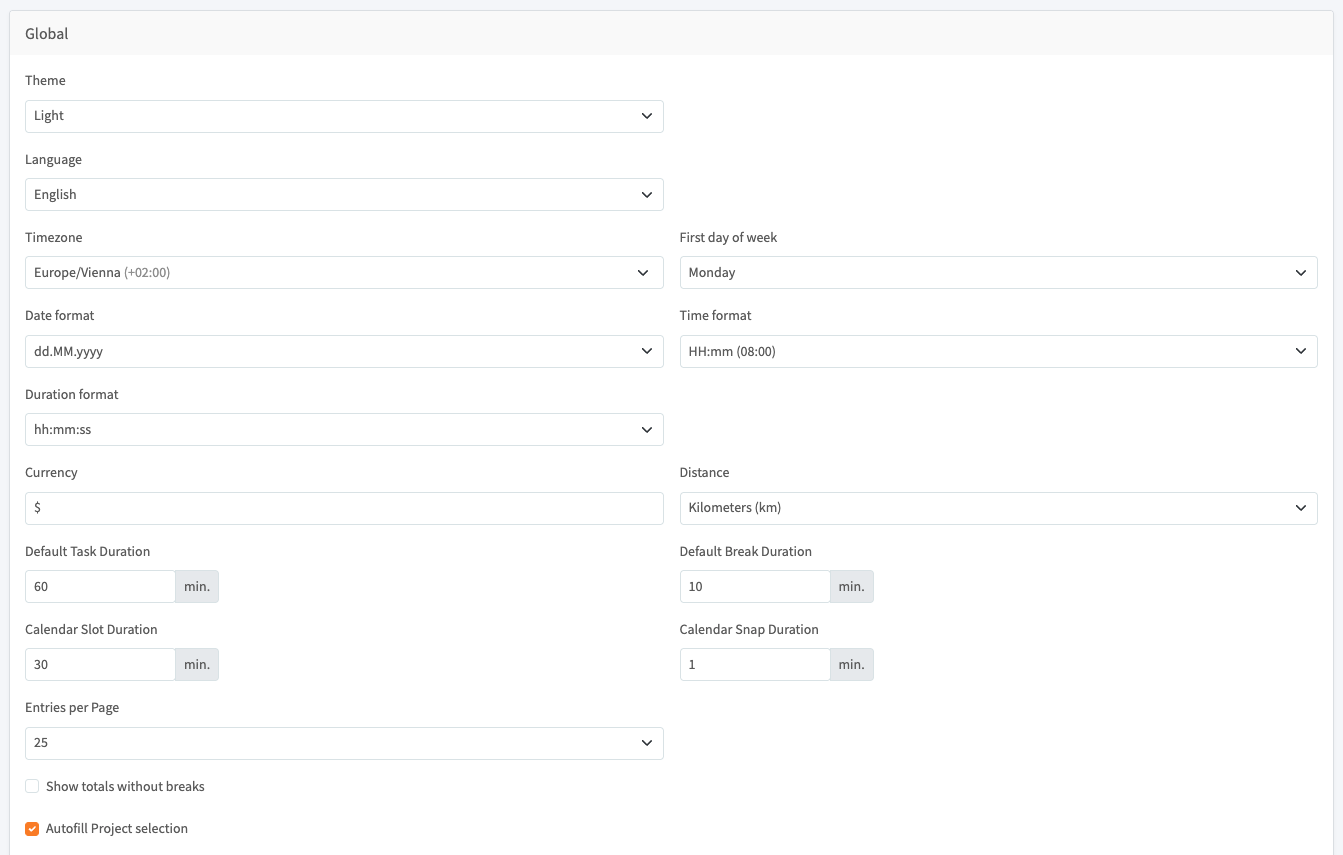
Der Bereich Global steuert Ihr Erscheinungsbild, regionale Formate, Standardwerte und Anzeigeoptionen.
Erscheinungsbild und Sprache
- Design: Wählen Sie Hell oder Dunkel für die Benutzeroberfläche.
- Sprache: Legen Sie die in der gesamten App verwendete Sprache fest.
Region und Formate
- Zeitzone: Legen Sie Ihre Zeitzone fest, damit Zeiten korrekt erfasst und angezeigt werden.
- Erster Wochentag: Wählen Sie den Tag, an dem Ihre Woche beginnt (zum Beispiel Montag).
- Datumsformat: Wählen Sie, wie Datumsangaben erscheinen, zum Beispiel dd.MM.yyyy.
- Zeitformat: Wählen Sie, wie die Uhrzeit erscheint, zum Beispiel HH:mm.
- Dauerformat: Wählen Sie, wie Dauern erscheinen, zum Beispiel hh:mm:ss.
Währung und Entfernung
- Währung: Legen Sie das Währungssymbol fest, das für Tarife und Beträge verwendet wird.
- Entfernung: Wählen Sie die Entfernungseinheit, zum Beispiel Kilometer (km).
Standarddauern
- Standard-Aufgabendauer: Die Dauer, die beim Erstellen einer Aufgabe vorausgefüllt wird, in Minuten.
- Standard-Pausendauer: Die für eine Pause vorausgefüllte Dauer, in Minuten.
- Kalender-Zeitfensterdauer: Die Länge jedes im Kalender angezeigten Zeitfensters, in Minuten.
- Kalender-Rasterdauer: Der Schritt, der beim Ziehen oder Ändern der Größe von Einträgen im Kalender verwendet wird, in Minuten.
Anzeigeoptionen
- Einträge pro Seite: Die Anzahl der Zeilen, die pro Seite in Listen angezeigt werden, zum Beispiel 25.
- Summen ohne Pausen anzeigen: Wenn aktiviert, schließen Summen Pausenzeiten aus.
- Projektauswahl automatisch ausfüllen: Wenn aktiviert, wird Ihr zuletzt verwendetes Projekt beim Erstellen einer Aufgabe vorausgewählt.
Timer-Einstellungen
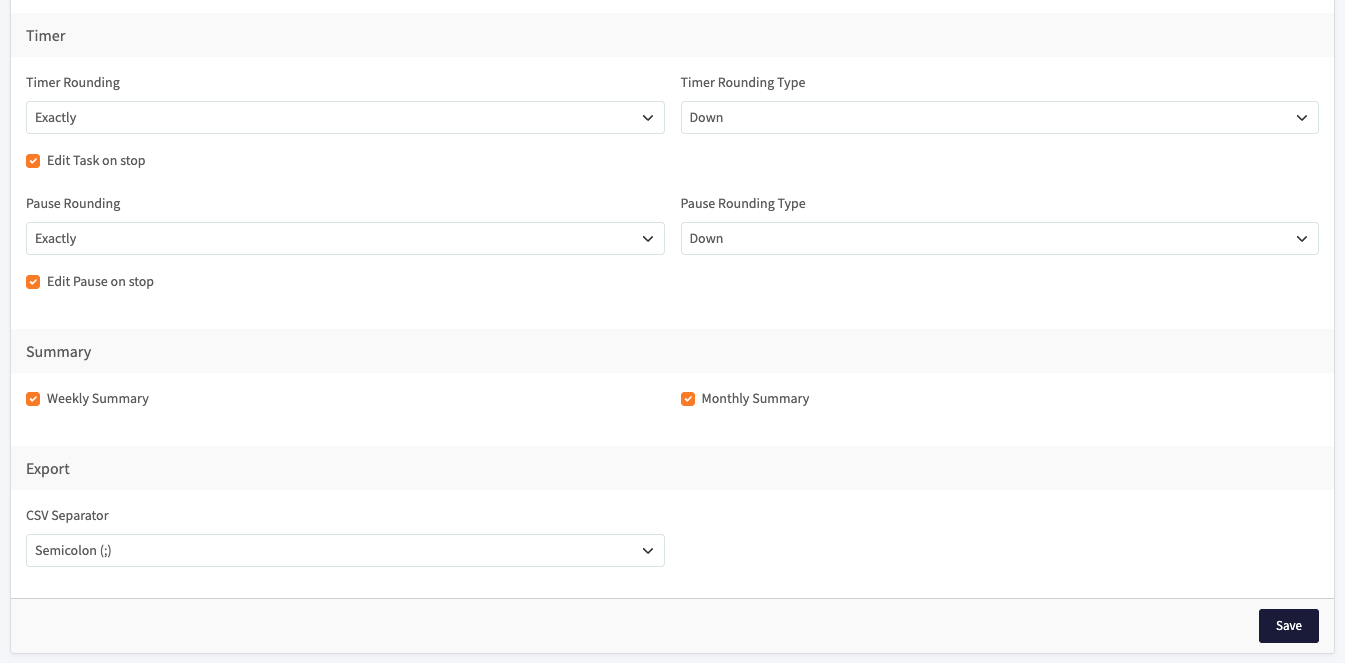
Der Bereich Timer steuert, wie erfasste Zeit und Pausen gerundet werden und was geschieht, wenn Sie einen Timer stoppen.
Rundung
- Timer-Rundung: Runden Sie erfasste Zeit auf ein festgelegtes Intervall oder behalten Sie sie genau wie aufgezeichnet bei.
- Timer-Rundungstyp: Wählen Sie die Rundungsrichtung (zum Beispiel Abrunden) für die erfasste Zeit.
- Pausenrundung: Runden Sie Pausenzeit auf ein festgelegtes Intervall oder behalten Sie sie genau wie aufgezeichnet bei.
- Pausenrundungstyp: Wählen Sie die Rundungsrichtung (zum Beispiel Abrunden) für Pausen.
Beim Stoppen
- Aufgabe beim Stoppen bearbeiten: Wenn aktiviert, öffnet sich die Aufgabe direkt nach dem Stoppen des Timers zur Bearbeitung.
- Pause beim Stoppen bearbeiten: Wenn aktiviert, öffnet sich die Pause direkt nach dem Stoppen zur Bearbeitung.
Zusammenfassung
Der Bereich Zusammenfassung steuert die Zusammenfassungs-E-Mails, die Sie erhalten.
- Wöchentliche Zusammenfassung: Wenn aktiviert, erhalten Sie eine Zusammenfassungs-E-Mail für die vergangene Woche.
- Monatliche Zusammenfassung: Wenn aktiviert, erhalten Sie eine Zusammenfassungs-E-Mail für den vergangenen Monat.
Deaktivieren Sie beide Optionen, um keine Zusammenfassungs-E-Mails mehr zu erhalten.
Export
Der Bereich Export steuert, wie exportierte Dateien formatiert werden.
- CSV-Trennzeichen: Wählen Sie das Zeichen, das in CSV-Exporten zwischen Werten verwendet wird, zum Beispiel ein Semikolon (;).
Änderungen speichern
Wählen Sie unten auf der Seite Speichern, um Ihre Änderungen zu übernehmen.
Die Regel für automatische Pausen in Timesheet ist eine einzige globale Regel, die hier in den Einstellungen festgelegt wird. Bei Bedarf können Sie sie für eine einzelne Aufgabe überschreiben.