Import
The Import page lets you bring existing data into Timesheet from a file, for example when you move from another tool or set up many projects at once.
Select a file
Open Import from the left navigation and choose what to import.
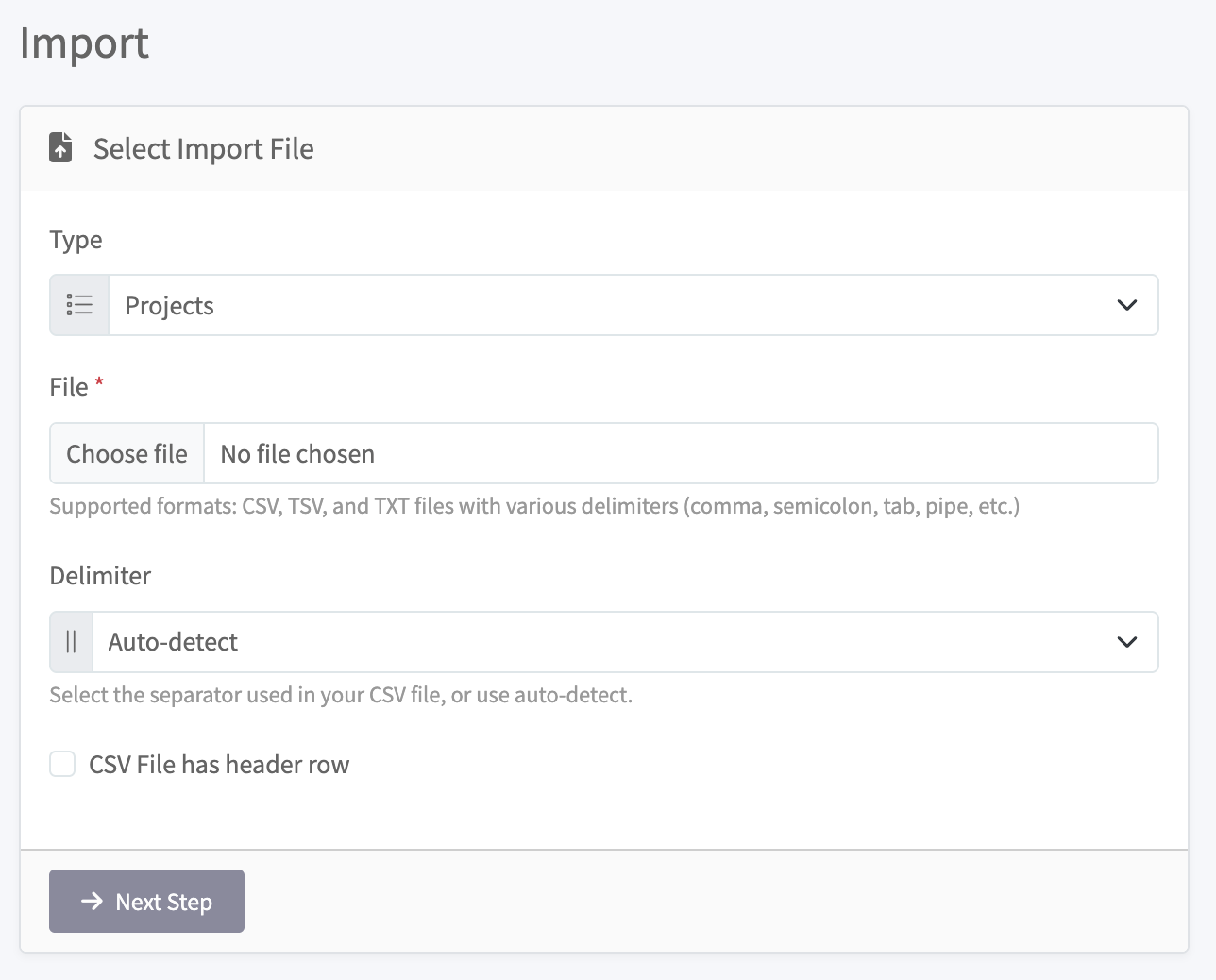
- Type: choose the kind of data you are importing, such as Projects.
- File: select a file from your computer. CSV, TSV, and TXT files are supported, with various delimiters (comma, semicolon, tab, pipe, and more).
- Delimiter: choose the separator used in your file, or leave it on Auto-detect.
- Tick CSV File has header row if the first row contains column titles instead of data.
- Select Next Step to continue.
Match your columns
In the next step you match the columns in your file to the fields in Timesheet, so each value lands in the right place. Review the preview, then confirm to import your data.
tip
Export a small sample from your old tool first and import that to check your column mapping before you import the full file.