Absences
The Absences screen is where you request time off, see what you've already booked, and attach proof for absences that need documentation (e.g. doctor's notes for sick days). It's the iOS counterpart to your contract's leave workflow — everything you do here syncs back to the web app and to any approvers in your organisation.
Absences requires a contract that defines absence types and leave entitlement — that's part of the Business plan and up. See HR Compliance Warnings for an overview of how contracts power the HR features.
Opening Absences
Tap More → Absences, or — on iPad — pick Absences from the sidebar. The Balances leave card also links straight here.
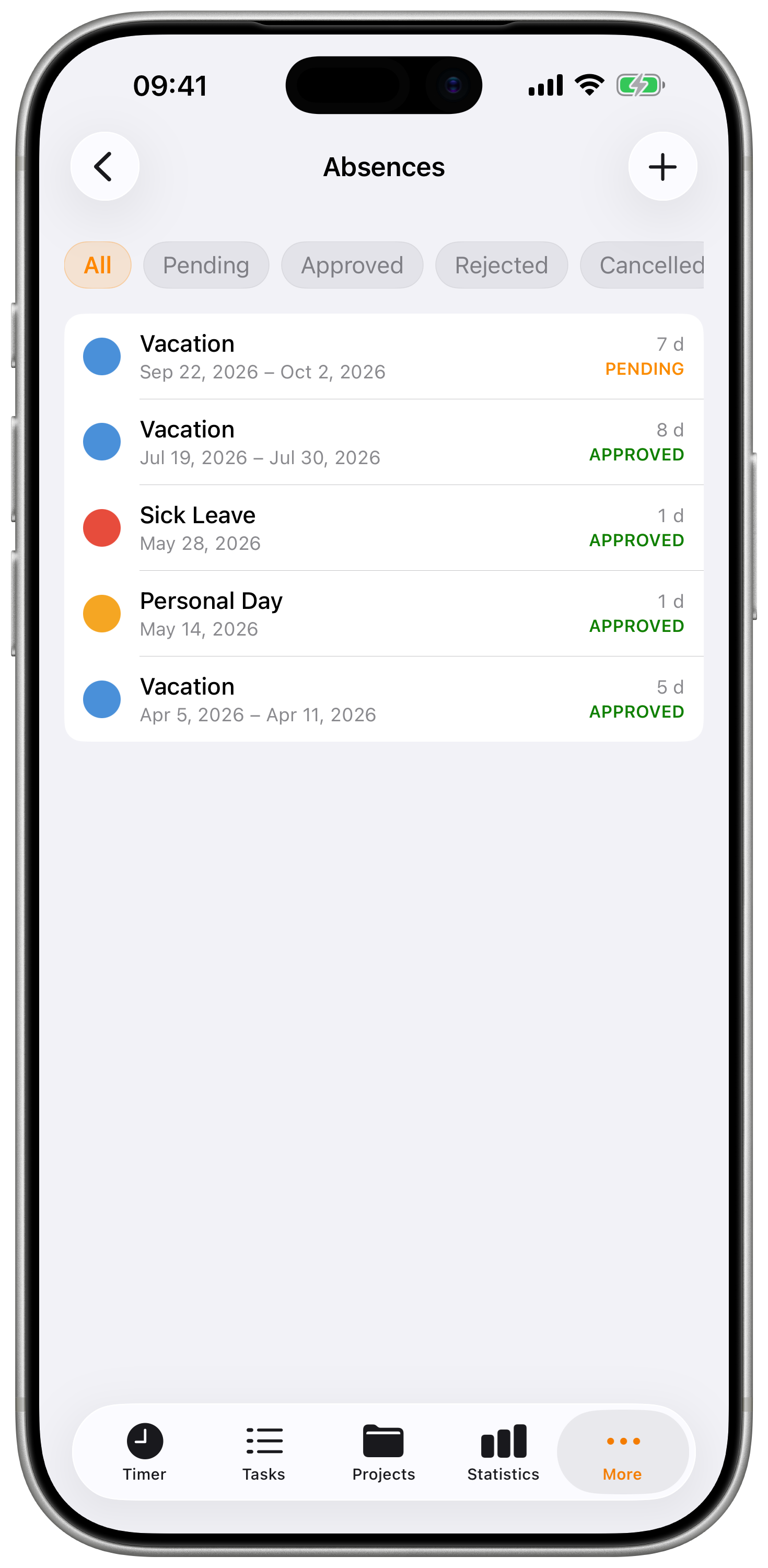
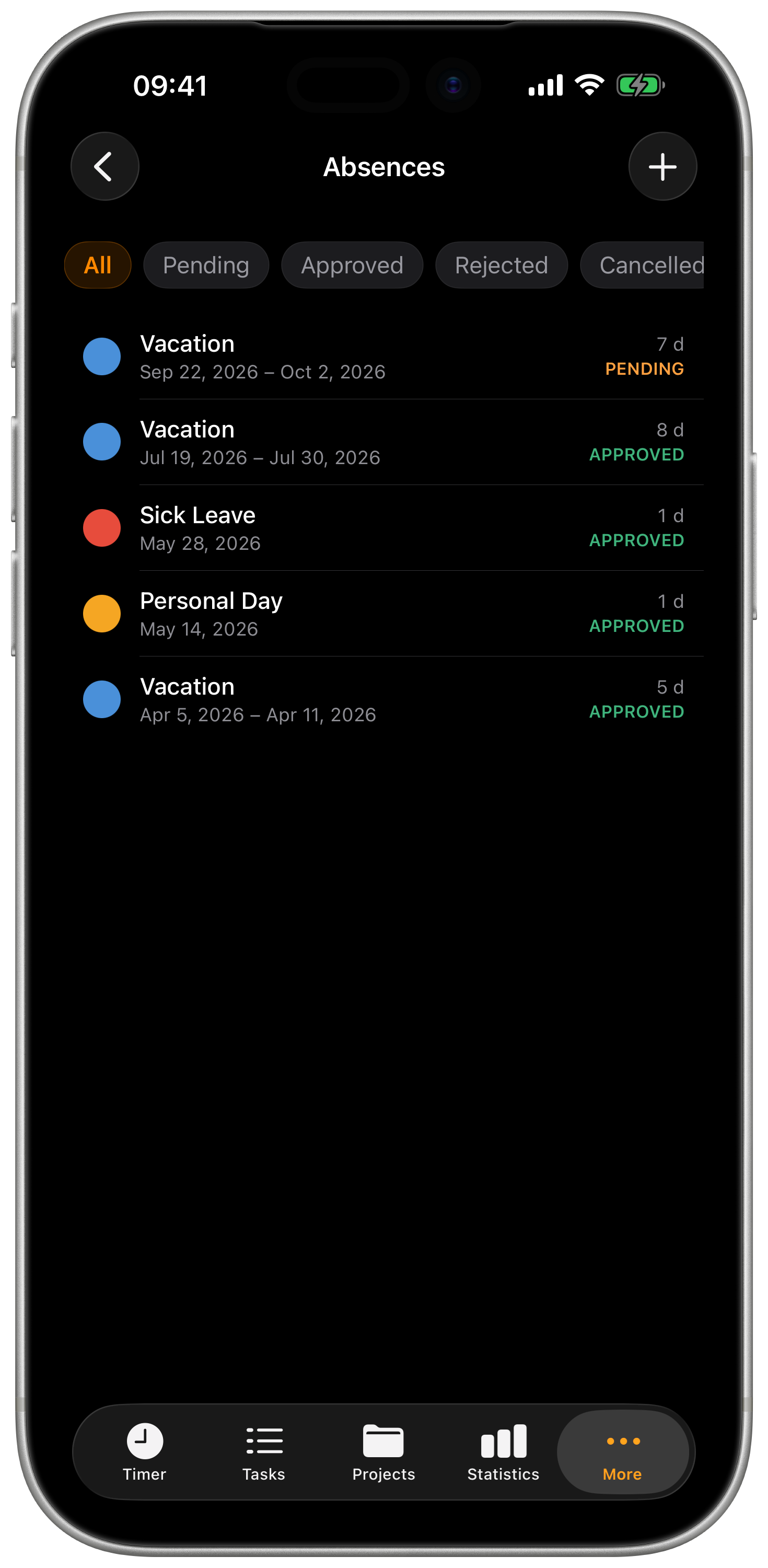
The list
Each row shows the absence type (with its colour), the date range, and a status badge. Rows that still need supporting documentation get a small orange marker.
Status chips
A horizontal chip strip near the top narrows the list by approval status:
| Chip | Shows |
|---|---|
| All | Every absence (default) |
| Pending | Submitted, waiting for approval |
| Approved | Approved by a manager |
| Rejected | Turned down — usually with a reason in the detail |
| Cancelled | Cancelled by you or a manager |
Year strip
Above the chip strip, a year strip lets you flip between years that have data. The strip hides automatically when there's only one year to show.
Missing-docs banner
If any of your absences need supporting documentation (e.g. a sickness certificate) and you haven't attached anything yet, a banner appears at the top with a count. Tap it to collapse the list to only those rows. Tap the X in the active-filter callout to clear that focus.
Multi-organisation
If you belong to more than one organisation, an organisation picker sits at the top. Pick the org and the list, year strip, and request button all reset to that org's data. The selection is shared with Balances.
Requesting an absence
Tap the + button in the top right to start a new request.
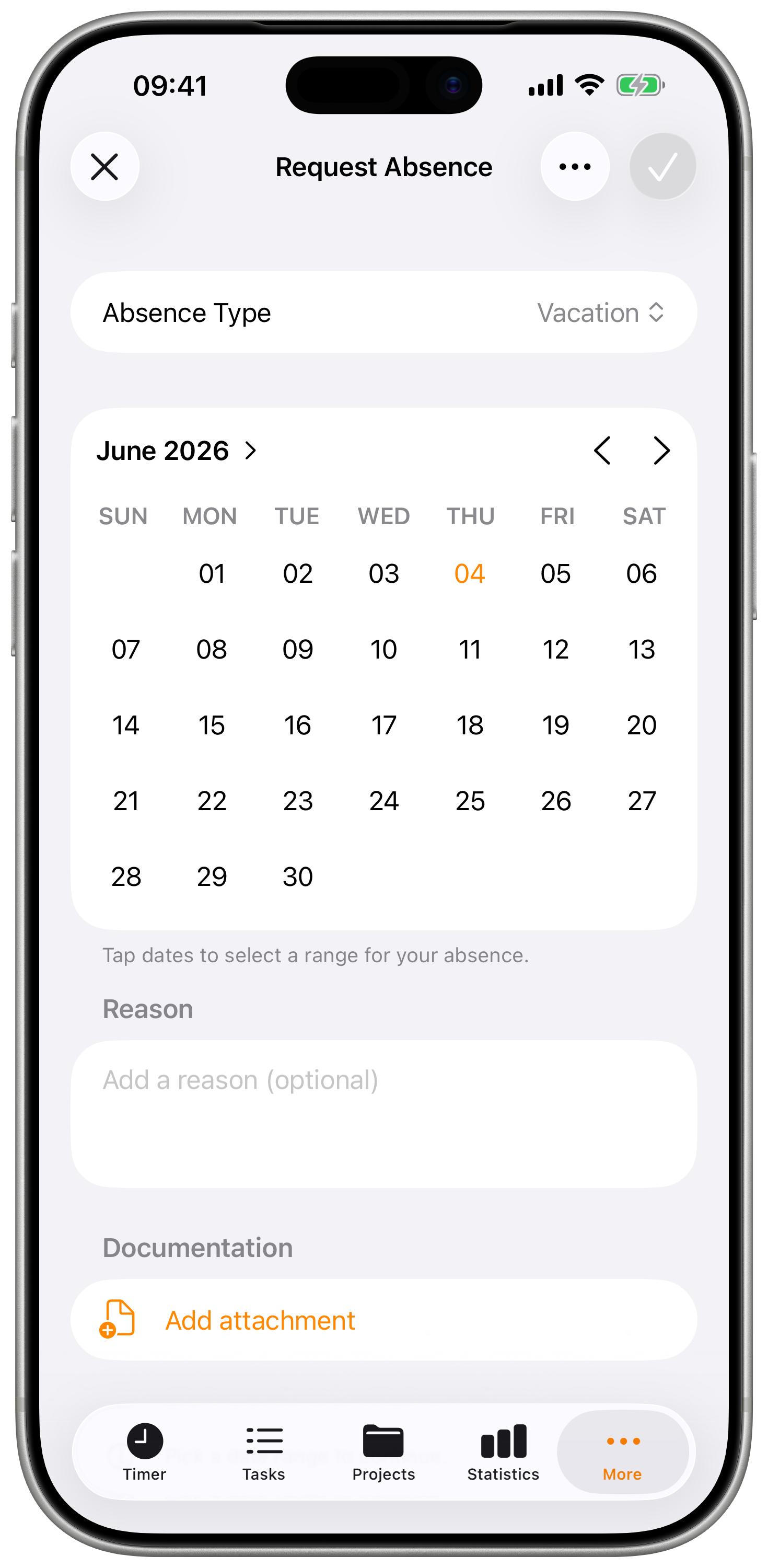
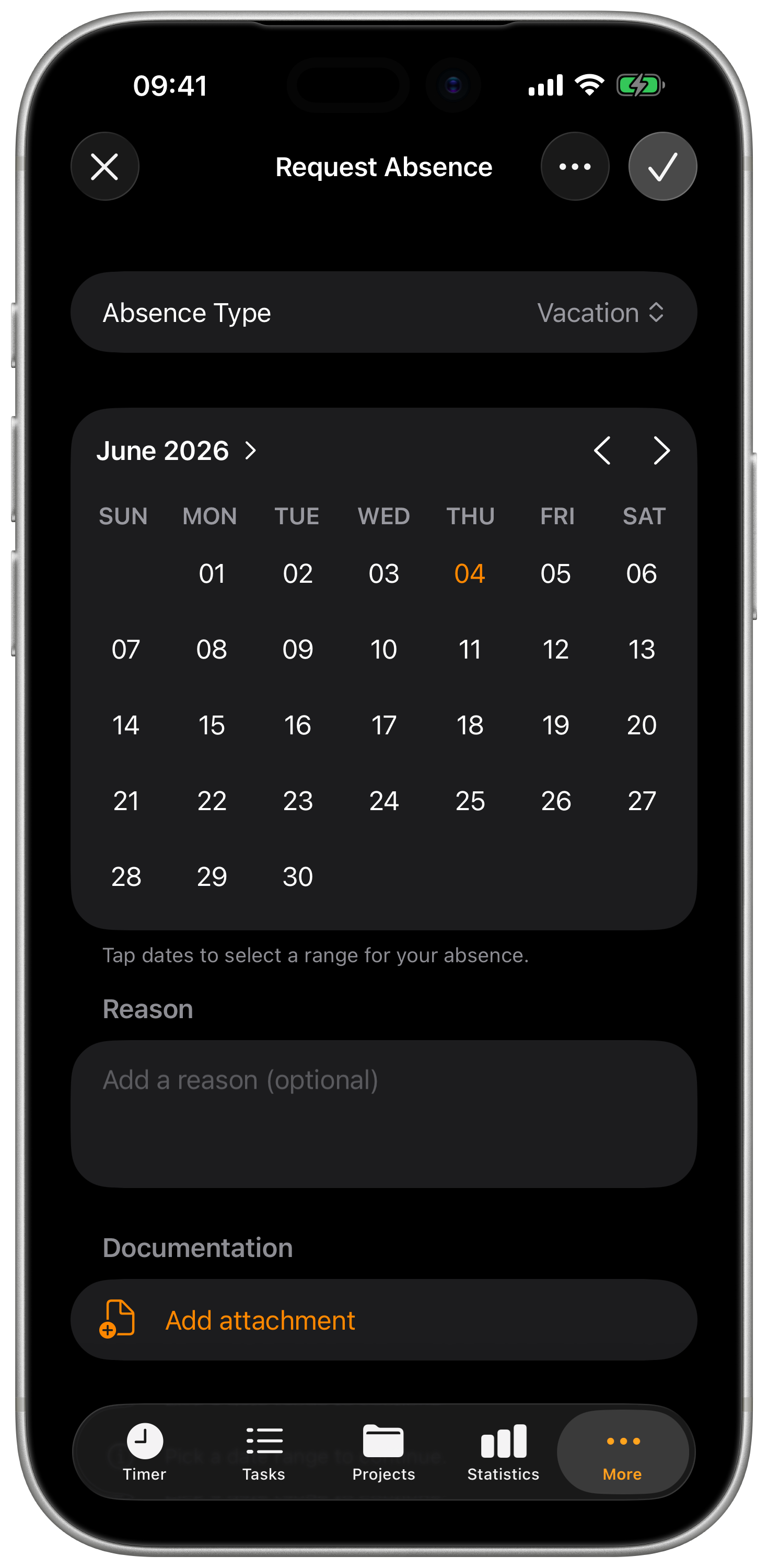
The form is split into clear sections:
| Section | What to fill in |
|---|---|
| Type | Pick from your org's absence types (vacation, sick, parental leave, etc.) |
| Contract | Which contract the absence applies to (only relevant if you have more than one active) |
| Date range | Start and end. Switch between a simple two-picker layout and a calendar picker from the ⋯ menu. |
| Summary | Computed days/hours and which days count |
| Duration details | For partial-day absences: start and end time |
| Reason | Optional note for your manager |
| Documentation | Optional file upload — required for some absence types |
Tap Save to submit. The request goes through to your manager via the web app for approval.
Full-day vs partial absences
Toggle Full day off to enter exact start and end times — useful when you need to leave for a few hours mid-day. The summary updates the calculated hours automatically.
Discarding
If you tap Cancel with unsaved changes, the app asks before throwing the form away. The same prompt fires on the iOS swipe-back gesture, so you can't accidentally lose a half-filled request.
Absence detail
Tap any row to open it.
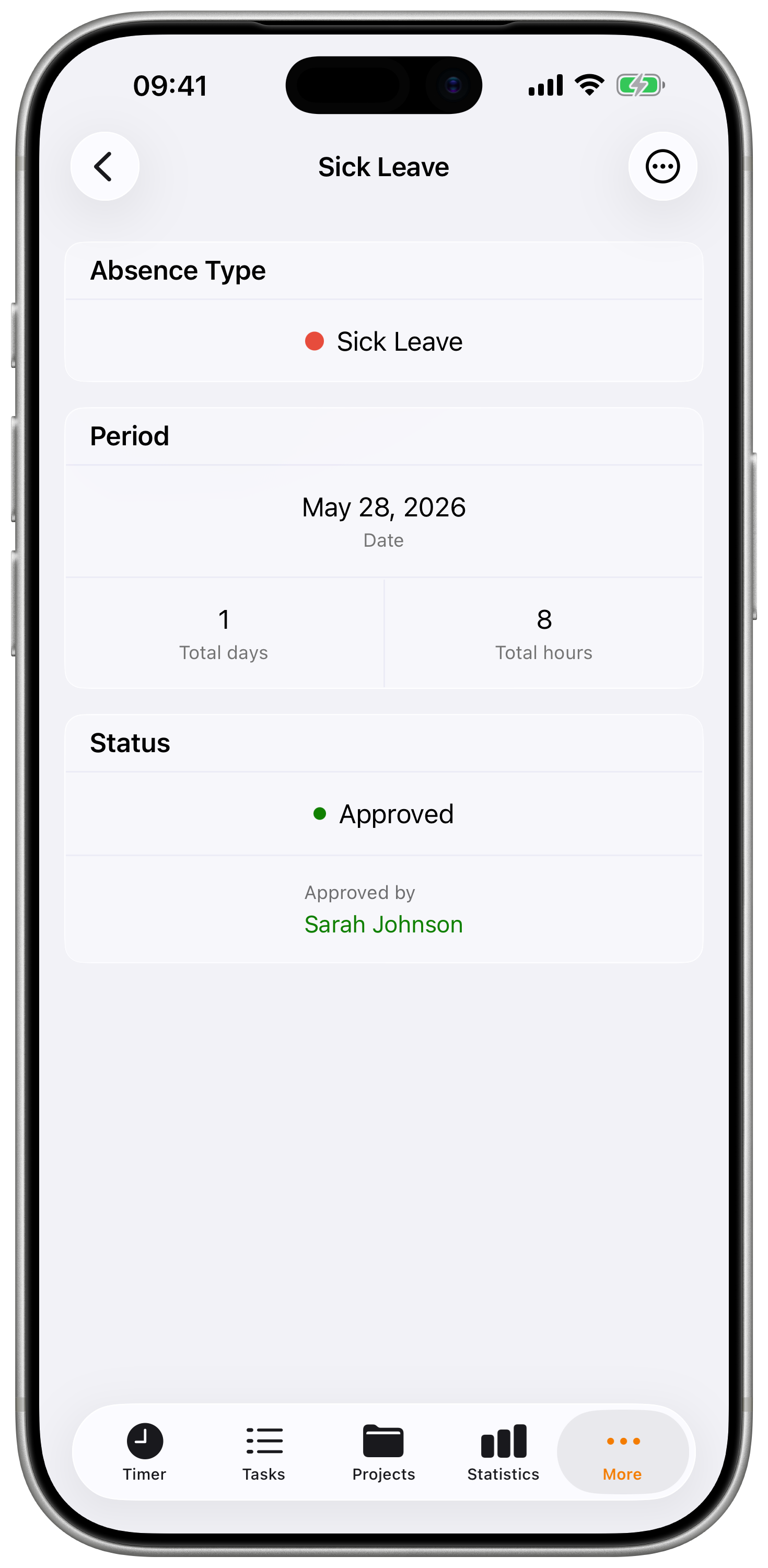
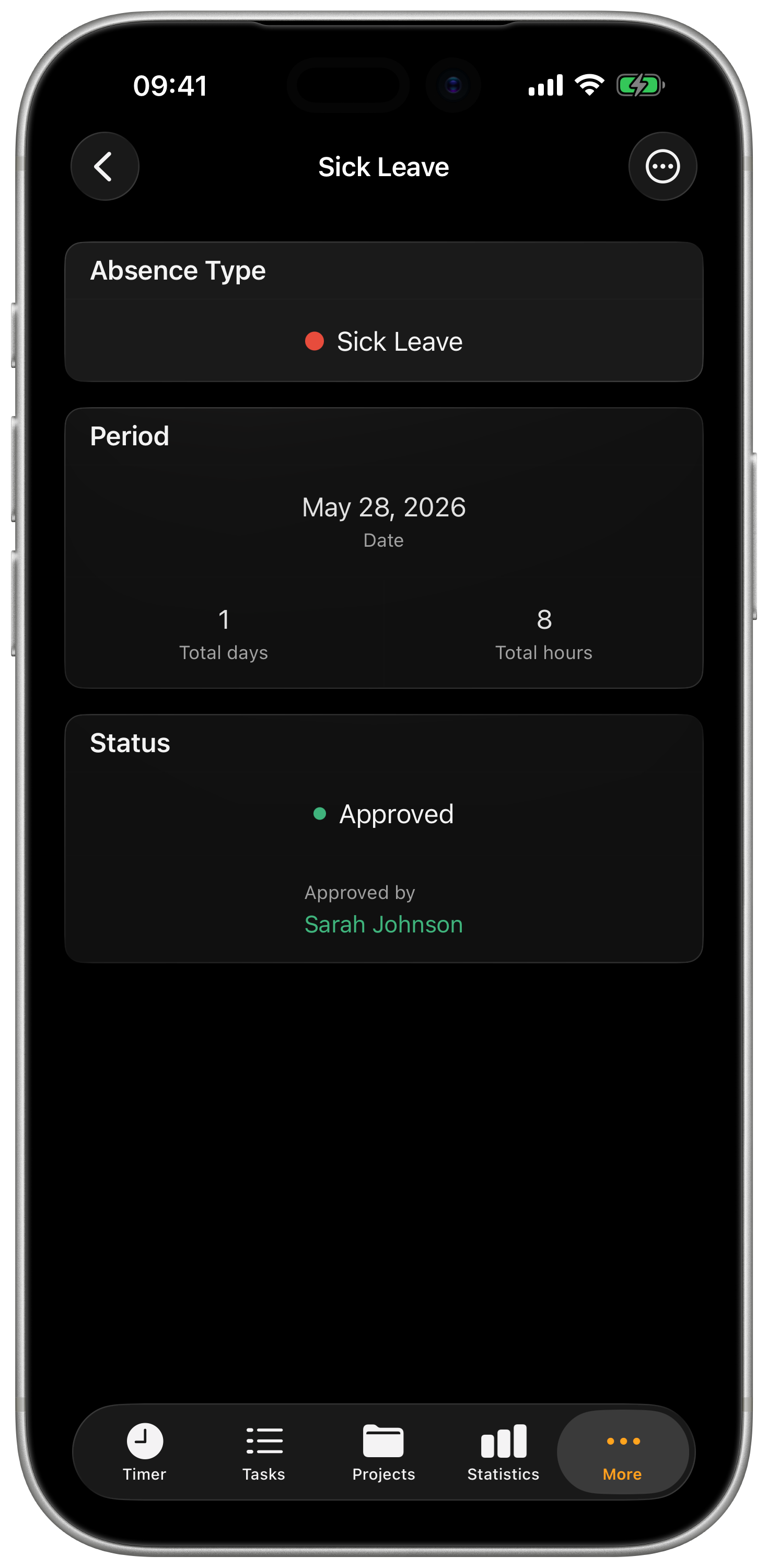
Detail shows everything you submitted, the current status, and any manager notes. From the toolbar you can:
- Edit — open the form, modify any field, save
- Attach proof — pick a photo, take one, or upload a file
- Add to Calendar — drop the absence into iOS Calendar via the standard Add Event sheet
- Share — send the absence details out via the share sheet
- Cancel absence — withdraw the request (with a confirmation prompt)
Cancelling here is the same as cancelling from the list — the row moves to "Cancelled" but stays visible if you've set the chip strip to Cancelled or All.
Documentation reminders
If you book an absence whose type requires documentation (e.g. sick leave with a doctor's note) and you haven't attached anything yet, Timesheet schedules a local reminder for 9 AM the day before the absence starts. The reminder fires once, with a notification you can tap to jump straight to the absence and attach proof.
The reminder cancels itself automatically when you:
- Attach a proof file
- Cancel the absence
- Edit the absence type to one that doesn't need proof
Reminders are local-only — they don't go through Apple's servers and don't appear on other devices. Notifications need to be allowed for Timesheet in iOS Settings.
Calendar export
From the absence detail, the Add to Calendar action opens iOS's native Add Event sheet pre-filled with:
- Title — absence type, optionally the reason
- Date range, marked as all-day for full-day absences
- The Calendars app handles repeat, alerts, and the calendar choice
You can also share to other calendar apps via the standard share sheet.
Cancelling vs editing
- Editing changes the request and resends it through approval if needed.
- Cancelling withdraws the request entirely. Approved absences can also be cancelled until the start date, depending on your org's policy.
Cancelled and rejected absences are read-only after the fact — they stay in the list as audit trail, but you can't reopen them. File a fresh request instead.
How approval works
When you submit, the absence goes to Pending and your manager sees it in the web app. They approve or reject from there. Once approved, the days move into your Used count on Balances and into any HR compliance calculations.
Approval state changes show up on iOS after the next sync. Pull down on the list to force a sync if you want the update sooner.
"I don't see the + button"
The request button is disabled if you don't have an active contract in the currently-selected organisation. Open More → Contracts to confirm a contract is active and assigned to the right team — if it's still showing as inactive, the request button stays disabled.
If you're in a multi-org setup, the active contract might live in a different org than the one currently picked. Switch organisation via the picker at the top of the list.
Related
- Balances — your remaining leave days and overtime hours
- HR Compliance Warnings — live target / break / legal-max warnings on the Timer
- Web → Absence Management — manager view, approval workflow, and richer reporting
- Web → Contracts — set up absence types and leave entitlement