Balances
Balances is your at-a-glance view of where you stand for the year — how many leave days you have left, and where your overtime balance sits. The numbers come straight from your active contract; nothing to set up on iOS beyond having a contract configured.
Balances reads from a contract with leave or overtime enabled. Contracts and employment models live on the Business plan and up — see HR Compliance Warnings for the wider picture.
Opening Balances
Tap More → Balances, or — on iPad — pick Balances from the sidebar.
What you see
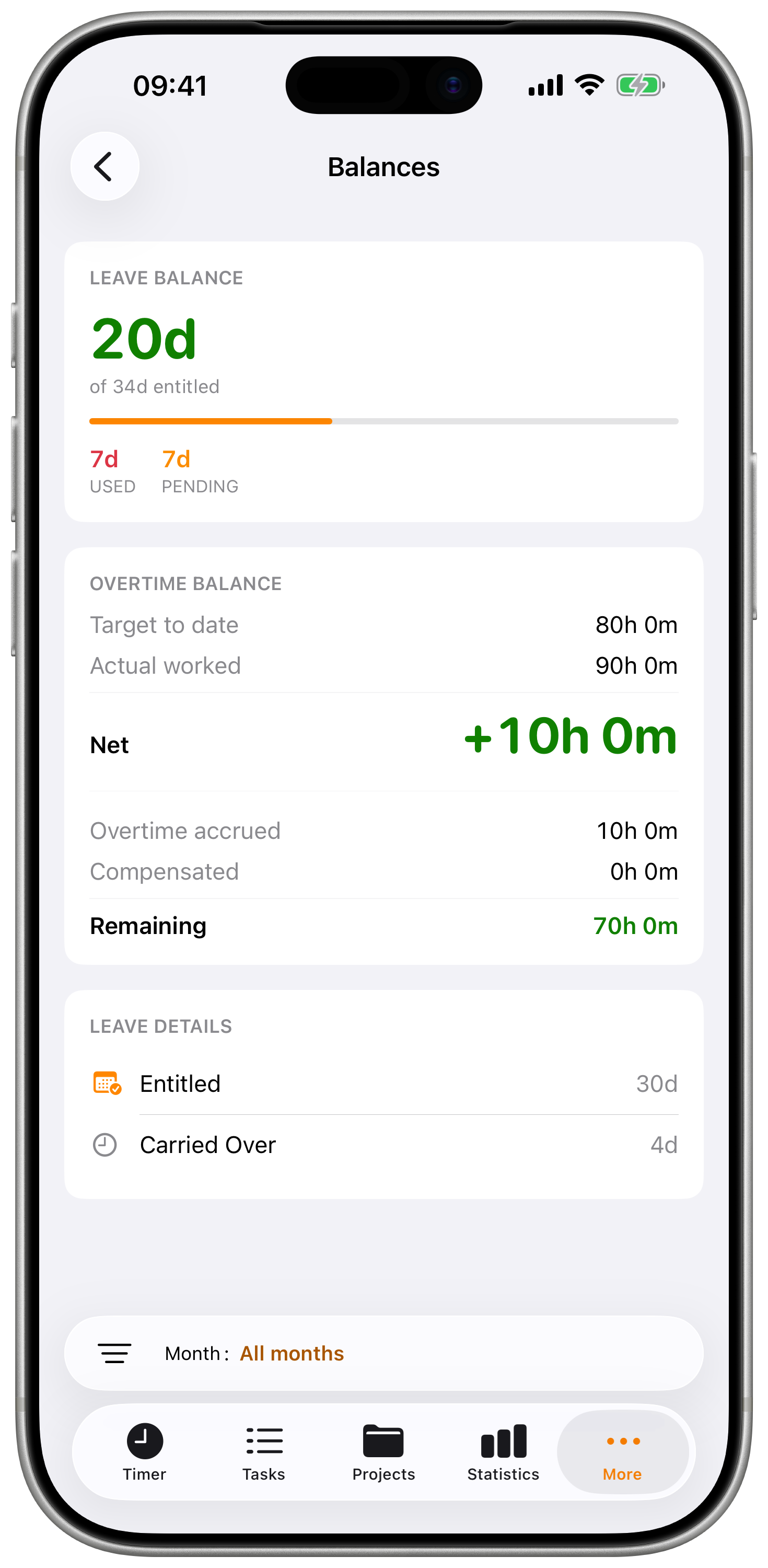
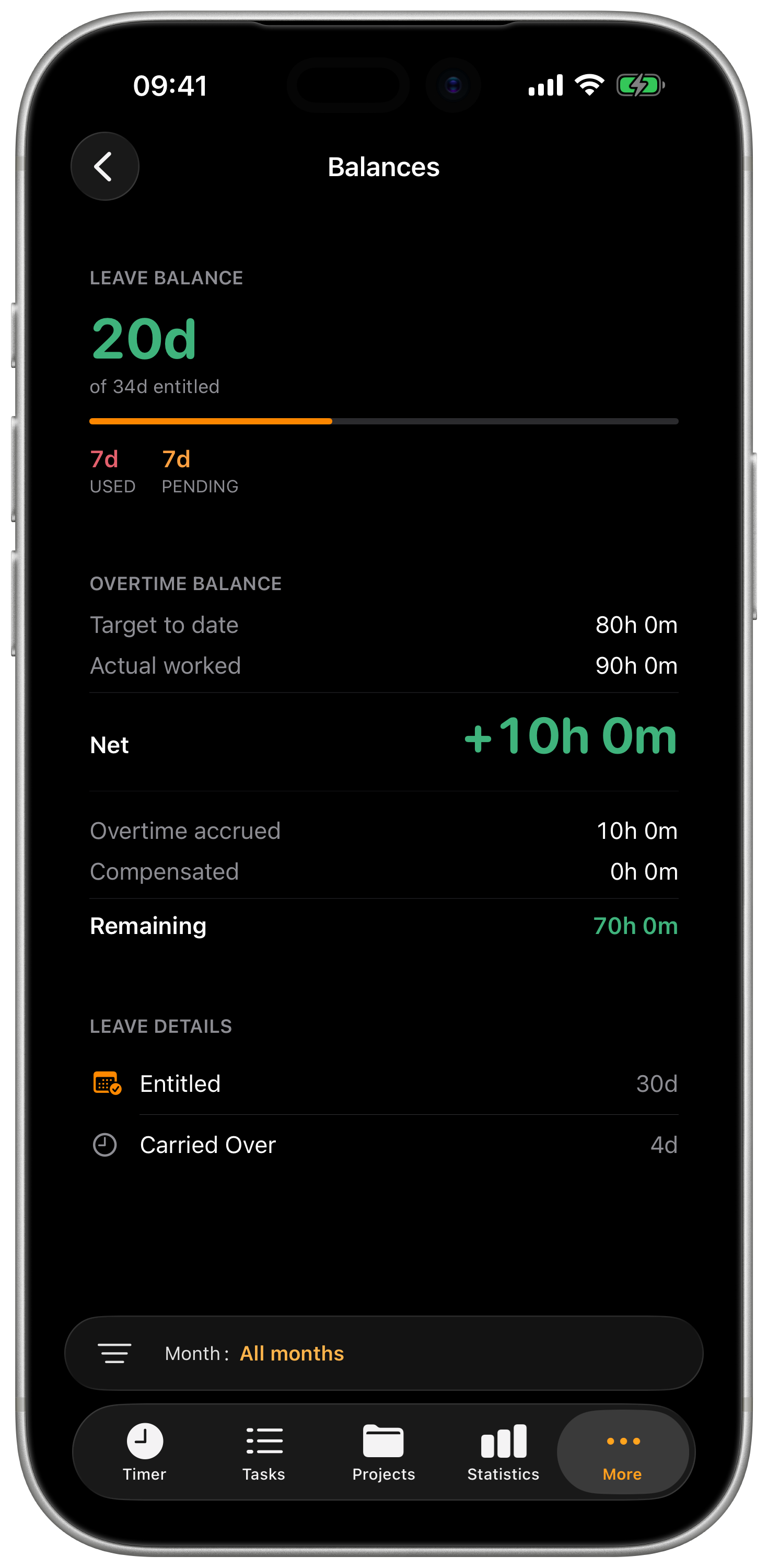
Balances stacks a few cards. Each card scrolls into view independently:
| Card | What it shows |
|---|---|
| Leave | Remaining days, large hero number. Progress bar shows used + pending against entitled. Breakdown row shows Used, Pending. |
| Overtime | Ledger-style breakdown — Target to date, Actual worked, Net hours (hero number), then Accrued, Compensated, Remaining. |
| Overtime trend | Line chart of your net overtime by period for the year. Hidden when there's only one data point. |
| Leave details | Per-row breakdown: Entitled, Carried over, Additional, Expired. |
The hero numbers (remaining leave, net overtime) use the same colour cues as the rest of the app: green for "you're in surplus", red for "you're past target or over the legal limit", neutral for "exactly at target".
Pending approvals chip
If you have absences sitting in Pending approval, a small orange chip appears at the bottom of the Overtime card with a count. Pending items don't move the net total — they sit alongside it as a heads-up.
Multi-organisation accounts
If you're part of more than one organisation, an organisation picker appears above the cards. Tap to switch — all the numbers refresh to that org's contract.
The picker selection is shared with the Absences screen, so picking "Acme Corp" on one carries over to the other.
Year navigation
A horizontal year strip at the top lets you switch between the years you have data for. Today's year is selected by default; if you go back and want to return, the calendar.badge.clock button in the top right snaps you back to the current period.
The year strip only appears when you have more than one year of data.
Month filter (overtime)
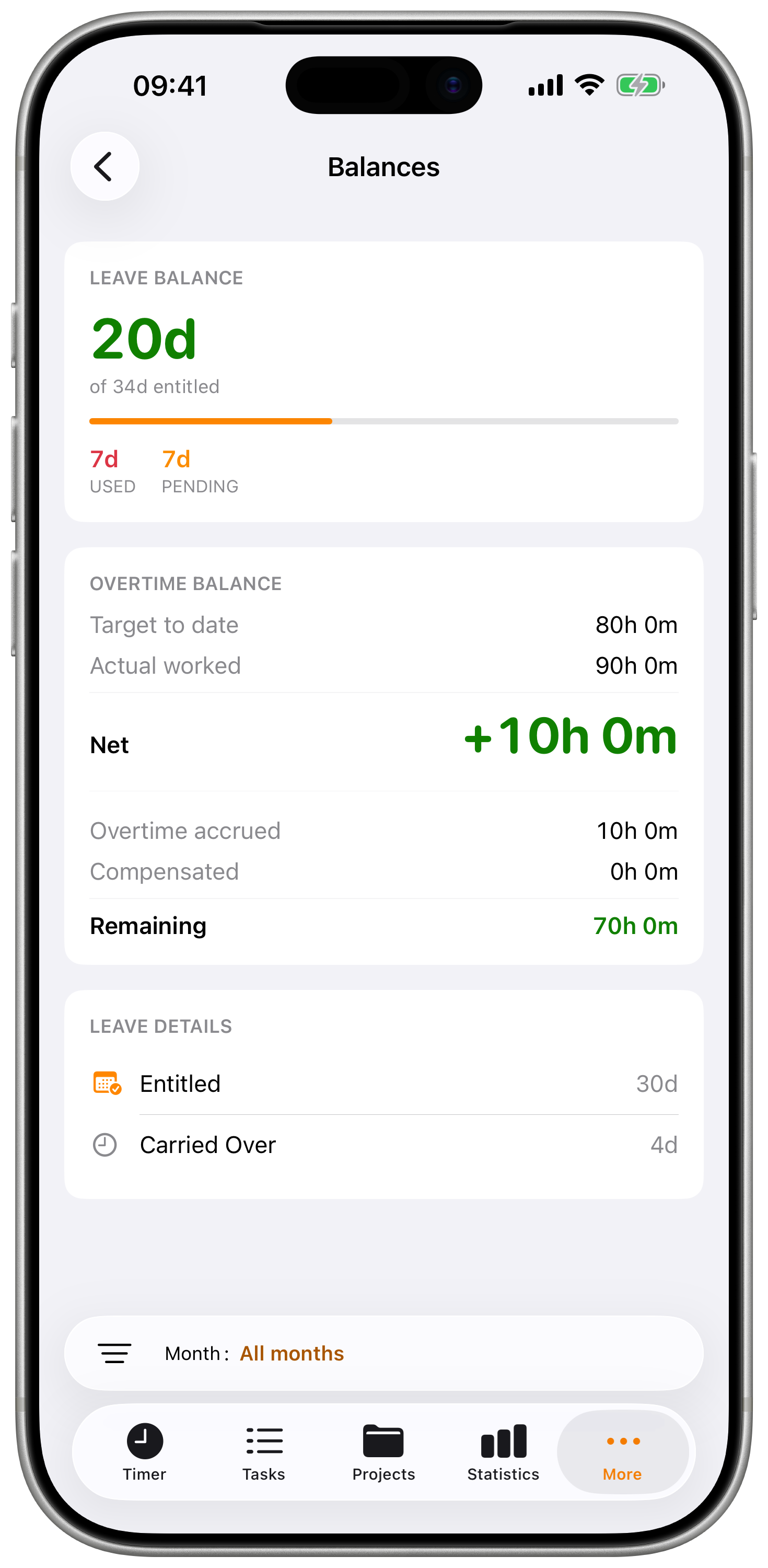
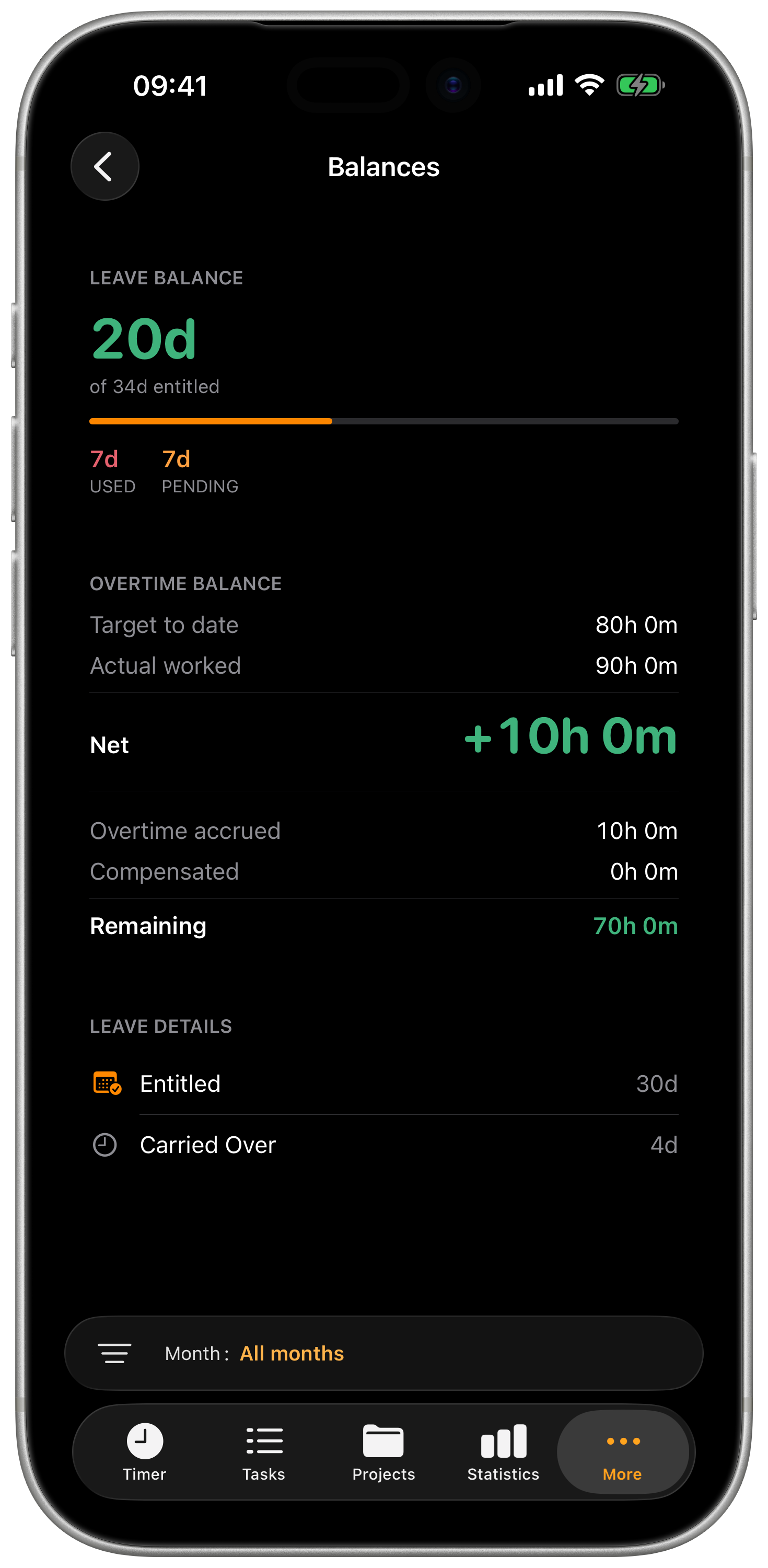
A filter pill at the bottom lets you narrow the overtime card to a single month. Leave balances stay year-scoped — they're an annual concept and wouldn't make sense per-month.
How the numbers update
Balances reads from your local database, which syncs with the web app. Any change you make in the web app — a contract update, a freshly approved absence, a new overtime period — appears here after the next sync. Pull down to force a sync if you don't want to wait.
There's no manual entry on iOS: you don't add leave entitlements or overtime balances here. Those come from the contract and the absences booked against it.
"No contracts configured"
If you land on Balances and see a setup prompt instead of cards, your account doesn't have a contract with leave or overtime enabled yet. Tap Open contract settings to jump to the contract list, or set one up in the web app.
Common reasons the empty state appears:
- You're on the Basic / Plus / Pro plan — contracts are Business+
- You have a contract but Overtime is turned off in it
- You belong to multiple orgs and the picker is on one without a contract
Plus-only vs full overtime contracts
Some contracts only track overtime accrued without tracking undertime (worked-less-than-target). On those, the Net row never goes red — falling below target isn't a deficit, just hours you haven't banked yet. The card adjusts the colour treatment automatically based on what your contract says.
Related
- HR Compliance Warnings — the live "approaching target" / "exceeded limit" warnings on the Timer
- Absences — book leave that subtracts from your remaining days
- Web → Contracts — where contracts and employment models are set up
- Web → Overtime — the richer overtime workspace on the web