Insights
Die Insights-Seite speichert die vom Chronis-KI-Assistenten erstellten Berichte. Wenn Sie Chronis um eine Zusammenfassung oder einen Bericht bitten, analysiert er Ihre erfassten Daten und speichert das Ergebnis hier, damit Sie es später erneut lesen können.
Insights und der Chronis-KI-Assistent sind in Plänen mit Webzugriff enthalten (Pro, Business und Enterprise).
Berichtsliste

Die Liste zeigt jeden erstellten Bericht.
Was Sie sehen:
- Titel: der Name des Berichts (zum Beispiel „Personalbericht zu Zeit und Arbeit der letzten Woche“)
- Datum: wann der Bericht erstellt wurde
- Löschen: einen Bericht entfernen, den Sie nicht mehr benötigen
Verwenden Sie die Suchleiste, um einen Bericht nach Titel zu finden.
Berichtsdetails
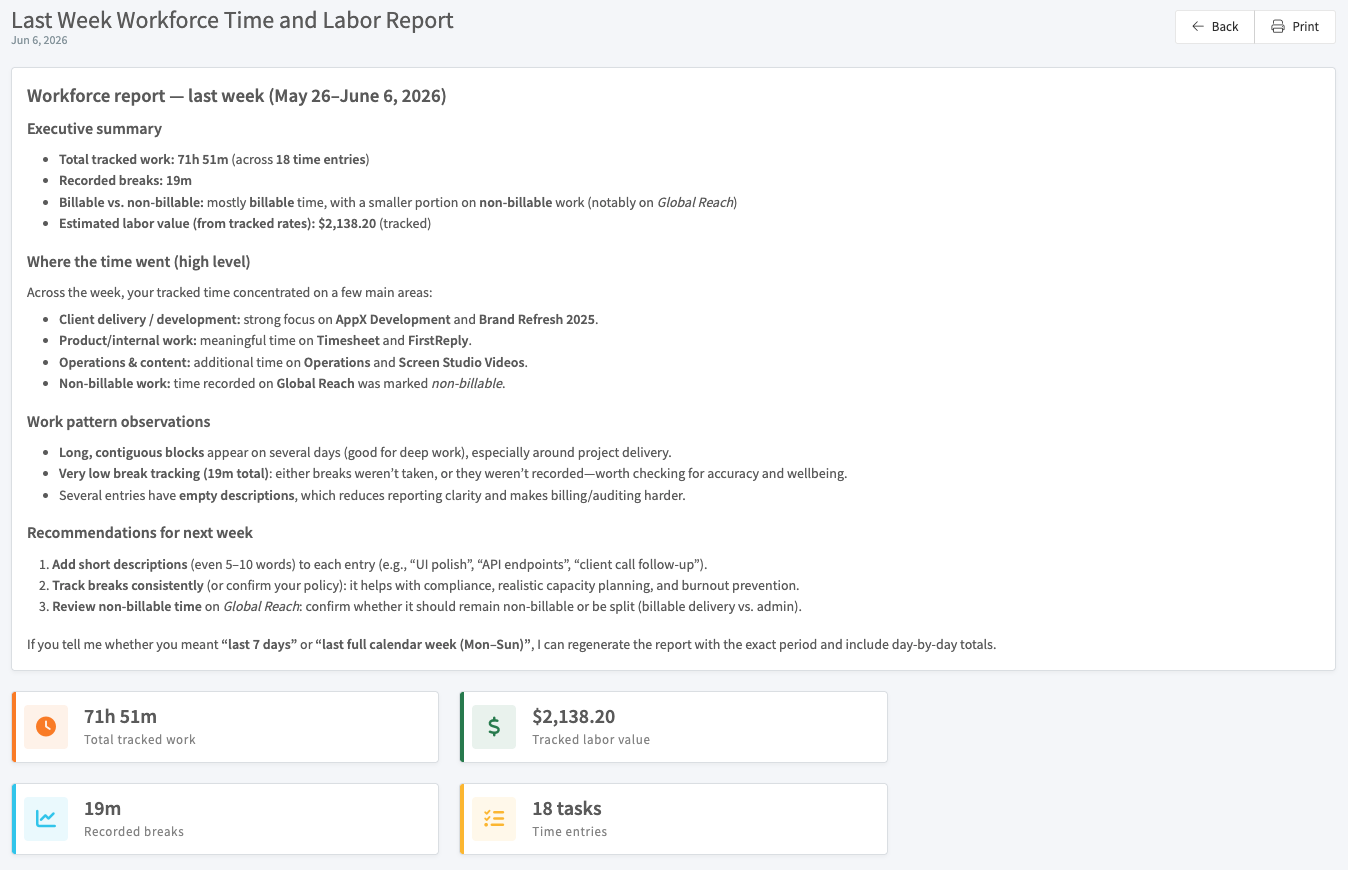
Klicken Sie auf einen Bericht, um ihn zu öffnen. Ein Bericht ist in verständlicher Sprache verfasst und in Abschnitte gegliedert, die üblicherweise Folgendes umfassen:
- Eine Zusammenfassung für die Geschäftsführung mit den wichtigsten Zahlen für den Zeitraum
- Eine Aufschlüsselung, wohin die Zeit geflossen ist, gruppiert nach Projekt, Kunde oder Aktivität
- Beobachtungen zu Arbeitsmustern, etwa lange Arbeitsphasen oder kurze Pausen
- Empfehlungen für den nächsten Zeitraum
Übersichtskarten am unteren Rand zeigen die wichtigsten Summen für den Zeitraum, etwa die gesamte erfasste Zeit, die Arbeitskosten und die Anzahl der Aufgaben.
Klicken Sie auf Zurück, um zur Liste zurückzukehren.
Einen Bericht erstellen
Berichte werden über den Chronis-KI-Assistenten in der rechten Seitenleiste des Dashboards erstellt. Bitten Sie ihn um den gewünschten Bericht, zum Beispiel eine Zusammenfassung der Belegschaft der letzten Woche. Wenn der Bericht fertig ist, gibt Ihnen Chronis eine Schaltfläche, um ihn zu öffnen, und er wird auf dieser Seite gespeichert.