Integrationen
Auf der Seite Integrationen verbinden Sie Timesheet mit anderen Tools. Sie ist in vier Tabs unterteilt: Integrationen, API-Schlüssel, Ihre Apps und Webhooks.
Integrations-Marktplatz
Der Tab Integrationen enthält den Integrations-Marktplatz, auf dem Sie fertige Integrationen wie Google Calendar durchsuchen und installieren.
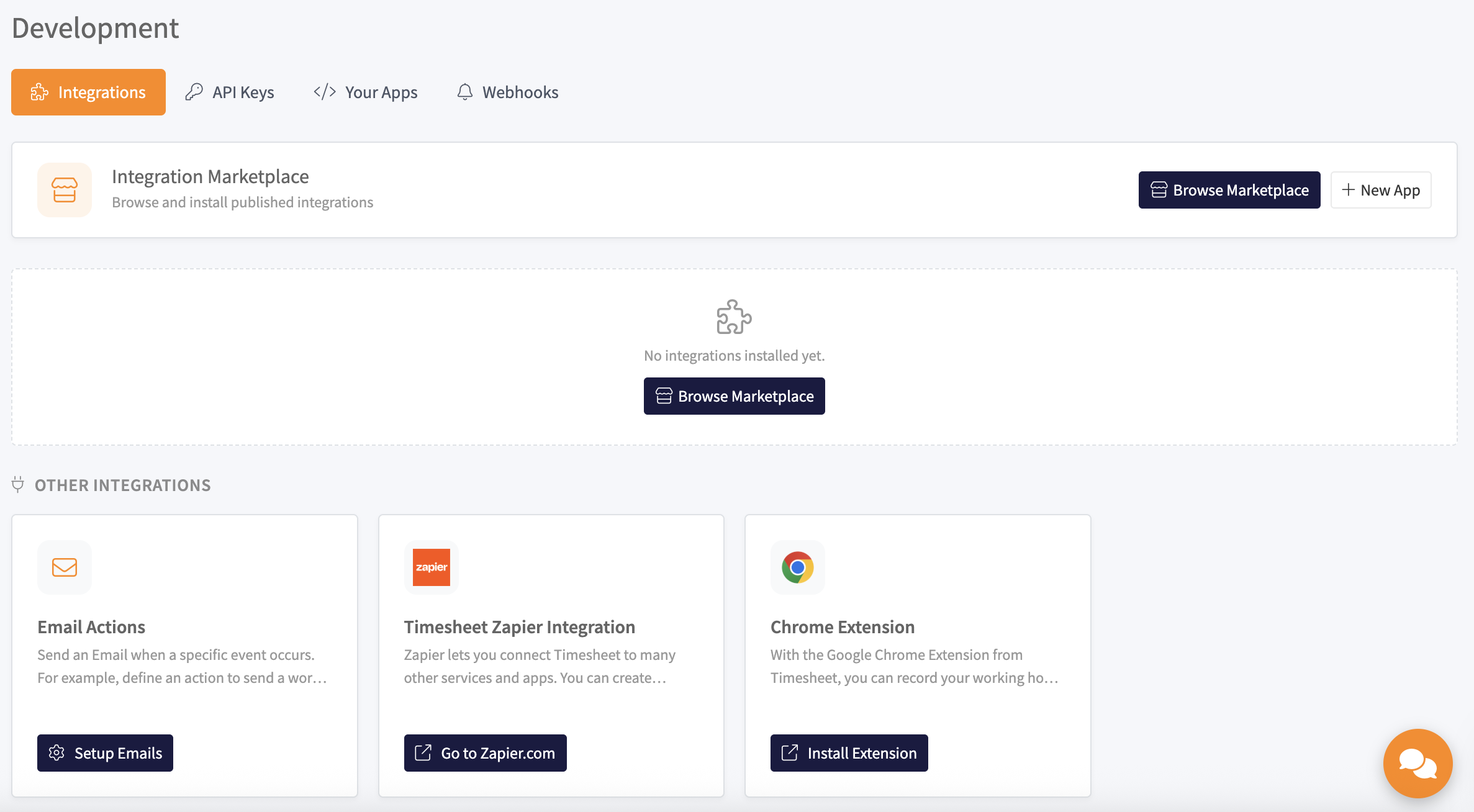
- Wählen Sie Marktplatz durchsuchen, um die verfügbaren Integrationen zu sehen und eine zu installieren.
- Installierte Integrationen erscheinen oben im Tab.
- Die Karten Weitere Integrationen verlinken auf verwandte Tools: E-Mail-Aktionen, die Timesheet-Zapier-Integration und die Chrome-Erweiterung.
Eine installierte Integration verwalten
Nachdem Sie eine Integration installiert haben, öffnen Sie sie, um einzurichten, wie sie funktioniert. Das folgende Beispiel zeigt die Google-Calendar-Integration.
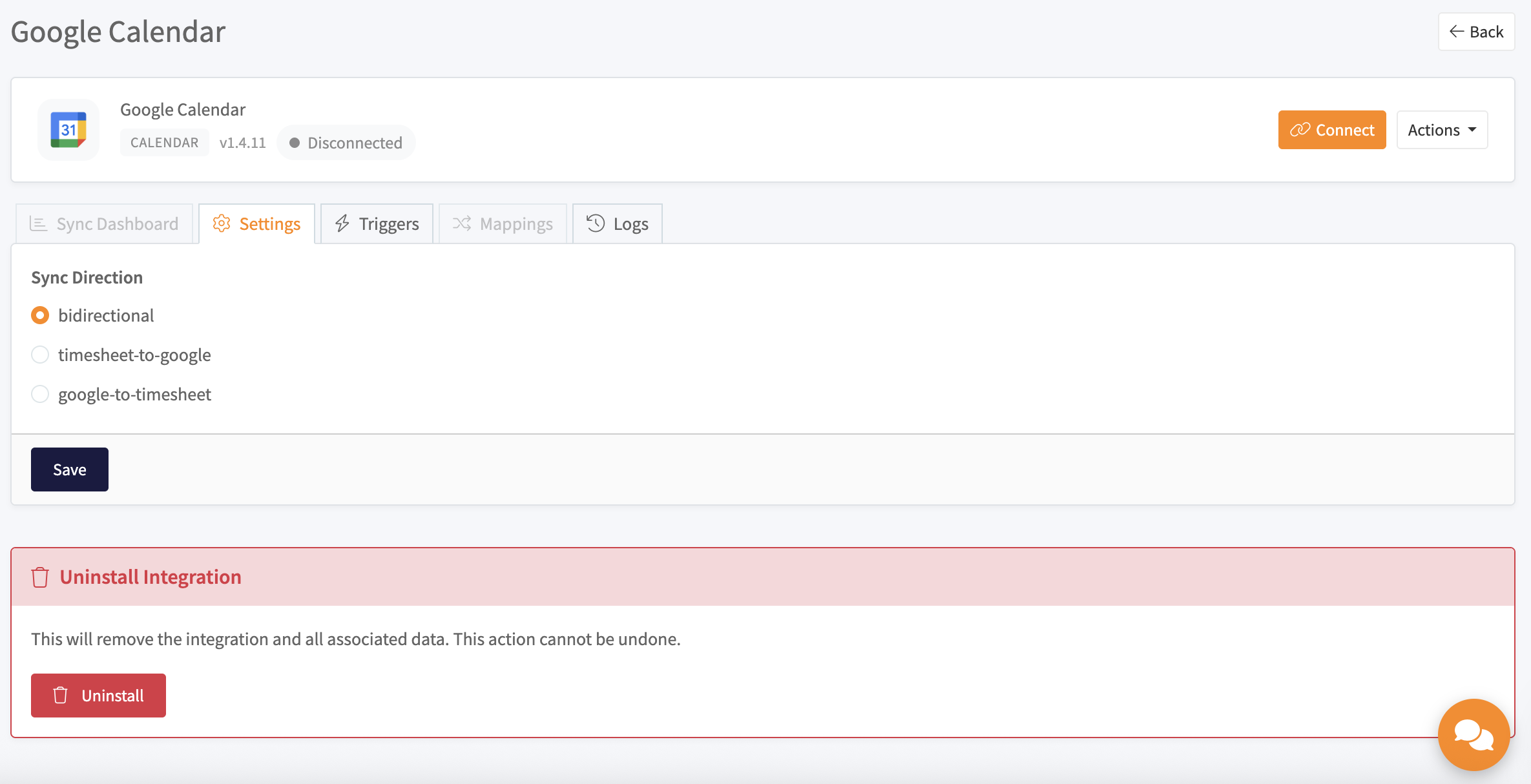
- Verbinden verknüpft Ihr Konto, hier Ihr Google-Konto, mit der Integration.
- Einstellungen enthält die Optionen der Integration, wie etwa die Synchronisationsrichtung: bidirektional, von Timesheet zum anderen Tool oder vom anderen Tool zu Timesheet.
- Auslöser, Zuordnungen und Protokolle steuern, wann sie ausgeführt wird und wie Daten abgeglichen werden, und ermöglichen es Ihnen, ihre Aktivität zu überprüfen.
- Integration deinstallieren entfernt sie und alle ihre Daten. Dies kann nicht rückgängig gemacht werden.
Die vollständige Einrichtung einer bestimmten Integration finden Sie unter Google Calendar oder QuickBooks.
API-Schlüssel
Mit API-Schlüsseln können Ihre eigenen Skripte und Apps die Timesheet-API in Ihrem Namen aufrufen. Der Tab API-Schlüssel listet Ihre Schlüssel auf und ermöglicht es Ihnen, sie nach Status zu filtern.
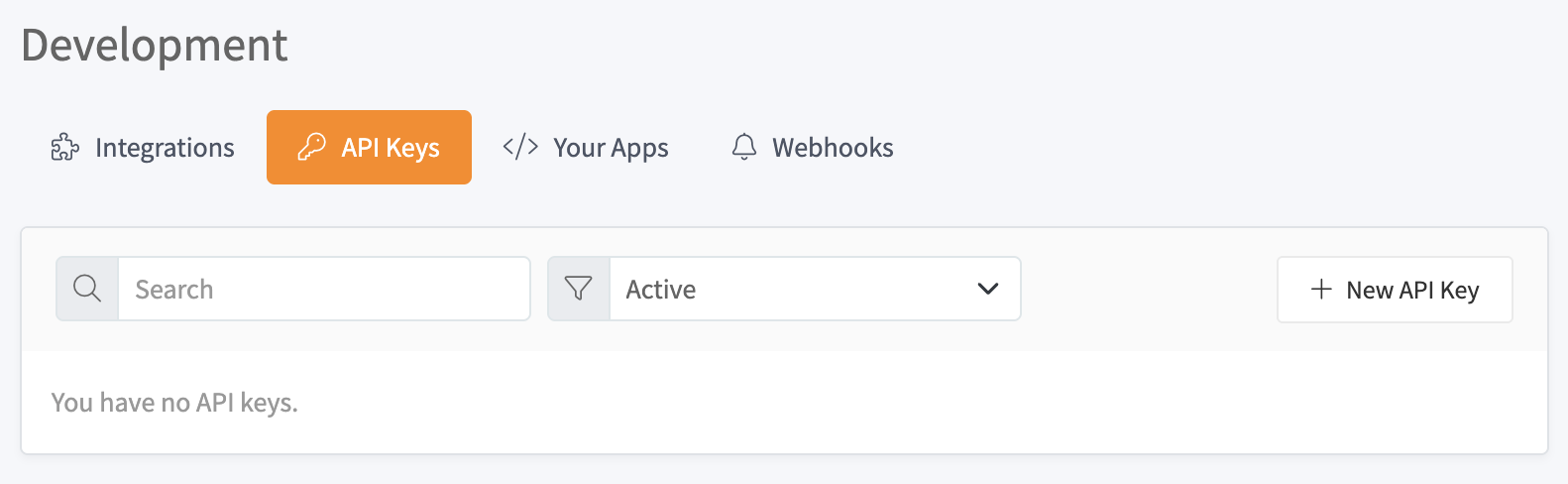
So erstellen Sie einen:
- Wählen Sie Neuer API-Schlüssel.
- Geben Sie ihm einen Namen und wählen Sie, wann er abläuft, oder legen Sie fest, dass er nie abläuft.
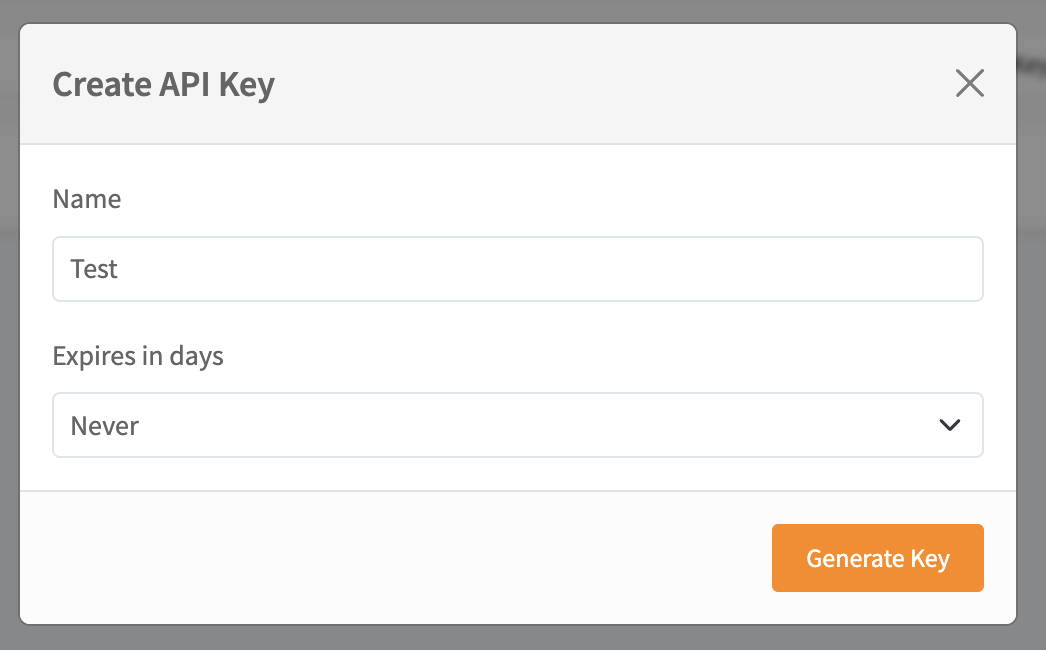
- Wählen Sie Schlüssel generieren.
- Kopieren Sie den geheimen Schlüssel und bewahren Sie ihn an einem sicheren Ort auf.
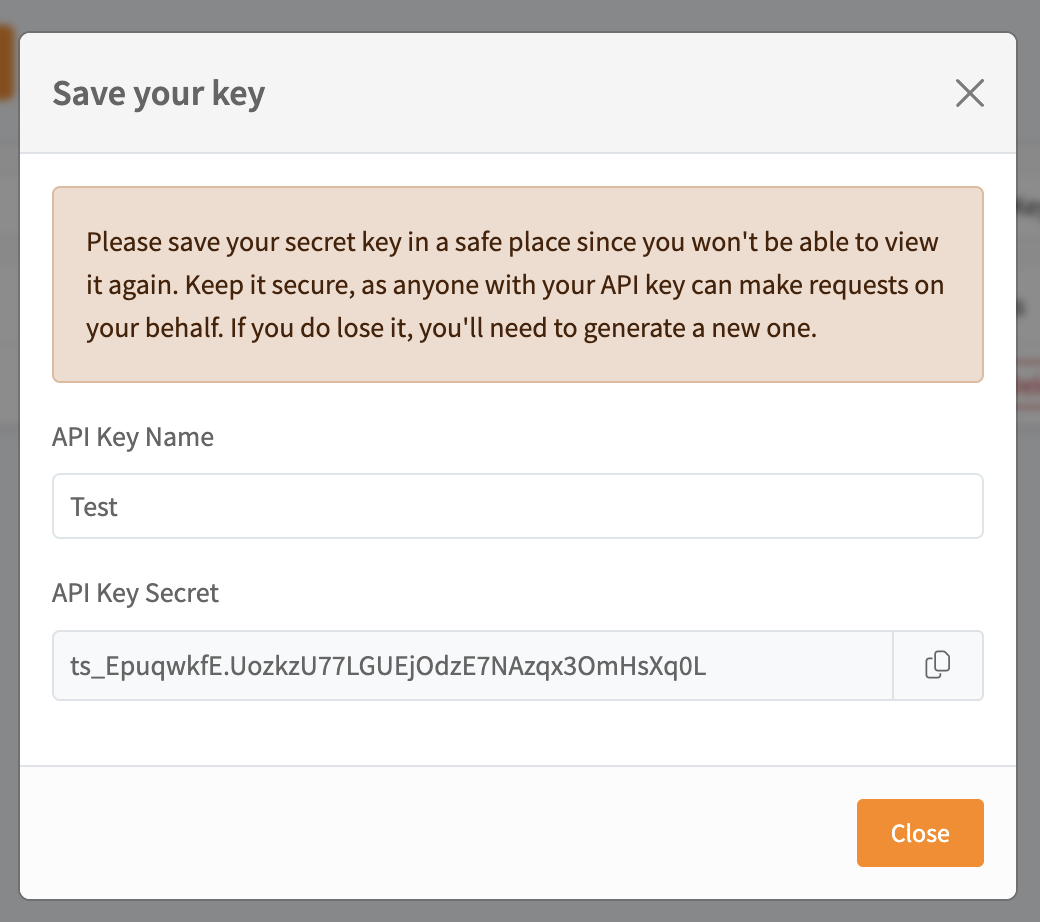
Der geheime Schlüssel wird nur einmal angezeigt. Jeder, der Ihren API-Schlüssel besitzt, kann in Ihrem Namen Anfragen stellen. Halten Sie ihn daher geheim und generieren Sie einen neuen, falls er jemals offengelegt wird.
Ihre Apps
Der Tab Ihre Apps ist für Entwickler gedacht, die ihre eigene Integration erstellen. Registrieren Sie hier eine App, um die Anmeldedaten zu erhalten, die sie benötigt, um sich über den Marktplatz mit Timesheet zu verbinden.
Webhooks
Webhooks senden eine Anfrage an eine von Ihnen gewählte URL, sobald in Timesheet etwas geschieht, sodass Sie in Ihren eigenen Systemen auf Ereignisse reagieren können. Der Tab Webhooks listet Ihre Webhooks mit ihrer Ziel-URL und den Ereignissen auf, auf die sie warten.
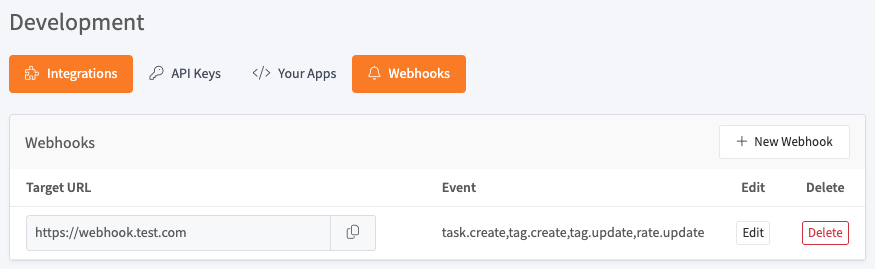
So fügen Sie einen hinzu:
- Wählen Sie Neuer Webhook.
- Geben Sie die Ziel-URL ein, die die Anfrage erhalten soll.
- Wählen Sie die Ereignisse aus, auf die gewartet werden soll, zum Beispiel Neue Aufgabe, Neuer Tag, Tag bearbeiten oder Tarif bearbeiten.
- Wählen Sie Speichern.
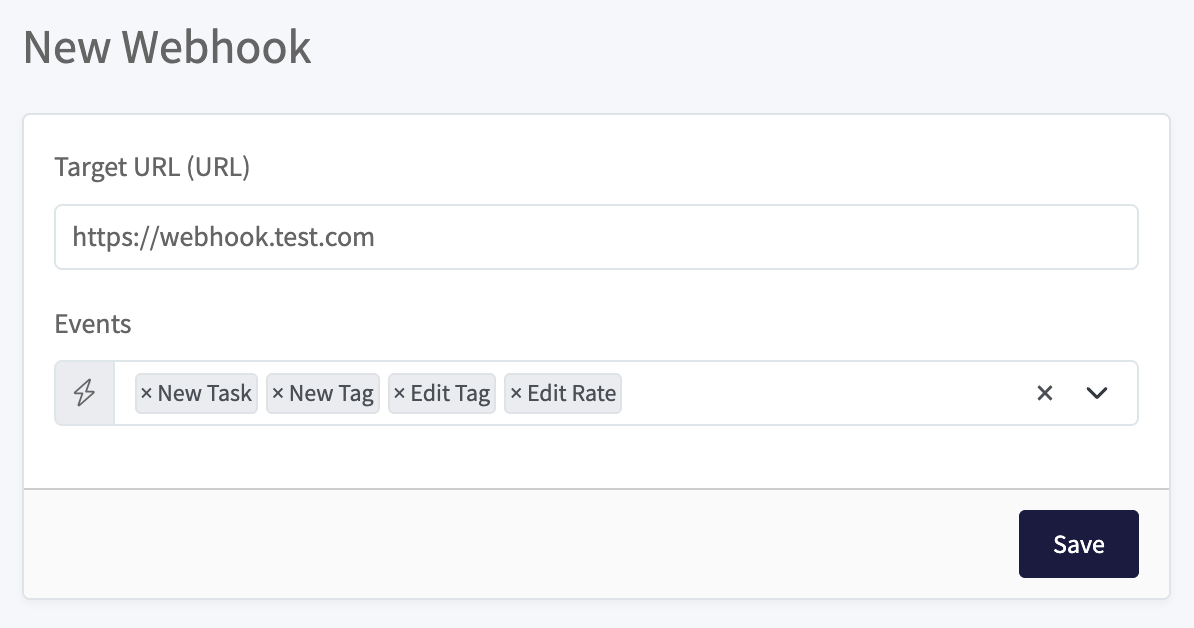
Für No-Code-Automatisierungen verbindet die Zapier-Integration Timesheet mit Tausenden von Apps, ohne dass Sie Code schreiben müssen. Um die API direkt anzusteuern, siehe den MCP-Server.