Beschäftigungsmodelle
Ein Beschäftigungsmodell ist eine wiederverwendbare Vorlage, die Ihre Arbeitszeitregeln, Überstundenrichtlinie, Zuschläge, Abwesenheitsregeln und weitere Beschäftigungsbedingungen an einem Ort zusammenfasst. Anstatt jeden Vertrag einzeln zu konfigurieren, richten Sie ein Modell einmal ein und weisen es so vielen Verträgen zu, wie Sie benötigen. Jeder Vertrag erbt die Regeln dann automatisch.
Ein typisches Beschäftigungsmodell definiert:
- Wann Überstunden beginnen und wie sie gemessen werden (täglich, wöchentlich oder monatlich)
- Tägliche und wöchentliche Arbeitszeitgrenzen
- Gleitzeit, Kernzeiten und Kontogrenzen
- Zuschläge für Nachtarbeit, Wochenenden und Feiertage
- Rundungsregeln und Genehmigungsablauf
- Ausgleichsrichtlinie (Auszahlung, Freizeit oder beides)
- Ruhezeiten, Zeitausgleich, Minusstunden und Verfallsregeln
- Pausenvorgaben und Abwesenheitsregeln (Urlaub, Krankheit, Elternzeit)
Beschäftigungsmodelle finden Sie unter Organisationen > Ihre Organisation > Beschäftigungsmodelle.
Ein Beschäftigungsmodell erstellen
Neue Modelle werden in einem Assistenten mit 7 Schritten erstellt. Sie können entweder mit einer Ländervorlage beginnen, die mit den lokalen arbeitsrechtlichen Standardwerten vorausgefüllt ist, oder ganz neu beginnen.
Liste der Beschäftigungsmodelle
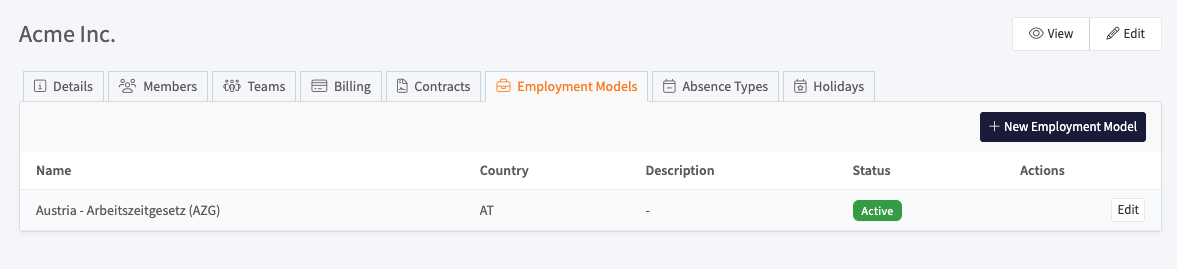
Die Tabelle zeigt jedes Modell in Ihrer Organisation mit Name, Land, Beschreibung und Status. Klicken Sie auf eine Zeile, um das Modell zu bearbeiten und seine Arbeitszeit-, Pausen- und Abwesenheitsregeln zu verwalten. Klicken Sie auf + Neues Beschäftigungsmodell, um den Assistenten zu starten.
Ein neues Modell beginnen
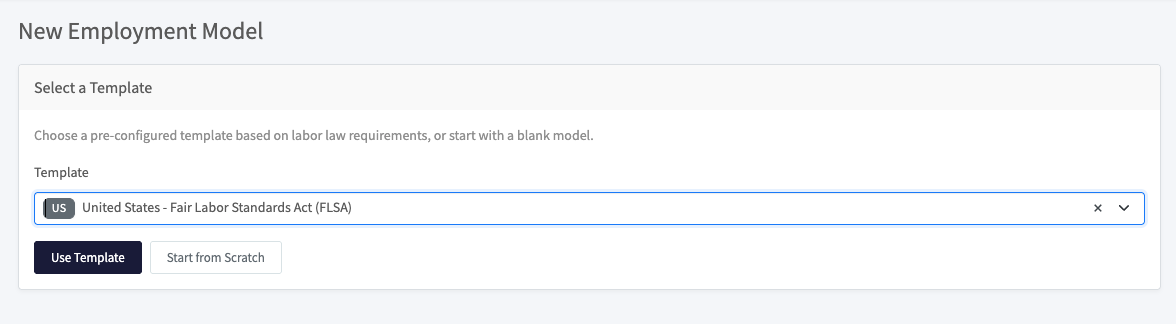
Wenn Sie auf + Neues Beschäftigungsmodell klicken, öffnet sich der Bildschirm Vorlage auswählen mit zwei Optionen:
| Option | Funktion |
|---|---|
| Vorlage verwenden | Lädt den Assistenten vorausgefüllt mit den arbeitsrechtlichen Standardwerten für das ausgewählte Land (zum Beispiel United States: Fair Labor Standards Act (FLSA) oder Germany: Arbeitszeitgesetz). Alle sieben Schritte enthalten sinnvolle Ausgangswerte, die Sie vor dem Speichern weiterhin anpassen können. |
| Ganz neu beginnen | Öffnet den Assistenten mit den Systemstandardwerten und ohne Länder-Vorausfüllung. Verwenden Sie dies, wenn Sie ein vollständig individuelles Modell erstellen möchten. |
Nachdem Sie Ihre Wahl getroffen haben, führt Sie der Assistent durch sieben Schritte: Allgemein, Schwellenwerte, Gleitzeit, Zuschläge, Rundung, Ausgleich und Compliance. Sie können fortfahren, sobald die erforderlichen Felder des aktuellen Schritts ausgefüllt sind, und Sie können das Modell aus jedem Schritt speichern, sobald alles gültig ist.
Auch wenn Sie die meisten Felder anpassen möchten, ist der Start mit einer passenden Ländervorlage schneller als der Start ohne Vorlage. Ruhezeiten, Nachtzeitfenster und gesetzliche Grenzwerte sind dann bereits auf die rechtlich korrekten Werte für diese Rechtsordnung gesetzt.
Schritt 1: Allgemein
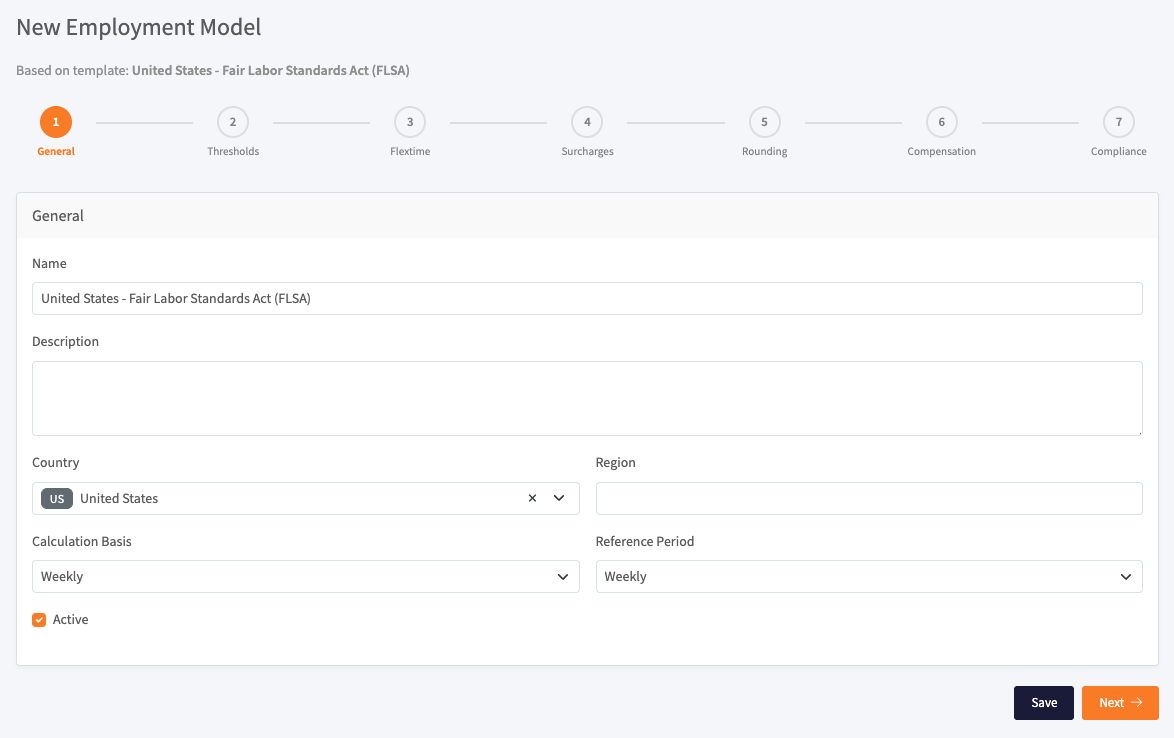
Der erste Schritt erfasst die Identität des Modells und die beiden Einstellungen, die bestimmen, wie Überstunden berechnet werden.
| Feld | Funktion |
|---|---|
| Name | Eine kurze Bezeichnung für das Modell (erforderlich). Diese sehen Sie in der Modellliste und beim Zuweisen des Modells zu einem Vertrag. |
| Beschreibung | Optionale Notizen für Ihr Team, zum Beispiel „Angestellte im Engineering, EU-Regeln“. |
| Land | Das Land, für das dieses Modell gilt. Wenn Sie mit einer Vorlage beginnen, bestimmt das Land auch, welche arbeitsrechtlichen Standardwerte geladen werden. |
| Region | Eine optionale Unterregion (z. B. ein US-Bundesstaat oder ein deutsches Bundesland). Wenn eine Regionalvorlage vorhanden ist, überschreibt sie die Länderstandardwerte. |
| Berechnungsgrundlage | Wie Überstunden gemessen werden: Täglich, Wöchentlich oder Monatlich. Dies entscheidet, welcher Schwellenwert (im nächsten Schritt) zur Ermittlung der Überstunden verwendet wird. |
| Bezugszeitraum | Wie Überstundensalden für die Berichterstattung gruppiert werden: Tag, Woche, Monat, Quartal oder Jahr. |
| Aktiv | Wenn deaktiviert, wird das Modell in den Vertragsauswahllisten ausgeblendet, sodass es neuen Verträgen nicht zugewiesen werden kann. Bestehende Verträge funktionieren weiterhin wie zuvor. |
Länderstandardwerte werden nur geladen, wenn Sie das Modell erstmals aus einer Vorlage erstellen. Ein späteres Ändern des Landes aktualisiert die Bezeichnung, generiert die Regeln aber nicht neu. Um eine Ländervorlage erneut anzuwenden, erstellen Sie ein neues Modell.
Schritt 2: Schwellenwerte und Grenzen
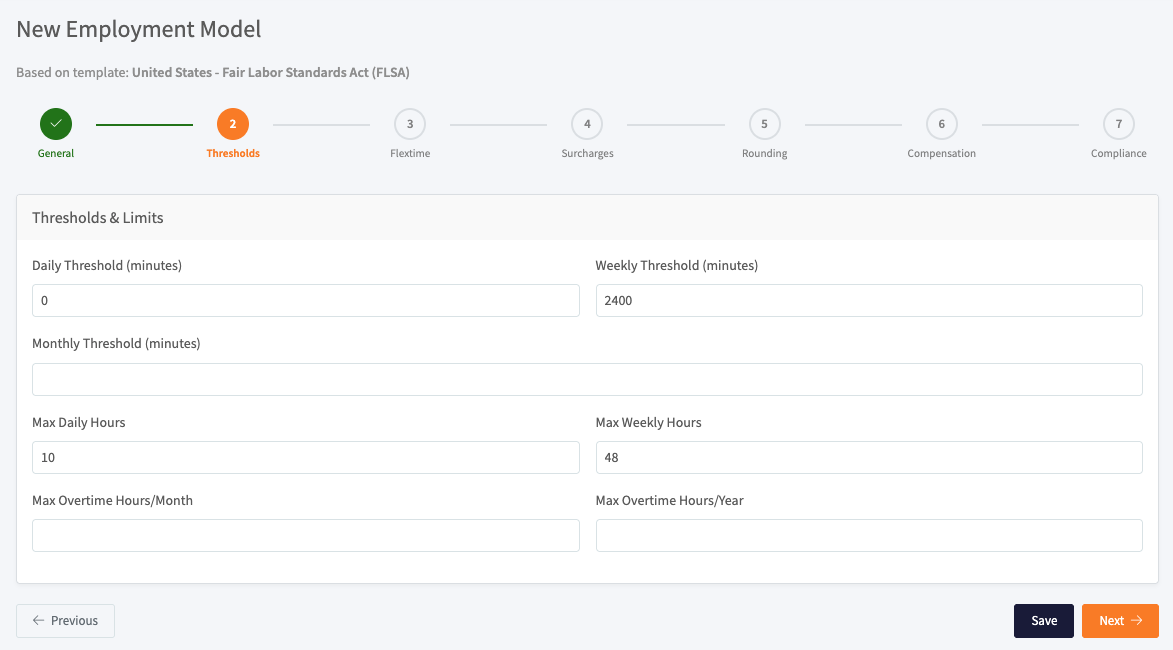
Dieser Schritt legt die Grenzen fest, die bestimmen, wann Arbeit als Überstunden zählt, sowie die maximale Stundenzahl, die Mitglieder arbeiten dürfen.
| Feld | Funktion |
|---|---|
| Tagesschwelle (Minuten) | Wird verwendet, wenn die Berechnungsgrundlage Täglich ist. Alle über diesem Wert gearbeiteten Minuten zählen als Überstunden. Belassen Sie den Wert bei 0, um auf die Tagesstunden des Vertrags zurückzugreifen. |
| Wochenschwelle (Minuten) | Wird verwendet, wenn die Berechnungsgrundlage Wöchentlich ist. Alle in einer Woche über diesem Wert gearbeiteten Minuten zählen als Überstunden. Belassen Sie den Wert bei 0, um auf die Wochenstunden des Vertrags zurückzugreifen. |
| Monatsschwelle (Minuten) | Wird verwendet, wenn die Berechnungsgrundlage Monatlich ist. Alle über diesem Monatssoll gearbeiteten Minuten zählen als Überstunden. Leer lassen, um das Monatssoll des Vertrags zu verwenden. |
| Max. Tagesstunden | Die maximale Stundenzahl, die ein Mitglied an einem Tag arbeiten darf. Mitglieder erhalten bei 90 % dieser Grenze und erneut bei Überschreitung eine Warnung. |
| Max. Wochenstunden | Die maximale Stundenzahl, die ein Mitglied in einer Woche arbeiten darf. Es gelten dieselben Warnungen. |
| Max. Überstunden/Monat | Eine Obergrenze dafür, wie viele Überstunden pro Monat erfasst werden können. Alles darüber wird ohne Hinweis verworfen. Leer lassen zum Deaktivieren. |
| Max. Überstunden/Jahr | Eine jährliche Obergrenze für Überstunden. Sobald sie erreicht ist, werden zusätzliche Überstunden zur Nachvollziehbarkeit in einer separaten Spalte „begrenzt“ erfasst, aber nicht ausgezahlt oder angespart. Leer lassen zum Deaktivieren. |
Schwellenwerte entscheiden, wann Überstunden zu zählen beginnen. Max. Überstunden begrenzt, wie viele Überstunden pro Monat oder Jahr erfasst werden können. Die beiden Werte wirken zusammen: Schwellenwerte öffnen das Tor, und die Maxima schließen es.
Schritt 3: Gleitzeit
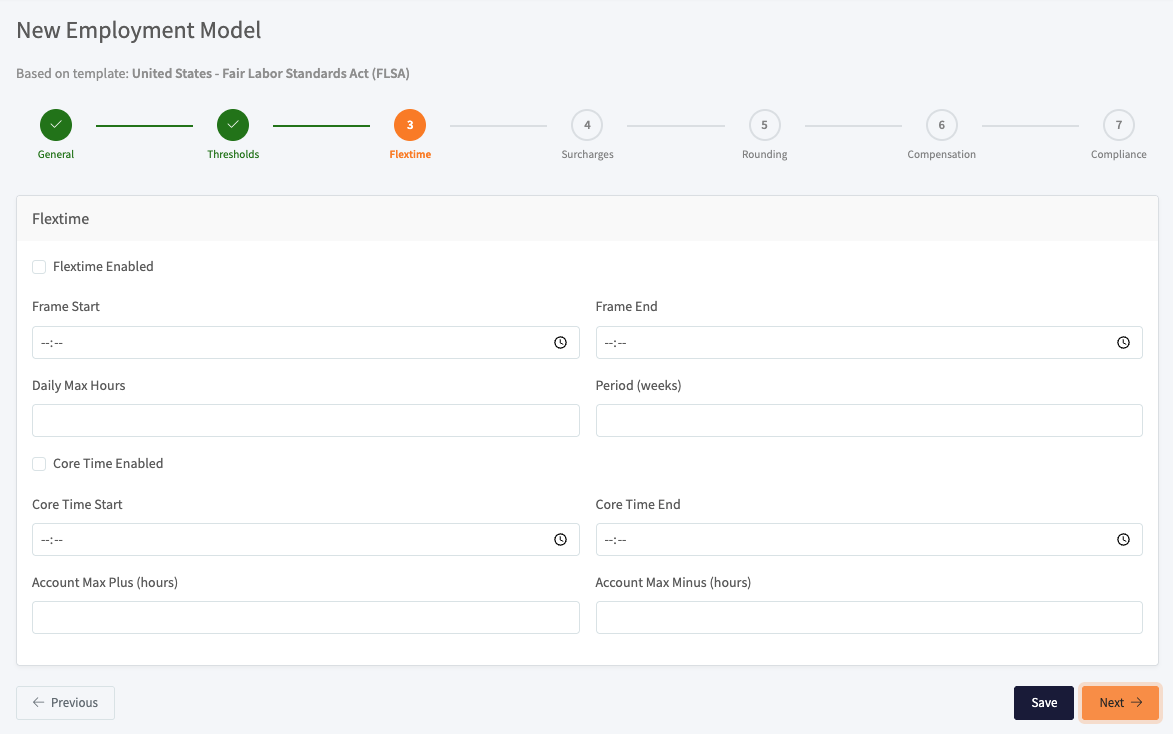
Gleitzeit ermöglicht es Mitgliedern, einen Plus- oder Minus-Saldo von einem Zeitraum in den nächsten zu übertragen, innerhalb der Regeln, die Sie hier festlegen. Die folgenden Felder sind nur aktiv, wenn Gleitzeit aktiviert eingeschaltet ist, mit Ausnahme des Blocks Kernzeit, der einen eigenen Schalter hat.
| Feld | Funktion |
|---|---|
| Gleitzeit aktiviert | Hauptschalter. Wenn ausgeschaltet, laufen keine der folgenden Gleitzeitprüfungen, und Überstunden ergeben sich einfach aus Ist minus Soll ohne Übertrag. |
| Rahmenbeginn / -ende | Der früheste Beginn und das späteste Ende eines Arbeitstags (zum Beispiel 06:00 und 20:00). Außerhalb dieses Zeitfensters erfasste Zeit wird als Rahmenverstoß markiert, zählt aber weiterhin zum Saldo. Zeitfenster, die über Mitternacht reichen (etwa 22:00 bis 06:00), werden unterstützt. |
| Max. Tagesstunden | Die maximale Länge eines einzelnen Arbeitstags. Tage darüber werden markiert, aber nicht blockiert. |
| Zeitraum (Wochen) | Die Länge des Gleitzeit-Abrechnungsfensters. Am Ende jedes Fensters wird der Übertrag auf null zurückgesetzt. Übliche Werte: 4 (monatlich), 13 (vierteljährlich), 17 (EU-Durchschnittsfenster). Belassen Sie den Wert bei 0, um die Abrechnung zu deaktivieren und den Saldo fortlaufend weiterlaufen zu lassen. |
| Kernzeit aktiviert | Hauptschalter für die Kernzeitprüfung. |
| Kernzeitbeginn / -ende | Das Zeitfenster, das jeder Arbeitstag vollständig abdecken muss. Wenn die erfasste Zeit eines Arbeitstags nicht dieses gesamte Fenster umfasst, wird er markiert. Wochenenden und Feiertage werden übersprungen. |
| Konto max. Plus / Konto max. Minus | Der maximale positive und negative Gleitzeitsaldo, den ein Mitglied übertragen kann. Der Saldo wird beim Speichern auf diese Grenzen begrenzt. Leer lassen zum Deaktivieren. |
Rahmen-, Tagesmaximum- und Kernzeitverstöße erscheinen als Warnungen in Berichten und Benachrichtigungen. Sie blockieren keine Zeiteinträge und ändern die Überstundenberechnung nicht. Mitglieder können weiterhin Zeit außerhalb des Rahmens erfassen, und Sie sehen sie als markiert.
Auch wenn Sie eine Ländervorlage verwenden, bleiben die Gleitzeitfelder leer, damit Sie sie auf Grundlage Ihrer eigenen Arbeitszeitvereinbarung konfigurieren können. Füllen Sie sie bei Bedarf von Hand aus.
Schritt 4: Zuschläge
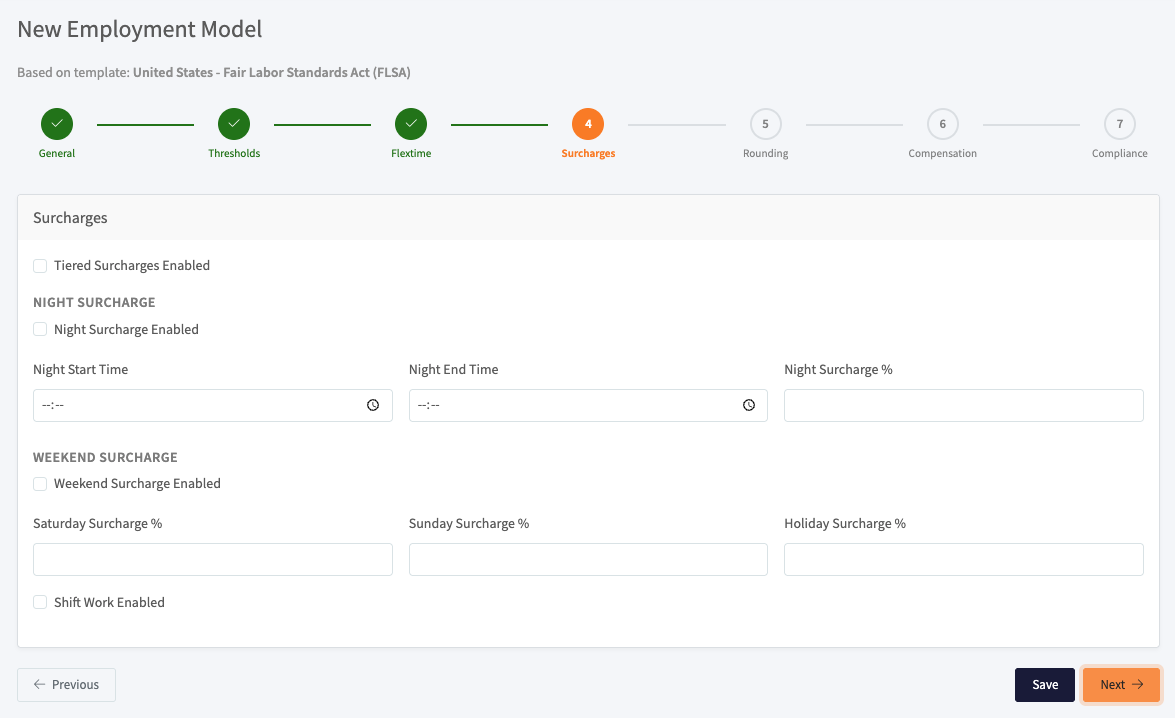
Dieser Schritt konfiguriert Zuschlagsprozentsätze zusätzlich zum regulären Stundensatz. Jeder Prozentsatz auf dieser Seite bezieht sich auf den Wert der Arbeit. Er ändert nicht, wie viele Überstunden erfasst werden.
| Feld | Funktion |
|---|---|
| Gestaffelte Zuschläge aktiviert | Schaltet die stufenweise Überstundenstaffel ein, bei der Sie unterschiedliche Zuschläge für die ersten Überstunden, die nächsten usw. zahlen können. Die Stufen werden separat am Modell konfiguriert. |
| Nachtzuschlag aktiviert | Hauptschalter für den Zuschlag bei Nachtarbeit. |
| Nachtbeginn / Nachtende | Das Nachtarbeitsfenster (zum Beispiel 22:00 bis 06:00). Zeitfenster, die über Mitternacht reichen, werden unterstützt. Jede innerhalb dieses Fensters gearbeitete Minute erhält den Zuschlag, nicht nur Überstundenminuten. |
| Nachtzuschlag % | Der Zuschlag, der bei Nachtarbeit zusätzlich zum regulären Satz gezahlt wird. |
| Wochenendzuschlag aktiviert | Hauptschalter für die folgenden Zuschläge für Samstag, Sonntag und Feiertag. Wenn ausgeschaltet, wird keiner der drei gezahlt. |
| Samstagszuschlag % | Zuschlag für Samstagsarbeit, die nicht zugleich ein Feiertag ist. |
| Sonntagszuschlag % | Zuschlag für Sonntagsarbeit, die nicht zugleich ein Feiertag ist. |
| Feiertagszuschlag % | Zuschlag für jegliche Arbeit an einem Feiertag. Wenn ein Tag sowohl Feiertag als auch Sonntag ist, gilt der Feiertagszuschlag. |
| Schichtarbeit aktiviert | Schaltet schichtbasierte Zuschläge ein. Sobald aktiviert, können Sie Früh-, Spät- und Nachtschichten (jeweils mit eigenem Zeitfenster und Zuschlag) am Modell definieren. |
Wenn Sie Anti-Pyramiding (im Schritt Compliance) aktivieren, zahlt das System für eine bestimmte Stunde nur den einzigen höchsten anwendbaren Zuschlag, sodass sich eine Nachtschicht am Samstag nicht zu einem vierfachen Zuschlag summiert. Bei ausgeschaltetem Anti-Pyramiding addieren sich die anwendbaren Zuschläge. Wählen Sie den Modus, der zu Ihrer Rechtsordnung passt.
Schritt 5: Rundung und Genehmigung
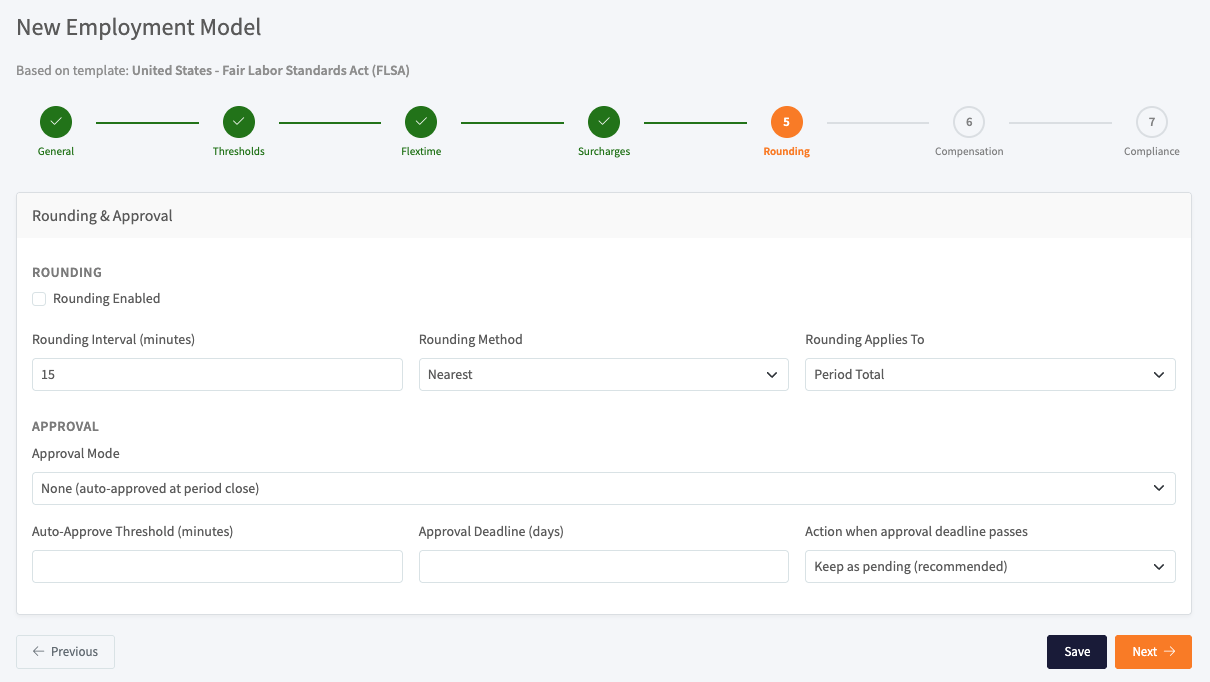
Zwei voneinander unabhängige Einstellungen teilen sich diesen Schritt.
Rundung
Die Rundung passt die Arbeitszeitsummen an, bevor sie im Zeitraumsaldo gespeichert werden.
| Feld | Funktion |
|---|---|
| Rundung aktiviert | Hauptschalter. Wenn ausgeschaltet, werden die Rohminuten unverändert übernommen. |
| Rundungsintervall (Minuten) | Die Schrittgröße. 15 rundet zum Beispiel alles auf die nächste Viertelstunde. |
| Rundungsmethode | Nächster, Aufrunden oder Abrunden. |
| Rundung gilt für | Was gerundet wird: Zeitraumsumme (rundet die Summe einmal am Ende), Tagessumme (rundet die Summe jedes Tages) oder Nur Überstunden (rundet nur den Überstundenanteil). |
Genehmigung
Der Genehmigungsablauf läuft am Ende jedes Zeitraums (in der Regel monatlich).
| Feld | Funktion |
|---|---|
| Genehmigungsmodus | Keine (automatische Genehmigung bei Zeitraumabschluss): Salden werden automatisch genehmigt, keine Manager-Prüfung. Automatisch: wie Keine, mit einem leicht abweichenden Audit-Log-Eintrag. Schwellenwertbasiert: Salden bei oder unter dem folgenden Schwellenwert werden automatisch genehmigt, und alles darüber wird zur Prüfung an einen Manager gesendet. |
| Schwellenwert für automatische Genehmigung (Minuten) | Wird nur im Modus Schwellenwertbasiert verwendet. Salden unter dieser Anzahl an Überstundenminuten werden automatisch genehmigt, und alles darüber wird für einen Manager in die Warteschlange gestellt. Setzen Sie den Wert auf 0, um jeden Saldo ungleich null in die Manager-Warteschlange zu senden. |
| Genehmigungsfrist (Tage) | Wie lange Manager Zeit haben zu handeln, bevor die folgende Fristaktion in Kraft tritt. Setzen Sie den Wert auf 0, um die Frist zu deaktivieren, sodass ausstehende Salden ausstehend bleiben, bis sie manuell bearbeitet werden. |
| Aktion bei Ablauf der Genehmigungsfrist | Was geschieht, wenn die Frist erreicht ist: Als ausstehend belassen (empfohlen, lässt den Saldo unberührt), Saldo automatisch genehmigen oder Saldo verfallen lassen (Überstunden verwirken). |
Wählen Sie Schwellenwertbasiert mit dem Schwellenwert 0, sodass jeder Überstundensaldo in der Manager-Warteschlange landet.
Die Option Saldo verfallen lassen (Überstunden verwirken) setzt erworbene Überstunden bei Ablauf der Frist auf null. In Deutschland, Österreich und der Schweiz ist dies in der Regel nur durchsetzbar, wenn ein Tarifvertrag dies ausdrücklich zulässt. Setzen Sie sie mit Bedacht ein und stimmen Sie sich mit Ihrem örtlichen Arbeitsrechtsanwalt ab.
Schritt 6: Ausgleich und Auszahlung
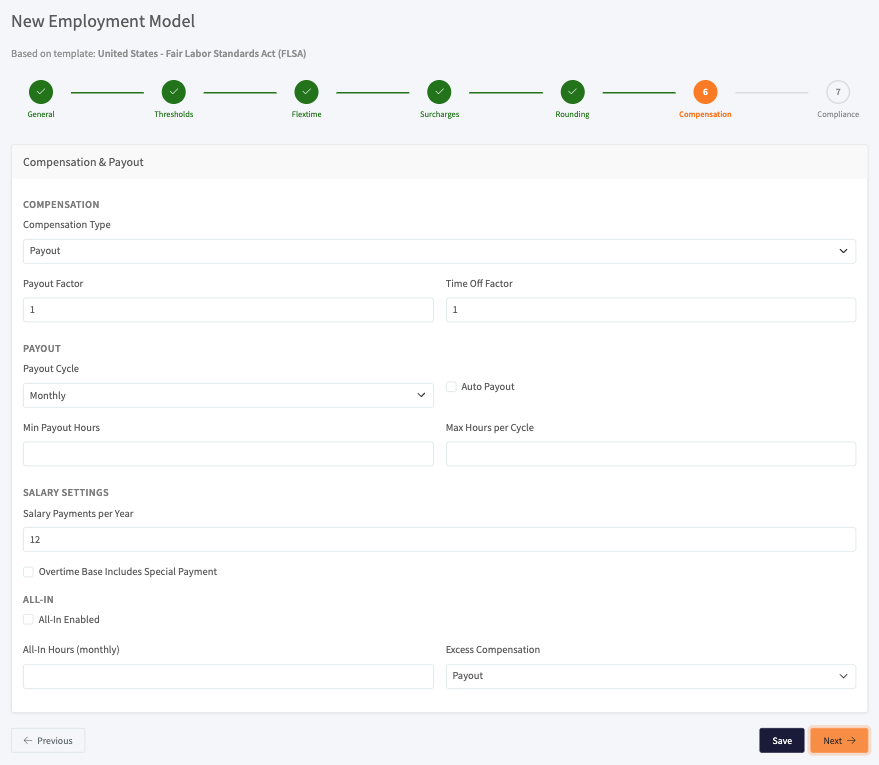
Dieser Schritt behandelt vier zusammenhängende Themen: wie Überstunden ausgeglichen werden, wie die automatische Auszahlung läuft, wie der Stundensatz abgeleitet wird und das All-in-Gehaltspaket.
Ausgleich
| Feld | Funktion |
|---|---|
| Ausgleichsart | Auszahlung (nur Geld), Freizeit (nur Zeitausgleich), Gemischt (beides zulässig) oder Keine (Ausgleich deaktiviert). Diese Einstellung gilt nur, wenn am Modell keine Überstundenregeln konfiguriert sind. Siehe den folgenden Hinweis. |
| Auszahlungsfaktor | Ein Multiplikator, der auf den Geldwert der Überstunden angewendet wird. 1.25 fügt zum Beispiel einen Zuschlag von 25 % zum regulären Stundensatz hinzu. Standard 1.00. |
| Freizeitfaktor | Ein Multiplikator, der auf das Zeitausgleichsguthaben angewendet wird. 1.5 bedeutet zum Beispiel, dass 60 Überstundenminuten 90 Minuten Freizeit ergeben. Standard 1.00. |
Auszahlung
Der Auszahlungsvorgang läuft täglich und verarbeitet genehmigte Salden anhand dieser Einstellungen.
| Feld | Funktion |
|---|---|
| Auszahlungszyklus | Wie oft Salden ausgezahlt werden: Monatlich, Vierteljährlich, Jährlich, Auf Anfrage (nur manuell) oder Nie. |
| Automatische Auszahlung | Hauptschalter. Wenn ausgeschaltet, bleiben Salden genehmigt, werden aber nur ausgezahlt, wenn ein Manager manuell auf Ausgleichen klickt. Aktivieren Sie diese Option, damit das System die Salden in jedem Zyklus automatisch ausgleicht. |
| Min. Auszahlungsstunden | Überspringt die automatische Auszahlung, wenn der verbleibende Saldo unter dieser Stundenzahl liegt. Dies ist nützlich, um Kleinstauszahlungen zu vermeiden. Leer lassen zum Deaktivieren. |
| Max. Stunden pro Zyklus | Begrenzt, wie viele Stunden in einem einzelnen Zyklus ausgezahlt werden können. Alles darüber verbleibt für das nächste Mal auf dem Saldo. Leer lassen, um in jedem Zyklus den vollen Saldo auszuzahlen. |
Gehaltseinstellungen
Diese beiden Felder bestimmen den Stundensatz, der für jede monetäre Berechnung im Modell verwendet wird. Überstundenauszahlung, Zuschläge und gestaffelte Zuschläge bauen alle auf diesem Satz auf.
| Feld | Funktion |
|---|---|
| Gehaltszahlungen pro Jahr | Wird für feste Jahresgehälter verwendet. Das System teilt das Jahresgehalt durch diese Zahl, um einen Monatssatz abzuleiten. Standard 12. Zulässiger Bereich: 1 bis 14. |
| Überstundenbasis schließt Sonderzahlung ein | Wenn aktiviert und Gehaltszahlungen pro Jahr größer als 12 ist, hebt das System den Monatssatz anteilig an, bevor der Stundensatz berechnet wird. Dies ist die DACH-„Sonderzahlung“ (Aufschlag für das 13. und 14. Monatsgehalt), die in die Überstundenbasis eingerechnet wird. |
All-in
Ein All-in-Gehalt ermöglicht es Ihnen, eine feste Anzahl von Überstunden monatlich in das reguläre Gehalt einzurechnen.
| Feld | Funktion |
|---|---|
| All-in aktiviert | Hauptschalter für das Paket. |
| All-in-Stunden (monatlich) | Die Anzahl der Überstunden, die monatlich als „im Gehalt enthalten“ gelten. Berechnete Überstunden bis zu diesem Betrag werden als bereits bezahlt behandelt. |
| Ausgleich für Mehrstunden | Was mit Überstunden oberhalb des Pakets geschieht: Auszahlung (in Geld mit Zuschlägen ausgezahlt), Freizeit (nur als Zeitausgleich ausgleichbar, kein Geld) oder Keine (Mehrstunden werden ohne Hinweis in das Gehalt eingerechnet). |
Die obigen Felder Ausgleichsart, Auszahlungsfaktor und Freizeitfaktor werden nur verwendet, wenn das Modell keine aktiven Überstundenregeln hat. Ländervorlagen, die mit Regeln geliefert werden (etwa Österreich, Deutschland und Frankreich), regeln den Ausgleich pro Regel, sodass diese Felder auf Modellebene umgangen werden. All-in-Ausgleich für Mehrstunden ist unabhängig von Regeln und gilt immer.
Schritt 7: Compliance
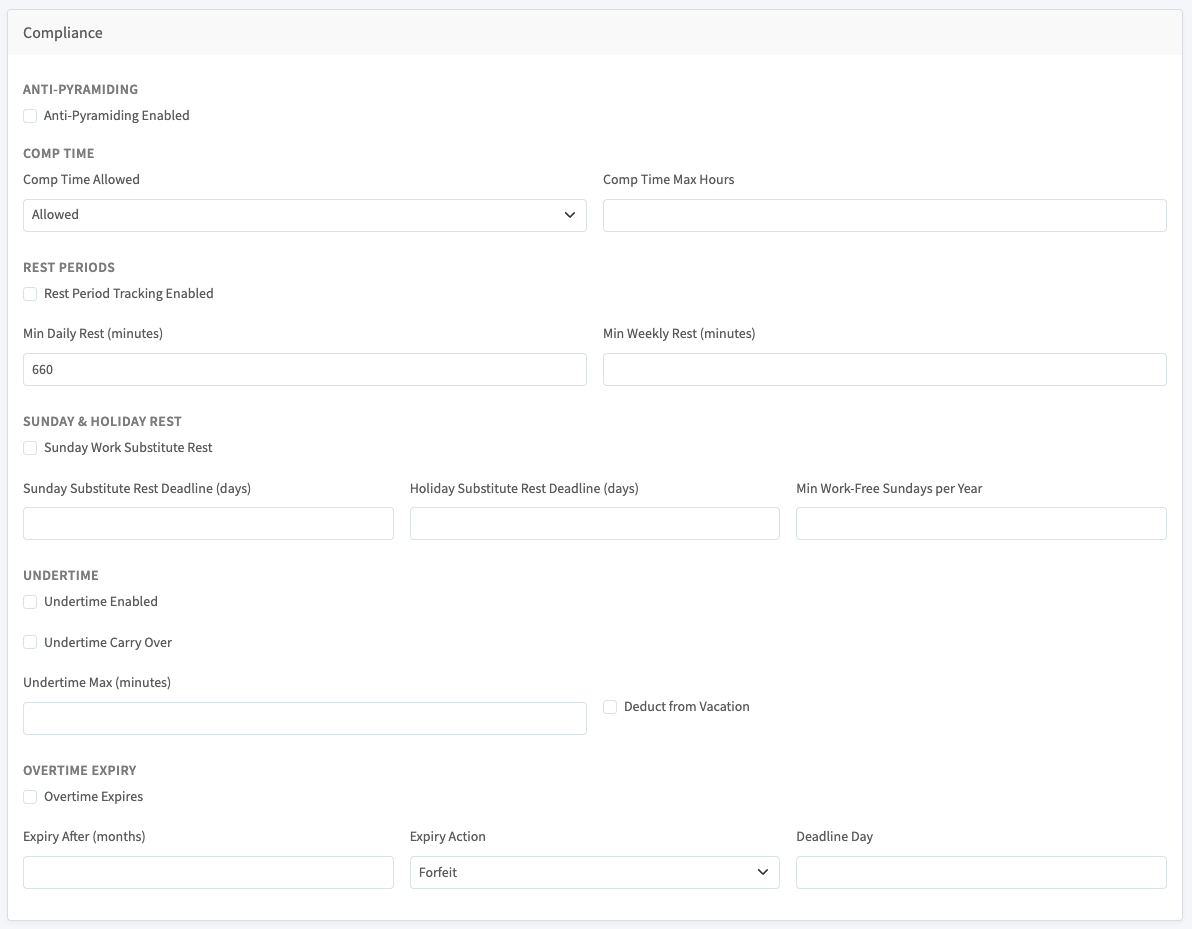
Der letzte Schritt bündelt die Schutzmechanismen, die das Modell im Rahmen des Arbeitsrechts halten: Anti-Pyramiding, Zeitausgleich, Ruhezeiten, Sonntags- und Feiertagsruhe, Minusstunden und Überstundenverfall.
Anti-Pyramiding
| Feld | Funktion |
|---|---|
| Anti-Pyramiding aktiviert | Wenn aktiviert, verwendet das System die Überstundenberechnung nach kalifornischem Vorbild: die vollen täglichen Überstunden pro Tag, plus nur die zusätzlichen wöchentlichen Überstunden, die über das hinausgehen, was die Tagesregel bereits gezählt hat. Das System zahlt außerdem pro Stunde nur den einzigen höchsten anwendbaren Zuschlag, statt sie zu stapeln. Ländervorlagen wie US-CA aktivieren dies automatisch. |
Zeitausgleich
| Feld | Funktion |
|---|---|
| Zeitausgleich zulässig | Zulässig, Nur öffentlicher Dienst oder Nicht zulässig. Wenn auf Nicht zulässig gesetzt, können Mitglieder keinen Freizeitausgleich für Überstunden erhalten und müssen in Geld ausgezahlt werden. |
| Max. Stunden Zeitausgleich | Eine Obergrenze dafür, wie viel angesammelten Zeitausgleich ein Mitglied halten kann. Freizeitanträge, die diese Obergrenze überschreiten würden, werden abgelehnt. Leer lassen zum Deaktivieren. |
Ruhezeiten
Diese Einstellungen steuern die tägliche Compliance-Prüfung, die unzureichende Ruhezeit zwischen Schichten erkennt. Verstöße erscheinen im Protokoll der Ruhezeitverstöße und lösen eine Benachrichtigung aus.
| Feld | Funktion |
|---|---|
| Ruhezeiterfassung aktiviert | Schaltet die tägliche Ruhezeitprüfung ein. Die wöchentliche Prüfung läuft unabhängig, sobald Min. wöchentliche Ruhezeit einen Wert hat. |
| Min. tägliche Ruhezeit (Minuten) | Der Mindestabstand zwischen dem Ende eines Arbeitstags und dem Beginn des nächsten. Standard 660 (11 Stunden, der EU-Richtwert). |
| Min. wöchentliche Ruhezeit (Minuten) | Die erforderliche ununterbrochene wöchentliche Mindestruhezeit. Wird einmal pro Woche (am Sonntag) geprüft, indem nach dem längsten Abstand zwischen Arbeitsintervallen gesucht wird. |
Sonntags- und Feiertagsruhe
Wenn Mitglieder an einem Sonntag oder Feiertag arbeiten, kann das System verlangen, dass innerhalb einer Frist ein Ersatzruhetag gewährt wird.
| Feld | Funktion |
|---|---|
| Ersatzruhe bei Sonntagsarbeit | Hauptschalter. Wenn aktiviert und ein Mitglied am Vortag an einem Sonntag oder Feiertag gearbeitet hat, wird automatisch ein ausstehender Ersatzruhetag erstellt. |
| Frist für Ersatzruhe bei Sonntagsarbeit (Tage) | Tage nach der Sonntagsarbeit, innerhalb derer ein Ersatzruhetag gewährt werden muss. Wenn leer, gelten standardmäßig 14 Tage (der Standardwert des deutschen ArbZG). |
| Frist für Ersatzruhe bei Feiertagsarbeit (Tage) | Dasselbe Prinzip für Feiertage. Wenn ein Tag sowohl Sonntag als auch Feiertag ist, gilt diese Frist. Standardmäßig 56 Tage, wenn leer. |
| Min. arbeitsfreie Sonntage pro Jahr | Wird als Konfiguration für die Berichterstattung gespeichert. Die jährliche Kontingentprüfung wird noch nicht durchgesetzt. |
Minusstunden
Minusstunden sind das Gegenteil von Überstunden: weniger arbeiten, als der Vertrag verlangt.
| Feld | Funktion |
|---|---|
| Minusstunden aktiviert | Wenn aktiviert, erfasst das System Minusstunden pro Zeitraum (Soll minus Ist, wenn das Ist geringer ist). Wenn ausgeschaltet, werden Minusstunden ignoriert. |
| Minusstunden-Übertrag | Wenn aktiviert, wird die Minusstundenschuld von einem Zeitraum in den nächsten übertragen. Überstunden in einem späteren Zeitraum gleichen frühere Minusstunden nicht aus. Beide werden getrennt erfasst. |
| Max. Minusstunden (Minuten) | Begrenzt die Menge an Minusstundenschuld, die pro Zeitraum erfasst werden kann (einschließlich Übertrag). Leer lassen zum Deaktivieren. |
| Vom Urlaub abziehen | Wird als Konfiguration gespeichert. Der Ablauf zum Urlaubsabzug wird noch nicht durchgesetzt. |
Überstundenverfall
| Feld | Funktion |
|---|---|
| Überstunden verfallen | Hauptschalter. Wenn ausgeschaltet, bleiben Salden offen, bis sie ausgeglichen oder ausgezahlt werden. |
| Verfall nach (Monaten) | Anzahl der Monate nach Ablauf eines Zeitraums, bevor der Saldo verfällt. Belassen Sie den Wert bei 0, um den Verfall zu deaktivieren, selbst wenn Überstunden verfallen aktiviert ist. |
| Verfallsaktion | Was am Verfallsdatum geschieht: Verwirken (der Saldo wird nach Verfallen verschoben und geht verloren), Auszahlung (der Saldo wird automatisch ausgezahlt) oder Übertrag (der Saldo wird in Zeitausgleich umgewandelt). |
| Stichtag | Tag des Monats (1 bis 31), an dem der Verfallslauf wirksam wird. Belassen Sie den Wert bei 0, um denselben Tag des Monats wie das Zeitraumende zu verwenden. |
Die Verfallsaktion Verwirken setzt erworbene Überstunden auf null. In Deutschland, Österreich und der Schweiz ist dies in der Regel nur mit einer ausdrücklichen Tarifvertragsklausel durchsetzbar. Stimmen Sie sich vor der Verwendung mit einem örtlichen Rechtsbeistand ab.
Arbeitszeitregeln
Eine Arbeitszeitregel definiert den gesetzlichen Rahmen dafür, wie lange Mitglieder arbeiten dürfen und wie viel Ruhezeit sie zwischen Schichten benötigen. Jedes Modell kann mehrere Regeln enthalten. Es wird zu jedem Zeitpunkt nur die aktive Regel mit der höchsten Priorität verwendet, wodurch Sie eine länderspezifische Ausnahme über eine allgemeine Regel legen können.
Arbeitszeitregeln speisen drei Engines:
- HR-Warnungen benachrichtigen das Mitglied, wenn es sich dem gesetzlichen Tages- oder Wochenmaximum nähert oder es überschritten hat.
- Überstundenberechnung begrenzt den Arbeitstag auf das gesetzliche Maximum und verfolgt die Wochengrenzen im gleitenden Durchschnitt.
- Compliance erkennt Ruhezeitverstöße (zu wenig tägliche Ruhezeit, zu wenig wöchentliche Ruhezeit, Nachtarbeitsgrenzen) und schreibt sie in das Verstoßprotokoll.
Verwalten Sie diese unter Organisationen > Ihre Organisation > Beschäftigungsmodelle > ein Modell auswählen > Arbeitszeitregeln > Regel hinzufügen.
Allgemein
| Feld | Funktion |
|---|---|
| Name | Eine kurze Bezeichnung, die in der Regelliste angezeigt wird (zum Beispiel „DE Standard ArbZG“). |
| Priorität | Sortierreihenfolge. Die aktive Regel mit der niedrigsten Priorität gewinnt, verwenden Sie dies also, um spezifische Regeln über eine allgemeine Ausweichregel zu legen. |
| Aktiv | Inaktive Regeln werden von allen Engines ignoriert. Verwenden Sie dies, um eine Regel außer Betrieb zu nehmen, ohne sie zu löschen. |
Tägliche und wöchentliche Grenzen
| Feld | Funktion |
|---|---|
| Max. Tagesstunden | Die standardmäßige Tagesobergrenze. HR-Warnungen werden bei 90 % und erneut bei Überschreitung ausgelöst. |
| Max. Tagesstunden erweitert | Eine höhere Obergrenze, die in Ausnahmefällen gilt. Wenn gesetzt, hat dieser Wert Vorrang vor Max. Tagesstunden. |
| Max. Wochenstunden | Die Obergrenze für eine einzelne Kalenderwoche. HR-Warnungen werden bei 90 % und erneut bei Überschreitung ausgelöst. |
| Max. Wochenstunden Durchschnitt | Die Obergrenze für den gleitenden Durchschnitt über Wochen des Durchschnittszeitraums. EU-Regeln erlauben zum Beispiel bis zu 60 Stunden in einer einzelnen Woche, solange der gleitende 17-Wochen-Durchschnitt unter 48 Stunden bleibt. |
| Wochen des Durchschnittszeitraums | Länge des gleitenden Fensters. Auf 0 setzen, um die Durchschnittsprüfung zu deaktivieren. |
Ruhezeiten
| Feld | Funktion |
|---|---|
| Min. tägliche Ruhezeit (Stunden) | Der Mindestabstand zwischen dem Ende eines Arbeitstags und dem Beginn des nächsten. Standard 11 Stunden. |
| Min. wöchentliche Ruhezeit (Stunden) | Die ununterbrochene wöchentliche Mindestruhezeit. Standard 24 Stunden. |
Nachtarbeit
| Feld | Funktion |
|---|---|
| Nachtarbeit Beginn / Ende | Das Nachtarbeitsfenster (zum Beispiel 23:00 bis 06:00). Wird verwendet, um Nachtminuten zu zählen und die tägliche Obergrenze für Nachtarbeiter anzuwenden. |
| Max. Tagesstunden für Nachtarbeiter | Eine strengere Tagesobergrenze, die nur gilt, wenn der Tag Nachtarbeitsminuten enthält. |
Schutzstatus
Diese Felder werden zur Berichterstattung und für die künftige Verwendung an der Regel gespeichert, werden derzeit aber nicht durchgesetzt, da das System die zur Auswertung erforderlichen personenbezogenen Daten noch nicht erfasst (etwa Geburtsdatum oder Schwangerschaftsstatus, die beide einen sorgfältigen Umgang gemäß DSGVO erfordern).
| Feld | Funktion |
|---|---|
| Max. Tagesstunden für Jugendliche | Strengere Tagesobergrenze für Mitglieder unter dem gesetzlichen Erwachsenenalter. |
| Max. Tagesstunden für Schwangere | Strengere Tagesobergrenze für schwangere Mitglieder. |
| Nachtarbeit für Schwangere verboten | Wenn aktiviert, dürfen schwangere Mitglieder nicht während des Nachtarbeitsfensters arbeiten. |
Wie ein Arbeitstag ausgewertet wird
Für jeden Arbeitstag im berechneten Zeitraum:
- Die aktive Regel auswählen. Es wird die aktive Regel mit der niedrigsten Priorität am Modell verwendet.
- Tagesobergrenze. Die Bruttominuten des Tages werden gegen Max. Tagesstunden erweitert geprüft (oder Max. Tagesstunden, wenn kein erweiterter Wert gesetzt ist). HR-Warnungen werden bei 90 % ausgelöst, und der Tag wird bei 100 % als überschritten markiert.
- Nachtobergrenze. Wenn der Tag Minuten innerhalb des Fensters Nachtarbeit enthält und Max. Tagesstunden für Nachtarbeiter gesetzt ist, gilt die strengere Obergrenze.
- Ruheabstand. Compliance vergleicht das Ende eines Tages mit dem Beginn des nächsten. Ein Abstand unter Min. tägliche Ruhezeit (Stunden) protokolliert einen Verstoß.
- Wochensummen. Am Ende jeder Woche werden die Gesamtminuten gegen Max. Wochenstunden und der gleitende Durchschnitt gegen Max. Wochenstunden Durchschnitt geprüft.
- Wöchentliche Ruhezeit. Compliance prüft, ob die Woche mindestens einen ununterbrochenen Zeitraum von Min. wöchentliche Ruhezeit (Stunden) enthält.
Pausenregeln
Eine Pausenregel definiert die Mindestpause, die für eine bestimmte Arbeitszeit erforderlich ist. Mehrere Regeln bilden eine Stufenstaffel. Sobald ein Mitarbeiter eine Schwelle an Arbeitsstunden überschreitet, tritt die passende Stufe in Kraft.
Pausenregeln speisen zwei Engines:
- Compliance erkennt Pausenverstöße: Wenn die tatsächliche Pause kürzer als erforderlich ist, erscheint der Tag im Bericht über Ruhezeitverstöße.
- Überstundenberechnung zieht die fehlenden Pausenminuten von der Arbeitszeit ab, damit die Lohnabrechnung keine durchgehende Arbeit vergütet, die gegen die Regel verstieß.
Verwalten Sie diese unter Organisationen > Ihre Organisation > Beschäftigungsmodelle > ein Modell auswählen > Pausenregeln > Pausenregel hinzufügen.
Wie Regeln zugeordnet werden
Für jeden Arbeitsblock wählen die Engines die höchste passende Stufe anhand der Bruttoarbeitsminuten. Bezahlte und unbezahlte Pausen werden getrennt zugeordnet. Wenn keine Regel passt, greift das System auf die vertragseigene Pausenschwelle und die erforderlichen Pausenminuten zurück.
Felder
| Feld | Funktion |
|---|---|
| Nach Arbeitsminuten | Die Schwelle, ab der diese Stufe zu gelten beginnt. Eine Regel mit 360 deckt Schichten von 6 Stunden oder mehr ab. |
| Pausendauer (Minuten) | Die erforderliche gesamte Mindestpause, sobald diese Stufe aktiv ist. Fehlende Minuten werden als Verstoß protokolliert und in der Lohnabrechnung abgezogen. |
| Min. Pausenteil (Minuten) | Filtert Mikropausen heraus. Pausen, die kürzer als dieser Wert sind, zählen nicht zum gesetzlichen Minimum, obwohl ihre Zeit weiterhin von der Arbeitszeit ausgenommen wird. Standard 0 zählt jede Pause. |
| Max. Pausenaufteilung | Die maximale Anzahl separater Pausen, die zum gesetzlichen Minimum zählen. Wenn gesetzt, werden nur die längsten Pausen behalten. Standard 0 bedeutet unbegrenzte Aufteilungen. |
| Stufenreihenfolge | Sortierreihenfolge, wird als Entscheidungskriterium verwendet, wenn mehrere Stufen dieselbe Schwelle haben. |
| Bezahlt | Wenn aktiviert, ist die Pause bezahlt (kein Abzug von der Arbeitszeit, aber die Dauer wird weiterhin ausgewiesen). Wenn ausgeschaltet, ist es eine unbezahlte gesetzliche Pause und wird abgezogen. |
| Aktiv | Inaktive Regeln werden von allen Engines ignoriert. |
Wie die Pause eines Tages berechnet wird
Für jeden Arbeitsblock (eine zusammenhängende Spanne Arbeitszeit an einem Tag):
- Die Stufe auswählen. Die Bruttoarbeitsminuten mit jeder aktiven Regel abgleichen und die höchste passende Schwelle verwenden. Auf die Pauseneinstellungen des Vertrags zurückgreifen, wenn keine Regel passt.
- Tatsächliche Pausen erfassen. Explizite Pausen innerhalb von Aufgaben plus Lücken zwischen Aufgaben. Pausen, die kürzer als Min. Pausenteil (Minuten) sind, werden verworfen.
- Die Aufteilungsgrenze anwenden. Wenn Max. Pausenaufteilung gesetzt ist, nur die längsten qualifizierenden Pausen behalten. Weitere zählen weiterhin als Freizeit, erfüllen aber nicht das gesetzliche Minimum.
- Vergleichen. Wenn die tatsächliche Pause unter Pausendauer (Minuten) liegt, werden die fehlenden Minuten zu einem Lohnabzug und einem Compliance-Verstoß.
- Bezahlt versus unbezahlt. Pausen einer bezahlten Stufe werden als bezahlte Pausenzeit ausgewiesen. Pausen einer unbezahlten Stufe zählen zum gesetzlichen Abzug.
Ein Modell mit zwei unbezahlten Stufen, (threshold 360, duration 30) und (threshold 540, duration 45), funktioniert so: Ein 5-Stunden-Tag erfordert keine gesetzliche Pause (unter beiden Schwellen); ein 7-Stunden-Tag erfordert 30 Minuten (über 360, unter 540); ein 10-Stunden-Tag erfordert 45 Minuten (die höhere Stufe gewinnt).
Abwesenheitsregeln
Eine Abwesenheitsregel definiert die Richtlinie für eine Abwesenheitsart: Urlaub, Krankheit, Elternzeit oder Trauerfall. Jeder dem Modell zugewiesene Vertrag erbt die Regeln.
Die Urlaubsregel steuert den jährlichen Urlaubssaldo des Mitglieds: wie viele Tage zustehen, wie ungenutzte Tage übertragen werden und wann der Übertrag verfällt. Die Krankheitsregel steuert die Validierung, wenn Krankheitsabwesenheiten eingereicht werden. Regeln zu Elternzeit, Mutterschutz und Vaterschaftsurlaub werden derzeit gespeichert und erscheinen in Berichten. In der Tabelle unten sehen Sie, welche Verhaltensweisen tatsächlich durchgesetzt werden.
Verwalten Sie diese unter Organisationen > Ihre Organisation > Beschäftigungsmodelle > ein Modell auswählen > Abwesenheitsregeln > Abwesenheitsregel hinzufügen.
Allgemein
| Feld | Funktion |
|---|---|
| Abwesenheitsart | Eine von Urlaub, Krankheit, Elternzeit oder Trauerfall. Die Regel wird Abwesenheitsarten über einen Code zugeordnet, sodass eine Abwesenheitsart mit dem Code sick die Krankheitsregel übernimmt. |
| Name | Eine kurze Bezeichnung, die in der Abwesenheitsregel-Liste angezeigt wird. |
| I18n-Schlüssel | Optionaler Übersetzungsschlüssel, der von Clients verwendet wird, die den Namen der Regel in der Sprache des Benutzers anzeigen. |
| Aktiv | Inaktive Regeln werden ignoriert. Verwenden Sie dies, um eine Regel außer Betrieb zu nehmen, ohne sie zu löschen. |
Anspruch
| Feld | Funktion |
|---|---|
| Min. Tage (jährlich) | Der jährliche Grundanspruch in Arbeitstagen. Wird von der Urlaubsregel verwendet, mit Rückgriff auf Urlaubstage jährlich des Vertrags, wenn keine Regel gilt. |
| Staffelung nach Betriebszugehörigkeit aktiviert | Wenn aktiviert, ergibt sich der Anspruch aus der passenden Stufe der Betriebszugehörigkeit (separat konfiguriert) anstelle von Min. Tage (jährlich). Die Stufe wird anhand der Dienstmonate des Mitglieds ausgewählt. |
| Grundlage Arbeitstage pro Woche | Die Anzahl der Arbeitstage, von der der Wert Min. Tage (jährlich) ausgeht, typischerweise 5. Wenn der Vertrag ein anderes Arbeitsmuster verwendet, wird der Anspruch automatisch anteilig berechnet. |
| Gewährungsmethode | Wie der Anspruch gewährt wird: Sofort (voller Betrag am 1. Januar), Monatlich (anteilig, wenn der Vertrag unterjährig beginnt) oder Nach Probezeit (kein Anspruch bis zum Ende der Probezeit, dann anteilig). In den Folgejahren wird stets der volle Betrag gewährt. |
| Probemonate | Wird nur mit Nach Probezeit verwendet. Das Mitglied erwirbt keinen Urlaub bis Gültig ab plus dieser Anzahl an Monaten. |
Übertrag
Die Übertragseinstellungen der Urlaubsregel steuern, wie ungenutzte Tage in das nächste Jahr übertragen werden. Der Übertrag wird am 1. Januar (Jahreswechsel-Übertrag) und täglich um 05:00 UTC (Verfallslauf) verarbeitet.
| Feld | Funktion |
|---|---|
| Übertrag zulässig | Wenn ausgeschaltet, verfallen alle ungenutzten Tage am 31. Dezember. |
| Max. Übertragstage | Begrenzt die Anzahl der Tage, die in das nächste Jahr übertragen werden können. Alles über der Grenze wird verworfen. |
| Übertrag Verfallsmonate | Übertragene Tage verfallen so viele Monate nach dem 1. Januar. Wird ignoriert, wenn ein explizites Verfallsdatum gesetzt ist. |
| Übertrag Verfallsdatum | Ein explizites Datum im Format MM-DD, an dem übertragene Tage verfallen (zum Beispiel 03-31). Hat Vorrang vor Verfallsmonate. Standardmäßig der 31. März, wenn keines von beiden gesetzt ist. |
| Übertrag bei Krankheit verlängert | Wenn aktiviert, prüft der tägliche Verfallslauf auf genehmigte Krankheitsabwesenheiten, die sich mit dem ursprünglichen Verfallsfenster überschnitten haben. Werden welche gefunden, wird der Verfall aufgeschoben, statt die Tage verfallen zu lassen. |
| Übertrag Krankheit Verfallsmonate | Monate, die zum spätesten Enddatum der Krankheitsabwesenheit hinzugefügt werden, wenn eine Krankheit den Verfall aufschiebt. |
Krankheit
Wenn die Abwesenheitsart der Regel Krankheit ist, laufen die folgenden Validierungen bei jedem Erstellen oder Aktualisieren einer Krankheitsabwesenheit.
| Feld | Funktion |
|---|---|
| Nachweis erforderlich nach Tagen | Ein Attest wird erwartet, wenn die Gesamttage der Abwesenheit diese Schwelle überschreiten. Das System warnt, wenn die Abwesenheit ohne angehängtes Dokument eingereicht wird. |
| Karenztage | Die ersten N Tage einer Krankheitsphase sind unbezahlt. Wird derzeit nur informativ erfasst. Die Lohnabrechnungsintegration ist noch nicht angebunden. |
| Gleiche Krankheit Rücksetzung (Monate) | Eine neue Krankheitsabwesenheit innerhalb dieser Anzahl von Monaten nach einer früheren genehmigten Krankheitsabwesenheit desselben Typs wird als Fortsetzung statt als neue Phase markiert. |
| Vom Arbeitgeber bezahlt (Tage) | Nur Konfiguration. Anzahl der Tage, die zu Beginn einer Krankheitsphase vollständig vom Arbeitgeber bezahlt werden. |
| Vom Arbeitgeber bezahlt (Prozent) | Nur Konfiguration. Prozentsatz der Bezahlung während des Zeitraums voller Bezahlung. Standardmäßig 100. |
| Halbe Bezahlung (Tage) | Nur Konfiguration. Tage mit reduzierter Bezahlung nach dem Zeitraum voller Bezahlung. |
| Halbe Bezahlung (Prozent) | Nur Konfiguration. Prozentsatz der Bezahlung während des Zeitraums halber Bezahlung. |
Elternzeit, Mutterschutz und Vaterschaftsurlaub
Diese Felder werden an der Regel gespeichert, aber noch nicht von der Abwesenheitsvalidierung oder der Saldoberechnung ausgewertet. Sie werden durchgesetzt, sobald die Elternzeit-Engine verfügbar ist.
| Feld | Funktion |
|---|---|
| Elternzeit (Monate) | Gesamtmonate Elternzeit, auf die das Mitglied Anspruch hat. |
| Elternzeit bezahlt Prozent | Prozentsatz der Bezahlung während der Elternzeit. |
| Mutterschutz Wochen davor | Wochen der Freistellung vor dem erwarteten Geburtstermin. |
| Mutterschutz Wochen danach | Wochen der Freistellung nach der Geburt. |
| Vaterschaftstage | Tage bezahlten Vaterschaftsurlaubs. |
Wie ein Urlaubsjahr aufgebaut wird
Wenn das System den Urlaubssaldo für ein neues Jahr erstellt (am 1. Januar oder bei der Initialisierung eines Vertrags), arbeitet es die Regel von oben nach unten durch:
- Grundanspruch. Die Tage der Stufe der Betriebszugehörigkeit wählen, wenn die Staffelung aktiviert ist; andernfalls Min. Tage (jährlich). Auf Urlaubstage jährlich des Vertrags zurückgreifen, wenn keine Regel gilt.
- Anspruchserwerb. Die anteilige Berechnung nach Monatlich oder Nach Probezeit im Jahr des Vertragsbeginns (oder im Jahr des Probezeitendes) anwenden. In den Folgejahren wird der volle Grundanspruch gewährt.
- Arbeitstagsgrundlage. Anteilig gegen das tatsächliche Arbeitstagsmuster des Vertrags berechnen, wenn es von Grundlage Arbeitstage pro Woche abweicht.
- Übertrag. Ungenutzte Tage aus dem Vorjahr hinzufügen, begrenzt durch Max. Tage, falls gesetzt, mit Verfall gemäß Verfallsdatum (oder Verfallsmonate oder standardmäßig dem 31. März).
- Täglicher Verfallslauf. Sobald das Verfallsdatum in der Zeitzone des Vertrags verstrichen ist, werden alle noch übertragenen Tage nach Verfallen verschoben, sofern Bei Krankheit verlängert sie nicht aufschiebt.