Abwesenheitsverwaltung
Mit der Abwesenheitsverwaltung können Sie Abwesenheiten beantragen, Urlaubskonten verfolgen und Genehmigungen innerhalb Ihrer Organisation abwickeln.
Die Abwesenheitsverwaltung erfordert ein Business-Abonnement und einen aktiven Vertrag.
Eine Abwesenheit beantragen
Die Seite Meine Abwesenheiten zeigt Ihr Urlaubskonto als Übersichtskarten (verfügbare, genommene, ausstehende und verbleibende Tage) über einer Tabelle mit Ihren Anträgen und deren Status. Sie können die Tabelle nach Jahr, Art und Status filtern und als PDF exportieren.
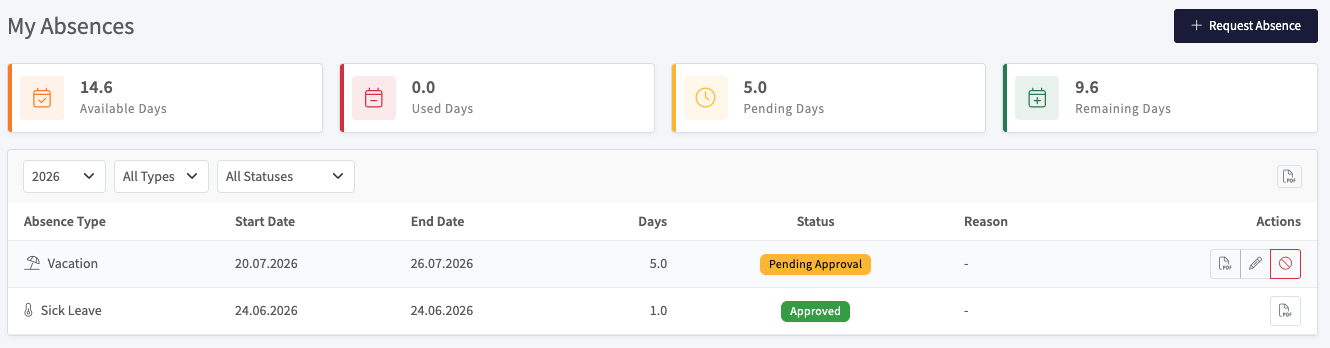
- Gehen Sie zu Meine Abwesenheiten
- Klicken Sie auf Abwesenheit beantragen
- Wählen Sie die Abwesenheitsart (z. B. Urlaub, Krankheit)
- Legen Sie das Start- und Enddatum fest
- Wählen Sie ganzer Tag oder halber Tag
- Fügen Sie einen Grund oder Notizen hinzu (optional)
- Fügen Sie bei Bedarf einen Nachweis an
- Klicken Sie auf Absenden
Ihre Abwesenheit wird zur Genehmigung an Ihren Manager gesendet. Den Status können Sie jederzeit unter Meine Abwesenheiten einsehen.
Abwesenheitsstatus
Jede Abwesenheit durchläuft diese Phasen:
| Status | Bedeutung |
|---|---|
| Entwurf | Gespeichert, aber noch nicht abgesendet |
| Ausstehend | Abgesendet und wartet auf Genehmigung |
| Genehmigt | Von einem Manager genehmigt |
| Abgelehnt | Von einem Manager abgelehnt |
| Storniert | Von Ihnen oder einem Manager zurückgezogen |
Abwesenheitsarten
Ihre Organisation legt fest, welche Abwesenheitsarten verfügbar sind. Häufige Arten sind:
- Urlaub
- Krankheit
- Persönliche Freistellung
- Elternzeit
- Schulung
Organisationsmanager können Abwesenheitsarten unter Organisationen > Ihre Organisation > Abwesenheitsarten erstellen und anpassen.
Abwesenheiten als Manager verwalten
Manager können alle Abwesenheiten ihrer Organisation unter Organisationen > Ihre Organisation > Abwesenheiten einsehen und verwalten.
Von dort aus können Sie:
- Ausstehende Anträge genehmigen oder ablehnen
- Den Abwesenheitsverlauf aller Mitglieder einsehen
- Abwesenheiten im Namen von Mitgliedern erstellen
- Abwesenheitsdatensätze als PDF exportieren
Urlaubskonten
Ihr Urlaubskonto zeigt, wie viele Tage Ihnen zur Verfügung stehen. Es wird aus Ihrem Vertrag berechnet und automatisch aktualisiert, sobald Abwesenheiten genehmigt werden.
| Feld | Beschreibung |
|---|---|
| Anspruch | Durch Ihren Vertrag gewährte Tage |
| Übertragen | Ungenutzte Tage aus dem Vorjahr |
| Zusätzlich | Manuell gewährte zusätzliche Tage |
| Genommen | Genommene Tage (genehmigte Abwesenheiten) |
| Ausstehend | Tage in ausstehenden Anträgen |
| Verbleibend | Noch verfügbare Tage |
Übertragene Tage können ein Ablaufdatum haben. Erkundigen Sie sich bei Ihrer Organisation nach der Übertragungsregelung.